
When setting up your Clients in techShip, you will have to configure Client (Billing) Accounts to ship through them. These use a Baseline Account as a foundation, but their way to work could be different based on the Client's needs.
When setting Billing Accounts, you will be able to specify how it should work for that specific client, setting label references, packing slips usage, rate shopping, markups, WMS information updating and Carrier options such as the default service level, address validation, sender and return addresses, etc.
This article describes the procedure to set up a Purolator client (billing) account, while others are specifically written for other Carriers.
ADD THE ACCOUNT TO THE CLIENT PROFILE
1. Access Clients under the Maintenance menu

2. Click on the Client for which you wish to set up the billing account
3. Press Add Billing Account
4. Select the source account which will be used and Save
5. Edit the Billing account
SET UP THE GENERAL OPTIONS
The General Options tab is the same for every carrier. If you are already acquainted with it from previous setups, please configure it accordingly.
If this is your first time setup or you aren't acquainted to it, refer to the following article and once finished, return to this one to set up the carrier specific options:
How to configure the Billing Account General Options tab [Step-by-Step guide]
SET UP THE CARRIER OPTIONS
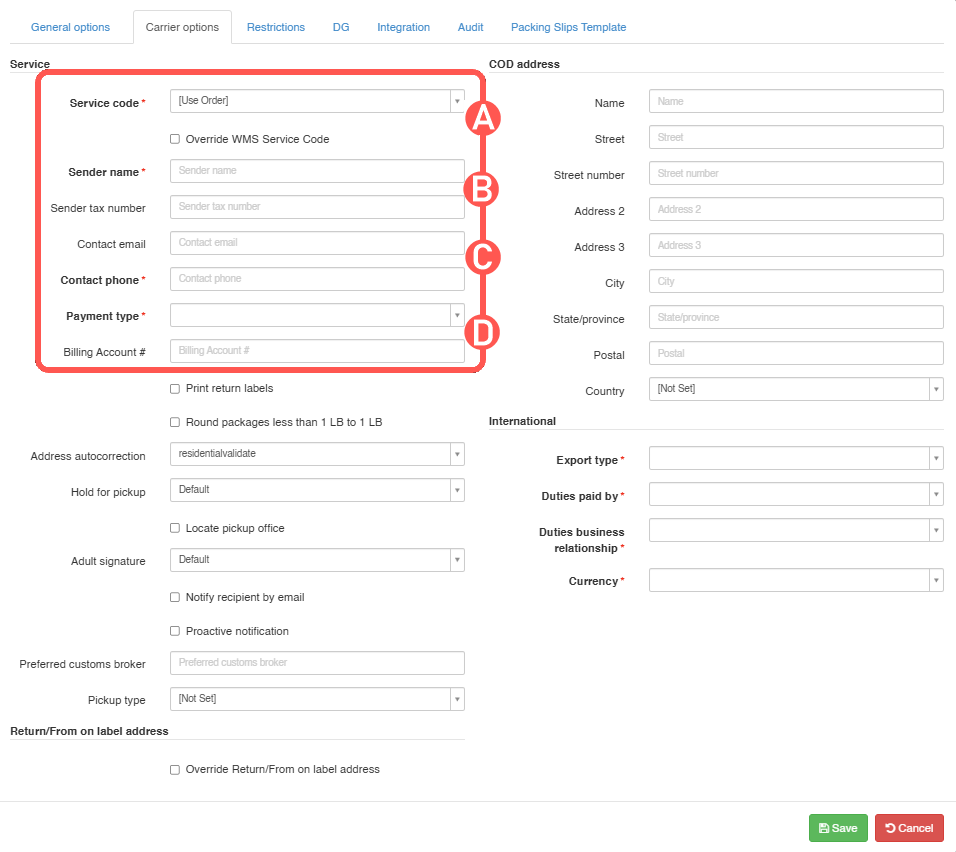
The Carrier Options tab allows you to configure the Purolator-specific behavior for this client billing account.
These are the key elements:
 NOTE: For a field-by-field description of every available option in this section, check Purolator Billing Account field details [Information].
A) Service Code: Choose the service code to assign to imported orders which do not include one, or keep the service code coming from the order. If needed, check Override WMS Service Code to force the selected service code instead of the one sent by the WMS.
B) Sender and Billing Information: Complete the required sender and billing fields for this account, including Sender name, Contact phone, Payment type, and the account number when applicable. You can also define the Sender tax number and Contact email when needed.
C) Shipment and Delivery Options: Use options such as Print return labels, Round packages less than 1 LB to 1 LB, Address autocorrection, Hold for pickup, Locate pickup office, Adult signature, Notify recipient by email, Proactive notification, Preferred customs broker, and Pickup type to define how shipments should be processed and delivered.
NOTE: Purolator special handling can also be controlled at order level. When Apply special handling to all packages (auto) is enabled and no package-level special handling type is selected, Purolator determines the special handling type automatically. If a package-level special handling type is selected, the existing package-level handling logic is used. WARNING: Purolator return labels are only supported at shipment creation through Print return labels. Ad Hoc Return shipments are not supported for this carrier. Using a different return/from address on the label does not change this limitation.
D) COD Address: Complete the COD address fields only when the account requires them: Name, Street, Street number, Address 2, Address 3, City, State/Province, Postal, and Country.
E) International Options: For international shipments, complete Export type, Duties paid by, Duties business relationship, and Currency.
F) Return/From on Label Address: Use Override Return/From on label address only when you need the return/from address shown on labels to differ from the standard one.
Press Save to apply the changes. If the information is valid, you'll be able to process orders through it.
SPECIFYING RATE SHOPPING SERVICE CODES (OPTIONAL)
If you are Rate Shopping with this account, you might want to specify which services you want be taken into consideration or excluded. Read this article to set up your inclusion/exclusion list.
Was this article helpful?
That’s Great!
Thank you for your feedback
Sorry! We couldn't be helpful
Thank you for your feedback
Feedback sent
We appreciate your effort and will try to fix the article