
When setting up your Clients in techShip, you will have to configure Billing Accounts to ship through them. These use a Baseline Account as a foundation, but their way to work could be different based on the Client's needs.
When setting Billing Accounts, you will be able to specify how it should work for that specific client, setting label references, packing slips usage, rate shopping, markups, WMS information updating and Carrier options such as the default service level, address validation, sender and return addresses, etc.
To set up a FleetOptics billing account, define the following and then Save:
ADD THE ACCOUNT TO THE CLIENT PROFILE
1. Access Clients under the Maintenance menu

2. Click on the Client for which you wish to set up the billing account
3. Press Add Billing Account
4. Select the source account which will be used and Save

5. Edit the Billing account
SET UP THE GENERAL OPTIONS
The General Options tab is the same for every carrier. If you are already acquainted with it from previous setups, please configure it accordingly.
If this is your first time setup or you aren't acquainted to it, refer to the following article and once finished, return to this one to set up the carrier specific options:
How to configure the Billing Account General Options tab [Step-by-Step guide]
SET UP THE CARRIER OPTIONS
The Carrier Options tab allows to set up basic and advanced features of your FleetOptics billing account.
These are the key elements:
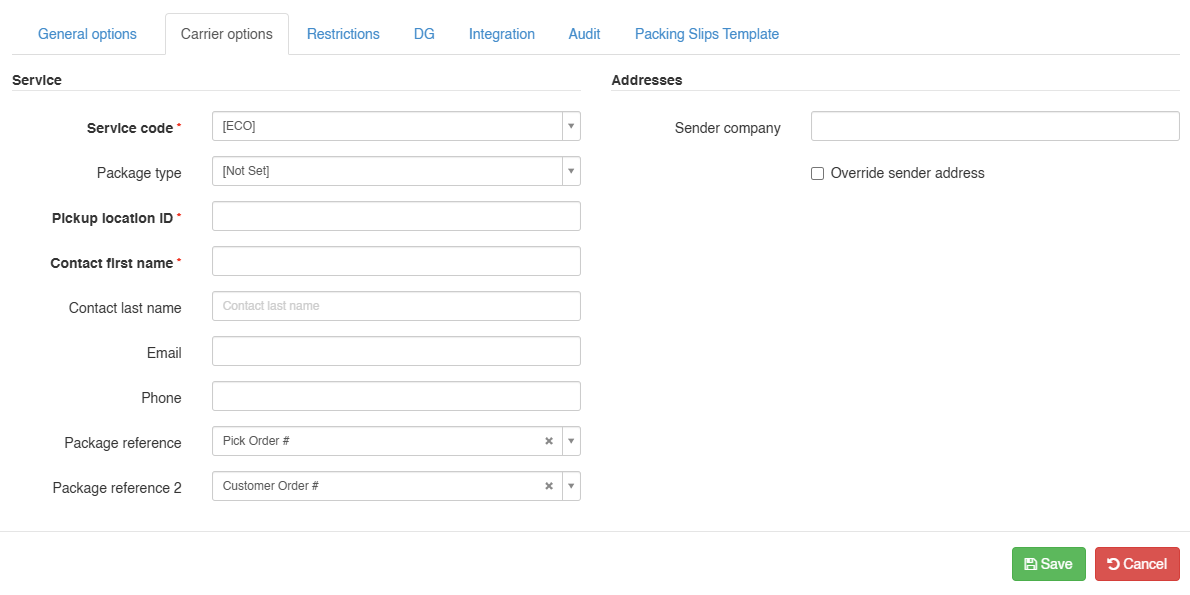
A) Default Service Code: Choose a service code to assign to imported orders which don’t have a service code or keep it if they have. If you wish to overwrite any code coming from the WMS with the chosen service, check “Override WMS Service Code”.
B) Package Type: Specify the value from the list, which will be the package type stated as used to the carrier.
C) Pickup Location ID: Enter the Pickup Location ID as indicated by FleetOptics.
D) Contact First Name: Specify the Shipper contact first name.
E) Package Reference: Select the order field to send as the package-level reference value in the FleetOptics label request. For example, select Pick Order # when the client needs to send the transaction or pick order identifier.
F) Package Reference 2: Select the order field to send as the package-level reference2 value in the FleetOptics label request. For example, select Customer Order # when the client needs to send the order number as an additional package reference.
Press Save to apply the changes. If the information is valid, you'll be able to process orders through it.
Was this article helpful?
That’s Great!
Thank you for your feedback
Sorry! We couldn't be helpful
Thank you for your feedback
Feedback sent
We appreciate your effort and will try to fix the article