When rate shopping across multiple carriers, unexpected booking errors can stall your fulfillment process. You can use the Carrier failover action to automatically retry a shipment with the next available carrier if your initial choice fails, ensuring your orders keep moving without manual intervention.
This guide covers the underlying routing logic of the carrier failover action, how the system handles partial booking failures, and how to track failover attempts.
 | To learn how to build and configure an OMR, refer to What's New in Order Management Rules (OMR) for Rule Sets in techSHIP [Guide]. | |
| | ||
TABLE OF CONTENTS
Understanding Failover Routing Logic
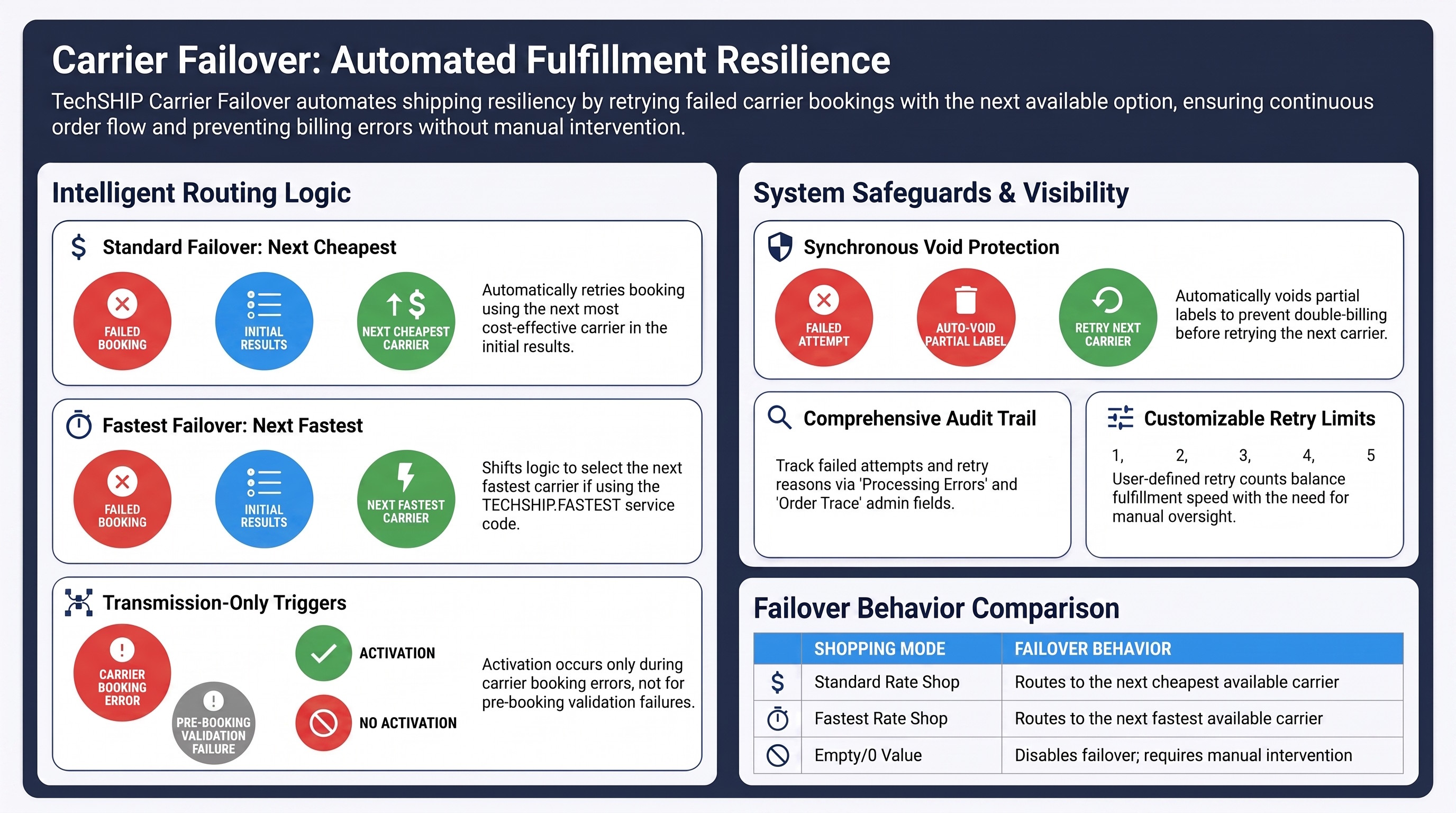
When you add the Carrier failover action to a Rule Set evaluating at the Order level, techSHIP actively monitors the carrier booking process.
If the originally selected carrier fails to process the shipment due to credential issues, outages, or label errors, the system automatically falls back to the next best option from your initial rate shopping results.
- Standard Rate Shopping: The system automatically retries booking the order using the next cheapest carrier available in the rate-shop results.
- Fastest Rate Shopping: If your order uses the TECHSHIP.FASTEST service code, the system alters its logic and retries the next fastest carrier instead.
 | Carrier failover only applies to errors that occur during the actual booking transmission with the carrier. If a carrier is skipped beforehand because the order does not meet its pre-booking validation rules (e.g., missing mandatory dimensions), this is not considered a failure and will not trigger a failover attempt. | |
| | ||
Handling Partial Booking Failures
In some scenarios, a carrier might partially process an order. For example, a carrier might successfully generate the outbound shipping label but fail to generate a requested return label.
When Carrier failover is active, techSHIP recognizes these partial failures. To prevent double-billing or orphaned shipments, the engine performs a synchronous void of the incomplete shipment directly with the carrier before moving on to retry the next carrier in the sequence.
If the void attempt fails, the system safely stops the failover process and places the order into a standard error state to prevent processing conflicts.
Tracking Failover History
If an order exhausts all of your allowed failover attempts and still fails to book, it will remain in an error state. Even when a failover is ultimately successful, it is important to know which carriers experienced issues. You can review the complete history of which carriers the system attempted directly on the order.
To view this history, select your Order Admin data:
- Processing Errors: This property contains the complete log of failed carrier attempts.
- Order Trace: Review this property for individual event rows where the Method is listed as FAILOVER. This indicates exactly when the engine triggered a retry and why the previous carrier failed.
| For more information on how to manage the Order’s Admin data, see: Managing Order Admin Data [Guide]. | |
| | ||
Configuring the Carrier Failover Action
When adding the Carrier failover action to your Rule Set, you must define the retry limit using the action's configuration window.
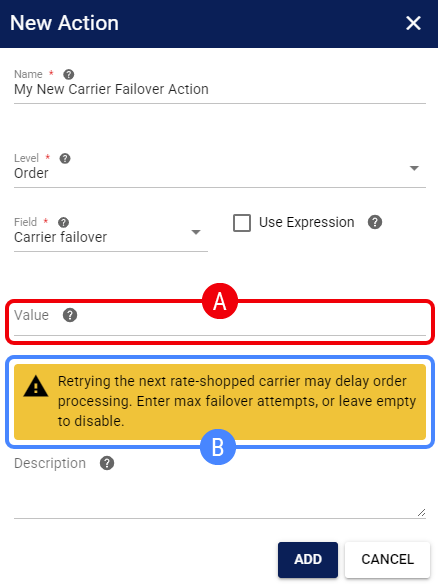
 | Value: Enter a positive whole number to represent the maximum number of failover attempts you want the system to perform. Leaving this field empty or entering a 0 disables the failover behavior, keeping your order processing at its standard speed but requiring manual intervention for failed bookings. |
 | Processing Delays: Because the system must contact multiple carriers sequentially and potentially perform synchronous voids, enabling failover can introduce a slight delay during automated order processing. You will see a warning message directly in the techSHIP interface when configuring the action to remind you of this potential delay. |
Was this article helpful?
That’s Great!
Thank you for your feedback
Sorry! We couldn't be helpful
Thank you for your feedback
Feedback sent
We appreciate your effort and will try to fix the article