You can use advanced text commands in the techSHIP Desktop Client to execute supported packing actions by scanning barcodes or entering the commands manually.
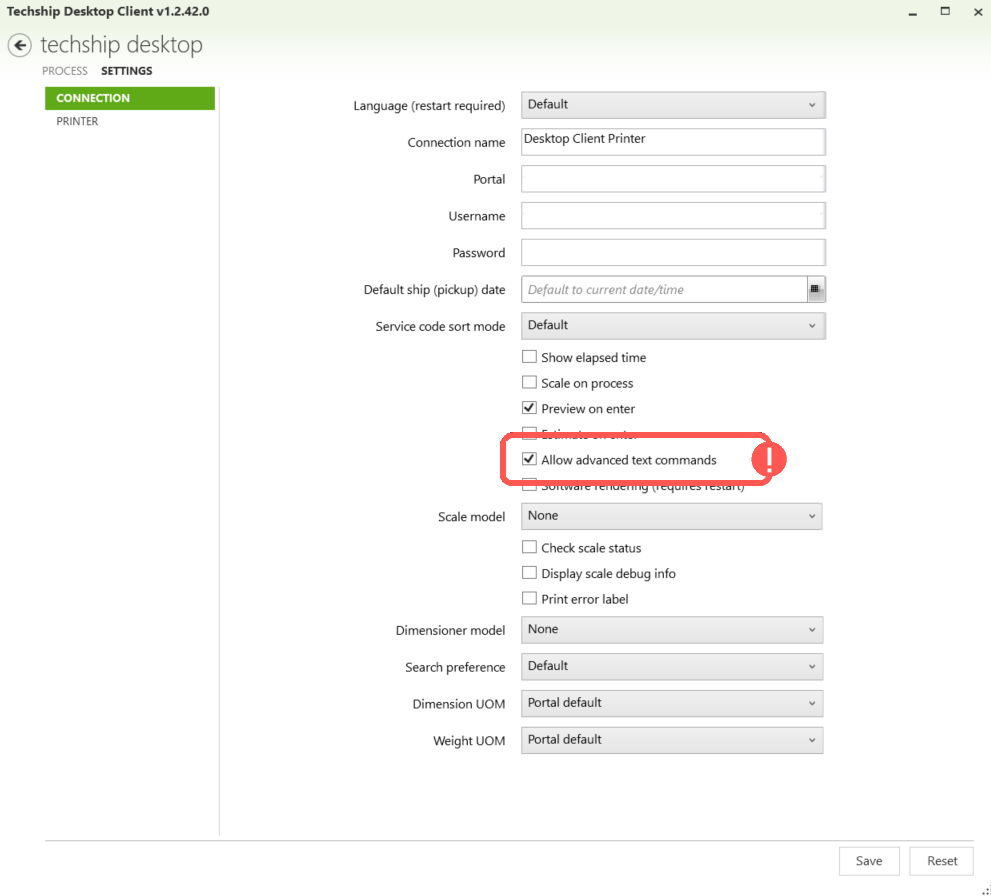
To process these commands, enable Allow advanced text commands in the techSHIP Desktop Client settings. Only the supported commands described in this article are available.
 | You can create barcodes containing these commands with the Online Barcode Generator. | |
| You can also download a printable set of Desktop action barcodes through techSHIP application. For download instructions, refer to How to Download Desktop Barcodes [Step-by-Step Guide]. | |
TABLE OF CONTENTS
Supported Advanced Commands
Use the following command syntax when you create or scan advanced-command barcodes. Replace values between brackets with the required box dimensions, weight, box name, or scale option.
CODE | ACTION | SYNTAX |
A | Adds a regular box | ^CMD:A:[Length]:[Width]:[Height]:[BoxWT]:[S to scale or empty]:[Box name] |
AU | Adds and/or updates a box* | ^CMD:AU:[Box Name] |
P | Adds a predefined box | ^CMD:P:[Box Name]:[BoxWT]:[S to scale or empty] |
PU | Adds and/or updates a predefined box* | ^CMD:PU:[Box Name] |
B | Bands a box | ^CMD:B:[Length]:[Width]:[Height]:[S to scale or empty] |
E | Sets box weight and dimensions | ^CMD:E:[Length]:[Width]:[Height]:[S to scale or empty] |
X | Cancels the current operation | ^CMD:X |
F | Finalizes the order | ^CMD:F |
C | Finalizes the box or removes it if it is empty | ^CMD:C |
W | Refreshes scale weight | ^CMD:W |
* For Add and/or Update Box and Add and/or Update Predefined Box, techSHIP checks whether the order has a single box and whether that box has no dimensions. If both conditions are true, techSHIP updates the first box; otherwise, it adds a new box.
For example, you can use the Adds a regular box syntax to create a barcode containing your required dimensions and scaling option. Scanning the resulting barcode executes that box action in the techSHIP Desktop Client.
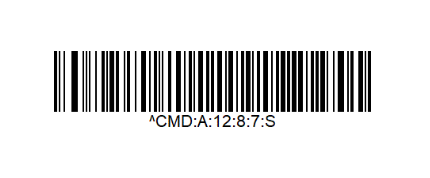
Printing the barcodes you use most often allows you to execute supported actions from your scanner without repeatedly using the mouse.
Refresh Scale Weight
The case-sensitive ^CMD:W command invokes the existing Scale operation for an editable, unprocessed order that is already loaded in the techSHIP Desktop Client. It uses your existing Scale configuration and validation rather than a separate weighing method.
- For a single-box order, every scan invokes Scale for the same box.
- For a multi-box order, successive scans invoke Scale for each box in sequence. Loading a different order resets the sequence.
- After all boxes have been traversed, another scan displays All boxes have already been scaled.
 | For multi-box orders, the sequence advances after each Scale invocation even if that invocation fails. techSHIP Desktop Client does not confirm that the weight was captured successfully before moving to the next box. | |
If the order is processed or not editable, contains no boxes, or the existing Scale workflow is unavailable, the techSHIP Desktop Client displays the applicable error or Scale feedback instead of completing the weight refresh.
Was this article helpful?
That’s Great!
Thank you for your feedback
Sorry! We couldn't be helpful
Thank you for your feedback
Feedback sent
We appreciate your effort and will try to fix the article