When setting up a Sales Channel connection, you can manage the Advanced Settings to control how data is processed. These configurations can be added to already created Sales Channels, and the available options will be different depending on whether the connection relies on a stable or beta channel.
This article explains how to access and configure the Advanced Settings for both stable and beta Sales Channels in techOMS.
TABLE OF CONTENTS
How to Access the Advanced Settings
 | Make sure that you are operating at the right Account beforehand. | |
| | ||
 | Click Channels from the left menu under the Sales Channels section. |
 | Click the Name of the channel to access the setup. |
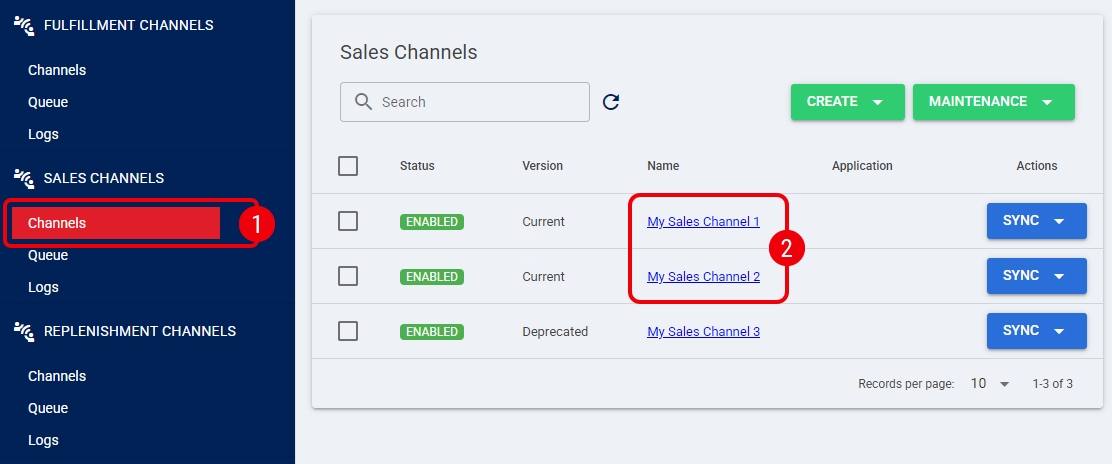
 | Click the Advanced Settings tab. |

Advanced Settings Options
| To verify whether your channel relies on a stable or beta integration, please check the techOMS Sales Channels - Master List [Guides List]. To learn more about dimensional configurations, please read the How Units of Measurement work in techOMS [Information] article. | |
| | ||
Stable Sales Channels
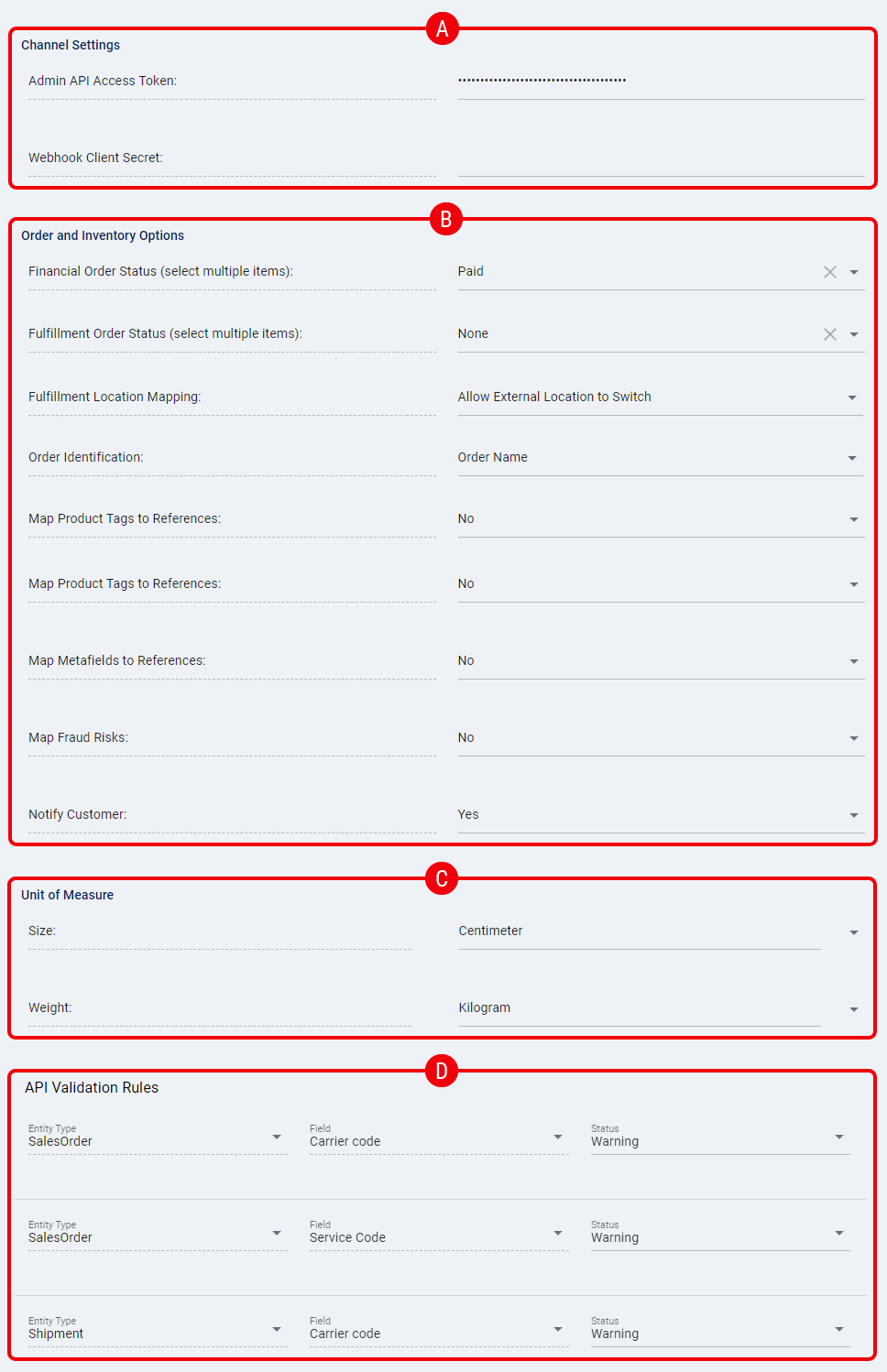
The available advanced settings are:
| More settings might exist depending on the plugin. Please check the techOMS Sales Channels - Master List [Guides List] for specific channel details. | |
| | ||
 | Channel Settings |
- Credentials (Webhook/API keys/tokens): Allows you to update the connection credentials.
 | Order and Inventory Options |
- Financial Order Download rules: Allows you to select the required financial statuses for orders to be downloaded (e.g., Paid, Refunded, Voided). You can select multiple options.
- Fulfillment Order Download rules: Allows you to select the required fulfillment statuses for orders to be downloaded (e.g., None, Partial, Fulfilled, Pending). You can select multiple options.
- Fulfillment Location Mapping (Shopify only): Allows you to handle order routing. For more details, review the How Fulfillment Location Mapping works for Shopify [Information] article.
- Order Identification (Shopify only): Allows you to select between Name or Number for the order identifier.
- Map Product Tags to References: Enable this option to map tags to sales order line references during the order import process.
- Map Metafields to References: Enable this option to map custom fields (Metafields) to sales order line references during the order import process.
- Map Fraud Risks: Enable this option to map fraud risk fields into techOMS. The system will obtain the maximum value from the array on the Shopify side.
- Notify the Customer: Enable this option to send a notification to the customer when the shipment is fulfilled.
 | Unit of Measure |
- Size: Allows you to define the type of unit of measure you will use for dimensions.
- Weight: Allows you to define the type of unit of measure you will use for weight.
 | API Validation Rules |
- Sales Order: Allows you to define whether to set the Status to Warning or Error for the Carrier and Service Code.
- Shipment: Allows you to define whether to set the Status to Warning or Error for the Carrier and Service Code.
- Purchase Order: Allows you to define whether to set the Status to Warning or Error for the Carrier and Service Code.
- Receipt: Allows you to define whether to set the Status to Warning or Error for the Carrier and Service Code.
Beta Sales Channels
The available advanced settings are:
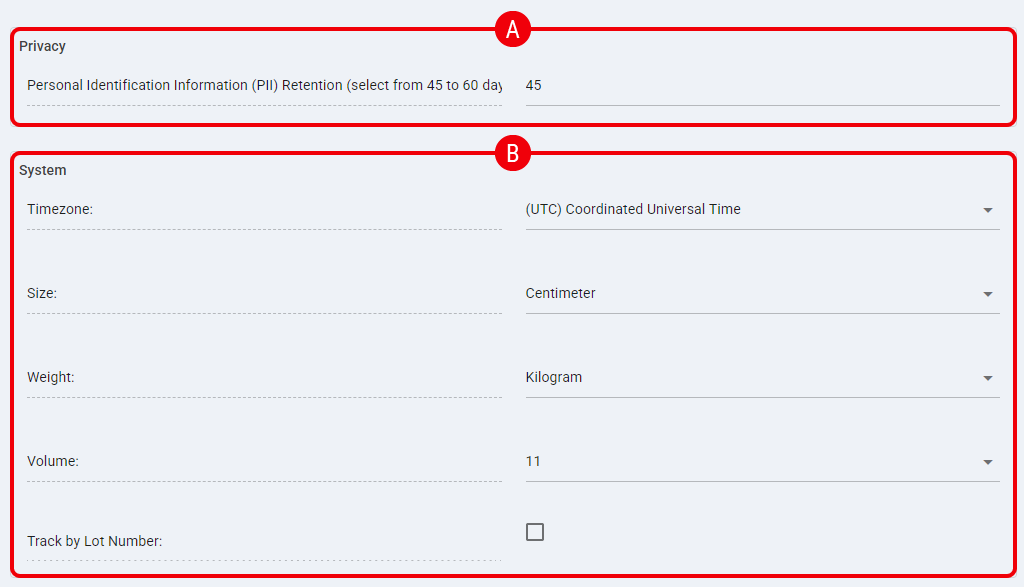
| Privacy |
- Personal Identification Information (PII) Retention (select from 45 to 60 days): Defines the number of days before sensitive data on Sales Orders is automatically redacted to ensure compliance.
| This setting only applies to Sales Orders originating directly from this Sales Channel. To configure global PII redaction for API, manual, and imported orders, please refer to the How to Edit an Account [Step-by-Step Guide]. | |
| | ||
| System |
- Timezone: Allows you to select the correct local time zone for the channel to ensure timestamps align correctly.
- Size: Allows you to select the preferred unit of measurement for product and parcel dimensions (e.g., Centimeter).
- Weight: Allows you to select the preferred unit of measurement for weight values (e.g., Kilogram).
- Volume: Allows you to select the preferred unit of measurement for dimensional volume (e.g., Cubic Centimeter).
Track by Lot Number: Enable to send inventory separated by lot. When unchecked, quantities for the same warehouse and product variant are summed and sent without lot information.
Was this article helpful?
That’s Great!
Thank you for your feedback
Sorry! We couldn't be helpful
Thank you for your feedback
Feedback sent
We appreciate your effort and will try to fix the article