![Article 1: Midland Onboarding Requirements and Configuration Guides [Information]](https://s3.amazonaws.com/cdn.freshdesk.com/data/helpdesk/attachments/production/96804815/original/09VBUo14zVrZ7P3XOYSoWXIqqrVjGFCUUQ.png?1779474501) | ![Article 2: Reference Data: Midland Baseline Account Fields [Guide]](https://s3.amazonaws.com/cdn.freshdesk.com/data/helpdesk/attachments/production/96804740/original/A-sKSzmZ_Vj4x4q6VoUBEk-gtdTDnv2kuQ.png?1779473989) | ![Article 3: Reference Data: Midland Client (Billing) Account Fields [Guide]](https://s3.amazonaws.com/cdn.freshdesk.com/data/helpdesk/attachments/production/96805395/original/_J10u70kSFBTHPSpib4jtXfeu4C3mm54wg.png?1779476680) |
| Onboarding and Configuration | Baseline Account | (Billing) Account |
 You are here You are here |
This reference lists the carrier-specific Midland Client (Billing) Account fields used in techSHIP.
Use it together with the linked Client (Billing) Account setup steps: the setup guide covers the shared configuration flow, while this article defines the confirmed field values, field behavior, and client-specific carrier configuration details.
 |
For a complete overview of supported carriers and related setup guides, refer to techSHIP supported Carriers - Master List [Guides List].
|
 | Review and complete Reference Data: Midland Baseline Account Fields [Guide] before configuring the Client (Billing) Account so the carrier connection is available. |
TABLE OF CONTENTS
Adding a Client (Billing) Account
Follow the UI Navigation steps in How to Add a Client (Billing) Account [Step-by-Step guide], using the carrier-specific values provided in this guide.
Go to  | |
 |  |
| Essential Configuration | Carrier-Specific This article |
Carrier-Specific Instructions
| Return to | |
 |  |
| Essential Configuration | Carrier-Specific |
The Carrier tab contains the Client (Billing) Account fields used to define confirmed carrier-specific behavior for this client. Highlighted fields indicate mandatory and optional configuration groups.
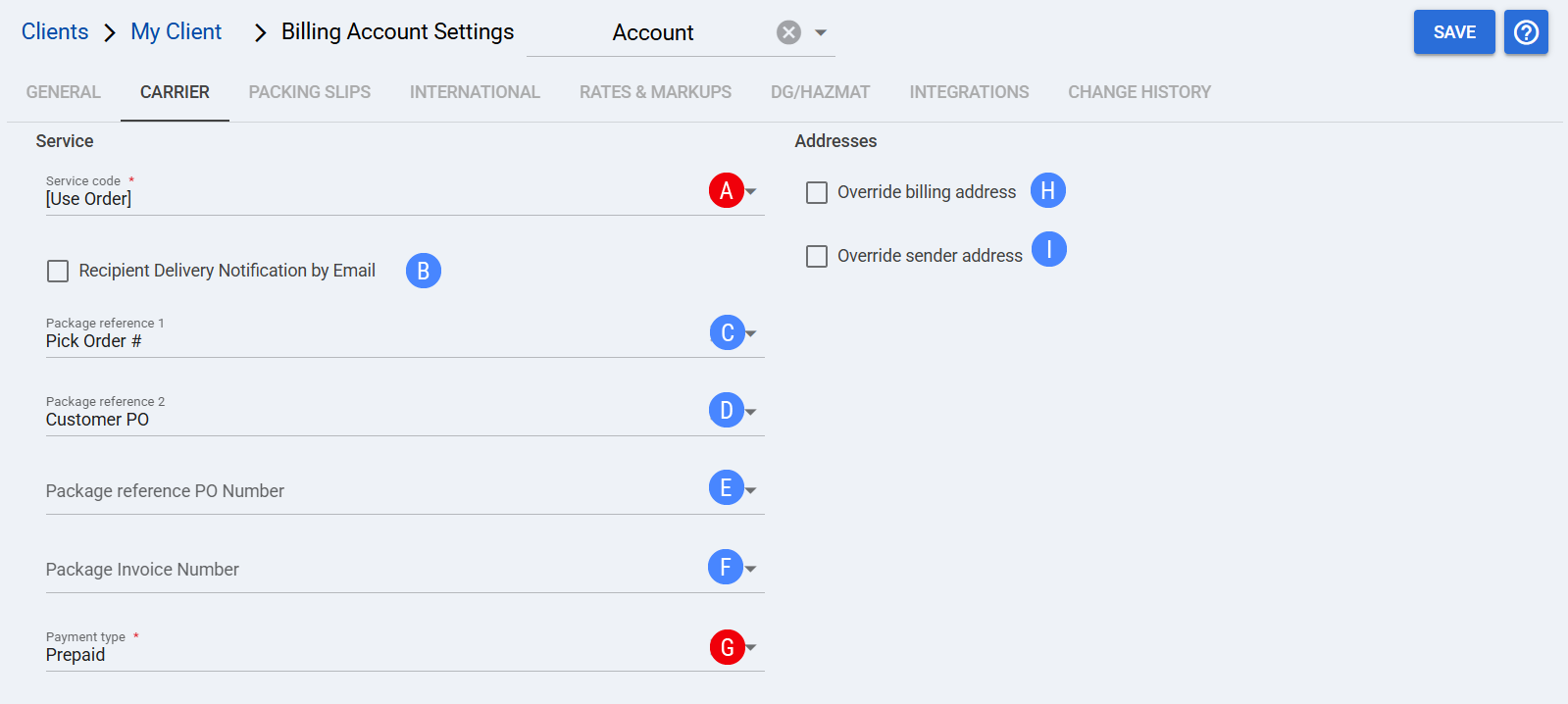
 | Service code: Choose a service code to assign to imported orders which don’t have a service code or keep it if they have. If you wish to overwrite any code coming from the WMS with the chosen service, check Override WMS Service Code. You can choose between the service level that comes with the order, ECO mode which grabs the cheapest service, or an arbitrary service level for all cases. You can go in depth on this subject in Default Service Level (Use Order, ECO, specific) and how to set it up [Step-by-Step guide]. |
 | Recipient Delivery Notification by Email: If checked, requests the carrier to send delivery notifications via email to the order’s Ship-to provided email address. |
 | Package reference 1: Select the option you wish to include as the first reference in the dropdown, or use a fixed or combined value as needed. The current configured value is Pick Order #. |
 | Package reference 2: Select the option you wish to include as the second reference in the dropdown, or use a fixed or combined value as needed. The current configured value is Customer PO. |
 | Package reference PO Number: Select the option you wish to include as the purchase order reference in the dropdown, or use a fixed or combined value as needed. |
 | Package Invoice Number: Select the option you wish to include as the invoice number reference in the dropdown, or use a fixed or combined value as needed. |
 | Payment type: Select the payment type used for this Midland Client (Billing) Account. The current configured value is Prepaid. |
 | Override billing address: Check and fill the additional fields if you need to bill an address different from the ship-from address. |
 | Override sender address: Use this option when the Midland Client (Billing) Account requires sender information at the client level. Specify the Sender Name and Sender Company when the sender address fields are configured. |
| Select Save before continuing so the configured settings are applied. |
Next Steps (Optional)
After the Client (Billing) Account is configured and saved, review the related Midland articles in this set as needed.
![Article 1: Midland Onboarding Requirements and Configuration Guides [Information]](https://s3.amazonaws.com/cdn.freshdesk.com/data/helpdesk/attachments/production/96804995/original/8TBA5Gx5zMbNVuxpBfz-CdrCvI4APxv9oQ.png?1779475304) | ![Article 2: Reference Data: Midland Baseline Account Fields [Guide]](https://s3.amazonaws.com/cdn.freshdesk.com/data/helpdesk/attachments/production/96805147/original/W85CGdQ10tusn215or-ihmIcZ_i6NOpE0Q.png?1779475851) | ![Article 3: Reference Data: Midland Client (Billing) Account Fields [Guide]](https://s3.amazonaws.com/cdn.freshdesk.com/data/helpdesk/attachments/production/96804742/original/bHFYZzIg1p3n6eidaRLAM0zP1uVKzHY4sw.png?1779473999) |
| Onboarding and Configuration | Baseline Account | (Billing) Account |
Was this article helpful?
That’s Great!
Thank you for your feedback
Sorry! We couldn't be helpful
Thank you for your feedback
Feedback sent
We appreciate your effort and will try to fix the article