The temperature integration feature allows techSHIP to automatically fetch and store weather forecasts for your shipping origins and destinations.
This guide covers how to utilize weather expressions within the Order Management Rules (OMR) engine to enable smarter, temperature-controlled fulfillment decisions, such as adding insulated liners or ice packs to prevent product spoilage.
TABLE OF CONTENTS
- Understanding Weather Expressions
- Configuring the Temperature Action
- Business Use Case: Cold-Chain Fulfillment
Understanding Weather Expressions
techSHIP calculates the geographic cell of the Origin and Destination addresses to fetch the forecasted minimum and maximum temperatures. You can capture this data using the following expressions.
 | The maximum supported forecast window is 14 days from the current date. However, the further out the time window, the less accurate the weather estimation becomes. We strongly discourage relying on forecasts beyond 10 days for critical cold-chain shipping decisions. | |
| | ||
FUNCTION SYNTAX | DESCRIPTION & PARAMETERS | EXAMPLE INVOCATION |
maxShipFromTemperature(startday, endday, 'scale') | Fetches the maximum forecasted temperature for the origin address. Parameters: • startday (Required): Number of days from the current date.• endday (Required): Number of days from the current date.• scale (Optional): Enter C for Celsius or F for Fahrenheit. Default is Celsius. | @(maxShipFromTemperature(0, 2, 'F')) |
maxShipToTemperature(startday, endday, 'scale') | Fetches the maximum forecasted temperature for the destination address. Parameters: • startday (Required): Number of days from the current date.• endday (Required): Number of days from the current date.• scale (Optional): Enter C for Celsius or F for Fahrenheit. Default is Celsius. | @(maxShipToTemperature(1, 4)) |
minShipFromTemperature(startday, endday, 'scale') | Fetches the minimum forecasted temperature for the origin address. Parameters: • startday (Required): Number of days from the current date.• endday (Required): Number of days from the current date.• scale (Optional): Enter C for Celsius or F for Fahrenheit. Default is Celsius. | @(minShipFromTemperature(0, 2)) |
minShipToTemperature(startday, endday, 'scale') | Fetches the minimum forecasted temperature for the destination address. Parameters: • startday (Required): Number of days from the current date.• endday (Required): Number of days from the current date.• scale (Optional): Enter C for Celsius or F for Fahrenheit. Default is Celsius. | @(minShipToTemperature(0, 5, 'C')) |
 | For a complete list of expressions, refer to Order Management Rules (OMR) Available Functions (Expressions) [Information]. | |
| | ||
Configuring the Temperature Action
To use the weather feature, you must assign the temperature function to a standard field or custom expression within your rule set.
| To learn how to build and configure an OMR, refer to What's New in Order Management Rules (OMR) for Rule Sets in techSHIP [Guide]. | |
| | ||
When you are ready to configure the specific weather action, proceed as follows:
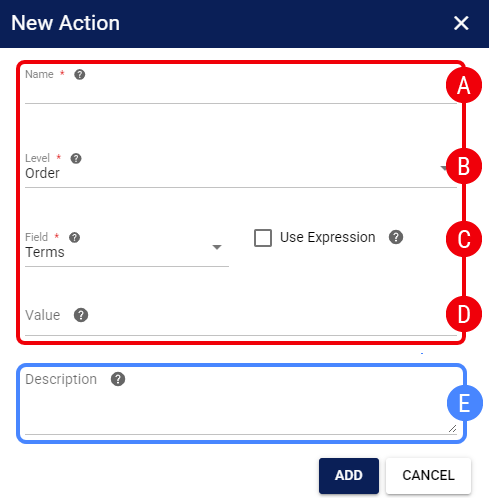
 | Name: Enter a descriptive name for the action. |
 | Level: Define the level of your action (usually set to Order). |
 | Target Assignment: Choose where to save the weather data: |
- To assign it to a standard field (such as Instruction or Terms), select it from the Field dropdown.
- To assign it to a non-standard field, check the Use Expression box and enter your target variable. For syntax details, see Using Custom Variables and Expressions in OMR [Information].
 | Value: Choose the most appropriate temperature function to inject the data. Consult the table detailed above to know the available functions. |
 | Description: (Optional) Provide details about the action's purpose. |
Once saved, the rule will dynamically fetch and inject the weather data for all applicable new orders based on your decision tree.
Business Use Case: Cold-Chain Fulfillment
When managing perishable goods, warehouses need immediate visibility into the transit temperatures to pack orders correctly. By injecting temperature data directly into order fields through an OMR, fulfillment teams can make informed packaging decisions before shipping.
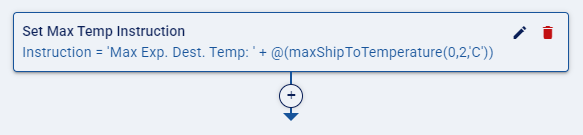
For example, in the food supply chain, an operation can build a rule that retrieves the maximum destination temperature for a two-day transit window and adds it to the order's instructions. By automatically concatenating this fetched value with a descriptive text, the warehouse staff instantly knows the environmental conditions the package will face.
To achieve this, you can configure an Action block that sets the Instruction field to display the following value: 'Max Exp. Dest. Temp: ' + @(maxShipToTemperature(0,2,'C')).
Was this article helpful?
That’s Great!
Thank you for your feedback
Sorry! We couldn't be helpful
Thank you for your feedback
Feedback sent
We appreciate your effort and will try to fix the article