The authentication process for Techdinamics Print Clients has changed. To keep using your print client, you must upgrade to the latest version to comply with the new authentication.
To upgrade your Techdinamics Print Client:
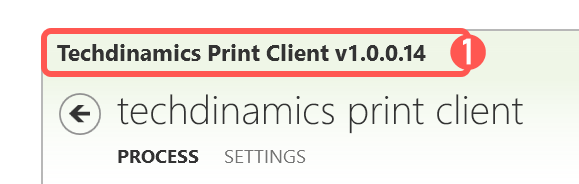
1. Check your current print client version.
Open the print client application and look at the application's title bar to see your current version number.
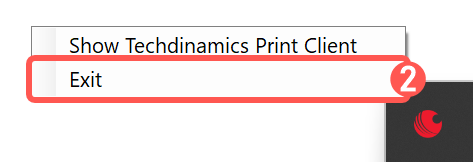
2. Close your print client.
To completely close it, right-click the print client icon in the System Tray and select Exit.
3. Reopen the print client to trigger the update.
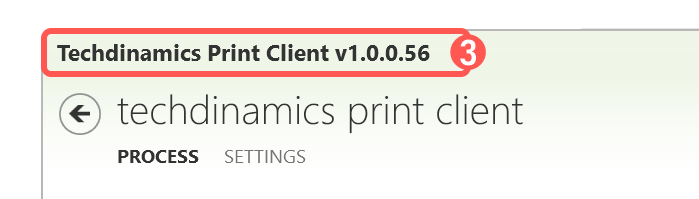
Launch the print client again and confirm the update.
Once finished, confirm that it has updated by checking the title bar.
4. Update printer profiles with the required login settings as detailed in How to Add a New Printer Profile on Techdinamics Print Client [Step-by-Step Guide].
Was this article helpful?
That’s Great!
Thank you for your feedback
Sorry! We couldn't be helpful
Thank you for your feedback
Feedback sent
We appreciate your effort and will try to fix the article