techSHIP introduces a real-time Concurrency Management system designed to improve data integrity and collaboration. This feature provides instant visual feedback when other users are viewing or editing the same record and implements safeguards to prevent accidental data overwrites.
This guide explains how to identify active users on a record and resolve saving conflicts.
Prefer listening? This podcast-style audio walks you through the article's key points.

This article is divided into the following sections:
- Visual Indicators
- Icons and Status
- Tooltip Details
- Location
- Scope and Behavior
- Conflict Resolution
- Supported Areas
 NOTE: For a full overview of all new features, see: What's New in techSHIP: A Guide to the Latest Features [Information].
I. VISUAL INDICATORS
When you open a record that is currently being accessed by another user, techSHIP displays a blinking red indicator to alert you of their presence. This indicator updates in real-time.
i. Icons and Status
The indicator consists of a red circle containing an icon. The specific icon depends on the actions of the other user:
| ICON | STATUS | DESCRIPTION |
 | Viewing | Indicates that one or more users have the record open but have not made any changes. |
 | Editing | Indicates that a user has modified a value in the record (even if they have not yet saved it). |
NOTE: The Pencil icon takes precedence. If multiple users are accessing the record and at least one has modified a value, the Pencil icon is displayed.
ii. Tooltip Details
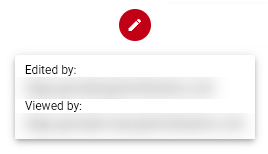
Hovering over the red indicator reveals a tooltip listing the email addresses of the users currently accessing the record. The text distinguishes between those simply viewing and those editing the record.
iii. Location
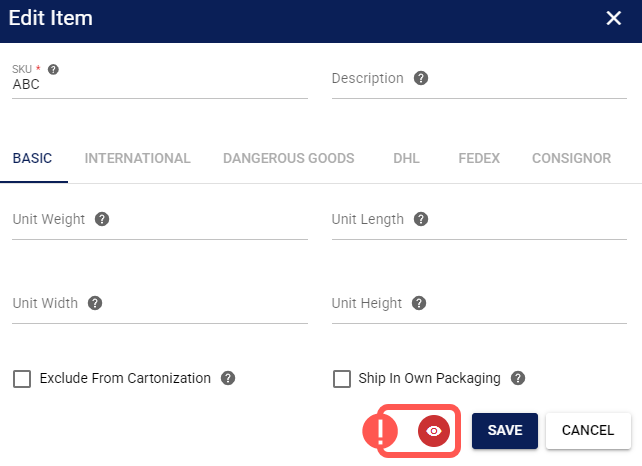
The location of the indicator depends on the type of screen you are viewing:
General Pages: The indicator appears in the top header, aligned with the action buttons.

Dialog Boxes: The indicator appears in the bottom footer, aligned with the Save and Cancel buttons.
NOTE: For a detailed breakdown of screen layouts, refer to Exploring the New techSHIP User Interface (UI) [Guide].
iv. Scope and Behavior
Concurrency works at the individual record level. If you have multiple records open in different browser tabs, the concurrency indicators function independently for each tab.
If a parent screen contains child screens (with their respective Save buttons) or dialogs for records that are saved together, the concurrency information (icon and tooltip) is displayed only on the parent screen that loads the main record.
II. CONFLICT RESOLUTION
If you try to save a record that another user has already successfully modified and saved, techSHIP will ensure data consistency by blocking the action and displaying an error message identifying the user who made the changes:
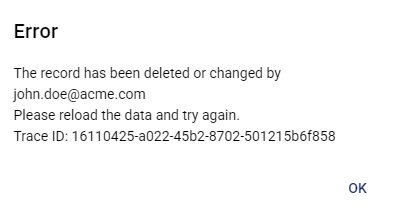
To resolve this, you must reload the page to fetch the latest data before applying your changes again.
 WARNING: The concurrency icon indicates active presence. If a user modifies a record and then closes the page or dialog (leaves), the icon will disappear from your screen. However, if they saved their changes before leaving, the conflict remains. You will not see an icon, but you will still receive a conflict error if you attempt to save.
III. SUPPORTED AREAS
This feature is implemented across key configuration areas of the application where data integrity is critical. While not exhaustive, common areas featuring concurrency management include:
Carriers
Baseline Accounts
Clients
Billing Accounts
NOTE: This feature is currently being expanded. You may encounter concurrency indicators on additional pages and dialogs as we continue to roll out this functionality.
Was this article helpful?
That’s Great!
Thank you for your feedback
Sorry! We couldn't be helpful
Thank you for your feedback
Feedback sent
We appreciate your effort and will try to fix the article