
When setting up a GlobalTranz Carrier account, you will have to:
 NOTE: This article describes how to set up the Carrier baseline account.
If the Carrier baseline account has already been set up and you intend to add a new Billing Account, refer to: How to add and set up an GlobalTranz Billing Account [Step-by-Step guide]
CARRIER SECTION
1. Access Maintenance and select Carriers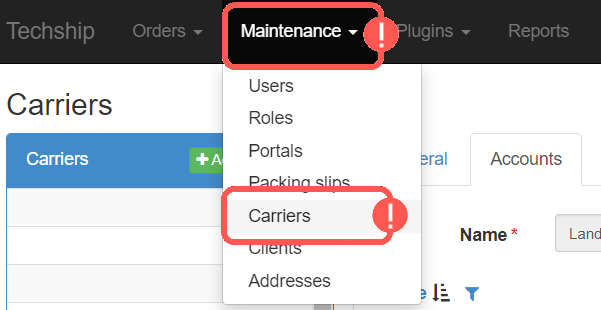
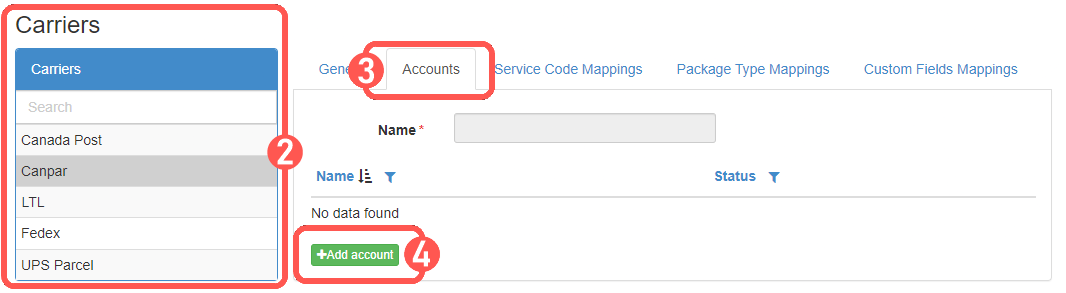
2. Click the Carrier for which you'll add the account to from the list
3. Click the Accounts tab
4. Click Add Account
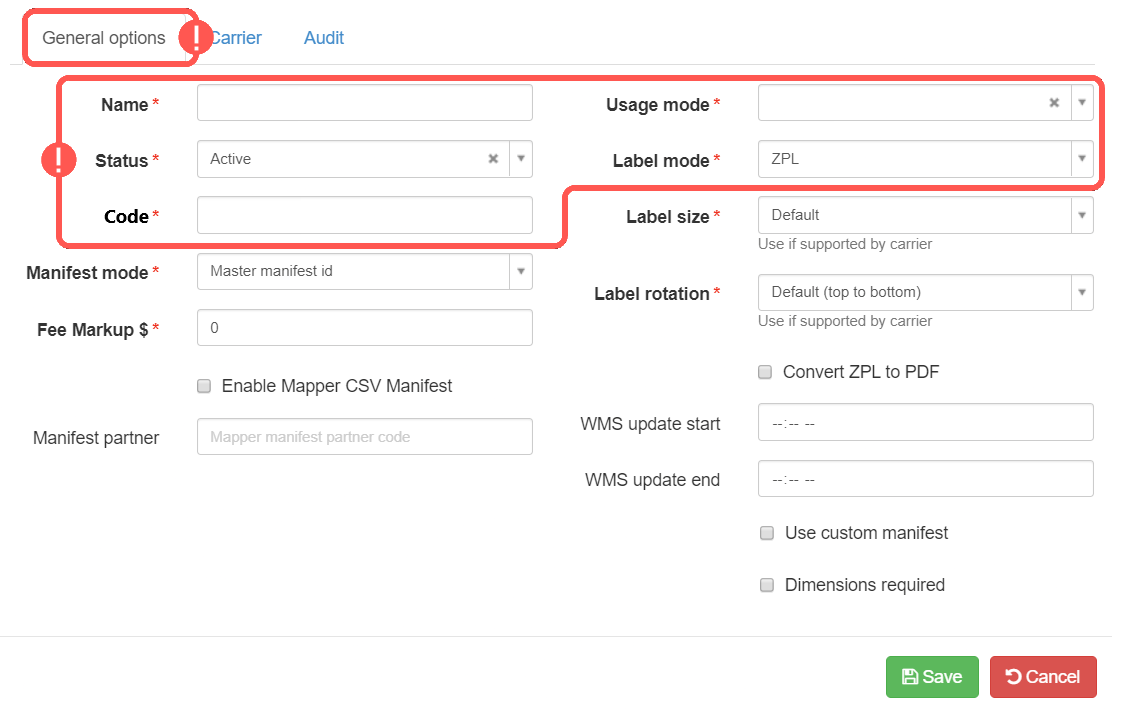
5. In General Options set:
- Name -> GlobalTranz - Account (e.g. GlobalTranz - 99899)
- Usage mode -> Production
- Status -> Active
- Code -> Carrier code
- Label mode/size/rotation -> GlobalTranz provides NO label, NO BOLNOTE: Since label fields are mandatory, you may just leave the default values.
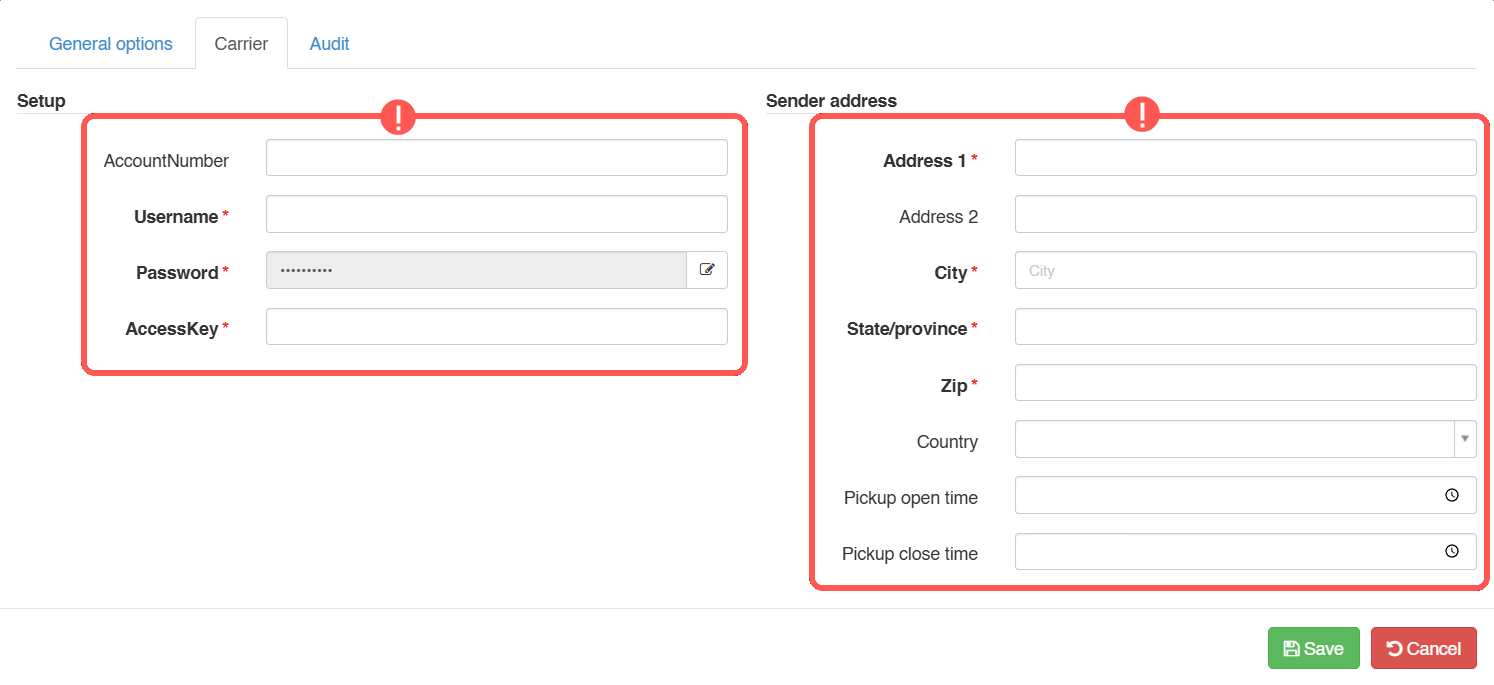
6. In Carrier Options set and Save:
REQUIRED
- AccountNumber -> GlobalTranz Account number
- Username -> GlobalTranz username
- Password -> GlobalTranz password
- AccessKey -> GlobalTranz access key
Sender address info -> Warehouse induction address details. including Pickup open and close times.
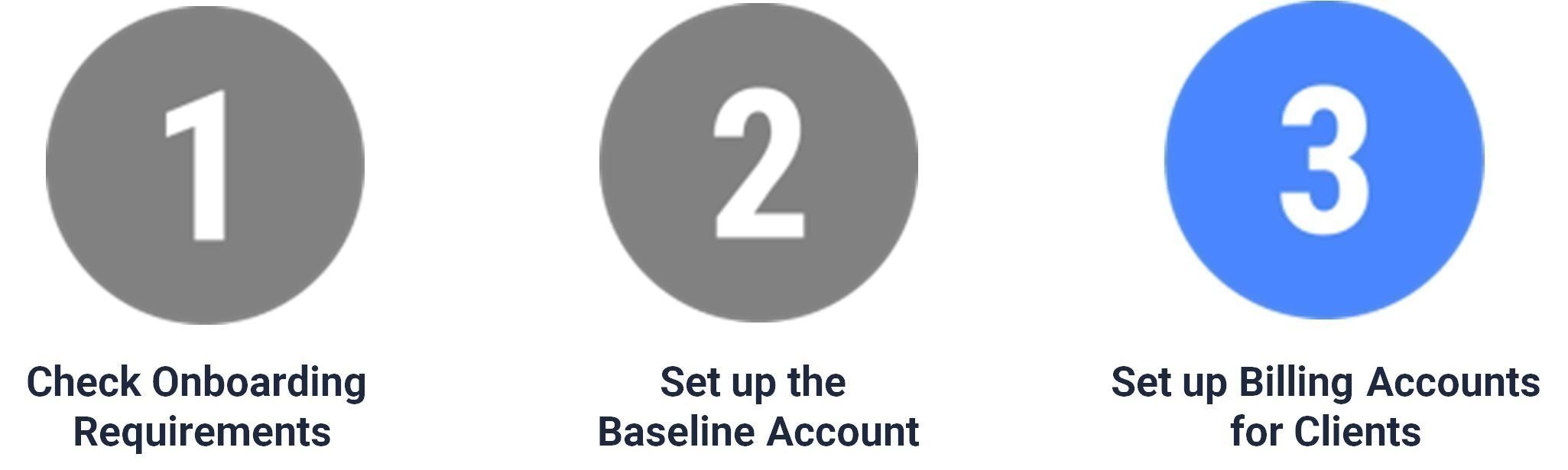
Once ready, proceed to setting up the Billing Account as described in: How to add and set up a GLobalTranz Billing Account [Step-by-Step guide]
Was this article helpful?
That’s Great!
Thank you for your feedback
Sorry! We couldn't be helpful
Thank you for your feedback
Feedback sent
We appreciate your effort and will try to fix the article