You can use Order Management Rules (OMR) to automatically assign a Handling Group to specific order lines based on their SKU or other line-level criteria, reducing the need to correct those assignments manually.
This guide covers how to configure a line-level Rule Set that assigns an existing Handling Group to selected SKU lines, how to optionally target only Ungrouped lines, and how to clear an assignment when needed.
TABLE OF CONTENTS
- Before You Begin
- Understanding the Handling Group Assignment
- Configuring the Handling Group Assignment
- Clearing a Handling Group with Ungrouped
Before You Begin
Before configuring this rule, make sure you are familiar with creating and configuring an OMR Rule Set. For instructions, refer to What's New in Order Management Rules (OMR) for Rule Sets in techSHIP [Guide].
You must also have the Handling Group you want to assign already available and active. If you need to create one first, refer to How to Manage Handling Groups for Cartonization [Step-by-Step Guide].
 | This guide uses Fragile as an example Handling Group. Fragile is not a preset group supplied by techSHIP; use an existing Handling Group configured for your Location. | |
| | ||
For detailed conceptual information and advanced configuration, refer to How to Use Cartonization [Guide].
Understanding the Handling Group Assignment
A common use case is automatically assigning a Fragile Handling Group whenever an order contains one or more specific SKUs that require special packing treatment.
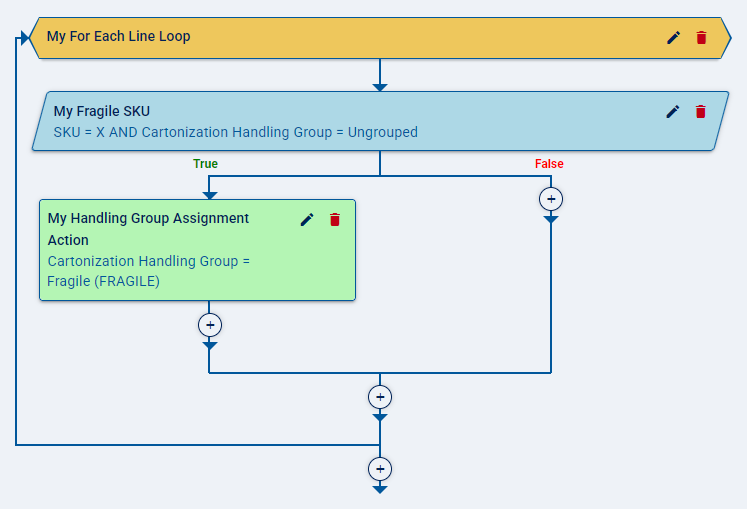
Because Cartonization Handling Group is a line-level field, configure the rule within a Line loop so techSHIP evaluates each SKU line individually. When a line matches your conditions, the action assigns the selected Handling Group to that line.
You can also add Cartonization Handling Group = Ungrouped as an additional condition when you only want the rule to affect lines that do not currently have a Handling Group assignment.
| The Cartonization Handling Group action assigns the Handling Group to the order line. It does not execute Cartonization or guarantee a specific number of Packages. | |
| | ||
Configuring the Handling Group Assignment
For this example, configure your Rule Set so a selected SKU receives the existing Fragile Handling Group.
Configure the SKU Condition
 | In your Rule Set, establish a Line loop so the rule evaluates individual order lines. |
 | Inside the Line loop, add a Condition that identifies the SKU you want to assign to the Handling Group: |
- Field: Select SKU.
- Operator: Select the equality operator for an exact SKU match.
- Value: Enter or select the SKU you want the rule to evaluate.
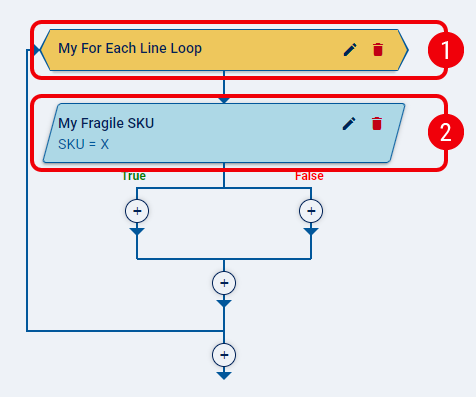
This SKU condition limits the assignment to the matching order lines.
Limit the Rule to Ungrouped Lines
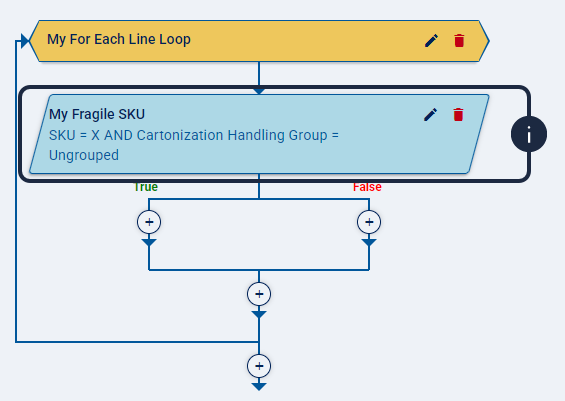
If you only want to assign the Handling Group when the matching SKU does not already have one, add another Condition and combine it with the SKU condition using AND logic.
Configure the additional Condition as follows:
- Field: Select Cartonization Handling Group.
- Operator: Select =.
- Value: Select Ungrouped.
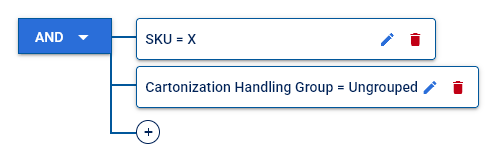
With this additional condition, the rule continues only when both the SKU matches and the line is currently Ungrouped.
Configure the Handling Group Action
On the True branch, add an Action that assigns the Handling Group. In the action configuration, select Cartonization Handling Group, choose Fragile as the value, and confirm the action.
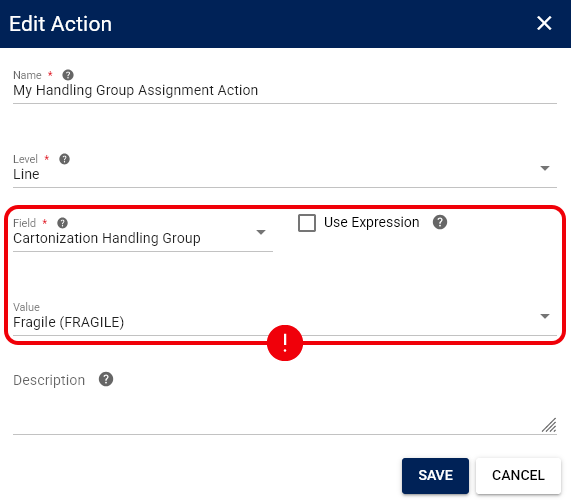
The Cartonization Handling Group action now assigns Fragile to each line that satisfies the configured conditions.
Save and Verify the Assignment
| Save the Rule Set and make sure it is enabled and applicable to the orders you want to evaluate. |
| Process an order containing the target SKU so the Rule Set can evaluate the corresponding line. |
 | Open the resulting order and inspect the matching line. Confirm that its Handling Group displays Fragile. |
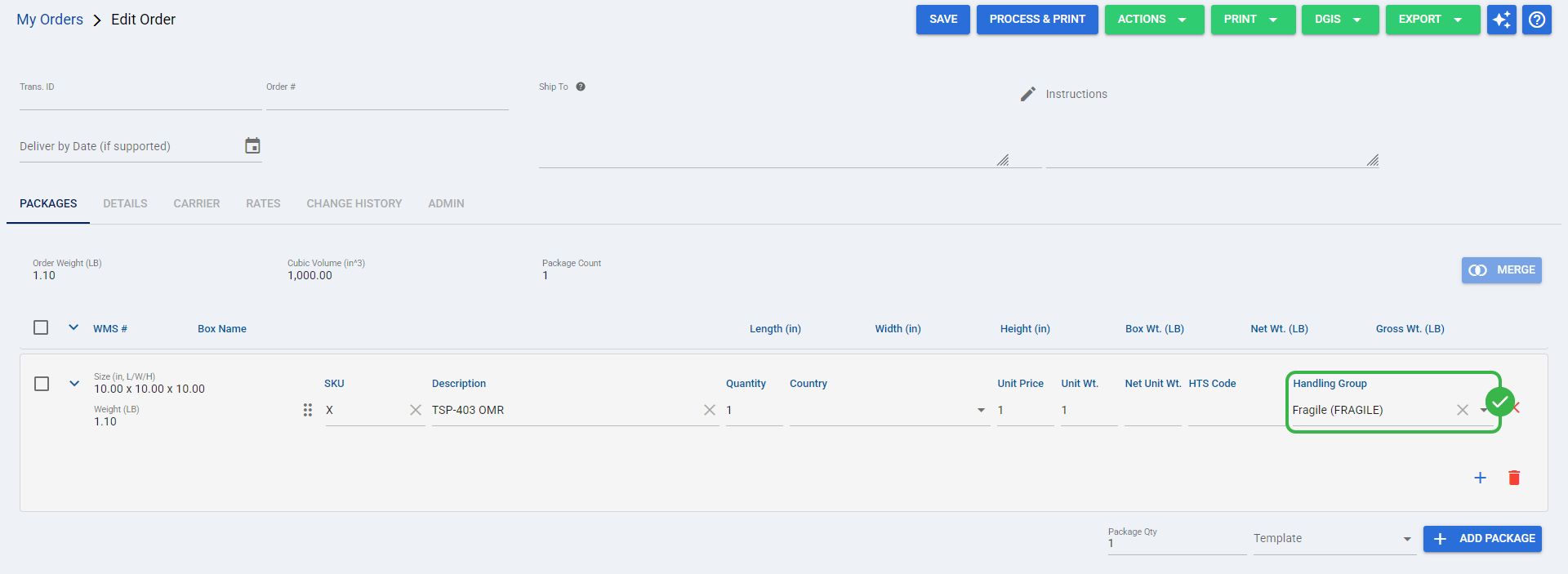
Once you confirm the saved Handling Group assignment, your Rule Set is ready to apply the same behavior automatically to future matching lines. You can then continue with your normal Cartonization workflow.
Clearing a Handling Group with Ungrouped
You can also use the Cartonization Handling Group action to remove an existing assignment instead of assigning another group.
In the action configuration, select Cartonization Handling Group and set its value to Ungrouped. When the rule applies to a matching line, techSHIP clears the existing Handling Group assignment and treats that line as Ungrouped.
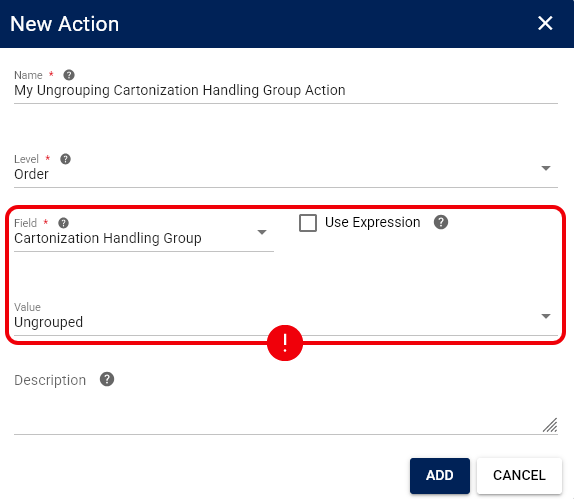
After processing a matching order, verify that the resulting line no longer has a specific Handling Group assigned before continuing with your Cartonization workflow.
Was this article helpful?
That’s Great!
Thank you for your feedback
Sorry! We couldn't be helpful
Thank you for your feedback
Feedback sent
We appreciate your effort and will try to fix the article