The Techdinamics Print Client is a desktop application that connects your local ZPL-compliant label printers and standard inkjet/laser printers to your online Techdinamics applications (including both techOMS and techSHIP). Establishing this connection allows you to automatically route and print shipping documents (such as labels and packing slips) directly from your fulfillment workflow.
This guide covers how to download, install, and launch the print client on your Windows machine.
 | The following video demonstrates the installation process using a legacy version of this article. While it has evolved, the core installation concepts remain identical. | |
TABLE OF CONTENTS
Downloading the Installer
You can access the installation files directly from your application or via our direct download page.
Navigate to the top global header in either techOMS or techSHIP and click the Download Print Client link.
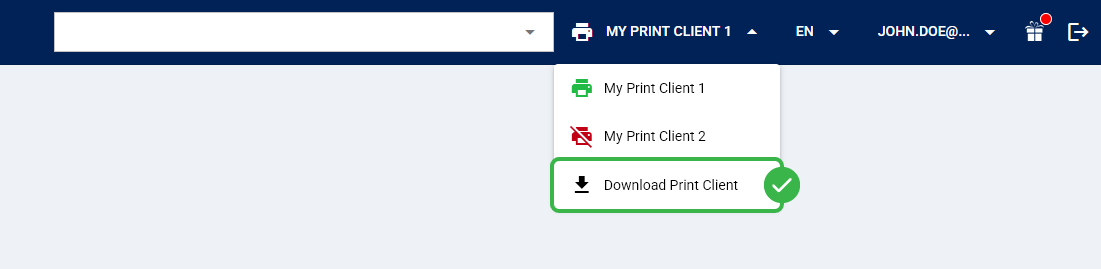
| Alternatively, you can download the installer directly using this link: Techdinamics Printer Client Installer. | |
 | Temporarily disable your antivirus software. Strict security protocols might flag the installer and block the necessary background file downloads. | |
Running the Installation
Once you have navigated to the download page, you must execute the installer package.
 | Click the Install button if you do not have the required Microsoft .NET Framework installed on your machine. Otherwise, continue with the next step. |
 | Click the Launch button if your system already has the necessary framework. |
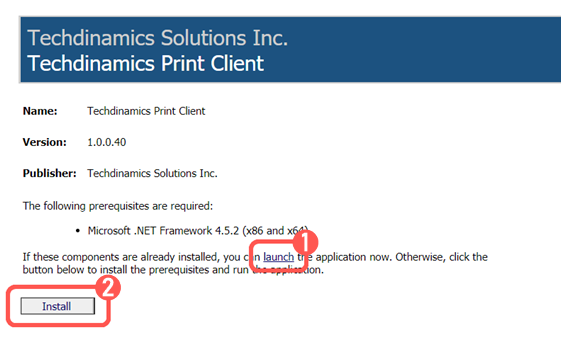
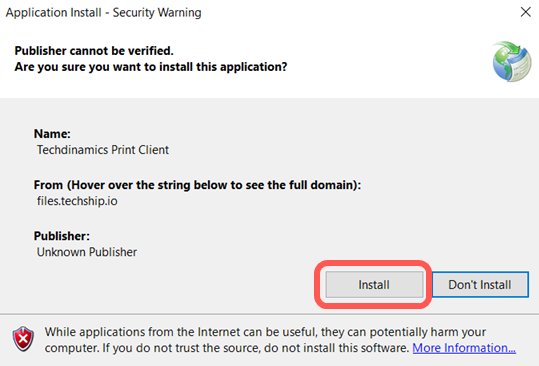
 | Open the downloaded execution file. If a standard Windows security prompt appears asking if you want to install the application, click Install to proceed. |
| Depending on your specific Windows Operating System version and security settings, you might encounter a Windows Defender SmartScreen warning stating that it prevented an unrecognized app from starting. If the SmartScreen prompt appears, click the More info link to reveal the hidden options. Click the Run anyway button to authorize the installation.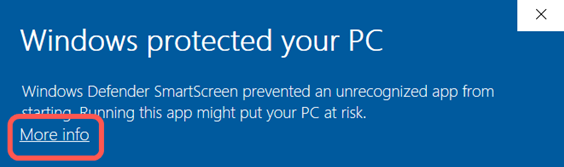 | |
Once the installation successfully processes, the Techdinamics Print Client application will open automatically on your screen.
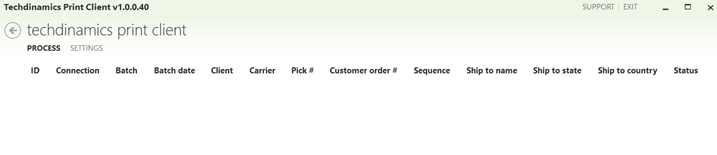
The desktop application is now installed on your machine. To configure your specific printer, refer to How to Add a New Printer Profile on Techdinamics Print Client [Step-by-Step Guide].
Was this article helpful?
That’s Great!
Thank you for your feedback
Sorry! We couldn't be helpful
Thank you for your feedback
Feedback sent
We appreciate your effort and will try to fix the article