You can export Purchase Order information from techOMS as either a PDF or CSV file. You can export a single Purchase Order from its detail view or export multiple selected Purchase Orders from the list.
This guide covers how to use both export methods and what information you can expect in each exported file.
TABLE OF CONTENTS
- Export a Purchase Order from the Detail View
- Export Multiple Purchase Orders from the List
- Review the PDF Export
- Review the CSV Export
Export a Purchase Order from the Detail View
Use the Purchase Order detail view when you want to export one Purchase Order.
 | Under Purchases, click Purchase Orders. |
 | Open the Purchase Order you want to export. |
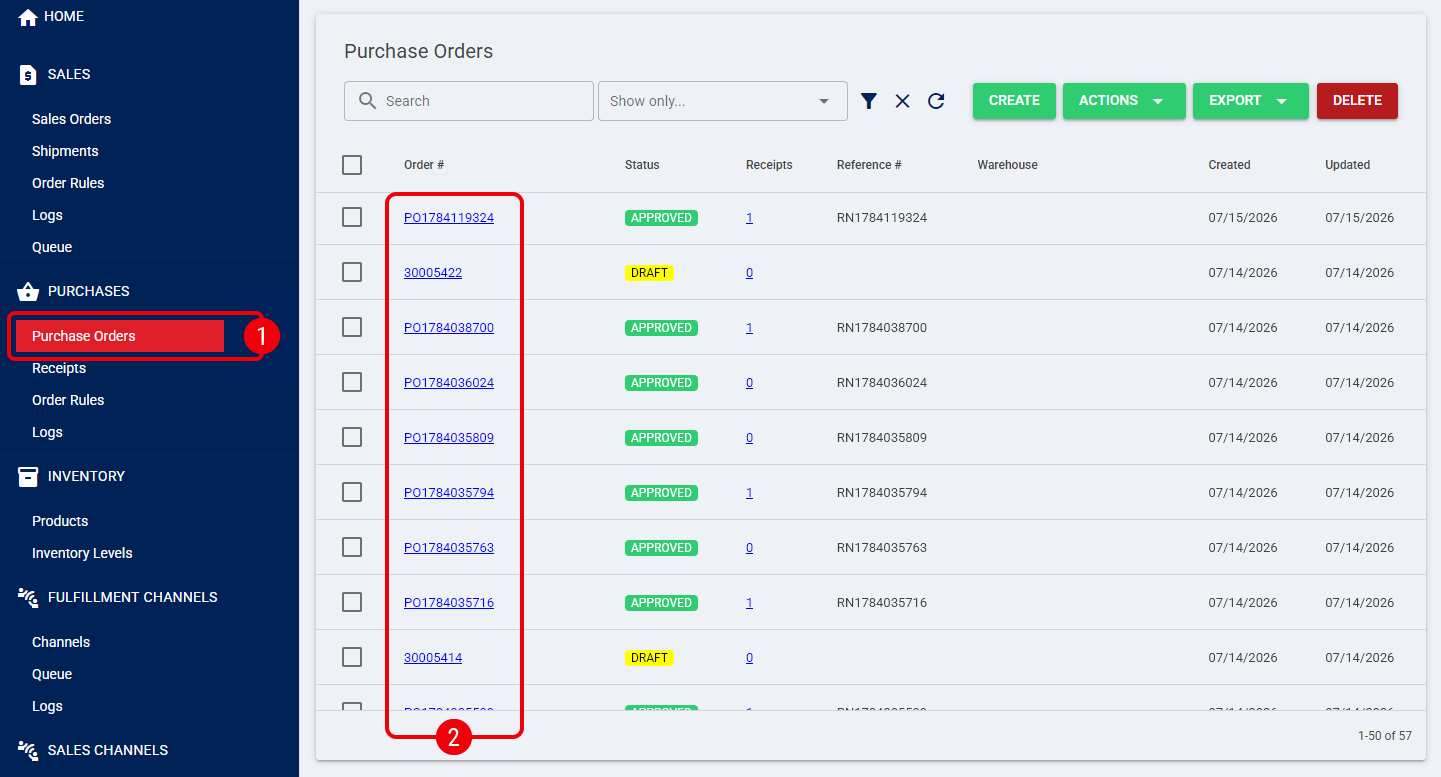
 | Click Export. |
 | Select one of the available export formats: |
- Export as PDF
- Export as CSV
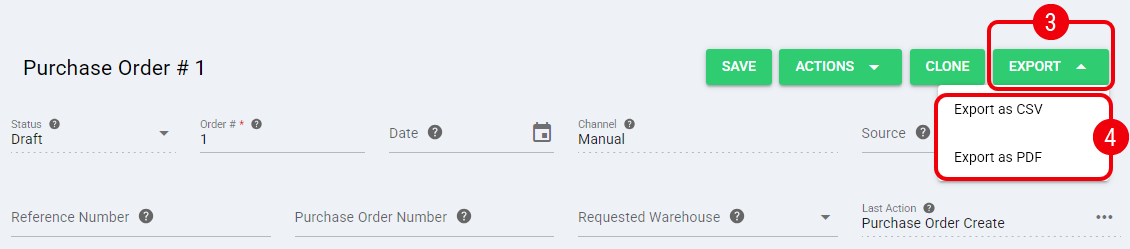
techOMS downloads one file containing the information for the current Purchase Order. Continue to Review the PDF Export or Review the CSV Export below for details about the generated file.
Export Multiple Purchase Orders from the List
Use the Purchase Orders list when you want to export multiple Purchase Orders at the same time.
| Under Purchases, click Purchase Orders. |
| Select the Purchase Order records you want to export. |
| Open the bulk Export menu. |
| Select one of the available export formats: |
- Export as PDF
- Export as CSV
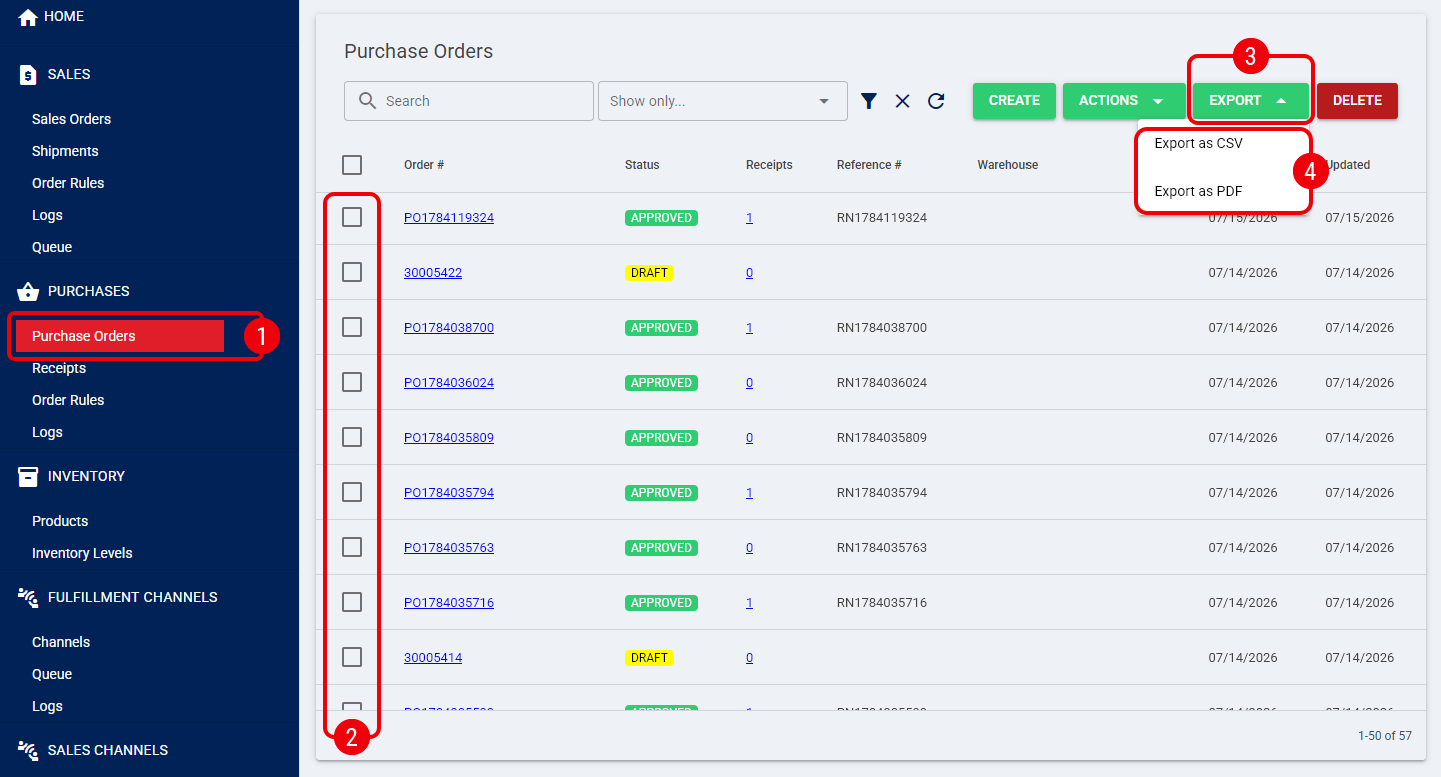
The resulting bulk export depends on the selected format:
- PDF: techOMS downloads one PDF containing a separate, complete Purchase Order document for each selected Purchase Order.
- CSV: techOMS downloads one CSV containing information for all selected Purchase Orders.
You have now completed the bulk export. Continue below to review the information included in each file type.
Review the PDF Export
The PDF export provides a formatted Purchase Order document containing the information required to review or share the order.
The generated PDF includes:
- Purchase Order information: Status, Order Number, Date, Channel, Source, Requested Warehouse, Requested Carrier, Requested Service, Reference Number, PO Number, and Currency.
- Address information: Ship To, Bill To, Supplier Pick Up Address, and Supplier Bill To Address.
- Order details: Purchase Order line items and their associated product information.
- Pricing information: Line-level pricing, Subtotal, and Total values.
- Notes: Any Notes included in the exported Purchase Order.
 | When an optional PDF field has no value, the field remains visible and displays a hyphen (-) instead of interrupting the document layout. | |
| | ||
| A long Purchase Order can continue across multiple PDF pages. techOMS preserves the line sequence and displays the final totals correctly at the end of the document. | |
| | ||
After reviewing the PDF, you can use the generated document according to your Purchase Order workflow.
Review the CSV Export
The CSV export provides structured Purchase Order data that you can review or process outside techOMS.
The generated CSV contains the following columns:
- Order information: Status, Order Number, Date, Requested Warehouse, Requested Carrier, Requested Service, Reference Number, Currency, and Ship Date.
- Address and Supplier information: Ship To, Bill To, Email, Supplier, Supplier Contact, and Supplier Address.
- Line information: SKU, Product, Qty, Price, Subtotal, Discount, and Received Qty.
| The CSV export does not include Type, Tag, Original SKU, Fulfilled Qty, or Allocated Qty. | |
| | ||
After opening the CSV, verify the exported Purchase Order information before using the file in your downstream workflow.
Was this article helpful?
That’s Great!
Thank you for your feedback
Sorry! We couldn't be helpful
Thank you for your feedback
Feedback sent
We appreciate your effort and will try to fix the article