techSHIP consolidates all returns into a centralized view, seamlessly powered by techTRACK. This provides your operations team with a comprehensive way to monitor reverse logistics efficiently.
This article explains how to navigate the centralized Returns page, understand return tracking statuses, and utilize the dynamic order-level Returns tab.
TABLE OF CONTENTS
Overview
techSHIP provides two primary methods to review your return shipments: a global Returns page and an order-specific Returns tab.
Related Resources and Permissions
The global Returns page is accessible to you if you have permissions to view the standard Orders page. For more information on the required permissions, refer to techSHIP User Permissions Structure [Information].
 | This guide focuses exclusively on visibility and tracking mechanics. To learn how to configure or generate return labels, refer to: | |
| | ||
Understanding Return Statuses and Tracking Links
Before exploring the specific management pages, it is important to understand the global rules that govern techTRACK synchronization and user interface links:
- Same-Tab Navigation: All tracking links and order references will open in the same browser tab.
- Tracking Links (Event-Level Visibility): Clicking any Original Tracking # or Return Tracking # will open the detailed Tracking Details visibility page, rather than routing you directly to the original order page.
| For more information on the Tracking Details page, see: Introducing Shipment Visibility and Tracking [Guide]. | |
| | ||
- Multi-Package Transparency: There is no display limit for tracking numbers. All tracking IDs for an order will be shown alongside a summarizing package-count caption (e.g., 12 packages) for rapid visual scanning.
- Unprocessed Status: Return labels that have been generated but lack recorded carrier events will display an Unprocessed status badge in the Return Tracking # column. To view the associated order, you must click the Return Trans. ID instead.
- Pending Timestamps: If an order has not been picked up or scanned by the carrier, the Date Shipped field will securely display an em-dash (—) to distinguish it from processed dates.
Global Visibility: The Returns Page
The centralized page for reverse logistics is located by navigating to the Orders menu and selecting the Returns module. This page lists every return label generated in techSHIP.
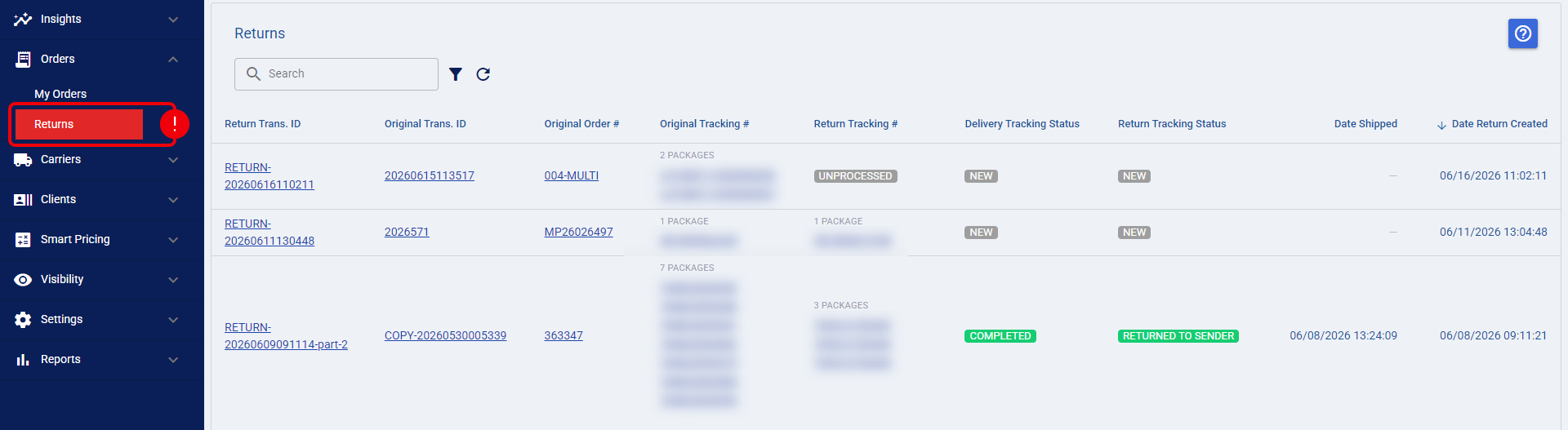
The Returns page table includes the following columns:
COLUMN NAME | DESCRIPTION |
Return Trans. ID | The primary clickable link used to access the specific return order detail. |
Original Trans. ID | Routes you back to the originating forward shipment order. |
Original Order # | Displays the customer reference number and links directly to the original order. |
Original Tracking # | Shows all initial delivery tracking IDs and the package count summary. Links route to the Tracking Details page. |
Return Tracking # | Displays all return shipment tracking IDs, or an Unprocessed badge if no tracking events exist. Links route directly to the Tracking Details screen. |
Delivery Tracking Status | Reflects the real-time forward delivery status synchronized via techTRACK. |
Return Tracking Status | Displays the real-time reverse logistics phase. |
Date Shipped | The timestamp of carrier tender, or an em-dash (—) if the package is not yet processed. |
Date Return Created | The exact system timestamp indicating when the return label was generated in techSHIP. |
Search and Filters
You can quickly isolate specific shipments using the robust search and filtering tools available above the table. Both standard and advanced filters can be used together and will apply all the defined conditions.
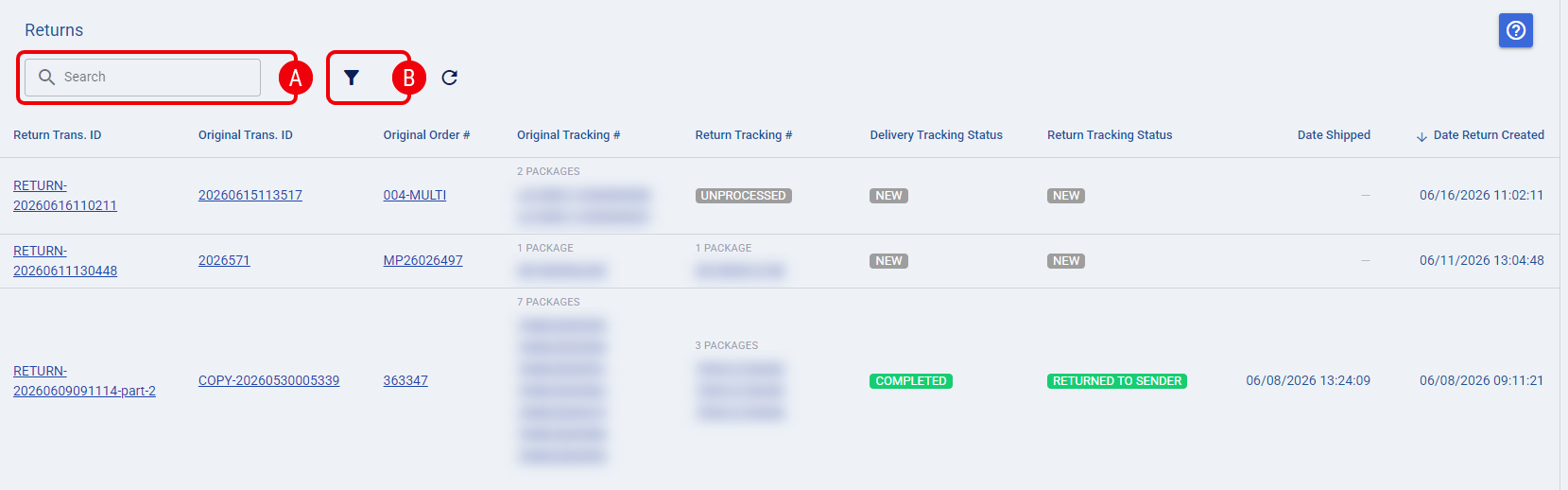
 | Standard Search: A single, always-visible text input that evaluates manual entries to find matches across the Transaction ID, Order Number, or Tracking Number (Original or Return) fields. This search is case-insensitive and supports partial matches. |
 | Advanced Filters: A dialog that allows you to refine results using specific criteria: |
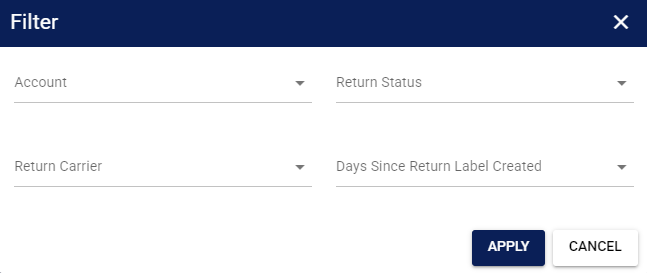
- Clients: A multi-select dropdown showing only the clients accessible to your role.
- Return Status: A multi-select pass-through of the carrier tracking statuses, which explicitly includes a Label created / no tracking events yet state to help you easily isolate unused return labels.
- Return Carrier: A multi-select dropdown dynamically populated only with the carriers actually used for your return labels (not the global carrier list).
- Days Since Return Label Created: Convenient time presets (Last 7 days, 7–14 days, 14–21 days, 21–30 days, and Over 30 days) to identify aging or stale returns.
Bulk Operations and Lifecycle Rules
The global Returns page in techSHIP allows you to select multiple records to execute bulk operations.
To learn how to execute specific bulk actions, refer to:
Order-Level Visibility: The Returns Tab
For granular, per-order tracking, techSHIP features a dedicated Returns tab located directly inside the Order Detail view.
| To maintain a clean interface, this Returns tab is fully dynamic. It will remain completely hidden if the opened order has no associated return labels. | |
| | ||
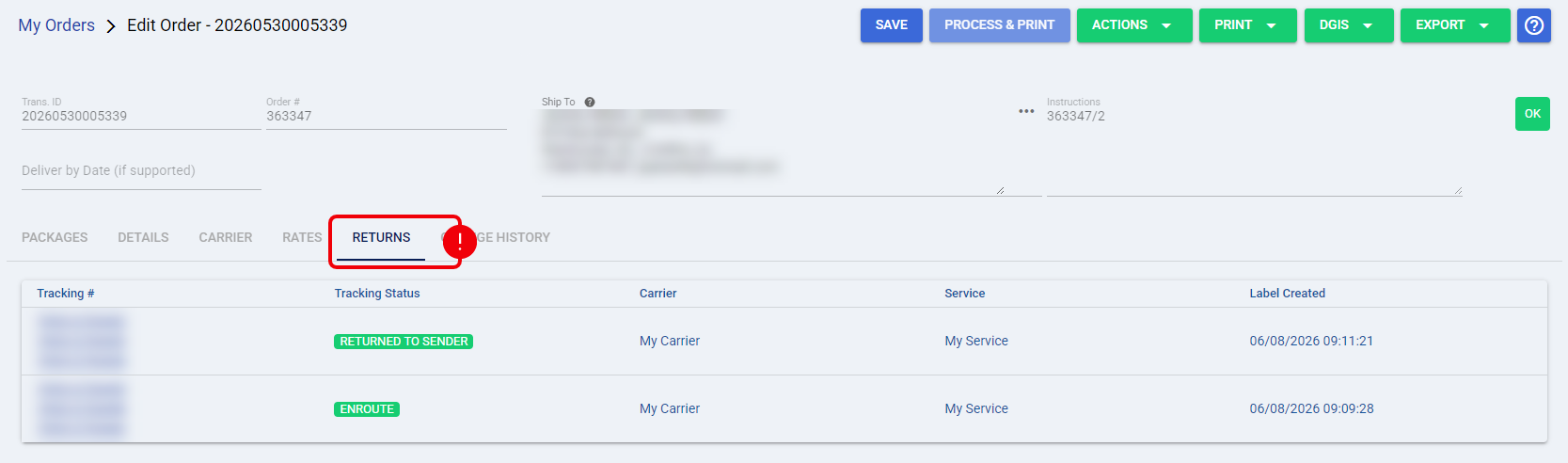
When visible, the Returns tab presents a table containing the following crucial data points for every return generated against that order:
FIELD NAME | DESCRIPTION |
Tracking # | The carrier-assigned return tracking identifier. Clicking this opens the Tracking Details page. |
Tracking Status | The current lifecycle state provided via techTRACK. |
Carrier | The specific shipping provider handling the reverse transit. |
Service | The shipping method selected for the return label. |
Label Created | The explicit timestamp indicating when you generated the return document. |
Was this article helpful?
That’s Great!
Thank you for your feedback
Sorry! We couldn't be helpful
Thank you for your feedback
Feedback sent
We appreciate your effort and will try to fix the article