Warehouse operators often need to pick items and print labels in a specific sequence to optimize their physical workflow. techSHIP enables you to control this sorting behavior to ensure your labels are generated in the most efficient order possible.
This guide covers how to set up the dual-layer hierarchy for label sorting, utilizing a base default at the Client level and dynamic overrides during the final printing stage.
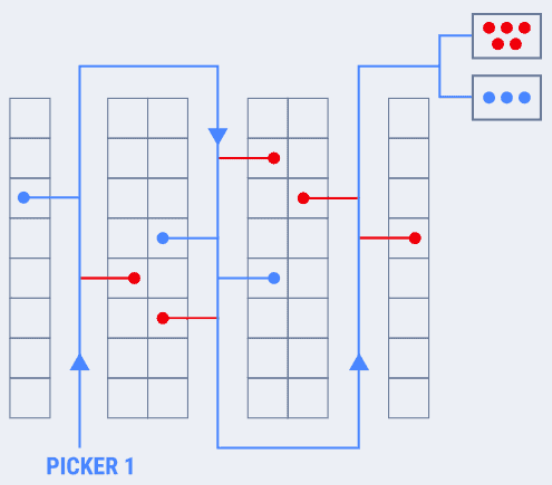
TABLE OF CONTENTS
- Understanding the Sorting Hierarchy and Limitations
- Setting the Default Sequence (Client Level)
- Applying or Overriding Rules (Printing Options)
Understanding the Sorting Hierarchy and Limitations
techSHIP uses a strict hierarchical approach to determine the final sequence of your labels during a print job:
- Default (Client-Level Configuration): A default sorting rule defined directly within the Client profile.
- Dynamic Override (Order-Level Configuration): A specific rule configured in the Printing Options dialog right before printing. This dynamic option can override both the Client default and any sequence assigned during the initial order import.
Before configuring your sorting sequences, please review the following system logic:
 | Sorting rules configured in the user interface apply exclusively to the Print action. They do not apply to the combined Process & Print action. | |
| | ||
 | If a specific display sequence is assigned to a group of orders during the import process, this will only dictate the initial display sequence within the My Orders grid. The rules defined in the Printing Options dialog will completely override that imported sequence when the labels are physically generated. | |
| | ||
Setting the Default Sequence (Client Level)
The Client-level configuration acts as your base default. Whenever orders are printed for this client using the standard configuration, techSHIP will use this sorting rule.
| |
Before proceeding, ensure you are operating the right location.
|

To define the default sequence for a specific client:
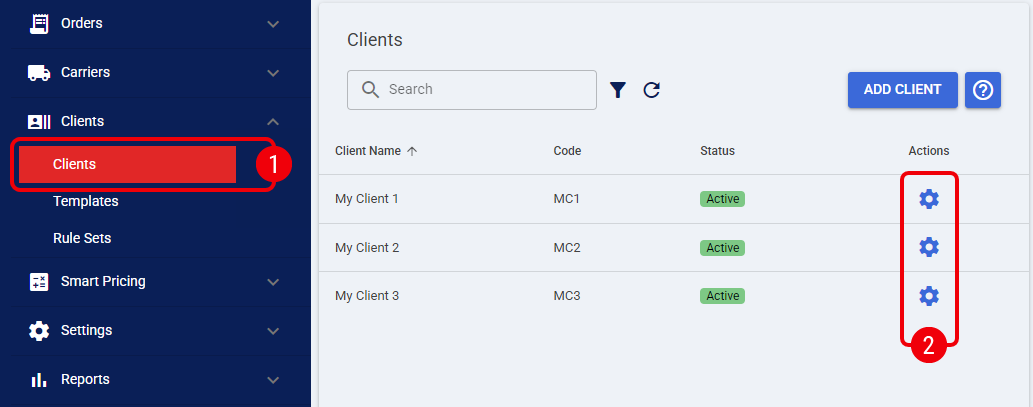
 | Click Clients from the left menu under the Clients section. |
 | Click the Edit icon for the desired Client. |
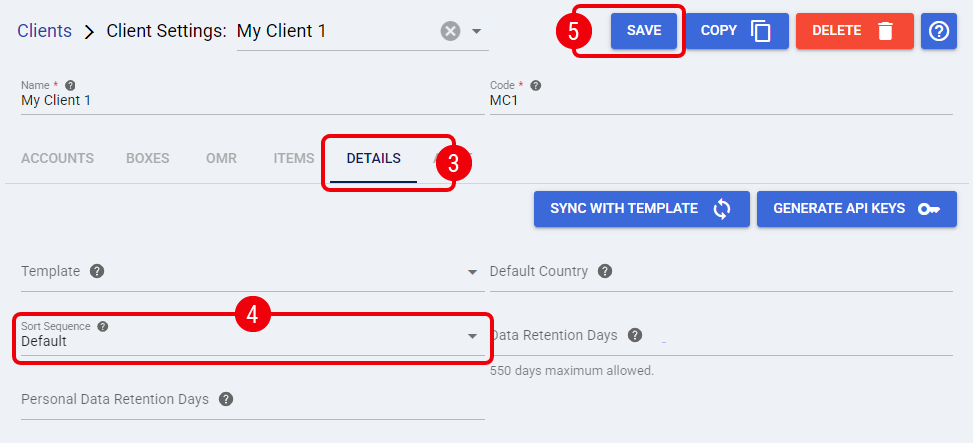
 | Access the Details tab. |
 | Use the Sort Sequence dropdown to select your preferred default sorting option: |
- Item-Level Sorting: SKU, Location, Quantity.
- Order-Level Sorting: Pick Order, Customer Order, Customer PO.
- Combinations (Multi-level): Location, SKU, Quantity; Carton, Location, SKU; Carrier, Service.
 | Click Save to apply the changes to the Client profile. |
Applying or Overriding Rules (Printing Options)
The Printing Options menu allows you to dynamically enforce or override sorting rules right before you execute a print job. You can access and configure this dialog even if no orders are currently selected in the grid.
To configure the final sorting output for your selected orders:
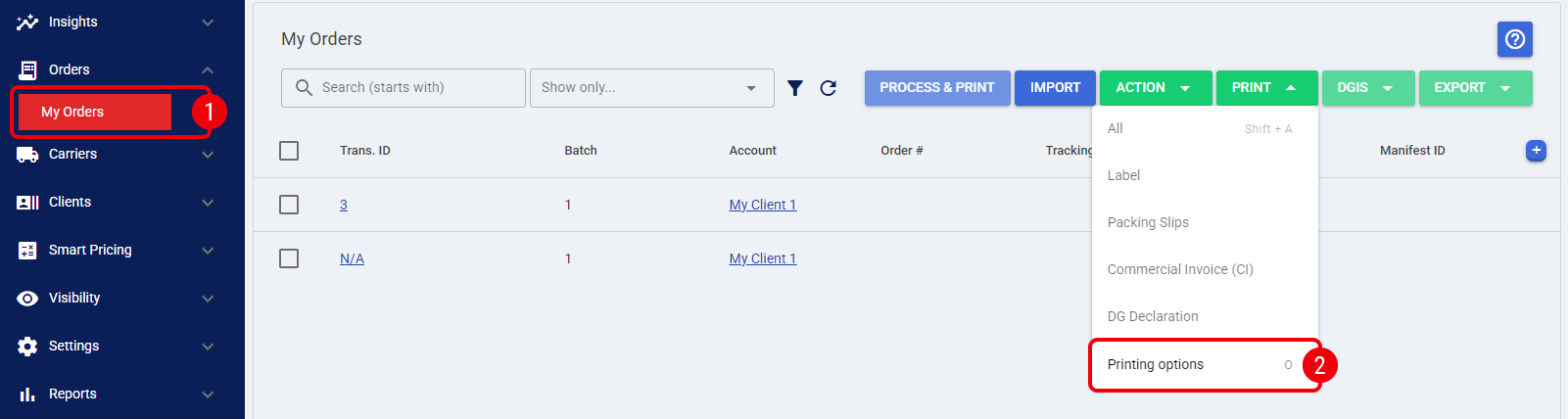
| Click My Orders from the left menu under the Orders section. |
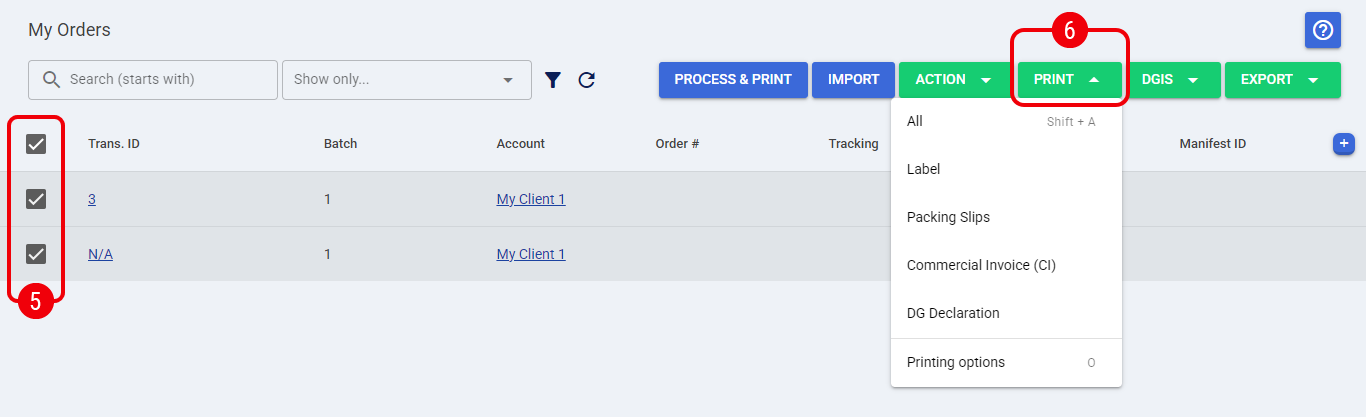
| Click the Print dropdown in the top action bar and select Printing Options. |
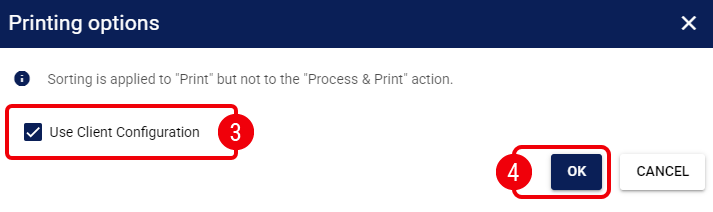
| Locate the Use Client Configuration checkbox to determine how you want to sort the current print job: |
- Checked: Leave the box enabled (this is checked by default) to sort the selected orders alphabetically by Client, and then apply the specific Sort Sequence previously defined in that Client's profile.
- Unchecked: Uncheck the box to reveal the manual Sort By, Then By, and Then By dropdown fields. Configuring these fields forces a unique, custom multi-level sort (e.g., sorting by Carrier and then by Service) exclusively for the currently selected orders, bypassing all Client defaults.
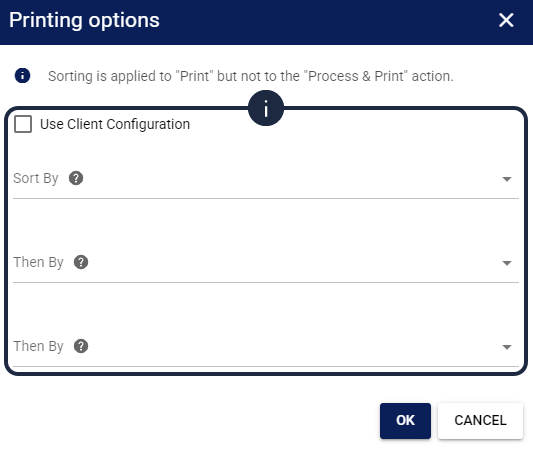
| Click OK to save your preferences. |
| Select the desired orders using the checkboxes in the My Orders grid. |
 | Click the Print dropdown menu and select the desired option (e.g., Label) to generate the sorted documents. |
The printing sequence is now actively applied and will dictate the physical output of your labels.
Was this article helpful?
That’s Great!
Thank you for your feedback
Sorry! We couldn't be helpful
Thank you for your feedback
Feedback sent
We appreciate your effort and will try to fix the article