This guide explains how to add and configure a Metropolitan Warehouse & Delivery Baseline Account.
A Baseline Carrier Account defines the default configuration required for the platform to communicate with the carrier and generate shipping labels and BOL. This setup is required before adding Client (Billing) Accounts and enabling shipping operations for this carrier.
 | For a complete overview of supported carriers and related setup guides, refer to techSHIP supported Carriers - Master List [Guides List]. |
TABLE OF CONTENTS
Prerequisites
Before adding the Baseline Account, ensure the following prerequisites are completed:
- Metropolitan Warehouse & Delivery Onboarding Requirements and Configuration Guides [Information].
- Follow the configuration steps as described in How to Add a Carrier Baseline Account [Step-by-Step guide] using the values provided below.
Carrier-Specific Instructions
Carrier Tab
The Carrier tab contains the Baseline configuration used to identify the Carrier account and define its operational behavior. Fields in this view are grouped visually to distinguish mandatory (red-highlighted items) and optional (blue-highlighted items) carrier-specific settings.
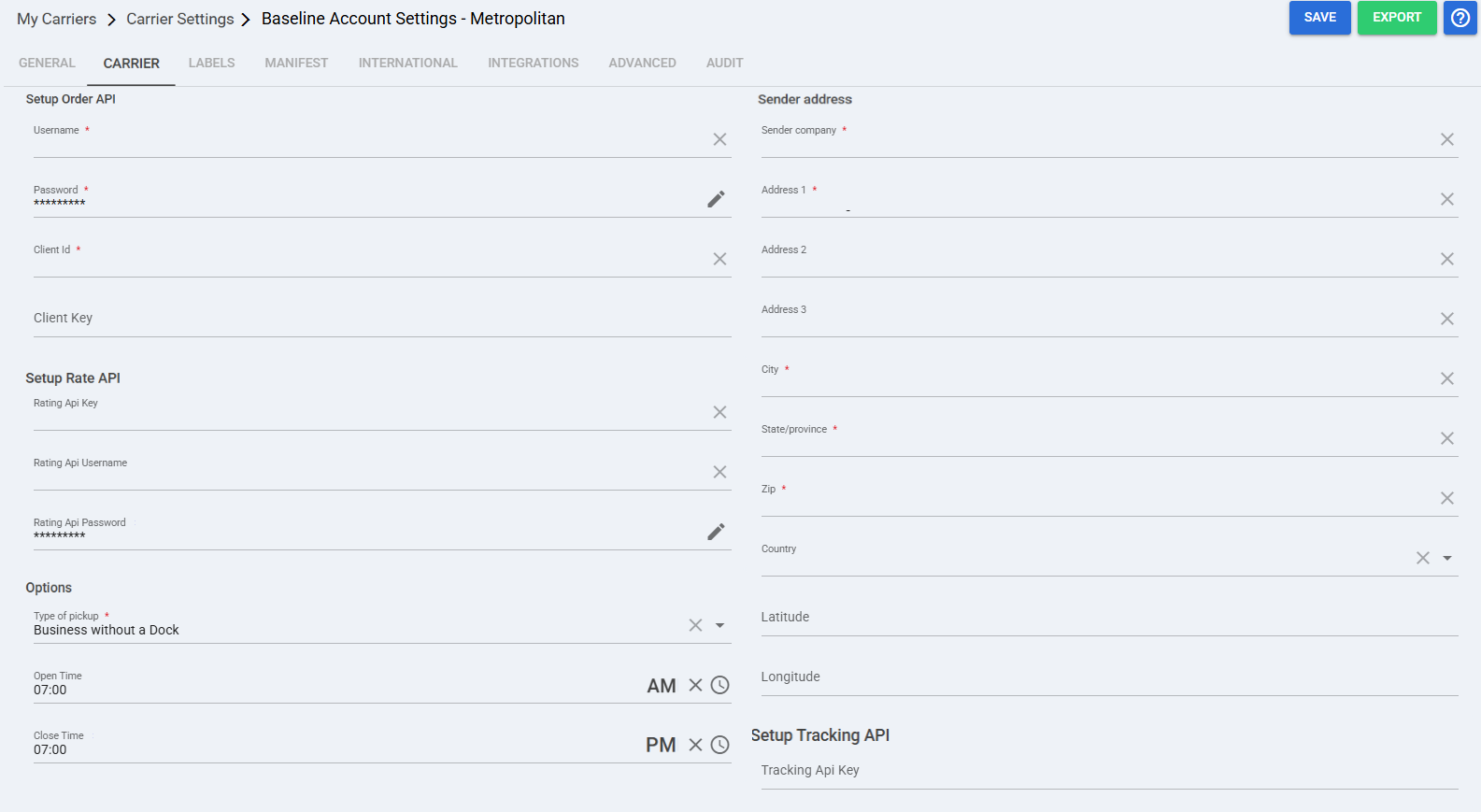

Username: Carrier-provided login used to authenticate the Order API connection.

Password: Password paired with the Username for Order API authentication.

Client Id: Carrier-issued identifier required to complete authentication and route requests to your account.

Client Key: Credential field. Leave empty unless provided/required by the carrier for your setup.

Rating Api Key: API key used for rating/rate shopping requests.
Required only if your workflow uses rate shopping/rating. If not using rating, leave the Setup Rate API fields empty.

Rating Api Username: Username used for rating/rate shopping authentication.
Required only if rate shopping is enabled.

Rating Api Password: Password used for rating/rate shopping authentication.
Required only if rate shopping is enabled.

Type of pickup: Select the pickup building type. Used by the carrier for pickup expectations and operational handling.

Open Time: Pickup location opening time for carrier coordination.

Close Time: Pickup location closing time for carrier coordination.

Sender company: Company name used as the shipper on carrier documentation (Label/BOL).

Address 1: Primary street address for the shipper location.

Address 2: Secondary address line.

Address 3: Tertiary address line.

City: Shipper city used for carrier documentation and dispatch context.

State/Province: Shipper state/province code required by the carrier.

Zip: Shipper postal code required by the carrier.

Country: Optional. Keep consistent with domestic operation.

Latitude: Enter only if required by your operation.

Longitude: Enter only if required by your operation.

Tracking Api Key: API key used to enable tracking updates.
Mandatory only when techTrack is enabled/used for this carrier. If techTrack is not used, leave empty.
The Carrier tab contains the Baseline configuration used to identify the Carrier account and define its operational behavior. Fields in this view are grouped visually to distinguish mandatory (red-highlighted items) and optional (blue-highlighted items) carrier-specific settings.
Username: Carrier-provided login used to authenticate the Order API connection.
Password: Password paired with the Username for Order API authentication.
Client Id: Carrier-issued identifier required to complete authentication and route requests to your account.
Client Key: Credential field. Leave empty unless provided/required by the carrier for your setup.
Rating Api Key: API key used for rating/rate shopping requests.
Required only if your workflow uses rate shopping/rating. If not using rating, leave the Setup Rate API fields empty.
Rating Api Username: Username used for rating/rate shopping authentication.
Required only if rate shopping is enabled.
Rating Api Password: Password used for rating/rate shopping authentication.
Required only if rate shopping is enabled.
Type of pickup: Select the pickup building type. Used by the carrier for pickup expectations and operational handling.
Open Time: Pickup location opening time for carrier coordination.
Close Time: Pickup location closing time for carrier coordination.
Sender company: Company name used as the shipper on carrier documentation (Label/BOL).
Address 1: Primary street address for the shipper location.
Address 2: Secondary address line.
Address 3: Tertiary address line.
City: Shipper city used for carrier documentation and dispatch context.
State/Province: Shipper state/province code required by the carrier.
Zip: Shipper postal code required by the carrier.
Country: Optional. Keep consistent with domestic operation.
Latitude: Enter only if required by your operation.
Longitude: Enter only if required by your operation.
Tracking Api Key: API key used to enable tracking updates.
Mandatory only when techTrack is enabled/used for this carrier. If techTrack is not used, leave empty.
Labels Tab
For Metropolitan, label/BOL output is handled by the carrier integration as follows:
- PDF Label: generated by default
- BOL: generated by default
- Configuration: there is no supported setting to change this behavior (both are produced by design).
 | To enable settings —and before continuing—, press Save. |
Finalizing the Setup
Once the Baseline Account has been created, validated, and saved, proceed to configure the Client (Billing) Account:
How to Add and Set Up a Metropolitan Warehouse & Delivery Client (Billing) Account [Guide] .
Was this article helpful?
That’s Great!
Thank you for your feedback
Sorry! We couldn't be helpful
Thank you for your feedback
Feedback sent
We appreciate your effort and will try to fix the article