This guide explains how to add and configure an Aramex Client (Billing) Account.
A Client (Billing) Account assigns a carrier connection to a specific Client and defines how that carrier behaves for that Client.
 |
For a complete overview of supported carriers and related setup guides, refer to techSHIP supported Carriers - Master List [Guides List].
|
TABLE OF CONTENTS
Prerequisites
Before adding a (Billing) Account, ensure that:
The Client Profile has been created. See: How to create a Client profile [Step-by-Step guide].
This setup uses a Baseline Account as the foundation. To create and configure one specific to this carrier, see: How to Add an Aramex Baseline Account [Guide].
Follow the configuration steps as described in How to Add a Client (Billing) Account [Step-by-Step guide] using the values provided below.
Carrier-Specific Instructions
The Carrier tab contains the Aramex-specific configuration used to define operational behavior for this Client (Billing) Account. Fields in this view are grouped visually to distinguish mandatory (red-highlighted items) and optional (blue-highlighted items) carrier-specific settings.
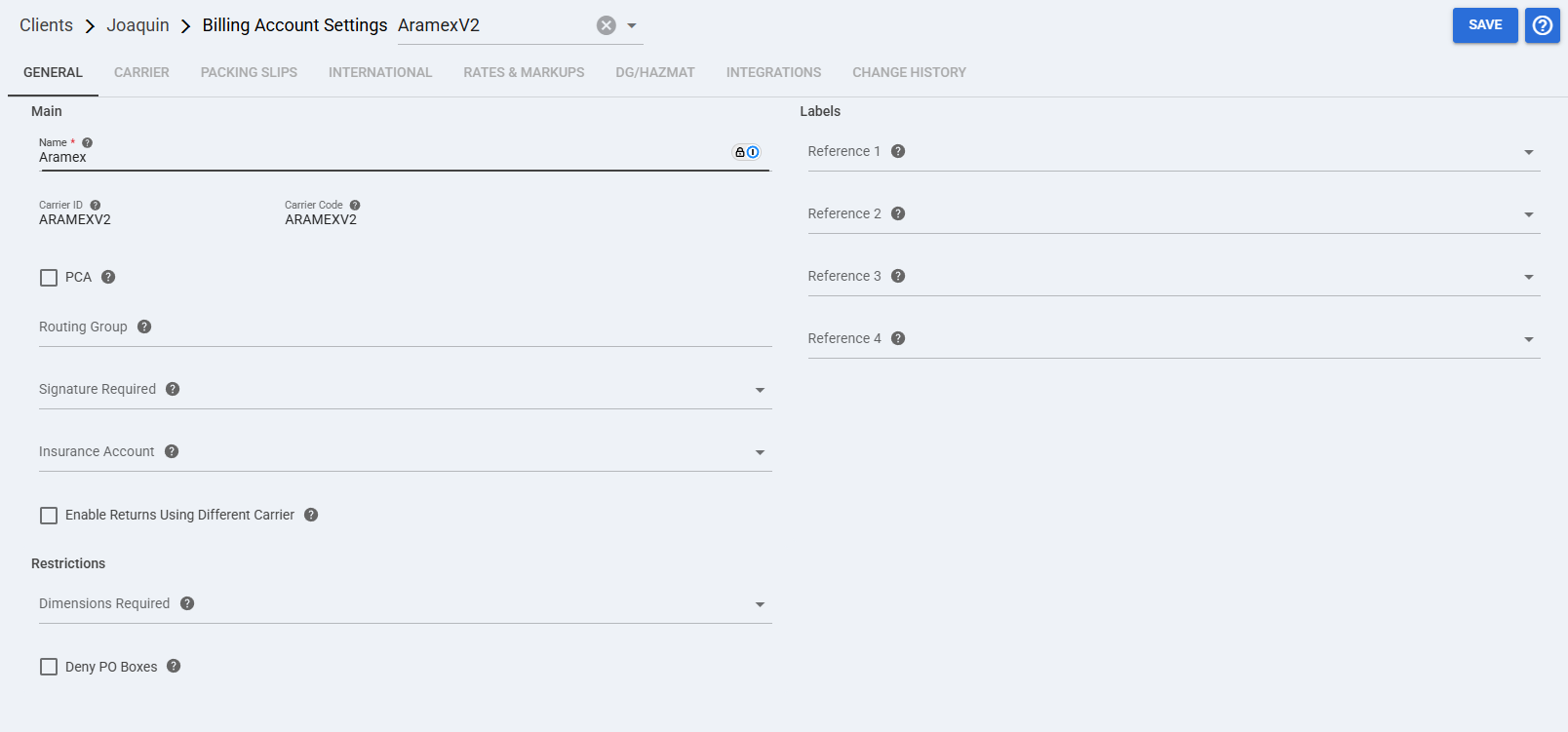
 | Core Account Information: This group identifies the Client (Billing) Account and the carrier record associated with it.
|
 | Carrier Options: These optional fields define how Aramex behaves for this Client (Billing) Account.
|
 | Restrictions: These optional settings control shipment restrictions for this Client (Billing) Account.
|
 | Label References: These optional fields define which order reference values can be printed on the label for this Client (Billing) Account.
|
 | To enable carrier-specific settings —and before continuing—, press Save. |
Next Steps
You can now use this account to ship through Aramex.
To learn more about additional Order Settings that you can configure for this specific carrier, see: How to Configure Aramex Order-Specific Settings [Guide].
Was this article helpful?
That’s Great!
Thank you for your feedback
Sorry! We couldn't be helpful
Thank you for your feedback
Feedback sent
We appreciate your effort and will try to fix the article