This guide explains how to add and configure a FedEx REST & IPD Client (Billing) Account.
A Client (Billing) Account assigns a carrier connection to a specific Client and defines how that carrier behaves for that Client.
 |
For a complete overview of supported carriers and related setup guides, refer to techSHIP supported Carriers - Master List [Guides List].
|
TABLE OF CONTENTS
Prerequisites
Before adding a Client (Billing) Account, ensure that:
The Client Profile has been created. See: How to create a Client profile [Step-by-Step guide].
This setup uses a Baseline Account as the foundation. To create and configure one specific to this carrier, see: How to Add a FedEx REST Baseline Account [Guide].
Follow the configuration steps as described in How to Add a Client (Billing) Account [Step-by-Step guide] using the values provided below.
Carrier-Specific Instructions
The Carrier tab contains the FedEx REST-specific configuration used to define operational behavior for this Client (Billing) Account. Fields in this view are grouped visually to distinguish mandatory (red-highlighted items) and optional or conditional (blue-highlighted items) carrier-specific settings.
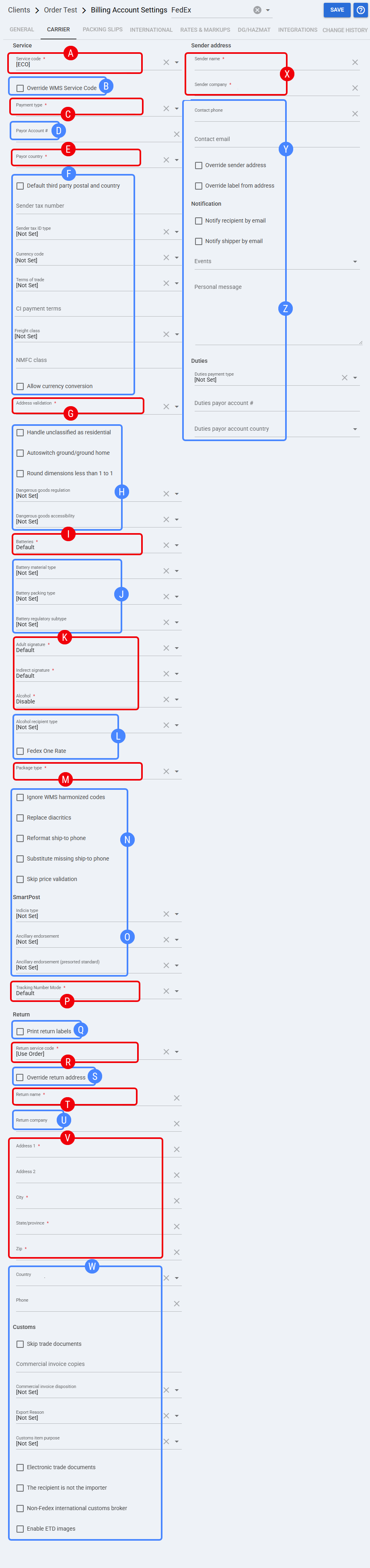
 | Service code: Select the default service code assigned to imported orders that do not already include a service code. |
 | Override WMS Service Code: Enable this option to replace the service code received from the WMS with the selected service. The selected value can use the order-provided service, ECO mode, or a fixed service level. |
| | If this account is used for Rate Shopping, configure the service codes to include or exclude from rate shopping results. See: 14 - Include or exclude Service Codes when Rate Shopping [Step-by-Step guide]. |
 | Payment type: Select from the following options, how shipment charges are billed for this Billing Account.
|
 |
| |
 | Payor country: Select the country associated with the payor account. |
 | Default third party postal and country: Enable this option when default third-party postal and country values must be used for third-party billing. Sender tax number: Enter the sender tax number when required for the shipment. Sender tax ID type: Select the tax ID type associated with the sender tax number. Currency code: Select the currency the account uses for regular transactions. Terms of trade: Select the terms of trade to use for international shipments. CI payment terms: Select the commercial invoice payment terms to use for international shipments. Freight class: Select the freight class when required for the shipment. NMFC class: Select the NMFC class when required for the shipment. Allow currency conversion: Enable this option when currency conversion must be allowed for shipments processed through this Billing Account. |
 | Address validation: Select the address validation level to use. FedEx validates the address and can detect residential areas, which may affect charges and available services. |
| | Address Validation can affect rates, services, and residential delivery behavior. When enabled, it can also support automatic switching between FedEx Ground and FedEx Ground Home when applicable. |
 | Handle unclassified as residential: Enable this option to handle unclassified addresses as residential. Autoswitch ground/ground home: Enable this option to switch automatically between FedEx Ground and FedEx Ground Home based on the residential result returned through address validation. Round dimensions less than 1 to 1: Enable this option to round package dimensions below 1 up to 1. Dangerous goods accessibility: Select the accessibility setting for Dangerous Goods shipments. |
 | Dangerous Goods support depends on the options available through the FedEx REST API. If your Dangerous Goods workflow requires functionality that is not available through the FedEx REST API, contact your FedEx representative. |
 | Batteries: Select the battery option required for shipments processed through this Billing Account. |
 | Battery material type: Select the battery material type when required. Battery packing type: Select the battery packing type when required. Battery regulatory subtype: Select the battery regulatory subtype when required. |
 | Adult signature: Select the adult signature requirement to apply when required for shipments processed through this Billing Account. Indirect signature: Select the indirect signature requirement to apply when required for shipments processed through this Billing Account. Alcohol: Select the alcohol shipment setting to apply when shipping alcohol. |
 | Alcohol recipient type: Select the recipient type for alcohol shipments. FedEx One Rate: Enable this option when this Billing Account will use FedEx One Rate services. |
| | FedEx One Rate requires branded packaging and specific Client (Billing) Account configuration before it can be used. To use FedEx One Rate, enable FedEx One Rate and select a FedEx-branded packaging option, either fixed or dynamically provided. |
 | Package type: Select the package type used by this Billing Account. |
 | Ignore WMS harmonized codes: Enable this option when harmonized codes from the WMS must be ignored. Replace diacritics: Enable this option to replace diacritic characters in shipment data. Reformat ship-to phone: Enable this option to reformat the ship-to phone number. Substitute missing ship-to phone: Enable this option to substitute a missing ship-to phone number. Skip price validation: Enable this option when price validation should be skipped for shipments processed through this Billing Account. |
 | SmartPost: Configure these fields when this Billing Account will use FedEx Ground Economy Shipping. Indicia type: Select the indicia type for FedEx Ground Economy Shipping. Ancillary endorsement: Select the ancillary endorsement. Ancillary endorsement (presorted standard): Select the ancillary endorsement used for presorted standard shipments. |
 | Tracking Number Mode: Select the tracking number mode for FedEx Ground Economy Shipping. |
 | Print return labels: Enable this option to print a return label per shipment for every order processed through this Billing Account. |
 | Return service code: Select the service level to use for return labels. |
 | Override return address: Enable this option when the return label must use a return address different from the default return address. |
 | Return name: Enter the return contact name used when Override return address is enabled. |
 | Return company: Enter the return company used when applicable. Address 2: Enter the second return address line when applicable. |
 | Address 1: Enter the first return address line used when Override return address is enabled. City: Enter the return city used when Override return address is enabled. State/province: Enter the return state or province used when Override return address is enabled. Zip: Enter the return postal code used when Override return address is enabled. |
 | Phone: Enter the return contact phone number when applicable. Country: Select the return country when applicable. Skip trade documents: Enable this option when trade documents must be skipped for shipments processed through this Billing Account. Commercial invoice copies: Enter the number of commercial invoice copies required. Commercial invoice disposition: Select how the commercial invoice is handled. Export Reason: Select the export reason for international shipments. Customs item purpose: Select the customs item purpose. Electronic trade documents: Enable this option to send electronic trade documents to FedEx. If a CUSMA PDF Certificate is uploaded to an item, enable this option so order packages matching the SKU send the CUSMA PDF to FedEx. The recipient is not the Importer: Enable this option when the recipient is not the importer for the shipment. Non-FedEx international customs broker: Enable this option when a non-FedEx international customs broker is used. Enable ETD images: Enable this option to include ETD images. |
| | International document workflows, including CUSMA and Electronic Trade Documents, may require additional Client (Billing) Account or item-level configuration. For the full Electronic Trade Documents workflow, see: How to upload and use FedEx ETD images [Step-by-Step guide]. |
 | Sender name: Enter the sender name associated with this Billing Account. Sender company: Enter the sender company associated with this Billing Account. |
 | Contact phone: Enter the sender contact phone number. Contact email: Enter the sender contact email address. Override sender address: Enable this option when this Billing Account must use a sender address different from the source Carrier Account. Override label from address: Enable this option when the label From address must be overridden for shipments processed through this Billing Account. |
| The account name and physical address details must match the information registered with FedEx. Otherwise, FedEx REST registration may return: VALIDATE ADDRESS
|
 | Notify recipient by email: Enable this option to send shipment notifications to the recipient by email. Notify shipper by email: Enable this option to send shipment notifications to the shipper by email. Events: Select the shipment events that trigger notifications. Personal message: Enter the message to include in the notification when applicable. Duties payment type: Select how duties are billed for applicable shipments. Duties payor account #: Enter the account number to bill for duties when required by the selected duties payment type. Duties payor account country: Select the country associated with the duties payor account. |
Next Steps
You can now use this account to ship through FedEx REST.
Was this article helpful?
That’s Great!
Thank you for your feedback
Sorry! We couldn't be helpful
Thank you for your feedback
Feedback sent
We appreciate your effort and will try to fix the article