Manage your entire item catalog across all clients from a single, centralized page within techSHIP. This feature eliminates the need to navigate through individual client settings, allowing you to efficiently manage item records in bulk.
This guide covers how to navigate the centralized cross-client page and explains the business rules for managing your global inventory.
 | Access to this page requires specific user permissions. Review your access profile in techSHIP User Permissions Structure [Information]. | |
| | ||
TABLE OF CONTENTS
- Overview and Access
- Filtering the Item List
- Exporting Across Multiple Clients
- Importing Items Across Multiple Clients
- Editing Items
- Bulk Deleting Items
Overview and Access
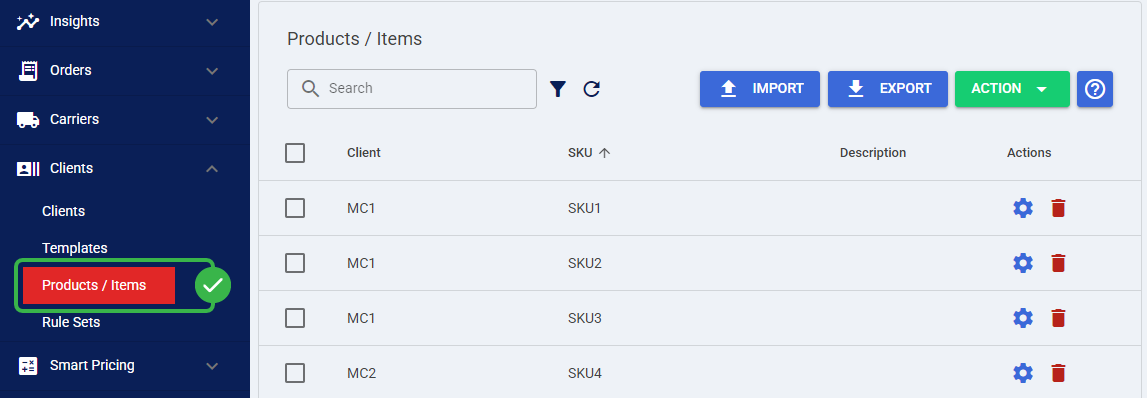
The centralized Products / Items page provides a unified table displaying all available items across every client you have permission to manage. The data grid includes the Client, SKU, Description, and Actions columns, offering the same familiar sorting and paging behavior as the single-client view.
To access this centralized grid, click on Clients from the main left menu, and then select Products / Items.
If you only need to manage a single catalog without cross-client visibility, you can still use the procedure detailed in How to Manually Set Up Items for a Client [Step-by-Step Guide].
Filtering the Item List
Because the centralized table aggregates data across your entire Location, utilizing the search tools effectively is crucial for locating specific records.
You can narrow down the displayed items using two distinct filtering methods:
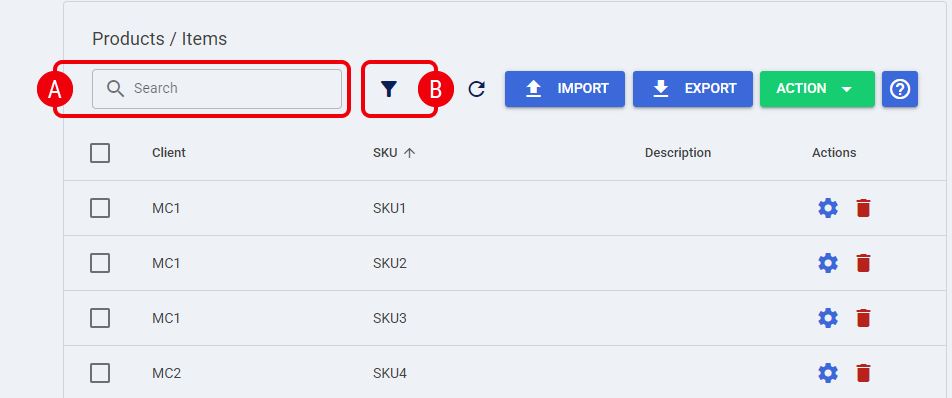
 | Standard Filter: The default search bar at the top of the grid acts as the standard filter. This field exclusively filters the table by any SKU part, returning that specific product across all clients that carry it. |
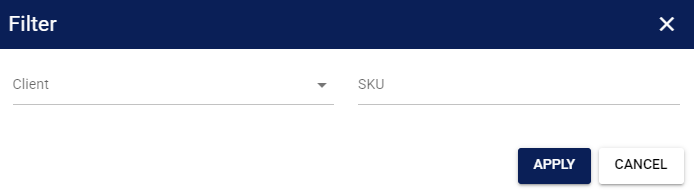
 | Advanced Filter: By clicking the Filter icon next to the search bar, you open the advanced options. This allows you to filter specifically by Client, or by a combination of both Client and SKU to pinpoint a unique record. |
Exporting Across Multiple Clients
You can download your entire cross-client catalog, or a filtered subset of it, directly from this page using the Export button.
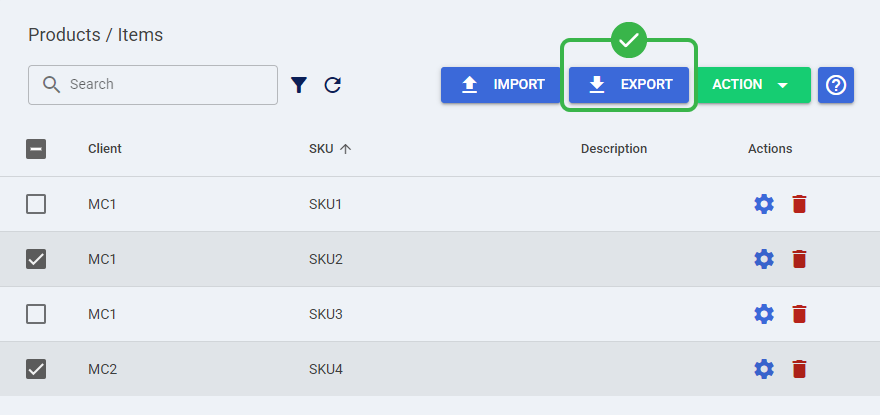
The system will generate a single file containing all the records currently selected in your grid. The export function generates a file using the identical structure as the single-client export, with the mandatory addition of a Client Code column so you can identify the ownership of each row.
For detailed information, refer to How to Export Items for a Client to an XLSX File [Step-by-Step Guide].
Importing Items Across Multiple Clients
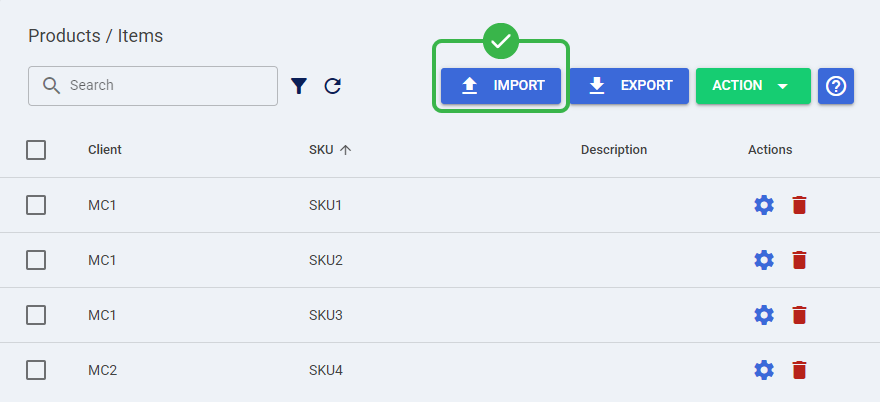
You can update or create items across multiple clients simultaneously by uploading a single spreadsheet file. The import process utilizes the standard file format, but it strictly requires a valid Client Code column to map the data accurately.
| For detailed conceptual information and advanced configuration, refer to How to Import Items for a Client from an XLSX File [Step-by-Step Guide]. | |
| | ||
When performing a cross-client import via the Import button, the system enforces specific replacement and validation rules:
- Global Replacement Behavior: Unlike client-specific imports, selecting the replace option during a global import updates the matching Client and SKU records. It does not wipe the clients' existing items.
- Client Code Validation: Every row must include a valid Client Code. If a row lacks a client code, or if you do not have permission to access that specific client, the system will immediately reject the row and display a validation error.
- Unchanged Records: Any items that currently exist in techSHIP but are not explicitly included in your import file will remain completely untouched.
 | During a cross-client replacement import, a present-but-blank Handling Group value in your import file clears the existing Handling Group assignment for the matching Item, leaving it Ungrouped. Before importing, verify that each Handling Group value reflects the assignment you want to keep or intentionally clear. For detailed conceptual information and advanced configuration, refer to How to Use Cartonization [Guide]. | |
| | ||
Editing Items
You can modify existing item records directly from the centralized grid by clicking the Edit icon in the Actions column next to the target item.
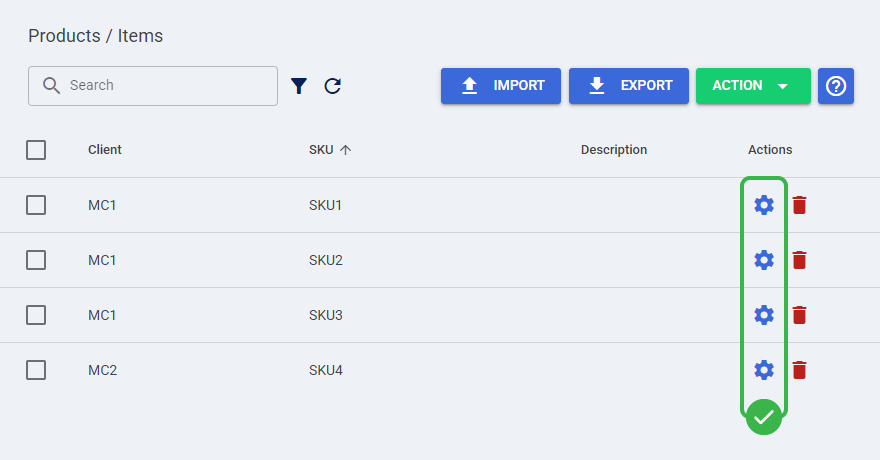
| Manual item creation is not supported from this cross-client page and must be performed at the individual client level. For detailed information on both creating and editing an item's properties, refer to How to Manually Set Up Items for a Client [Step-by-Step Guide]. | |
| | ||
Bulk Deleting Items
You can clean up your centralized catalog by removing obsolete items across different clients in a single bulk action.
| techSHIP does not support soft-delete for items. Once you confirm a deletion, the selected item records are permanently removed from the database and cannot be restored. | |
| | ||
To delete records, select the checkboxes next to the target items and use the Action drop-down menu at the top right to select Delete.
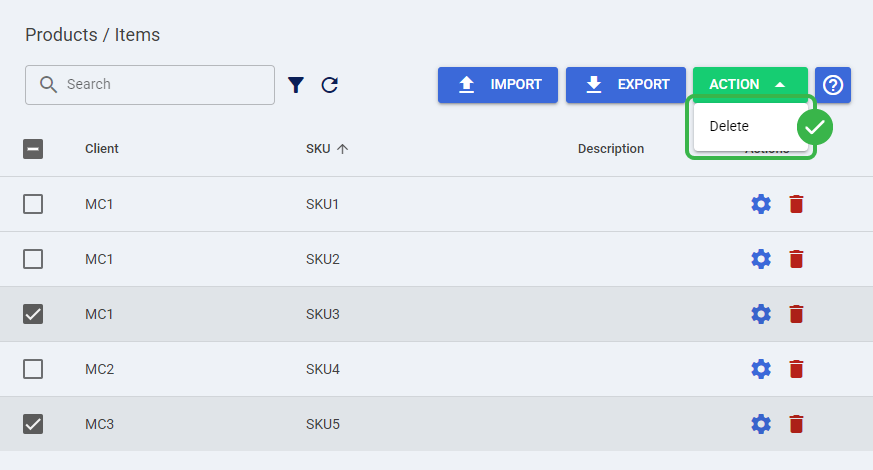
The system will present a confirmation warning displaying the exact number of records you are about to permanently delete. Once confirmed, the items are removed from the system entirely.
Was this article helpful?
That’s Great!
Thank you for your feedback
Sorry! We couldn't be helpful
Thank you for your feedback
Feedback sent
We appreciate your effort and will try to fix the article