This article details how to edit an Account in techOMS, either to update its current configurations or to finalize its initial setup.
This guide covers the steps required to access your account settings depending on your user role, and how to successfully modify the primary account fields and workflows.
 | For information on enabling or disabling accounts, please refer to the following guides: | |
| | ||
TABLE OF CONTENTS
Accessing Account Settings
 | This action requires special management permissions. Refer to the techOMS User Permissions Structure [Information] to confirm your access level before following the appropriate subsection below. | |
| | ||
As an Account Administrator
| Make sure that you are operating at the right Account beforehand. | |
| | ||
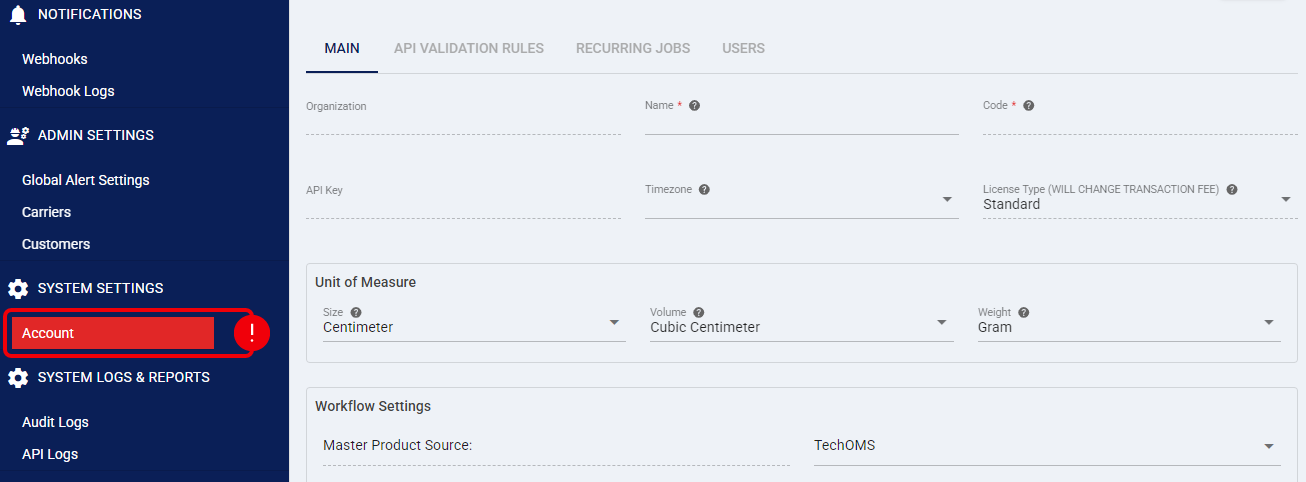
Click Account from the left menu under the System Settings section.configuration.
As an Organizational Administrator or Supervisor
| Make sure that no Account is selected. | |
| | ||
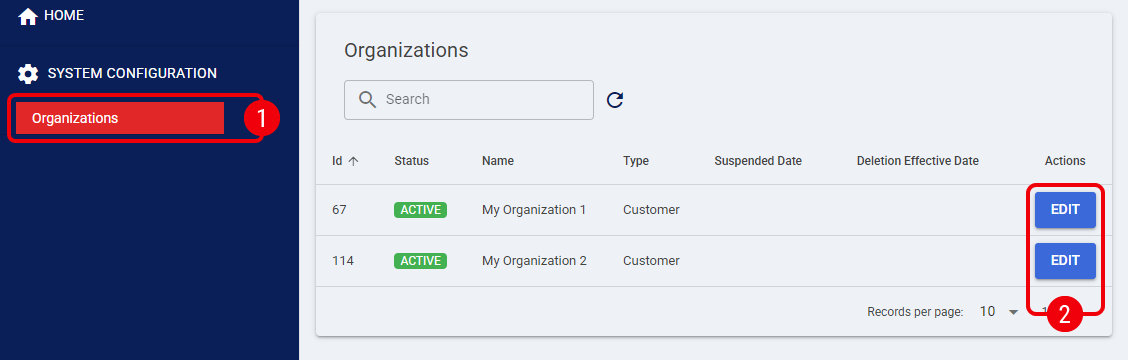
 | Click Organizations from the left menu under the System Configuration section. |
 | Press Edit on the row of the Organization you wish to work with. |
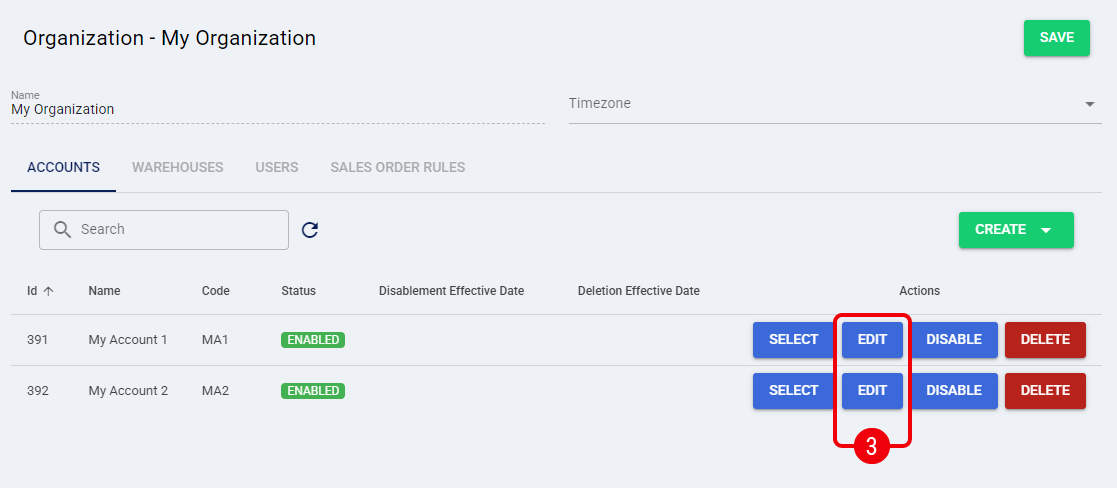
 | Press Edit on the row corresponding to the desired Account. |
Editing an Account
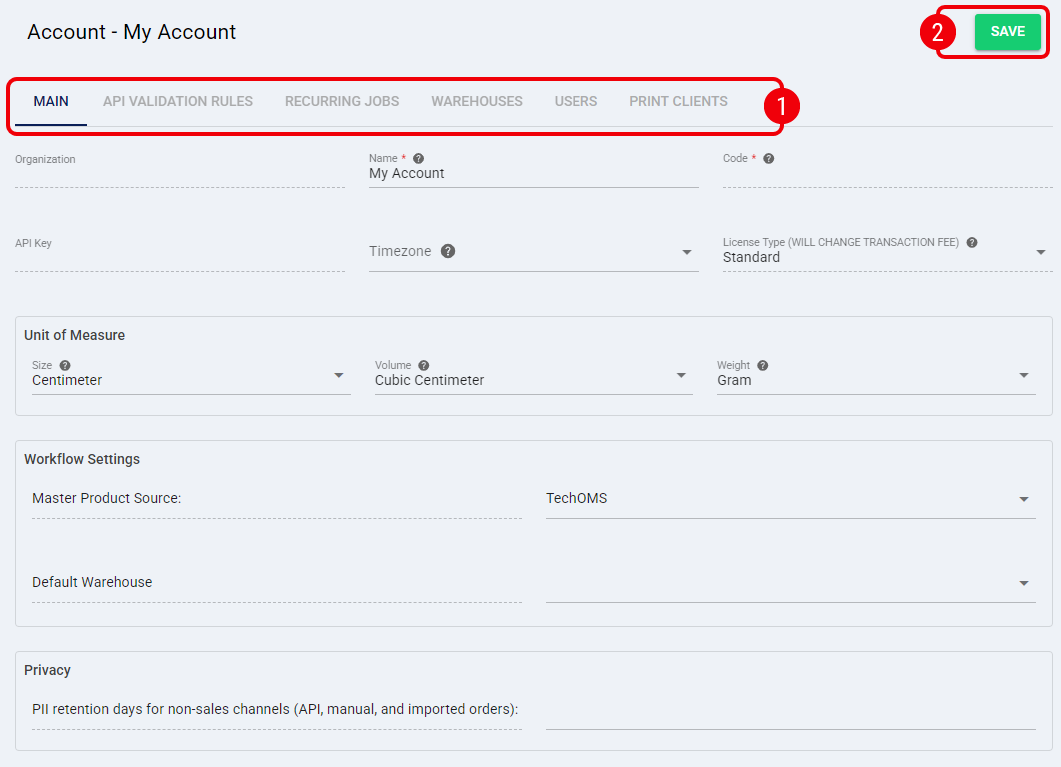
| Define the fields accordingly depending on the settings tab you are modifying: |
- Main Tab:
- Organization: The parent organization this account is associated with.
- Name: The internal display name for the account.
- Code: The unique reference code used to identify the account.
- API Key: The authentication key used for external interactions with the account.
- Timezone:The designated local time zone for the account.
This setting automatically converts UTC dates for system events to the selected timezone within the user interface. - License Type: Defines the account license type (Standard by default).
For instructions on updating this value, refer to the How to Update the License Type (Subscription) [Step-by-step guide]. - Unit of Measure:
- Size: The unit of measurement used for length (e.g., Centimeter, Inch).
- Volume: The unit of measurement used for volume (e.g., Cubic Centimeter, Cubic Inch).
- Weight: The unit of measurement used for weight (e.g., Kilogram, Pound).
The behavior and available unit combinations may vary depending on your system. Make sure to review the How Units of Measurement work in techOMS [Information] before making changes.
- Workflow Settings:
- Master Product Source: Select the origin system for your product catalog: techOMS (default), Sales Channel, or Fulfillment Channel.
Changing this setting on a live (production) Account can cause Product duplication. techOMS requires all SKUs to be unique. If duplicates are created, you may need to manually clean up affected entries, and related automations (Recurring Jobs) may need to be reconfigured to prevent incorrect or misleading logs.
Before proceeding, make sure you understand how this setting works: Understanding the techOMS Master Product Source [Information].
For Recurring job adjustments, refer to: How to configure Automations for Sales/Fulfillment channels [Step-by-step guide].
- Master Product Channel: If you select Sales Channel or Fulfillment Channel above, this additional field appears. Select the corresponding channel that will act as the master source.
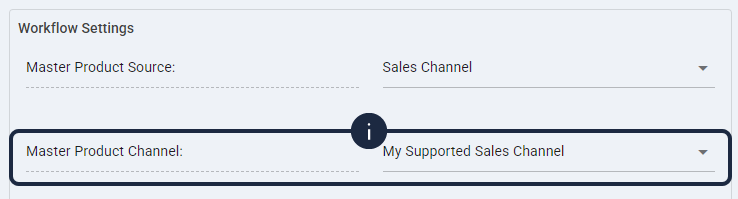
Only channels that support product imports are available. For full reference, see: techOMS Sales Channels - Master List [Guides List] and techOMS Fulfillment Channels - Master List [Guides List]. - Default Warehouse: Determines the default warehouse assigned to the account.
- Master Product Source: Select the origin system for your product catalog: techOMS (default), Sales Channel, or Fulfillment Channel.
- Privacy:
- PII retention days for non-sales channels (API, manual, and imported orders): Define the amount of days to determine how long sensitive data remains visible on sales orders generated outside of a direct channel integration before the system automatically redacts it for compliance.
This global account setting applies exclusively to sales orders created manually, imported via file, or generated via API. To configure PII retention for orders originating directly from a specific sales channel integration, please refer to the Advanced Settings of a Sales Channel [Guide]. If a sales channel has its own PII retention configured, that specific channel setting takes precedence over this account-level fallback.
- PII retention days for non-sales channels (API, manual, and imported orders): Define the amount of days to determine how long sensitive data remains visible on sales orders generated outside of a direct channel integration before the system automatically redacts it for compliance.
- API Validation Rules Tab: Set the enforcement status (Warning or Error) for missing or invalid carrier and service codes across your sales orders, shipments, purchase orders, and receipts.
- Recurring Jobs Tab: Manage background automation jobs for the account. For detailed information on channel automations, refer to the How to Configure Automations for Sales/Fulfillment Channels [Step-by-step guide].
- Warehouses Tab: Manage warehouses as detailed in the How to Manage Account Warehouses and Fulfillment Channels [Step-by-Step Guide].
This tab is available only to Organizational Administrators and Supervisors. - Users Tab: Manage user access and permissions for the account as detailed in the How to Add Users to an Account [Step-by-step guide].
- Print Clients Tab: Manage API secrets and connections for your desktop printers as detailed in How to Manage Print Clients in techOMS [Step-by-Step Guide].
| Press Save at the top right of the screen to apply your changes. |
The account configuration is now successfully updated and the new settings will immediately apply to all incoming data and system workflows.
Was this article helpful?
That’s Great!
Thank you for your feedback
Sorry! We couldn't be helpful
Thank you for your feedback
Feedback sent
We appreciate your effort and will try to fix the article