This guide explains how to add and configure a GLS Germany Baseline Carrier Account.
A Baseline Carrier Account defines the default configuration required for the platform to communicate with the carrier and generate shipping labels. This setup is required before adding Client (Billing) Accounts and enabling shipping operations for this carrier.
 |
For a complete overview of supported carriers and related setup guides, refer to techSHIP supported Carriers - Master List [Guides List].
|
TABLE OF CONTENTS
Prerequisites
Before adding the Baseline Account, ensure the following prerequisites are completed:
- GLS Germany Onboarding Requirements and Configuration Guides [Information].
- Follow the configuration steps as described in How to Add a Carrier Baseline Account [Step-by-Step guide] using the values provided below.
Carrier-Specific Instructions
Carrier Tab
The Carrier tab contains the Baseline configuration used to identify the carrier account and define its operational behavior. Fields are highlighted to identify mandatory settings in red and optional settings in blue.
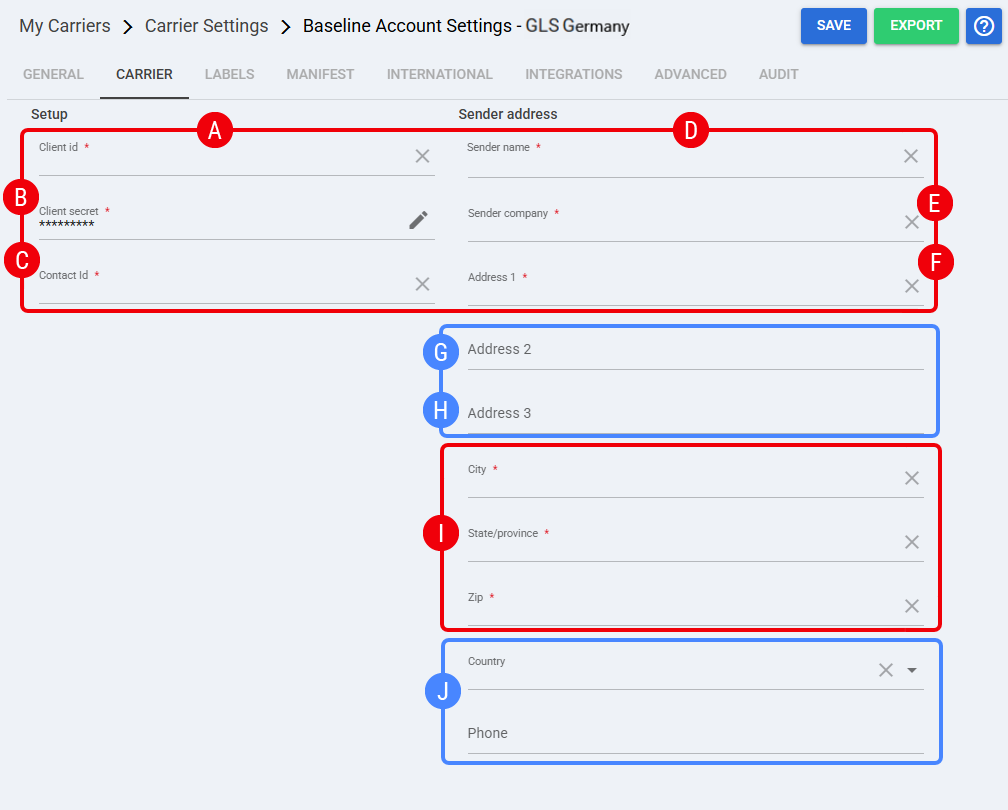
 | Client id: Enter the GLS Germany client identifier provided for the account. |
 | Client secret: Enter the GLS Germany client secret provided for the account. |
 | Contact Id: Enter the GLS Germany contact identifier associated with the shipper account. |
 | Sender name: Enter the sender name to be used as part of the shipper information. |
 | Sender company: Enter the sender company name to be used as part of the shipper information. |
 | Address 1: Enter the primary sender street address. |
 | Address 2: Enter the secondary sender address line when applicable. |
 | Address 3: Enter the third sender address line when applicable. |
 | City, State/province, Zip, : Enter the sender location details associated with the Baseline Account. |
 | Country: Select the country from the drop down menu. Phone: Enter the sender phone number. |
Labels Tab
Set Mode to the label format required for this account: ZPL, PDF, or PNG.
 | Press Save before continuing to apply the selected settings. |
Finalizing the Setup
Once the Baseline Account has been created, validated, and saved, proceed to configure the Client (Billing) Account: How to Add and Set Up a GLS Germany Client (Billing) Account [Guide].
Was this article helpful?
That’s Great!
Thank you for your feedback
Sorry! We couldn't be helpful
Thank you for your feedback
Feedback sent
We appreciate your effort and will try to fix the article