Queues in techOMS provide an easy-to-use page to monitor automated background tasks, helping you track system operations without needing complex technical tools.
This guide covers the universal system pattern for navigating and managing all system queues.
TABLE OF CONTENTS
What Is a Queue?
The queue system in techOMS acts as a window into the operations running behind the scenes. It groups together automated tasks—such as sending data to a channel or applying an automatic update—so users can easily check that everything is running smoothly and quickly resolve issues if needed.
Sales Order Queue
The Sales Order Queue manages specific background tasks that determine how an order moves toward fulfillment. For example, it handles the automated updates created by Virtual Allocation and Order Holds.
 | The Scheduled On column is a crucial management tool in this queue. For Sales Orders, this indicates the exact time the hold timer expires. It is strictly an internal scheduling timestamp and should never be confused with physical shipping schedules. | |
| | ||
The following table describes the primary Action Types you will encounter in this queue:
ACTION TYPE | DESCRIPTION |
Download Order Update | Automatically retrieves the latest changes or revisions from the sales channel to keep techOMS synchronized. |
Release Hold and Edit | Cancels any existing shipments, releases protected inventory, and moves the order back to a Draft state for manual adjustments. |
Release Hold and Send | Ends the hold period and commands the system to proceed with physical allocation and fulfillment. |
For detailed conceptual information on how holds work, why they are used, and how they protect inventory, refer to Understanding Sales Order Holds and Virtual Allocation [Information].
Using the Queue
Because all system queues share the exact same design in techOMS, the following instructions apply universally, regardless of which specific queue you are viewing.
How to Access a Queue
Click Queue from the left-hand navigation menu under the desired section.
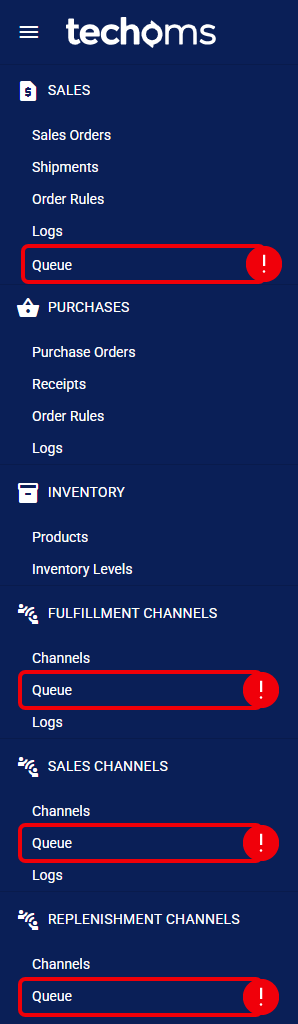
The selected queue grid is now active and will display all pending and historical automated tasks.
What Is the Displayed Information?
The queue interface uses a standard table layout designed for high visibility. While additional technical details are available, the main grid includes:
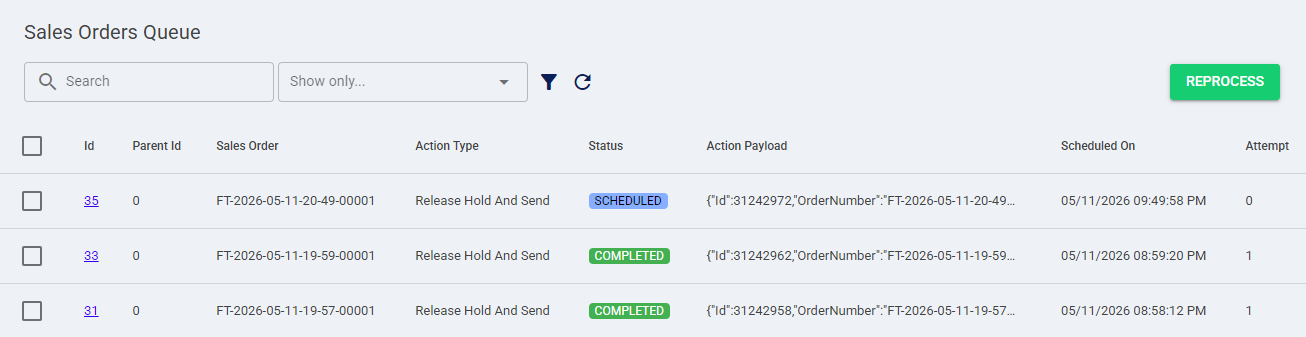
- ID: The unique internal identifier for the specific queue task.
- Origin: The source of the task, such as a specific Sales Order or a Fulfillment Channel.
- Action Type: The specific operation being performed (refer to the previous section for examples).
- Status: The current state of the task itself (e.g., Pending, Processing, Failed, or Completed).
- Scheduled On: The precise time the system is set to execute the task.
How to Filter Queue Entries
There are three primary ways to locate specific tasks within a Queue:

 | Search Bar: Use the search field at the top of the grid to find entries by their ID, or any part of the source and action payload (the data content of the task). |
 | Status Dropdown: Use the dropdown menu next to the search bar to filter tasks by their current state (e.g., only showing Failed tasks). |
 | Advanced Filter: Click the Advanced Filter icon to filter by additional properties, such as specific Action Types. |
| The options inside the Action Type dropdown automatically change depending on the queue you are viewing. For more information on what these actions do, please review the corresponding subsection in What Is a Queue?. | |
| | ||
How to View Task Details
If you need to investigate a specific automated task—especially one that has failed—you can easily access its full technical details by clicking on its ID.
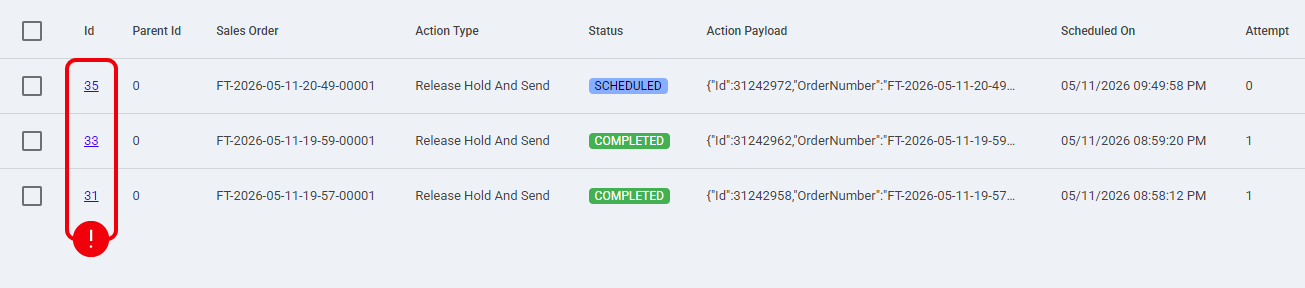
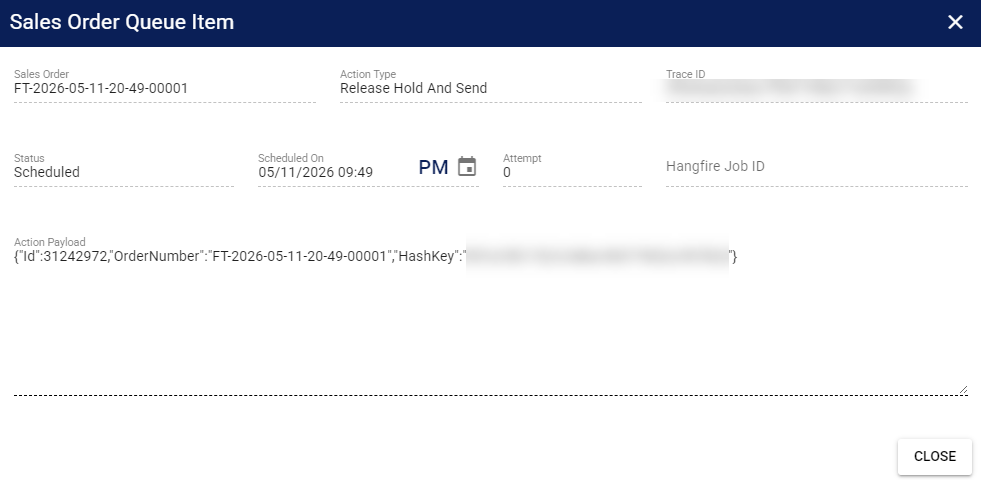
This opens a detail dialog that displays the underlying data, helping you understand exactly what the system attempted to do.
How to Reprocess
The queue interface includes a simple tool for fixing errors. If an automated task fails—for instance, due to a temporary connection issue with a channel—the task will be marked with a Failed status.
 | Locate the Failed task within the queue grid. |
 | Select the checkbox next to one or multiple failed queue items. |
 | Press Reprocess to command the system to immediately retry the failed operation. |
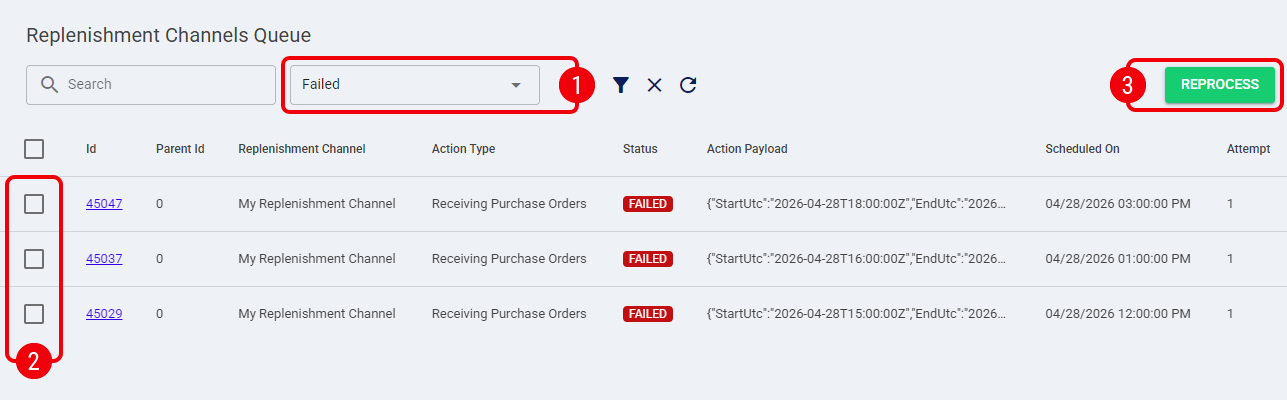
The selected queue items will immediately try to run again, and their status will update to show the new result.
Was this article helpful?
That’s Great!
Thank you for your feedback
Sorry! We couldn't be helpful
Thank you for your feedback
Feedback sent
We appreciate your effort and will try to fix the article