The Label Preview feature in techSHIP allows you to visually confirm your generated shipping labels directly from the order grid before printing or shipping. This functionality helps you verify information, reduce misprints, and ensure accuracy without needing to download the actual files.
This guide covers how to access the preview action and view your labels safely in a new browser tab.
TABLE OF CONTENTS
Understanding Label Preview Requirements
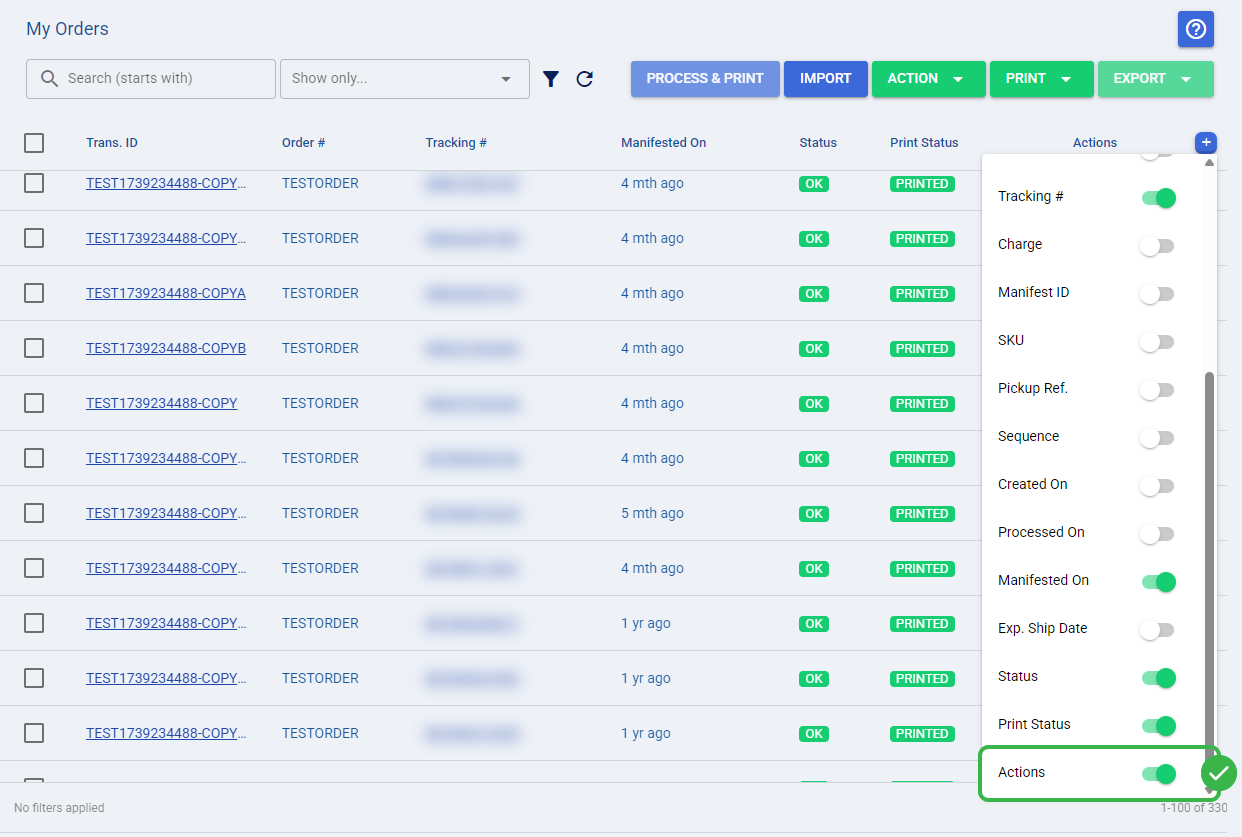
Before using the preview tool, you must ensure your workspace is configured correctly to display the required controls. To do this, you must click the + icon located at the top right of the My Orders grid table and set the Actions toggle to display the action column on your screen.
The Preview action strictly requires an order to have an assigned tracking number to generate the visual document. Because of this, the action is only available for orders resting in the OK status.
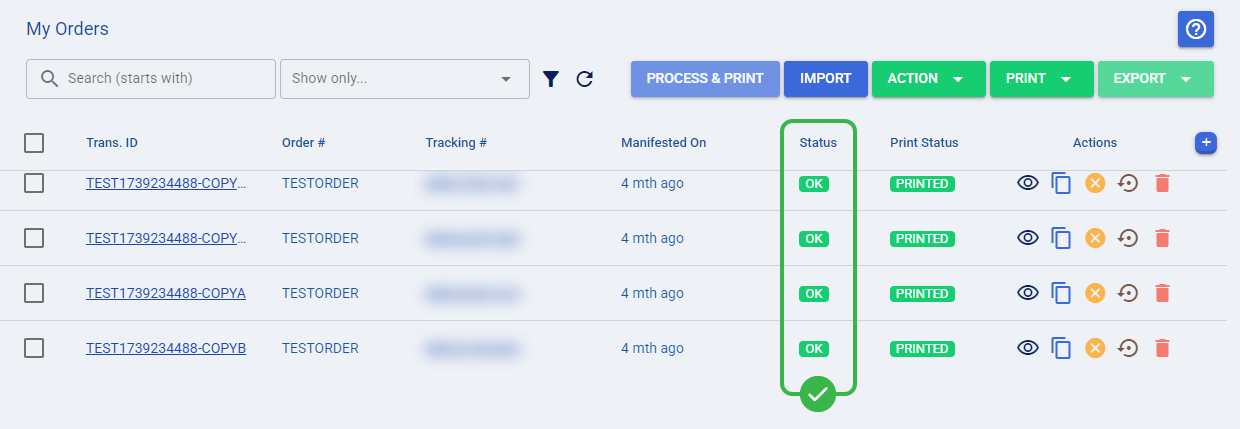
 | If an order does not have a tracking number yet, or if it sits in an error or open state, the Preview icon will appear disabled and unclickable to prevent system errors. | |
| | ||
For detailed conceptual information on how different statuses affect your orders, refer to Understanding Order Statuses [Information].
Executing the Label Preview
You can launch the preview directly from your standard workflow without losing your place in the active queue.
| |
Before proceeding, ensure you are operating the right location.
|

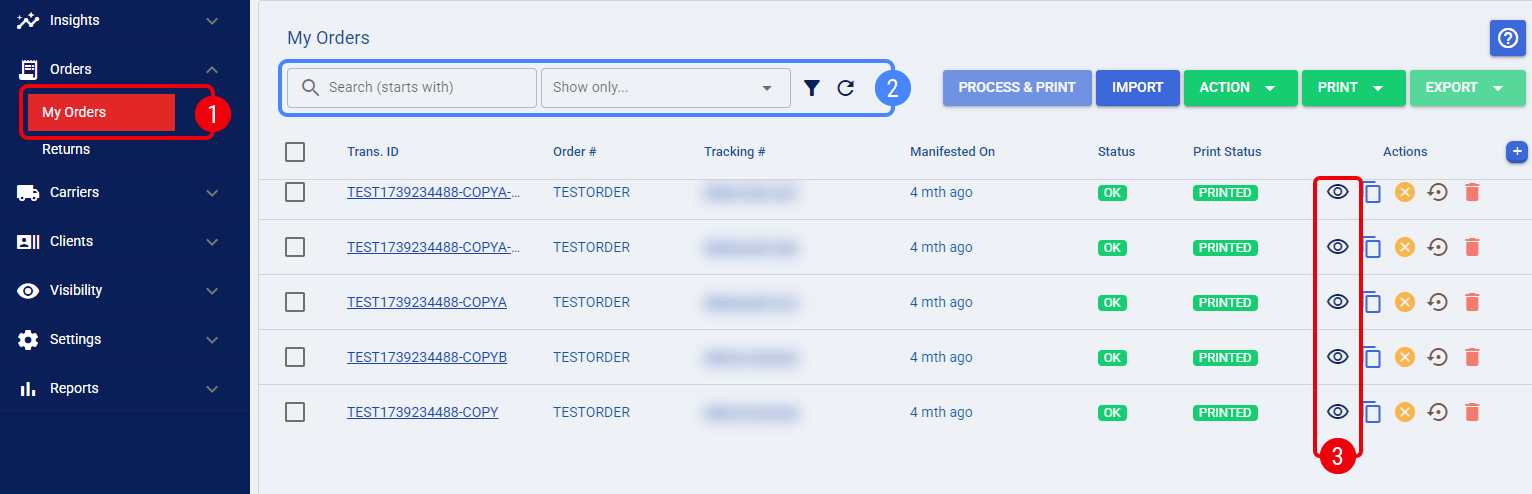
 | Navigate to the My Orders page using the main navigation menu. |
 | (Optional) Use the Search bar or the Filters menu to locate a processed order that displays the OK status badge. |
 | Click the Preview icon located in the Actions column on the far right of the order's row. |
| If your order contains multiple packages, the Preview action will automatically convert and display all associated labels within that single new tab. | |
| | ||
Your labels are now opened in a new tab for visual verification. You can continue with the physical printing through your standard workflow. For more information on printing labels, see: How to print labels selectively [Step-by-Step Guide].
Was this article helpful?
That’s Great!
Thank you for your feedback
Sorry! We couldn't be helpful
Thank you for your feedback
Feedback sent
We appreciate your effort and will try to fix the article