![Article 1: Veeqo Onboarding Requirements and Configuration Guides [Information]](https://s3.amazonaws.com/cdn.freshdesk.com/data/helpdesk/attachments/production/96804820/original/pQ_PTMs9GFD5Wpgr5rkepgZm7weklFsmZA.png?1779474515) | ![Article 2: Reference Data: Veeqo Baseline Account Fields [Guide]](https://s3.amazonaws.com/cdn.freshdesk.com/data/helpdesk/attachments/production/96804740/original/A-sKSzmZ_Vj4x4q6VoUBEk-gtdTDnv2kuQ.png?1779473989) | ![Article 3: Reference Data: Veeqo Client (Billing) Account Fields [Guide]](https://s3.amazonaws.com/cdn.freshdesk.com/data/helpdesk/attachments/production/96804742/original/bHFYZzIg1p3n6eidaRLAM0zP1uVKzHY4sw.png?1779473999) | ![Article 4: Reference Data: Order-Level Veeqo Fields [Guide]](https://s3.amazonaws.com/cdn.freshdesk.com/data/helpdesk/attachments/production/96804821/original/Jl5CA0KZwUmUI12R4nAd9jR2_RRmxSNI0A.png?1779474519) |
| Onboarding and Configuration | Baseline Account | (Billing) Account | Order-Level Fields |
 You are here You are here |
This reference lists the carrier-specific Order-Level Veeqo fields.
Use it together with the linked How to Edit an Order's Information article: the setup guide covers the shared order-editing flow, while this article defines the confirmed field values, field behavior, and carrier-specific configuration details available at the order level.
They apply only to the selected Order and may affect how that specific shipment is processed.
 |
This step is not required for carrier setup. For a complete overview of supported carriers and related setup guides, refer to techSHIP supported Carriers - Master List [Guides List].
|
 | Review and complete Reference Data: Veeqo Client (Billing) Account Fields [Guide] before processing orders with Veeqo so shipments use the required client billing configuration. |
TABLE OF CONTENTS
Editing an Order
Follow the UI Navigation steps in How to Edit an Order [Step-by-Step guide], using the carrier-specific values provided in this guide.
Go to  | |
 |  |
| Essential Configuration | Carrier-Specific This article |
Carrier-Specific Options
| Return to | |
 |  |
| Essential Configuration | Carrier-Specific |
Carrier Tab
The Carrier tab contains the carrier-specific fields available when editing an Order. These fields define confirmed order-level behavior for the selected shipment. Highlighted fields indicate mandatory and optional configuration groups.
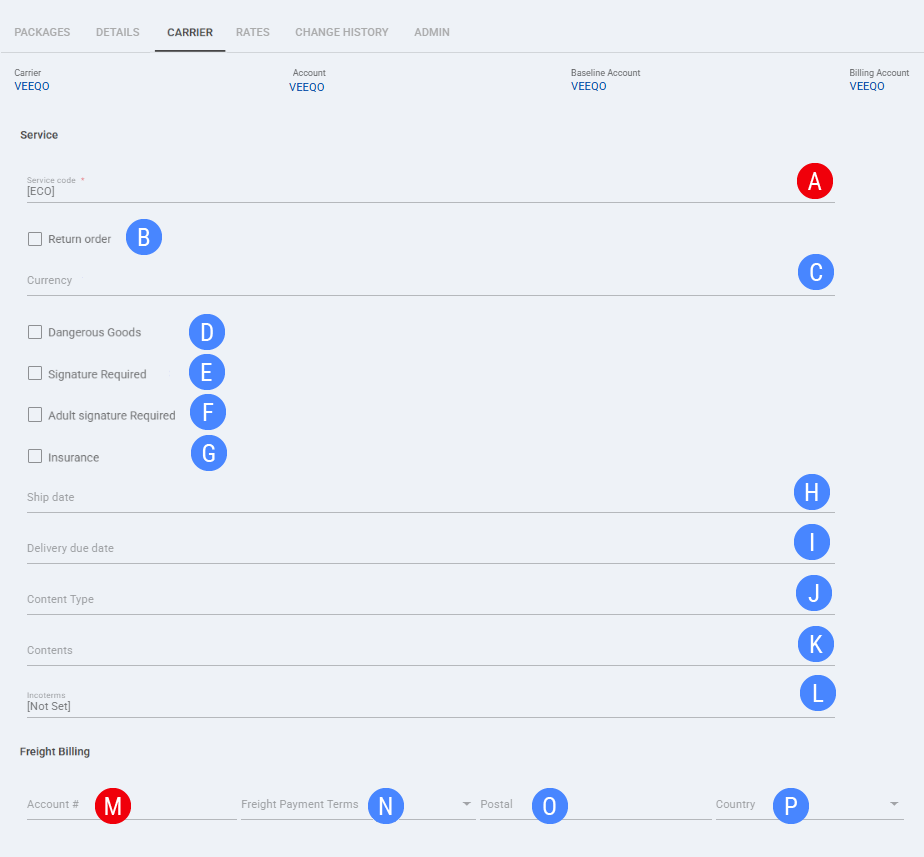
 | Service code: Select the service code used when processing the selected Order with Veeqo. The selected value defines the service option for that shipment. |
 | Return order: Marks the selected Order as a return shipment when return processing applies. |
 | Currency: Sets the currency value used for order-level shipment values when required for processing. |
 | Dangerous Goods: Sets the order-level dangerous goods indicator when this value is used for the selected shipment. |
 | Signature Required: Sets the order-level signature requirement indicator when this value is used for the selected shipment. |
 | Delivery Confirmation: Sets the order-level delivery confirmation value when this value is used for the selected shipment. |
 | Insurance: Sets the order-level insurance value when this value is used for the selected shipment. |
 | Ship date: Sets the shipment date used for the selected Order when a ship date is provided at order level. |
 | Delivery due date: Sets the delivery due date used for the selected Order when a delivery due date is provided at order level. |
 | Content Type: Defines the order-level content type used for shipment processing when this value is provided. |
 | Contents: Defines the order-level contents description used for shipment processing when this value is provided. |
 | Incoterms: Sets the order-level Incoterms value used for shipment processing when this value is provided. |
 | Account #: Sets the freight billing account number for the selected Order when freight billing details are provided at order level. |
 | Freight Payment Terms: Sets the freight payment terms for the selected Order when freight billing details are provided at order level. |
 | Postal: Sets the postal code associated with the order-level freight billing details when provided. |
 | Country: Sets the country associated with the order-level freight billing details when provided. |
| Select Save before continuing so the configured order-level settings are applied. |
Next Steps
After the Order is updated and saved, continue with the standard shipping workflow.
Was this article helpful?
That’s Great!
Thank you for your feedback
Sorry! We couldn't be helpful
Thank you for your feedback
Feedback sent
We appreciate your effort and will try to fix the article