This guide explains how to configure FedEx REST-specific settings in the Carrier tab of an Order.
Order-level carrier settings define transaction-specific behavior for the selected Order. These values apply only to that Order and may override or complement the default behavior configured in the related Client (Billing) Account.
 | For a complete overview of supported carriers and related setup guides, refer to techSHIP supported Carriers - Master List [Guides List]. |
TABLE OF CONTENTS
Prerequisites
Before configuring the Order's Carrier tab, ensure that:
A FedEx REST Client (Billing) Account has been created. See: How to Add a FedEx REST & IPD Client (Billing) Account [Guide].
Follow the configuration steps as described in: 05 - How to edit an order’s information - [Step-by-Step guide] using the values provided below.
Carrier-Specific Options
The Carrier tab contains the FedEx REST-specific options used to define behavior for the selected Order. Fields in this view are grouped visually to distinguish mandatory (red-highlighted items) and optional or conditional (blue-highlighted items) carrier-specific settings.
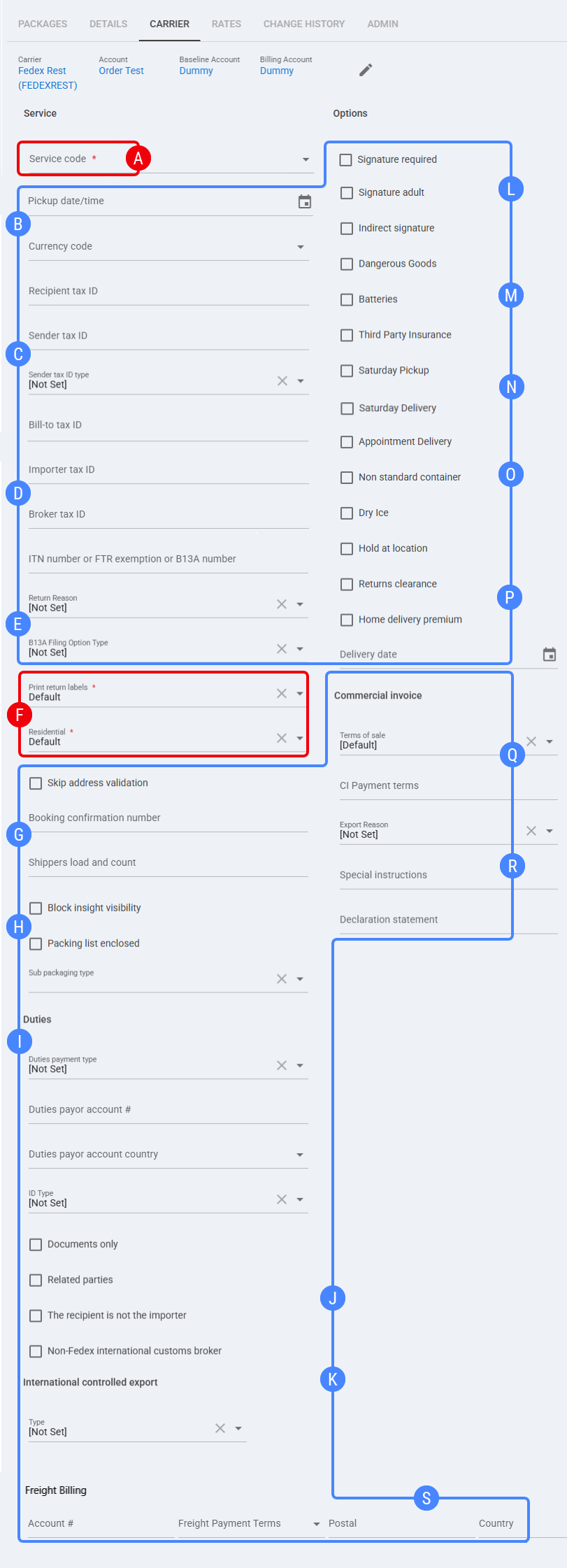
 | Service code: Select the FedEx service used for this Order. Example value shown: FedEx International Priority®. |
 | Pickup date/time: Select the pickup date and time for this Order, when required. Currency code: Select the currency used for this Order. Example value shown: USD. |
 | Recipient tax ID: Enter the recipient tax identifier when required for international or customs processing. Sender tax ID: Enter the sender tax identifier when required for international or customs processing. Sender tax ID type: Select the tax ID type associated with the Sender tax ID. Bill-to tax ID: Enter the bill-to tax identifier when required for customs or billing processing. |
 | Importer tax ID: Enter the importer tax identifier when required for international shipments. Broker tax ID: Enter the broker tax identifier when a broker is involved in customs processing. ITN number or FTR exemption or B13A number: Enter the international trade reference when required by the shipment type, destination, or export requirements. |
 | Return Reason: Select the return reason for this Order. Example value shown: [Not Set]. B13A Filing Option Type: Select the B13A filing option when applicable. Example value shown: [Not Set]. |
 | Print return labels: Select whether return labels are printed for this Order. Example value shown: Default. Residential: Select whether the destination is treated as residential for this Order. Example value shown: Disable. |
 | Skip address validation: Enable this option to skip address validation for this Order. Booking confirmation number (Express Freight Only): Enter the booking confirmation number for Express Freight shipments only. Shippers load and count: Enter the shipment handling value when required by the carrier or freight workflow. |
 | Block insight visibility: Enable this option to block visibility through FedEx Insight for this Order. Packing list enclosed: Enable this option when the packing list is enclosed with the shipment. Sub packaging type: Select the sub packaging type for the shipment. Example value shown: Box. |
 | Duties payment type: Select how duties are paid for this Order. Example value shown: [Not Set]. Duties payor account #: Enter the account number used when duties are paid by a specific payor. Duties payor account country: Select the country associated with the duties payor account. ID Type: Select the identification type used for duties or customs-related processing. Example value shown: [Not Set]. |
 | Documents only: Enable this option when the shipment contains documents only. Related parties: Enable this option when related parties are involved in the shipment. The recipient is not the importer: Enable this option when the shipment recipient is not the importer. Non-FedEx international customs broker: Enable this option when a non-FedEx customs broker is used for the international shipment. |
 | International controlled export - Type: Select the international controlled export type. Example value shown: [Not Set]. |
 | Signature required: Enable this option to request a signature for delivery. Signature adult: Enable this option to request an adult signature for delivery. Indirect signature: Enable this option to request an indirect signature for delivery. |
 | Dangerous Goods: Enable this option when the Order contains dangerous goods and the workflow is supported by the FedEx REST API. Batteries: Enable this option when the Order contains batteries. Third Party Insurance: Enable this option to use third-party insurance for this Order. |
 | Saturday Pickup: Enable this option to request Saturday pickup when supported by the selected service and account configuration. Saturday Delivery: Enable this option to request Saturday delivery when supported by the selected service and account configuration. |
 | Appointment Delivery: Enable this option to request appointment delivery when applicable. Non standard container: Enable this option when the shipment uses a non-standard container. Dry Ice: Enable this option when the Order contains dry ice. |
 | Hold at location: Enable this option to request hold-at-location handling for the shipment. Returns clearance: Enable this option to request returns clearance handling when applicable. Home delivery premium: Enable this option to apply home delivery premium handling when supported. Delivery date: Select the delivery date for this Order, when required by the selected service or delivery option. |
 | Terms of sale: Select the terms of sale used for the commercial invoice. Example value shown: DDP. CI Payment terms: Enter or select the commercial invoice payment terms, when required. |
 | Export Reason: Select the export reason for the shipment. Example value shown: [Not Set]. Special instructions: Enter special instructions for the commercial invoice or international shipment. Declaration statement: Enter the declaration statement used for international documentation when required. |
 | Freight Billing - Account #: Enter the freight billing account number used for this Order. Freight Payment Terms: Select the freight payment terms used for this Order. Postal: Enter the postal code associated with the freight billing information. Country: Select the country associated with the freight billing information. |
Next Steps
You can now ship this Order through FedEx REST.
Was this article helpful?
That’s Great!
Thank you for your feedback
Sorry! We couldn't be helpful
Thank you for your feedback
Feedback sent
We appreciate your effort and will try to fix the article