This guide explains how to configure Aramex-specific settings in the Carrier Options tab of an Order.
A Carrier Options tab configuration defines transaction-level behavior that applies only to the selected Order. These settings may vary depending on the selected service and shipment requirements.
 |
For a complete overview of supported carriers and related setup guides, refer to techSHIP supported Carriers - Master List [Guides List].
|
TABLE OF CONTENTS
Prerequisites
Before configuring the Order's Carrier Options tab, ensure that:
An Aramex Client (Billing) Account has been created.
The Order is available for editing in techSHIP.
Review and save the Carrier Options configuration before processing the shipment.
Carrier-Specific Options
The Carrier Options tab contains the Aramex-specific settings used for the Order.
In this view, the fields are grouped into Service, Accessorials, and Freight billing.
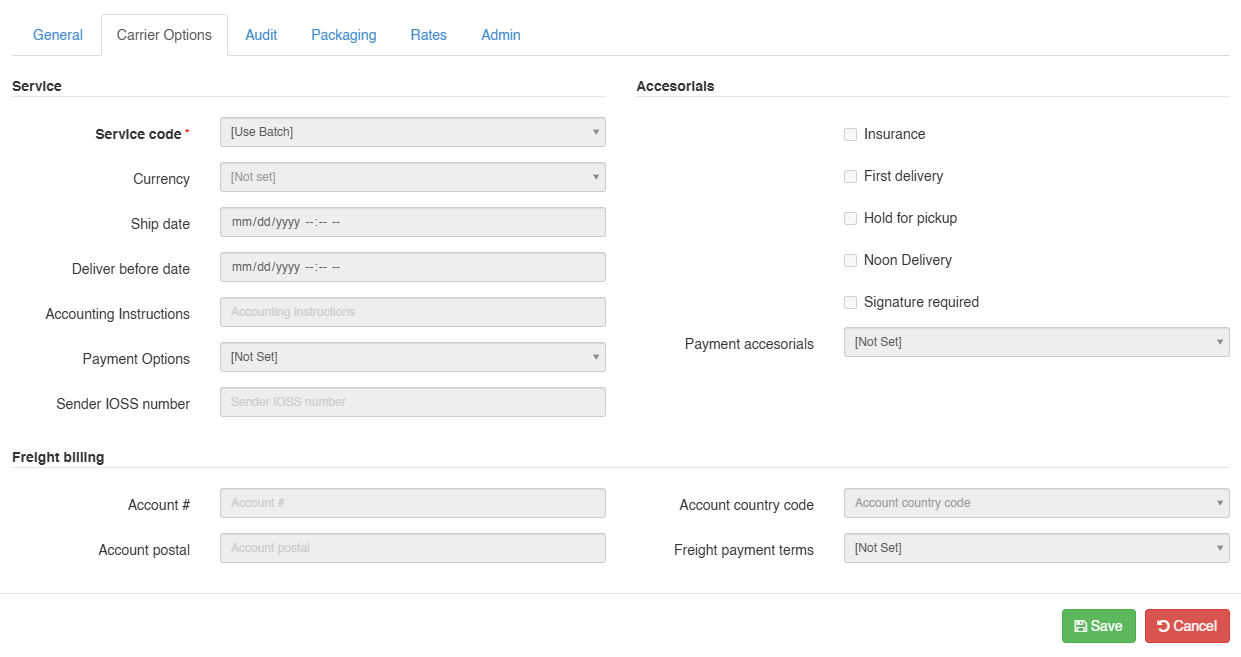
 | Service code: Select the service code for the Order. |
 | Currency: Select the currency for the Order. |
 | Ship date: Enter the ship date. |
 | Deliver before date: Enter the deliver-before date. |
 | Accounting Instructions: Enter the accounting instructions for the Order. |
 | Payment Options: Select the payment option for the Order. |
 | Sender IOSS number: Enter the sender IOSS number for the Order. When provided, this value is sent to Aramex as the IOSS customs clearance property. |
| |
For the Commercial Invoice, Aramex maps the header-level Origin of Goods from the shipment’s ship-from country. The line-level Country of Origin is mapped from each SKU/item country of origin.
|
 | Insurance / First delivery / Hold for pickup / Noon Delivery / Signature required: Select the applicable accessorial options for the Order. |
 | Payment accessorials: Select the payment accessorial for the Order. |
 | Account # / Account postal: Enter the freight billing account number and account postal code. |
 | Account country code / Freight payment terms: Select the account country code and freight payment terms. |
Next Steps
Review the configured Aramex Carrier Options, save the Order, and continue with shipment processing.
Was this article helpful?
That’s Great!
Thank you for your feedback
Sorry! We couldn't be helpful
Thank you for your feedback
Feedback sent
We appreciate your effort and will try to fix the article