To connect Da Vinci Unified, first create the Fulfillment Channel connection, and then set up its parameters.
Once the connection is established between the channel and techOMS, you can use its supported features as listed in: techOMS Fulfillment Channels - Master List [Guides List].
This article is divided into the following sections:
- Onboarding Requirements
- Create the Fulfillment Channel
- Configure Additional Parameters
- Specific Behaviors
 NOTE: Make sure that you are operating at the correct Account beforehand.
I. ONBOARDING REQUIREMENTS
- Api Url for the Da Vinci Unified API environment.
- Username for the Da Vinci Unified API connection.
- Password for the Da Vinci Unified API connection.
- License value provided for the Da Vinci Unified account.
- Data Base value provided for the Da Vinci Unified account.
- Vendor value to be used by the channel configuration.
- Sku Delimiter to separate the item identity values used by the integration.
- Throughput value to define the processing throughput for the channel.
II. CREATE THE FULFILLMENT CHANNEL
To create a Da Vinci Unified Fulfillment Channel, follow: How to Create a Fulfillment Channel [Step-by-step guide].
III. CONFIGURE ADDITIONAL PARAMETERS
To configure additional parameters:
- Click Channels from the left menu under the Fulfillment Channels section.
- Click on the created channel's name.
- Use the highlighted areas in the screenshot below and configure the required settings.
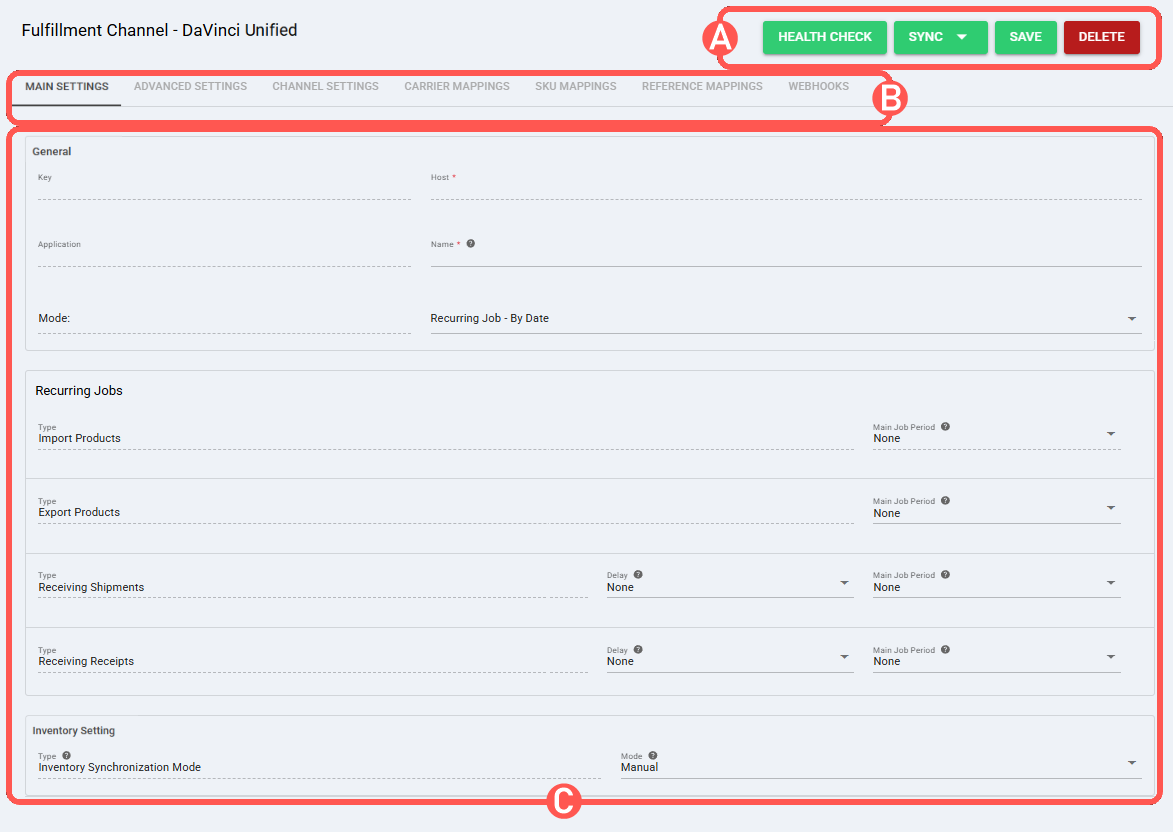
SECTIONS
A) QUICK ACTIONS lets you perform additional actions:
- Health Check: Runs the channel health check.
- Sync: Enables manual synchronization as detailed in How to Synchronize data through a Fulfillment Channel [Step-by-step guide].
Supported sync options:- Import Products From Channel: Imports products from Da Vinci Unified into techOMS.
- Export Products To Channel: Exports products from techOMS to Da Vinci Unified.
- Receive Inventory Levels From Channel: Receives inventory levels from Da Vinci Unified.
- Receive Shipments From Channel: Receives shipment updates from Da Vinci Unified.
- Receive Receipts From Channel: Receives receipt updates from Da Vinci Unified.
NOTE : The options displayed in the Sync dropdown are managed by techOMS based on the Master Product Source and the features supported by the specific Fulfillment Channel. NOTE : Product synchronization supports creation and updates. Product deletion is not supported during product synchronization. NOTE : To receive inventory levels from the channel, the account must use the Fulfillment Channel as the Master Product Source, and one warehouse must be selected as the Master Product Channel. NOTE : Disabled products are not updated with inventory when inventory levels are received from the channel.- Save: Saves and commits changes.
- Delete: Deletes the channel connection.
B) VIEW SELECTION allows you to navigate the different tabs:
- Main settings (default): Configures general and automation behavior using: How to configure Automations for Sales/Fulfillment channels [Step-by-step guide].
- Advanced settings: Use How to manage Fulfillment Channels Advanced settings [Step-by-Step guide].
- Channel settings: Sets the channel integration parameters listed below.
- Carrier mappings: Maps carrier values between techOMS and the Fulfillment Channel.
- SKU mappings: Maps SKU values between techOMS and the Fulfillment Channel.
- Reference mappings: Maps reference values between techOMS and the Fulfillment Channel.
C) CONTENT VIEW displays the fields or settings for the tab selected in View Selection.
Channel settings
| Field | Expected value / format | Description |
|---|---|---|
| Api Url | https://{host}/v1 | Da Vinci Unified API host and version URL. |
| Username | {username} | User used for the Da Vinci Unified API connection. |
| Password | {password} | Password for the configured Da Vinci Unified user. |
| License | {license} | License value used to connect to the Da Vinci Unified database. |
| Data Base | {dataBase} | Database name used by the Da Vinci Unified connection. |
| Vendor | {vendor} | Account ID value for the account or vendor to integrate with the channel. |
| Sku Delimiter | {delimiter} | Delimiter used to build and parse the composite SKU required by Da Vinci Unified. |
| Throughput | {throughput} | Processing throughput configuration for the channel. |
NOTE : The expected composite SKU format is {Code}{Delimiter}{UOM}{Delimiter}{EaCaseQty}. The UOM and case quantity included in the SKU must match the actual UOM and case quantity configured for the product variant. If they do not match, channel functionalities may fail. NOTE : Make sure to Save changes after editing the channel settings.IV. SPECIFIC BEHAVIORS
Order line changes
- After shipping orders or receiving orders are sent to Da Vinci Unified, do not modify their lines directly in Da Vinci Unified. Updating lines in Da Vinci Unified can negatively affect line indexing in techOMS.
Was this article helpful?
That’s Great!
Thank you for your feedback
Sorry! We couldn't be helpful
Thank you for your feedback
Feedback sent
We appreciate your effort and will try to fix the article