
Once this has been done you will be enabled to follow this guide to set your Canada Post accounts in techSHIP.

If you are a commercial customer with a parcel agreement you can set up your Canada Post Account.
Feel free to follow the step-by-step guide written below or the video guide, as you prefer:
1. Login to your techSHIP Portal using your techSHIP username and password
2. Select Register Canada Post Merchant under the Plugins dropdown

3. Complete the form as required and click Register.

CARRIER OPTIONS
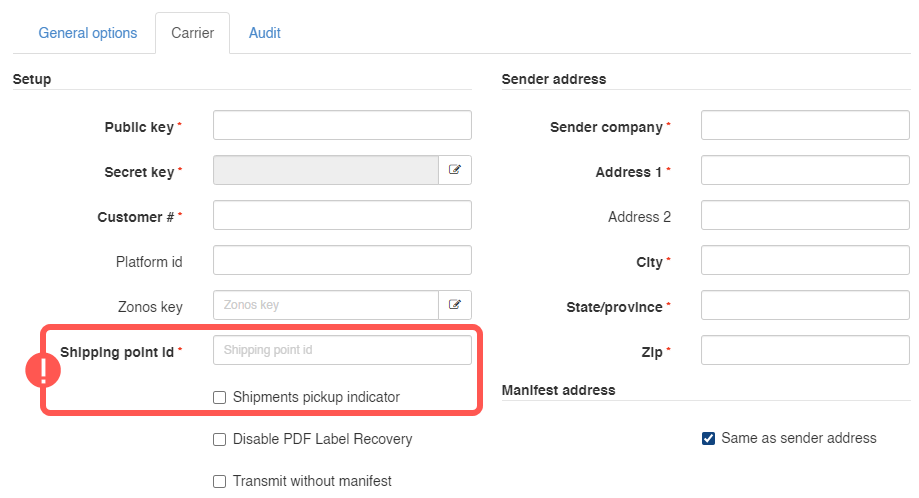
Shipping point id: Enter the Canada Post shipping point where orders will be dropped off by the sender when shipments are not picked up at the sender’s location.
Pickup location postal: Enter the postal code associated with the sender address where Canada Post will pick up the shipments.
Pickup required: Check this option when parcels will be picked up at your location.
Use the following setup according to how shipments will be handled:
A) If the parcels will be picked up at your location, complete Pickup location postal and check Pickup required.
B) If the goods will be dropped at an induction point, complete Shipping point id.
 WARNING: If you need to update these fields later, edit the Baseline Account from Maintenance > Carriers.
Shipments Pickup Indicator on: Allows Canada Post to determine the postal code associated with the sender address where shipments will be picked up.
Shipments Pickup Indicator off: Uses the Shipping Point ID to determine the Canada Post shipping point where orders will be dropped off by the sender instead of picked up at the sender’s location.
Zonos Key: If shipping from Canada to the U.S., enter your 13-character Zonos Account Key. This is mandatory for all U.S.-bound shipments and enables automatic payment of duties and taxes through Zonos.

Request limits per minute: Define the maximum number of requests that techSHIP can send to Canada Post per minute for each request type.
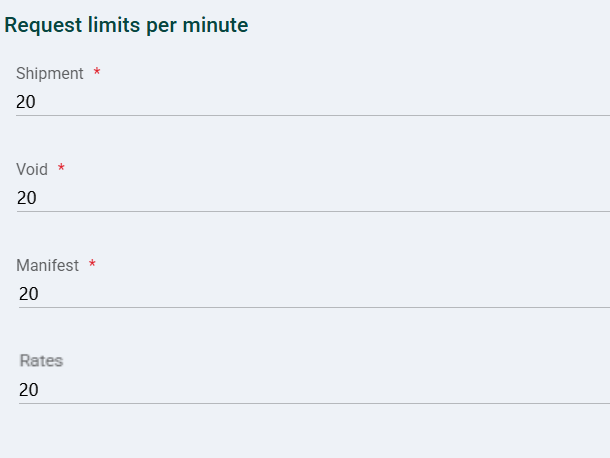
Shipment: Enter the shipment request limit per minute.
Void: Enter the void request limit per minute.
Manifest: Enter the manifest request limit per minute.
Rates: Optionally enter the rates request limit per minute. If completed, the value must be at least 20.
1. You will be redirected to the Canada Post website where you will need to enter you Canada Post username and password.
WARNING: If you are setting the account to bill one of your customers (a 3rd party), do NOT use your Canada Post credentials, you will have to use theirs.
2. Follow the steps outlined on Canada Post's side.
3. Once you finish the form on the Canada Post site you will be redirected back to your techSHIP Portal. You should now be able to see your new Canada Post account set up.
Once ready, proceed to setting up the Billing Account as described in:
How to add and set up a Canada Post Billing Account [Step-by-Step guide]
Was this article helpful?
That’s Great!
Thank you for your feedback
Sorry! We couldn't be helpful
Thank you for your feedback
Feedback sent
We appreciate your effort and will try to fix the article