API Logs record system actions such as create, update, and delete events performed through the API, as well as import actions, syncs, and background jobs. Reviewing these API Logs allows users to track system behavior, audit actions, and troubleshoot data exchanges with channels.
This guide covers how to access, filter, and review the API Logs in techOMS.
 | Accessing the API Logs requires specific privileges. For details on the required permissions, refer to techOMS User permissions structure [Information]. | |
| | ||
The API Logs displayed on your screen depend directly on your current account selection in the techOMS header.
- Specific Account View: If you select a specific account in the top header dropdown, the system will automatically filter and display only the API Logs associated with that account.

- Organization View: If no account is selected in the top header, the system will display API Logs across all accounts you have access to.

To access and review the API Logs, follow these steps:
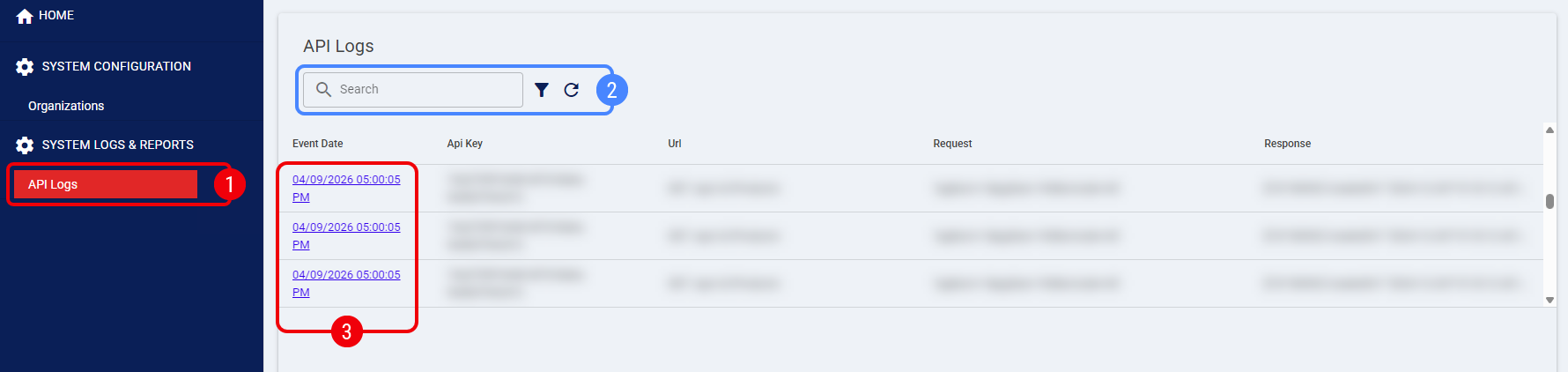
 | Click API Logs from the left menu under the System Logs & Reports section. |
 | Optionally, filter the information using one of the following methods: |
- Quick Search: Enter a value in the search bar to look up any partial match across the Request or Response payloads.
- Advanced Filter: Click the filter icon next to the search bar to open additional fields. Combine the filters according to your needs and press Apply.
| When using the Organization View, the Advanced Filter dialog will display an Account dropdown. This allows you to filter the results for a specific account without manually typing an API Key. If an account is already selected in the header, this dropdown is hidden.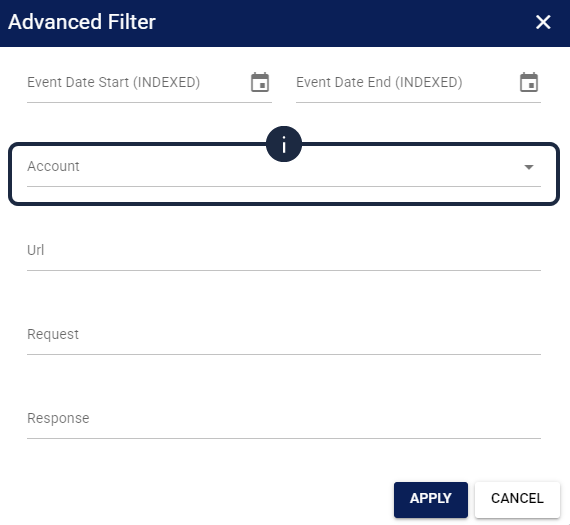 | |
| | ||
 | Click the link in the Event Date column to open the API Log details window for the entry you want to investigate. |
Review the Request and Response sections to validate the data payload and find any errors or success messages. Once finished, click Close to return to the main list.
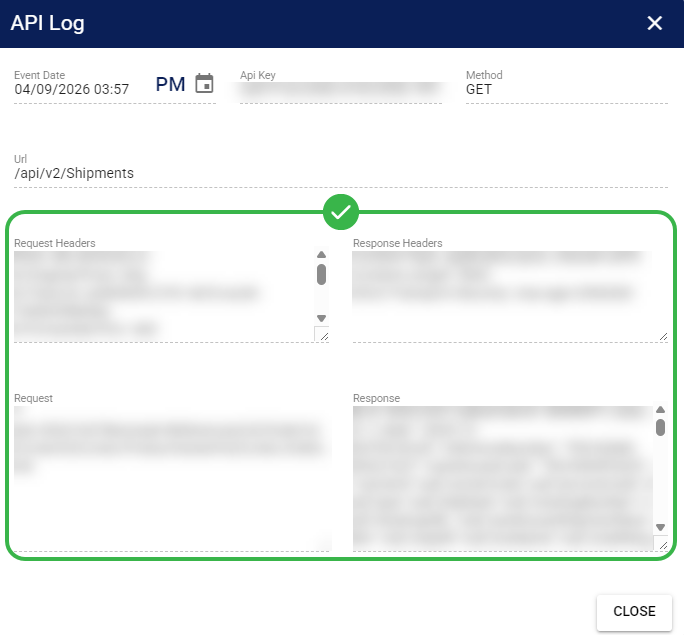
You have successfully reviewed the API Logs and can use this information to track system actions or troubleshoot integrations.
Was this article helpful?
That’s Great!
Thank you for your feedback
Sorry! We couldn't be helpful
Thank you for your feedback
Feedback sent
We appreciate your effort and will try to fix the article