Defining Carriers and Services in your master list allows you to configure the specific shipping codes expected from a Sales or Fulfillment Channel, and determine how techOMS will interpret them.
This step-by-step guide covers how to create, edit, delete, export, and bulk-import carriers and their underlying services.
 | For detailed conceptual information and advanced configuration, refer to Best Practices for Carrier and Service Code Mappings setup [Information]. These procedures require specific user permissions. Refer to techOMS User permissions structure [Information] to verify your access rights. | |
| | ||
TABLE OF CONTENTS
- Access the Carriers Page
- Create a New Carrier
- Edit or Delete an Existing Carrier
- Manage Carrier Services
- Export Carriers and Services
Access the Carriers Page
To manage your shipping providers, you must navigate to the dedicated configuration module within techOMS.
| Make sure that you are operating at the right Account beforehand. | |
| | ||
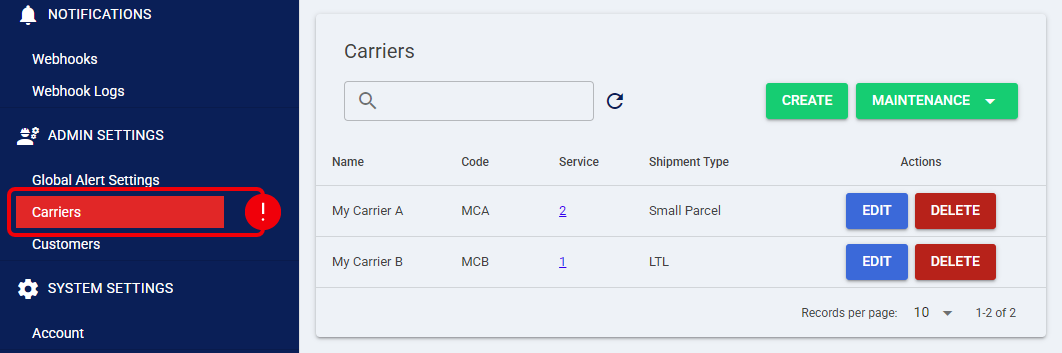
Click Carriers from the left menu under the Admin Settings section.
Create a New Carrier
You can add new carriers to techOMS either in bulk using the import feature, or individually through the manual creation dialog.
Via Import (Bulk Creation and Updates)
The import tool allows you to rapidly build your master list or update existing records using an "Add or Update" logic.
- New Records: If the file contains a new Carrier Code or Service Code, the system creates them as new entities.
- Adding Services: If the file contains an existing Carrier Code but lists new services under it, the system successfully adds those new services to the existing carrier.
- Updating Names: If the file contains an existing Carrier Code or Service Code but a new descriptive name, the system updates the existing record with the new name without deleting its underlying data.
| The import tool explicitly supports and retains special characters within names and codes. If a carrier requires special typography (such as the ® in FedEx Ground®), you must include it in your file to ensure backward compatibility with techSHIP Time & Transit mappings. | |
| | ||
On the Carriers page:
 | Click Maintenance. |
 | Click Import. |
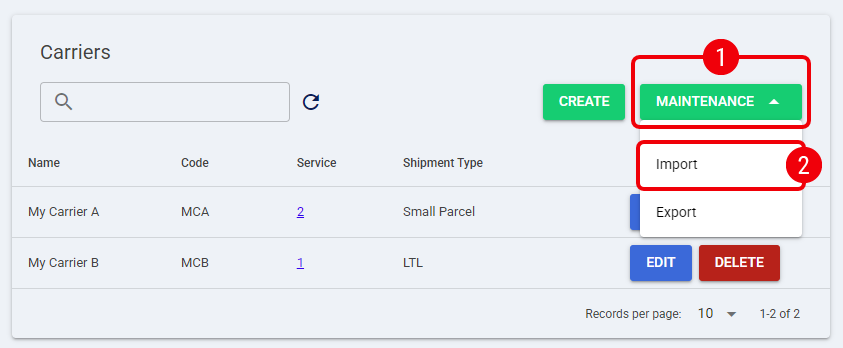
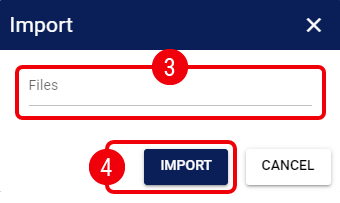
 | Click Files and select your properly formatted file and upload it to the system. |
| To obtain a template, either export an existing mapping (refer to the Export Carriers and Services section) or download a canonical file from techOMS Canonical Import Files [Information]. | |
| | ||
 | Click Import. |
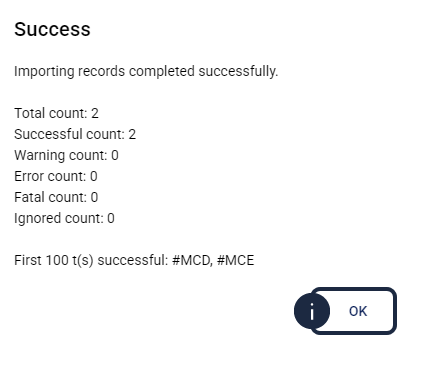
A pop-up will prompt you with the operation results. Click OK to close it.
The records are now processed, and the updated carriers will be immediately available in your master list.
Manually
You can create a single carrier directly from the Carriers page:
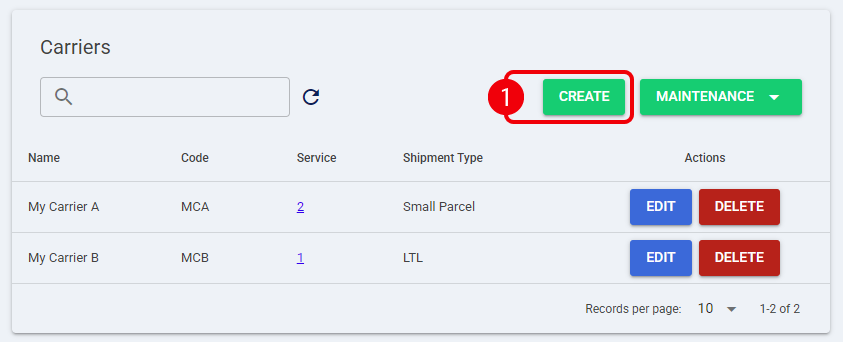
| Click Create. |
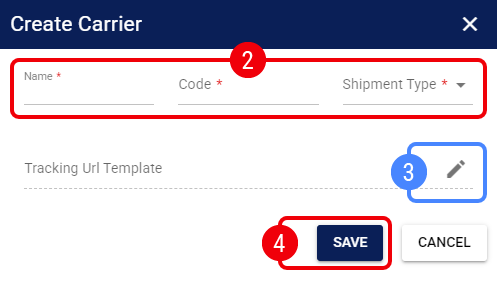
| In the configuration dialog, define: |
- Name: Visible Name for the Carrier.
- Code: Code which will be used to reference it.
- Shipment Type: Select the shipment type handled by the Carrier.
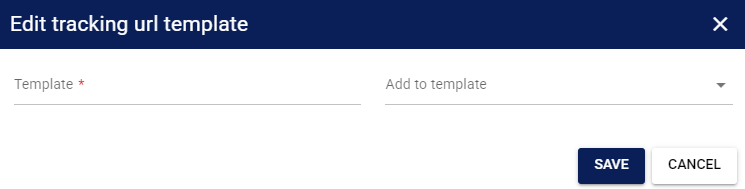
 | If the carrier requires tracking visibility, click the pencil icon next to the Tracking URL Template field. |
Input the base URL provided by the carrier and use the Add to template drop-down to insert the dynamic tracking variable. Click Save to confirm the template.
| Click Save on the main dialog. |
The carrier is now active and ready for you to configure its specific services.
Edit or Delete an Existing Carrier
Modifying or removing an existing carrier affects how techOMS interprets incoming data from your channels.
Edit a Carrier
| Locate the target carrier in your master list and click the Edit button in the Actions column. |
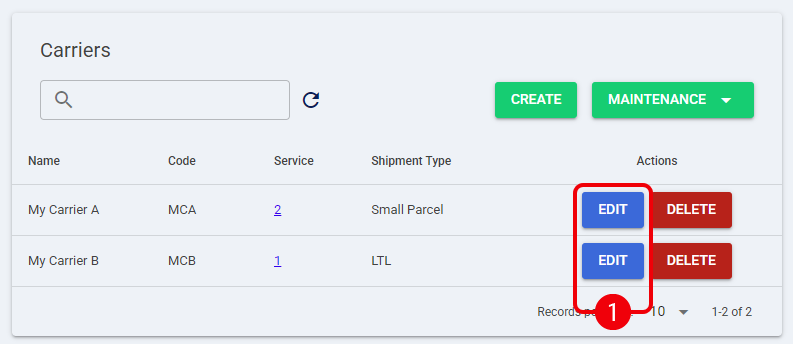
| Update the desired field as required by your operational changes. |
| Click Save to apply the changes. |
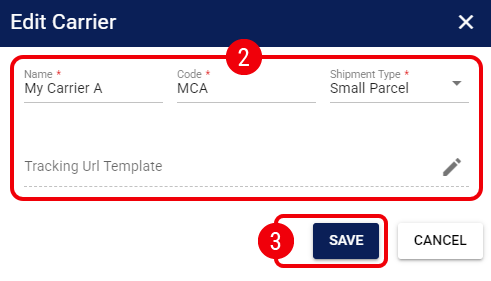
Delete a Carrier
| Locate the carrier you wish to remove and click the Delete button. |
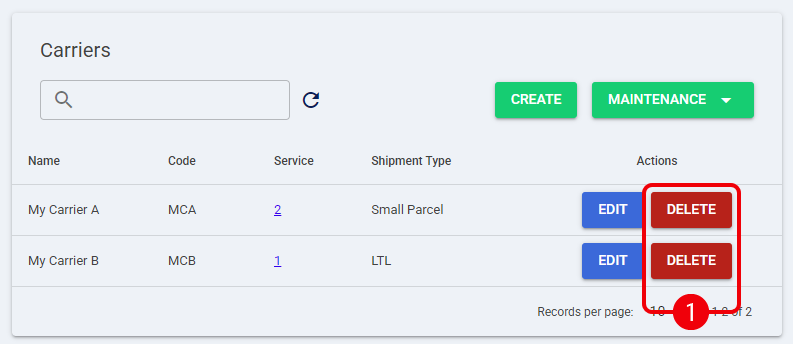
| Confirm the prompt to permanently remove the record from your environment. |
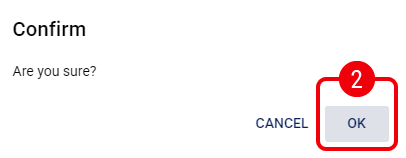
 | Deleting a carrier removes it from your master list completely. Ensure that no active channel is currently sending orders using this specific Carrier Code, as this will result in mapping failures and unassigned shipments. | |
| | ||
Manage Carrier Services
Because multiple services belong to a single carrier, they are managed through a dedicated sub-menu within the carrier's profile.
Add a Service
On the Carriers page, locate the carrier you want to configure and:
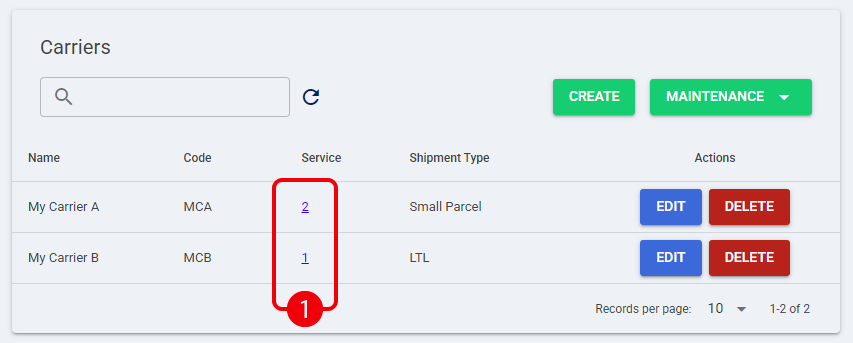
| In the Services column, click the hyperlinked number representing the current count of services. |
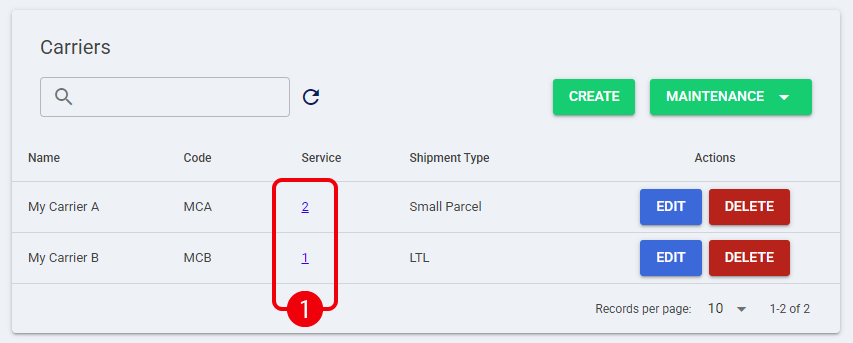
| Click the + (plus) icon located at the top right of the window to open the creation dialog. |
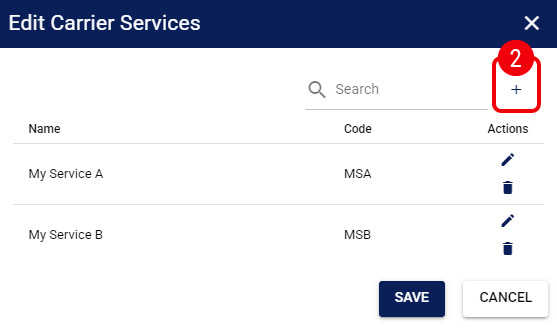
| Define the Name of the service and the specific Code expected by the system. |
| Click Save in the Service dialog. |
 | Repeat steps 2 to 4 as many times as needed. Once finished, click Save in the Edit Carrier Services dialog. |
The service is now mapped to the parent carrier.
Edit a Service
| Click the hyperlinked number in the Services column for the respective carrier. |
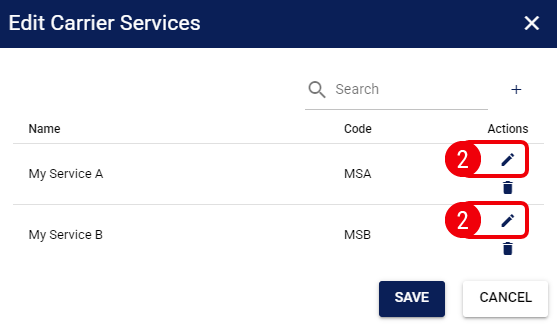
| Click the pencil icon in the Actions column. |
| Update the Name or Code. |
| Click Save in the Service dialog. |
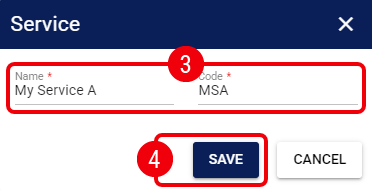
| Repeat steps 2 to 4 as many times as needed. Once finished, click Save in the Edit Carrier Services dialog. |
Delete a Service
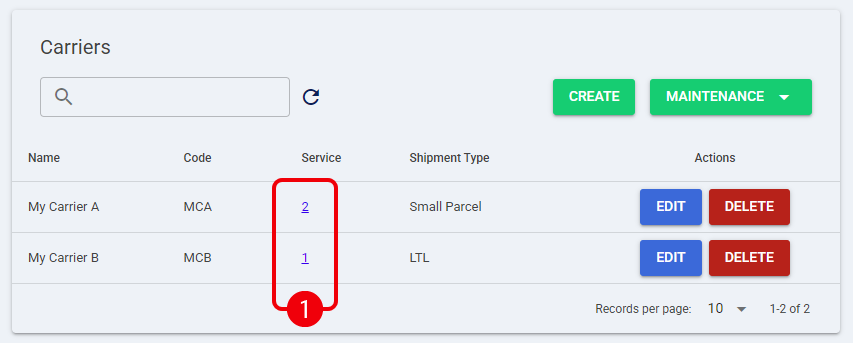
| Click the hyperlinked number in the Services column for the respective carrier. |
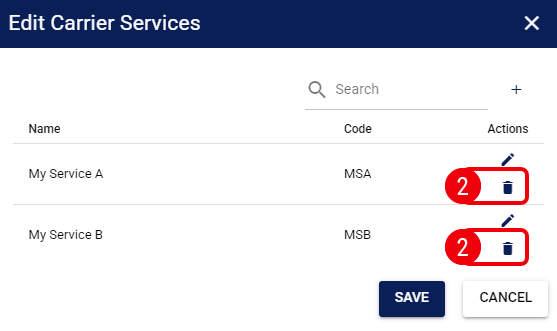
| Click the trash can icon in the Actions column. |
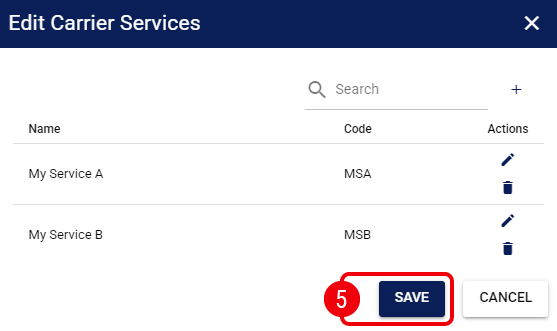
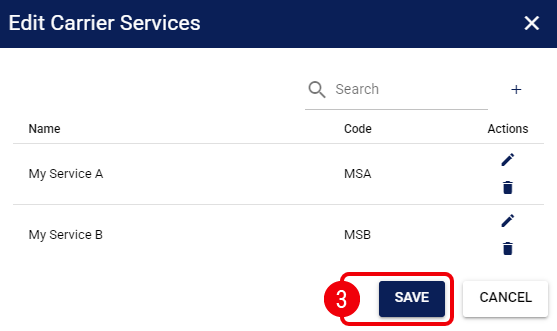
| Repeat step 2 as many times as needed. Once finished, click Save in the Edit Carrier Services dialog. |
| The deletion is immediate and applies to all future routing logic. | |
| | ||
Export Carriers and Services
Exporting allows you to generate a file containing your current master list, which can serve as a backup or as a pre-formatted template for bulk imports.
On the Carriers page:
| Click Maintenance. |
| Click Export. |
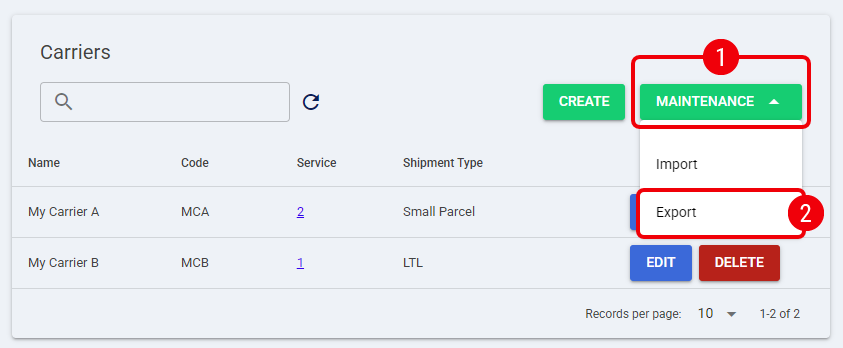
The system will automatically download the generated file to your local machine.
Was this article helpful?
That’s Great!
Thank you for your feedback
Sorry! We couldn't be helpful
Thank you for your feedback
Feedback sent
We appreciate your effort and will try to fix the article