You can delete or temporarily pause carriers in techSHIP to stop rate shopping and halt monthly billing for that carrier. This guide explains how to permanently delete, disable, and re-enable carriers.
This article explains how to manage your carrier lifecycle by deleting, disabling, or enabling existing carrier connections.
 |
This guide covers the top-level Carrier entity. If you are looking to manage the lifecycle of a specific baseline account connection instead, refer to How to Inactivate and Activate a Carrier Baseline Account [Step-by-Step Guide].
|
| |
Before proceeding, ensure you are operating the right location.
|

TABLE OF CONTENTS
- Deleting or Disabling from the Grid (Carriers Page)
- Disabling from the Carrier Properties (Carrier Page)
- Enabling a Disabled Carrier
Deleting or Disabling from the Grid (Carriers Page)
The most common way to remove or deactivate a carrier is directly from your main list. The system will automatically determine whether to permanently delete or safely disable the carrier based on your historical data.
 | Click My Carriers from the left menu under the Carriers section. |
 | Find the target carrier and click the Delete icon on its row. |
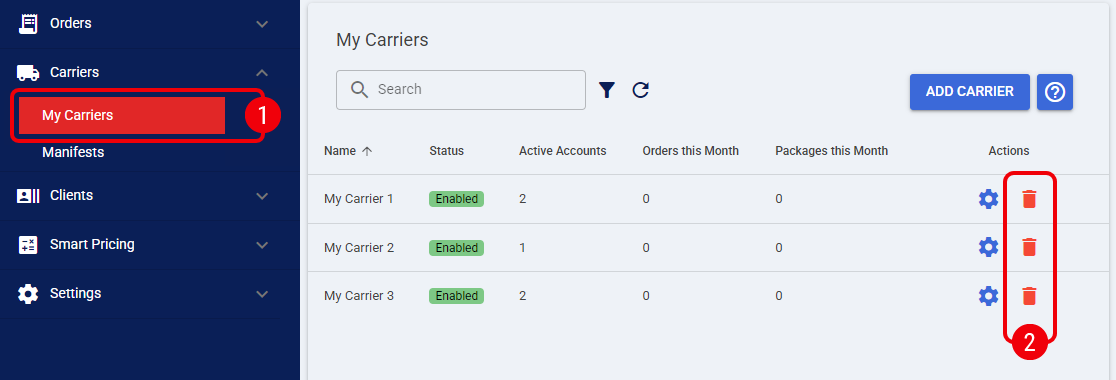
 | Click OK when prompted with the confirmation message. |

The carrier is now removed from your active list.
| If the carrier has no historical orders or active accounts, it is permanently deleted. If historical data exists, techSHIP safely marks the carrier as Disabled instead. This preserves referential integrity while ensuring no further monthly billing charges apply.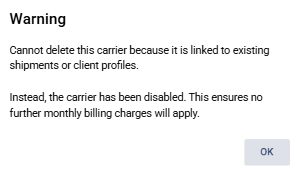 | |
| | ||
 | Disabling a carrier makes it unavailable for rate shopping. Billing will stop in the next cycle, meaning you will only be charged for the current one. To maximize its use, consider disabling it near the end of the cycle. | |
| | ||
Disabling from the Carrier Properties (Carrier Page)
If you prefer to review the carrier's configuration before deactivating it, you can disable it directly from the properties view.
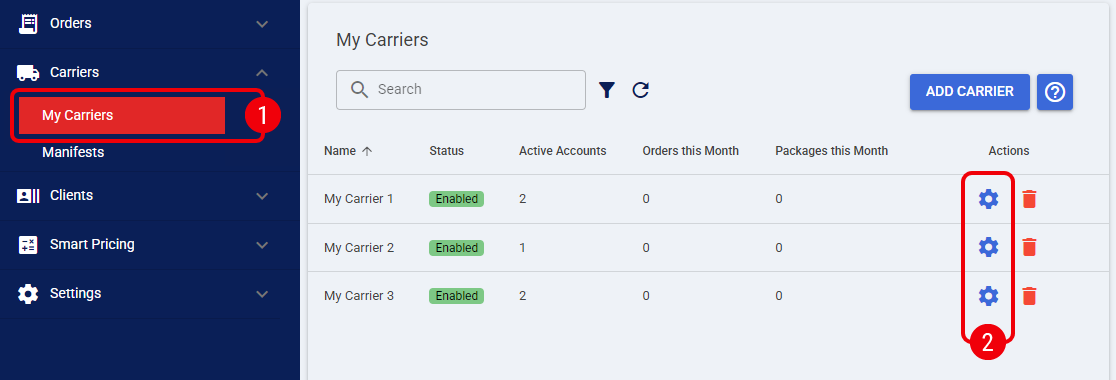
| Click My Carriers from the left menu under the Carriers section. |
| Click the Settings icon on the target carrier row to open its properties. |
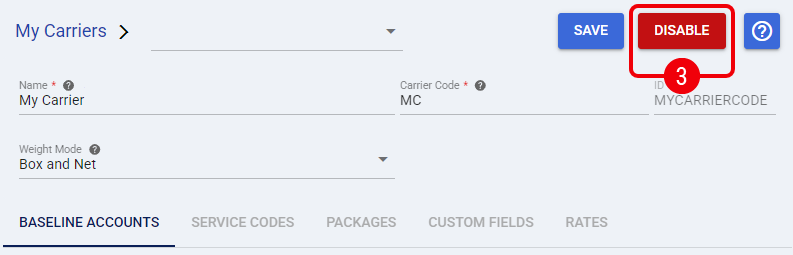
| Click the Disable button located at the top of the page. |
 | Click OK on the warning prompt to confirm your action. |
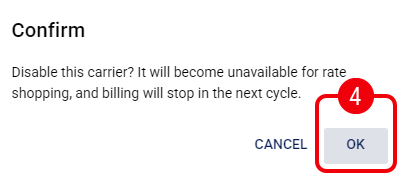
The carrier is now Disabled and excluded from future billing cycles.
Enabling a Disabled Carrier
If you need to resume shipping with a previously deactivated carrier, you can easily restore it.
| Click My Carriers from the left menu under the Carriers section. |
| Click the Advanced Filter icon. |
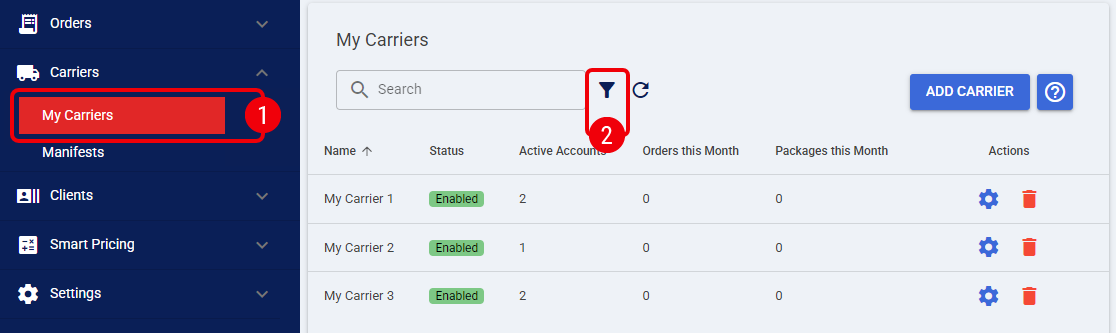
| Set the status filter to find Disabled carriers, Apply the filter, and locate your target carrier. |

| Click the Settings icon to edit the Disabled carrier. |
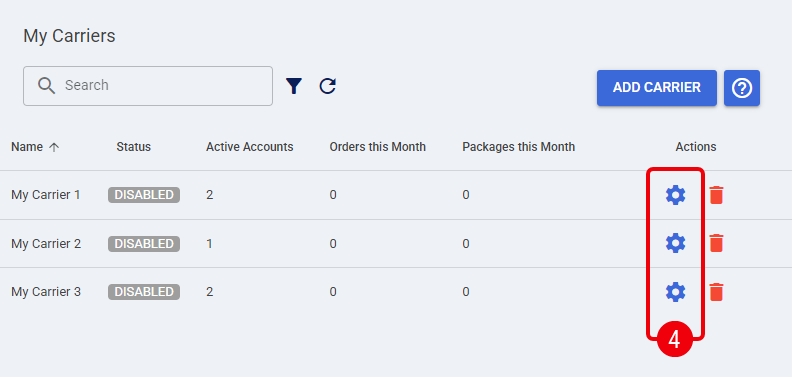
 | Click the Enable button located at the top of the page. |
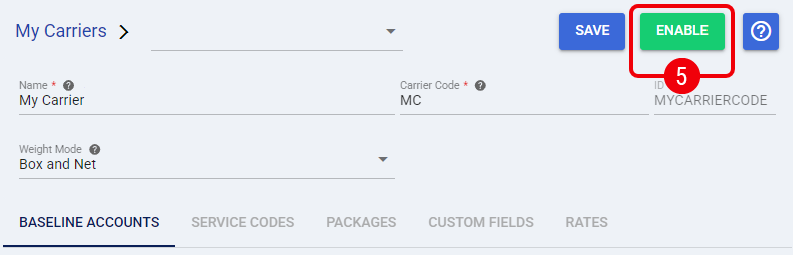
 | Click OK to confirm the action. |

The carrier is now Active and available for processing orders.
| Enabling a carrier immediately resumes automatic billing for the current cycle. | |
| | ||
Was this article helpful?
That’s Great!
Thank you for your feedback
Sorry! We couldn't be helpful
Thank you for your feedback
Feedback sent
We appreciate your effort and will try to fix the article