![Article 1: DHL Express (REST) Onboarding Requirements and Configuration Guides [Information]](https://s3.amazonaws.com/cdn.freshdesk.com/data/helpdesk/attachments/production/96804815/original/09VBUo14zVrZ7P3XOYSoWXIqqrVjGFCUUQ.png?1779474501) | ![Article 2: Reference Data: DHL Express (REST) Baseline Account Fields [Guide]](https://s3.amazonaws.com/cdn.freshdesk.com/data/helpdesk/attachments/production/96804740/original/A-sKSzmZ_Vj4x4q6VoUBEk-gtdTDnv2kuQ.png?1779473989) | ![Article 3: Reference Data: DHL Express (REST) Client (Billing) Account Fields [Guide]](https://s3.amazonaws.com/cdn.freshdesk.com/data/helpdesk/attachments/production/96805395/original/_J10u70kSFBTHPSpib4jtXfeu4C3mm54wg.png?1779476680) |
| Onboarding and Configuration | Baseline Account | (Billing) Account |
 You are here You are here |
This reference lists the carrier-specific DHL Express (REST) Client (Billing) Account fields used in techSHIP.
Use it together with the linked Client (Billing) Account setup steps: the setup guide covers the shared configuration flow, while this article defines the confirmed field values, field behavior, and client-specific carrier configuration details.
 |
For a complete overview of supported carriers and related setup guides, refer to techSHIP supported Carriers - Master List [Guides List].
|
 | Review and complete Reference Data: DHL Express (REST) Baseline Account Fields [Guide] before configuring the Client (Billing) Account so the carrier connection is available. |
TABLE OF CONTENTS
Adding a Client (Billing) Account
Follow the UI Navigation steps in How to Add a Carrier Billing Account [Step-by-Step guide], using the carrier-specific values provided in this guide.
Go to  | |
 |  |
| Essential Configuration | Carrier-Specific This article |
Carrier-Specific Instructions
| Return to | |
 |  |
| Essential Configuration | Carrier-Specific |
The Carrier tab contains the Client (Billing) Account fields used to define confirmed carrier-specific behavior for this client. Highlighted fields indicate mandatory and optional configuration groups.
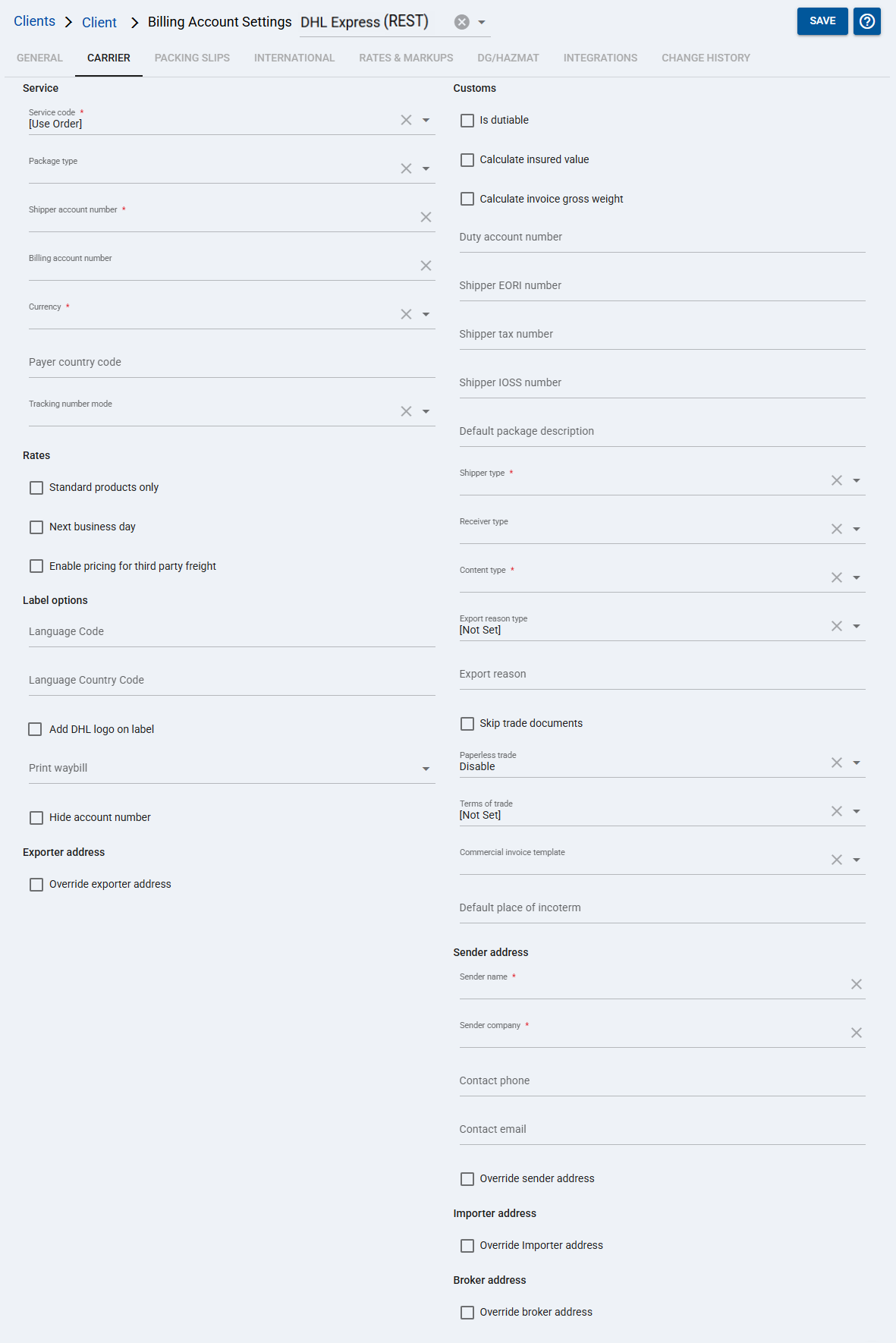
 | Service code: Choose the service code to assign to imported orders that do not have a service code, or keep the service code provided with the order. You can use the service level that comes with the order, ECO mode, or a specific service level. For additional information, see Default Service Level: Use Order, ECO, Specific and how to set it up [Step-by-Step guide]. |
 | Package type: Specify the standard package type or description used for the account. |
 | Shipper account number: Specify the account number that will be the shipper on paper. |
 | Billing account number: Specify the account number that will pay for shipping if it is not the prepaid account. |
 | Currency: Specify the currency from the list. |
 | Payer country code: Specify the payer country code. Tracking number mode: Select the tracking number mode. Standard products only: If checked, limits receiving rates to basic services only. Next business day: If checked, limits receiving rates to services that qualify for next business day delivery only. Enable pricing for third party freight: Enables pricing for third party freight. |
 | Language Code: Specify the language code. Language Country Code: Specify the language country code. Add DHL logo on label: Enable this option to add the DHL logo on the label. Print waybill: Select whether techSHIP saves the waybill returned by DHL Express (REST). Select Enable or leave Default selected to save the shipping label and waybill as separate documents. Select Disable to save the shipping label without the waybill.
Hide account number: Enable this option to hide the account number. Override exporter address: Check this option when the exporter address must override the address inherited from the Baseline Account. |
 | Is dutiable: Check if you will pay for duties for shipments going through this account. Calculate insured value: Check if you want to automatically calculate the insured value based on the SKU contents. Calculate invoice gross weight: Enable invoice gross weight calculation. Duty account number: Specify the duty account number. Shipper EORI number: Specify the shipper EORI number. Shipper tax number: Specify the shipper tax number. Shipper IOSS number: Specify the shipper IOSS number. Default package description: Specify the description of the packages you are sending, such as a box or envelope. |
 | Shipper type: Select the shipper type. Receiver type: Select the receiver type. Content type: Select the content type. Export reason type: Select the export reason type, such as gift, sample, commercial, or return, from the dropdown. Export reason: Specify the detail associated with the reason type. Skip trade documents: Check if you do not want to generate the trade documents as you process the orders, for example if you will handle these manually or outside techSHIP. Paperless trade: Select Enable if you want to handle international shipment paperwork digitally, or Disable if you want to print it physically. Verify with your DHL Express representative if there are any additional steps to enable your account to be paperless on DHL's end. Terms of trade: Select the terms of trade, for example DDP or DDU, that apply to the case from the dropdown. Commercial invoice template: Select the commercial invoice template from the dropdown. Default place of incoterm: Specify the default place of Incoterm. |
 | Sender name: Specify the sender name. Sender company: Specify the sender company. Contact phone: Specify the sender contact phone number. Contact email: Specify the sender contact email. Override sender address: Check and specify this option when the sender address must be different from the address inherited from the Baseline Account. To configure the override, refer to Change the Ship From address with Override Sender Address [Step-by-Step guide]. |
 | Override Importer address: Check and specify this option when the importer address must override the address inherited from the Baseline Account. Override broker address: Check this option when a broker address override is required. |
| Click Save before continuing so the configured settings are applied. |
Next Steps
Once the Client (Billing) Account has been configured and saved, the account can be used to process orders through DHL Express (REST).
![Article 1: DHL Express (REST) Onboarding Requirements and Configuration Guides [Information]](https://s3.amazonaws.com/cdn.freshdesk.com/data/helpdesk/attachments/production/96804995/original/8TBA5Gx5zMbNVuxpBfz-CdrCvI4APxv9oQ.png?1779475304) | ![Article 2: Reference Data: DHL Express (REST) Baseline Account Fields [Guide]](https://s3.amazonaws.com/cdn.freshdesk.com/data/helpdesk/attachments/production/96805147/original/W85CGdQ10tusn215or-ihmIcZ_i6NOpE0Q.png?1779475851) | ![Article 3: Reference Data: DHL Express (REST) Client (Billing) Account Fields [Guide]](https://s3.amazonaws.com/cdn.freshdesk.com/data/helpdesk/attachments/production/96804742/original/bHFYZzIg1p3n6eidaRLAM0zP1uVKzHY4sw.png?1779473999) |
| Onboarding and Configuration | Baseline Account | (Billing) Account |
Was this article helpful?
That’s Great!
Thank you for your feedback
Sorry! We couldn't be helpful
Thank you for your feedback
Feedback sent
We appreciate your effort and will try to fix the article