The Insights section in techSHIP provides powerful, interactive dashboards for shipment tracking, performance monitoring, and cost analysis. This article shows you how to access them.
 NOTE: This feature requires special users permissions, as detailed in: techSHIP User Permissions Structure [Information].
 NOTE: The dashboards available in your menu depend on your current subscription plan and configuration. Additionally, new dashboards may be released periodically. For a complete catalog of all available dashboards and their definitions, see: Insights Dashboards Master List [Guides List].
To access a dashboard:
1. Click Insights in the left menu to expand the category.
2. Click the desired dashboard name.
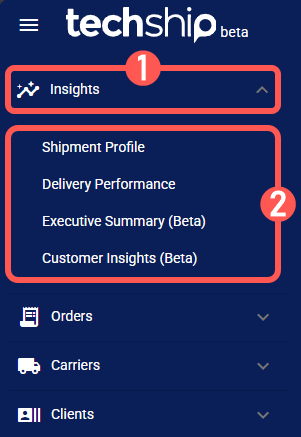
NOTE: The Shipment Profile dashboard is displayed by default upon login.
Once you access a dashboard, you can start analyzing your data. For guidance, see:
- Insights Dashboards Master List [Guides List], which provides an overview of all available dashboards and their main purpose.
- How to Use the Insights Dashboards [Guide], which explains how to filter, view details, and export data.
Was this article helpful?
That’s Great!
Thank you for your feedback
Sorry! We couldn't be helpful
Thank you for your feedback
Feedback sent
We appreciate your effort and will try to fix the article