A Baseline Account serves as the fundamental connection point between techSHIP and a carrier's system. It acts as a template that holds the credentials and fundamental properties required to process shipments.
This guide covers the procedure to add a new Baseline Account and apply the essential configuration required to establish a connection.
 |
Before proceeding, ensure you are operating the right location.
|

TABLE OF CONTENTS
Adding the Carrier
Before adding an account, you must ensure the Carrier entity is available for your location.
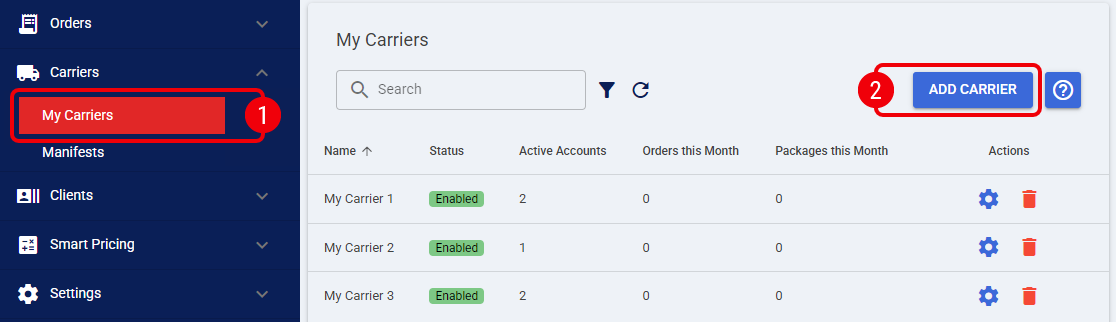
 | Click My Carriers from the left menu under the Carriers category. |
 | Press Add Carrier. |
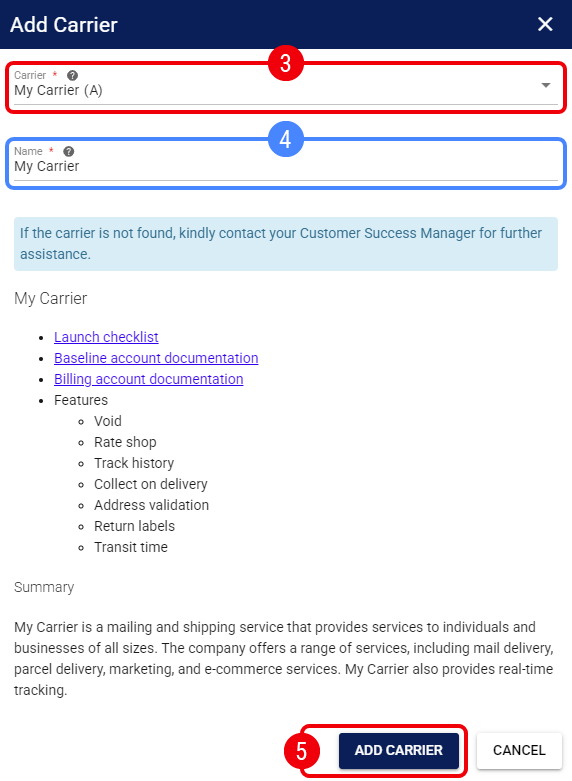
 | Select the desired Carrier. |
| |
You may encounter restriction messages depending on the carrier status or your plan:
|
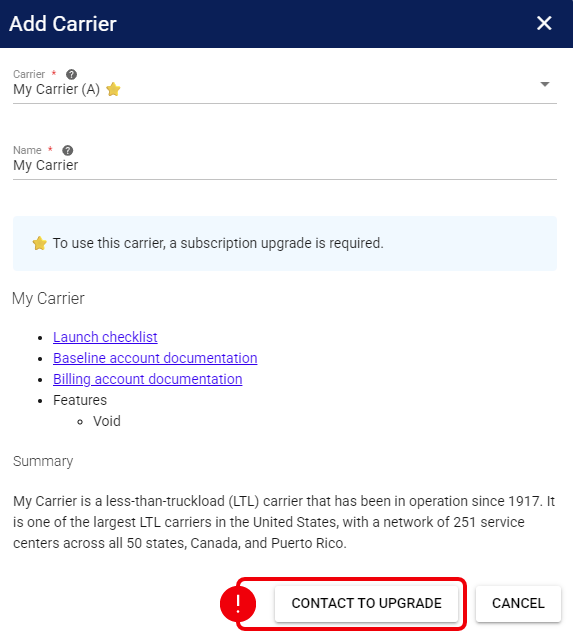
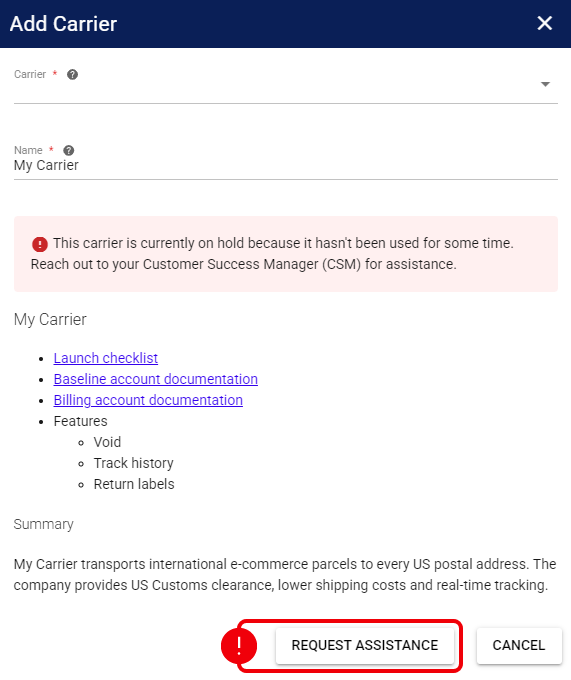
 | If needed, update the carrier Name. |
 | Press Add Carrier. |
Once the Carrier is added, you will be automatically redirected to the Manage Carrier page to continue setting it up.
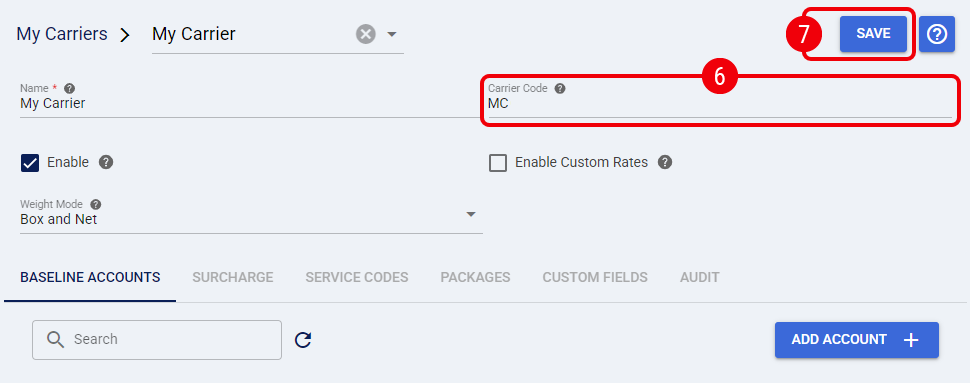
 | Enter the Carrier Code as it appears in your integrated system. |
 | The Carrier Code must match exactly the value defined in the integrated system. Any discrepancy (including casing or extra spaces) may prevent the carrier from working correctly. |
 | Press Save. |
Adding and Configuring the Baseline Account
From the Manage Carrier page, press Add Account to create a new Baseline Account.
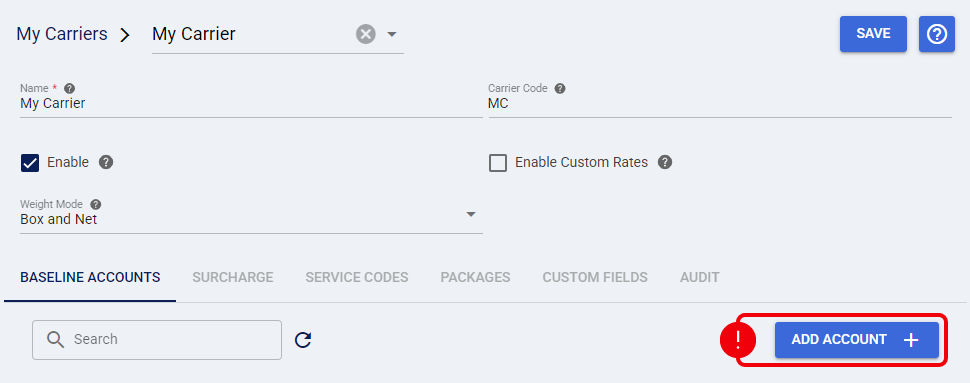
You will be redirected to the Manage Baseline Account page to complete the setup.
Essential Configuration
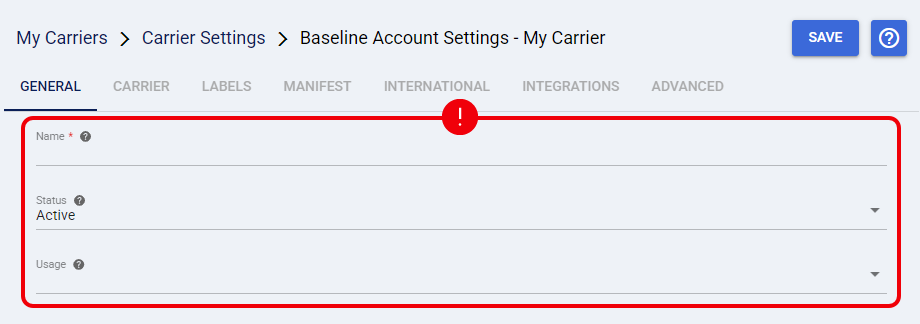
In the General tab, define the administrative properties that are standard across all carriers:
- Name: Enter a descriptive name for the account.
Ensure to enter a descriptive name based on unique properties. E.g.:
- Carrier Name - Account Number (CarrierX - 123456789)
- Carrier Name - Consolidator Name (CarrierY - MyConsolidator)
- Carrier Name
- Usage: Select the most suitable option:
- Test: Used for sandbox or onboarding purposes.
- Production: Used for live shipping.
| |
Keep the Status field set to its default Active value.
|
Carrier-Specific Configuration
To continue, configure the Carrier and Labels tabs. These settings vary by carrier and must be completed according to the carrier-specific configuration requirements.
To complete this setup:
- Open the techSHIP supported Carriers - Master List [Guides List].
- Locate your carrier and open its Onboarding & Configuration guide.
- Open the linked Baseline Account configuration guide and follow its instructions to configure:
- The Carrier Tab.
- The Labels Tab (Mode field).
| Entering incorrect values in the Carrier tab or selecting an unsupported Label Mode will prevent the system from generating shipping labels. |

Finalizing the Setup
Once you have entered the information from the carrier-specific guide, click Save.

From the Manage Carrier page, you can now see the Baseline Account listed with the status Active.
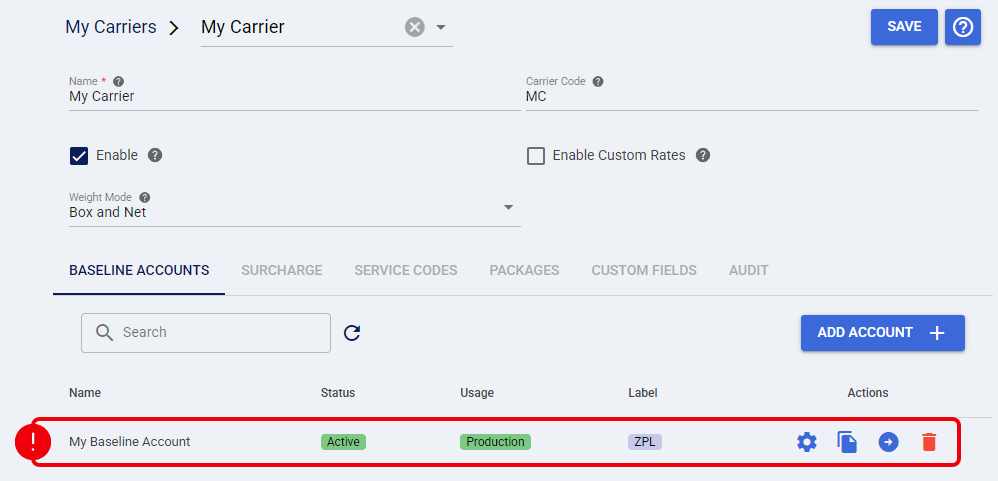
The Baseline Account is now connected. To start shipping, you must assign this connection to a specific Client by creating a Billing Account. To continue, refer to: How to Add a Billing Account [Step-by-Step guide].
Was this article helpful?
That’s Great!
Thank you for your feedback
Sorry! We couldn't be helpful
Thank you for your feedback
Feedback sent
We appreciate your effort and will try to fix the article