This guide explains how to add and configure a FedEx REST Baseline Account.
A Baseline Carrier Account defines the default configuration required for the platform to communicate with the carrier and generate shipping labels. This setup is required before adding Client (Billing) Accounts and enabling shipping operations for this carrier.
 |
For a complete overview of supported carriers and related setup guides, refer to techSHIP supported Carriers - Master List [Guides List]. If your existing FedEx REST Baseline Account uses customer-owned API credentials, follow FedEx REST Migration via Integrator Program [Guide] to replace them with the Techdinamics FedEx Integrator Program credentials.
|
TABLE OF CONTENTS
Prerequisites
Before adding the Baseline Account, ensure the following prerequisites are completed:
- FedEx REST Onboarding Requirements and Configuration Guides [Information].
- Follow the configuration steps as described in How to Add a Carrier Baseline Account [Step-by-Step guide] using the values provided below.
 | After entering the required Account # and Sender address information, press Save to prepare the Baseline Account for registration and enable Register. |
FedEx Registration and Authentication
During the Baseline setup, the FedEx account must be registered, validated, and authenticated before the connection can be completed. Use the information gathered in the FedEx REST Onboarding Requirements and Configuration Guides [Information] article, then complete the registration flow in this section.
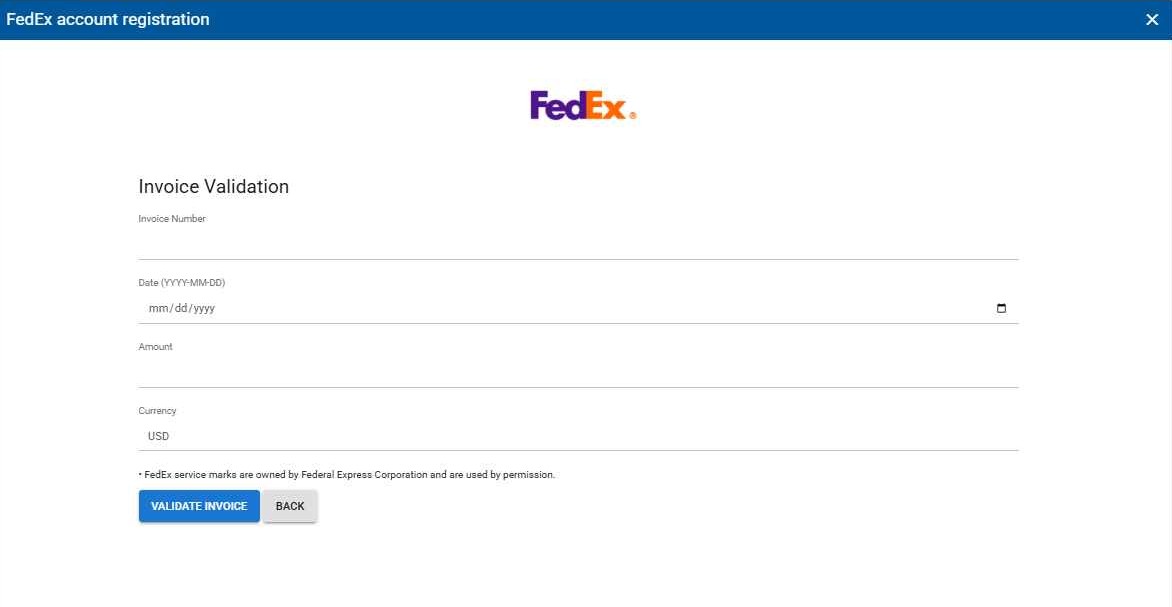
When available, Invoice is the fastest and most practical authentication method for implementation teams because it does not require the account holder to be available to receive and share a validation code. Use this option when you have the required invoice details:
- Invoice Number,
- Invoice Date, Amount,
- and Currency.
The FedEx registration flow starts after Register is enabled. Follow these steps to complete the registration:
1. Click Register to start the FedEx registration flow.
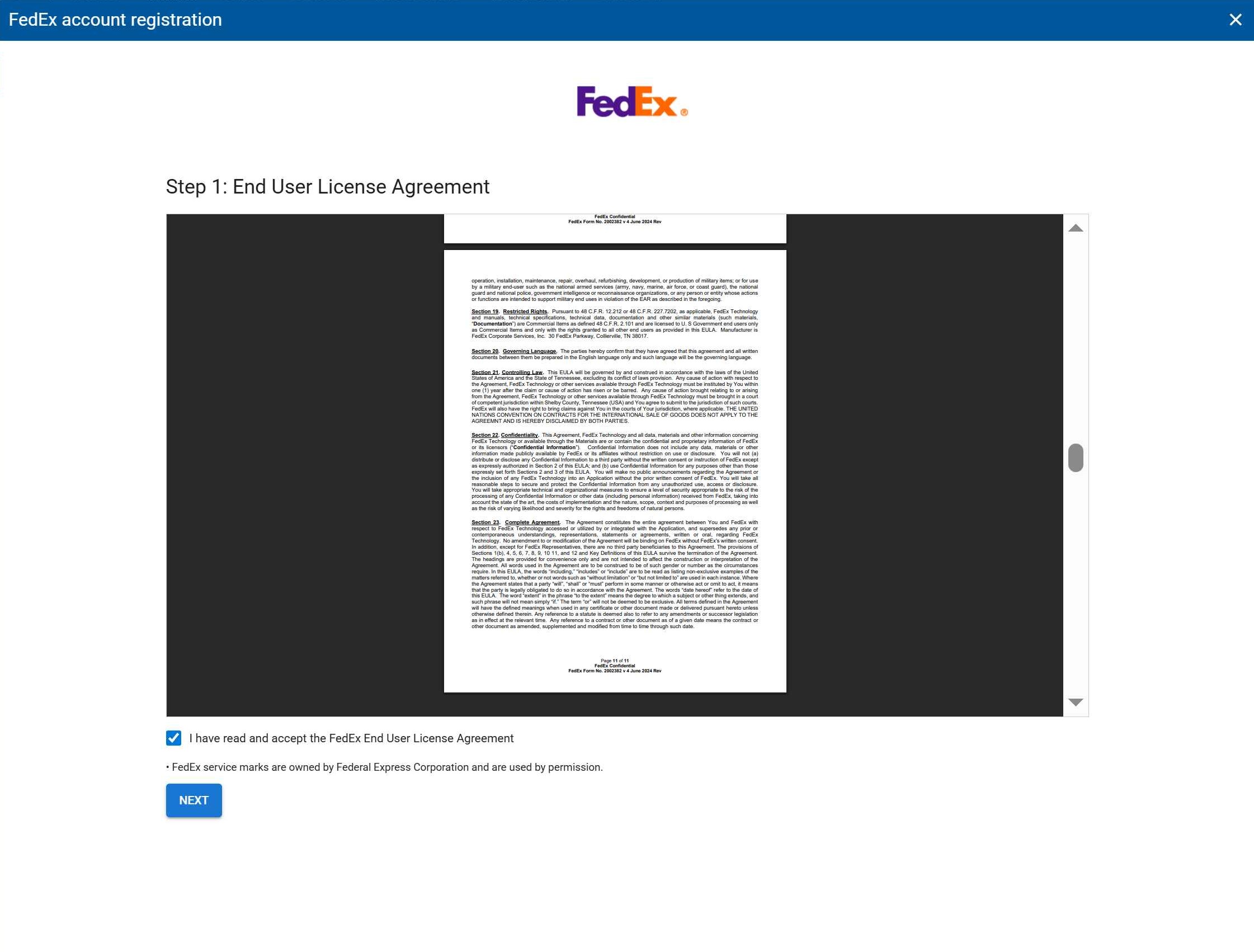
2. Scroll down the End User License Agreement, check the option to confirm that you have read and accepted the terms, and click Next.
3. Complete the address validation fields using the information listed in the onboarding requirements, then click Validate Address.
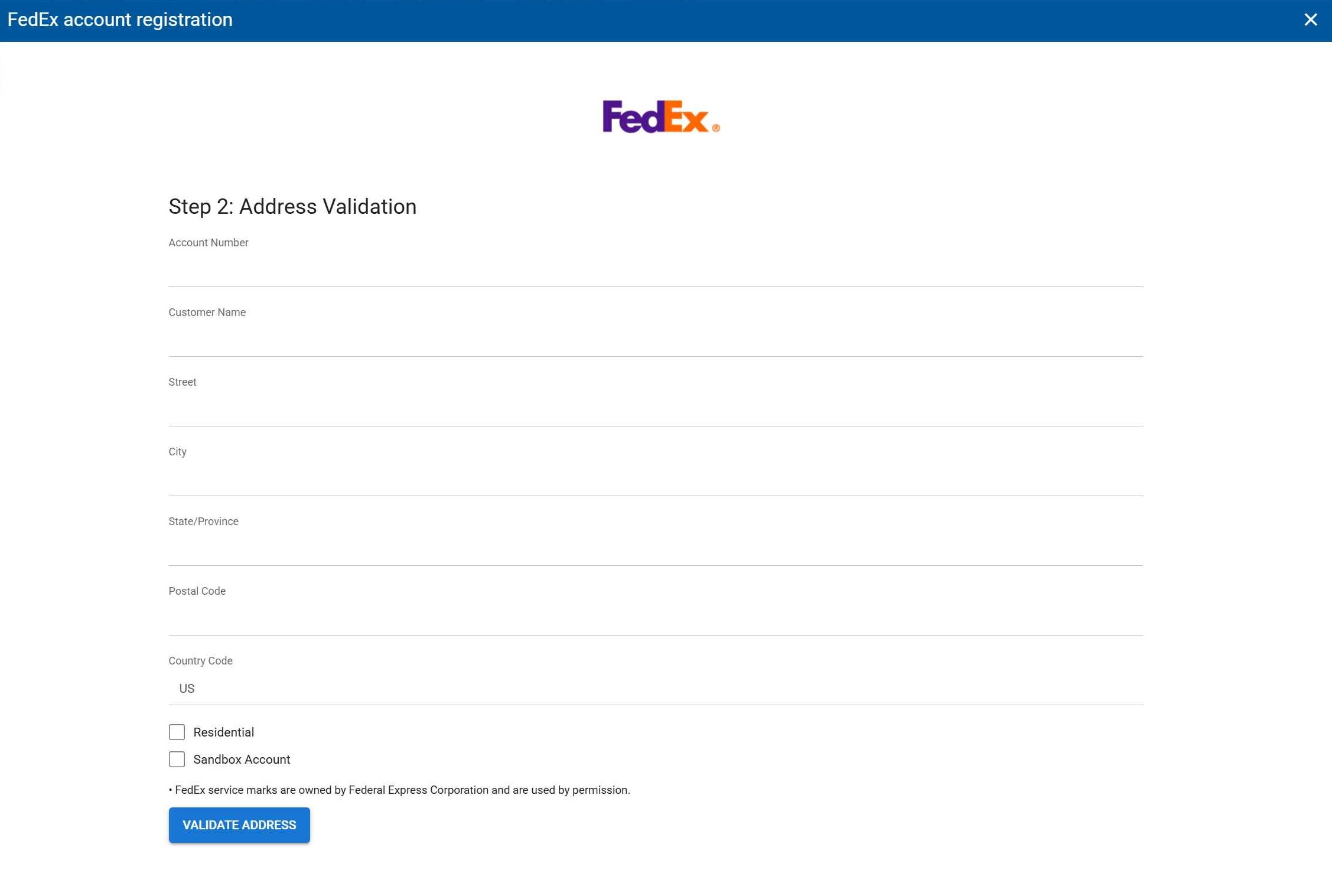
| | Checking Residential or Sandbox Account is not needed unless you are shipping from a residential area or setting up a test account. |
4. Select the authentication method that applies to the account setup.
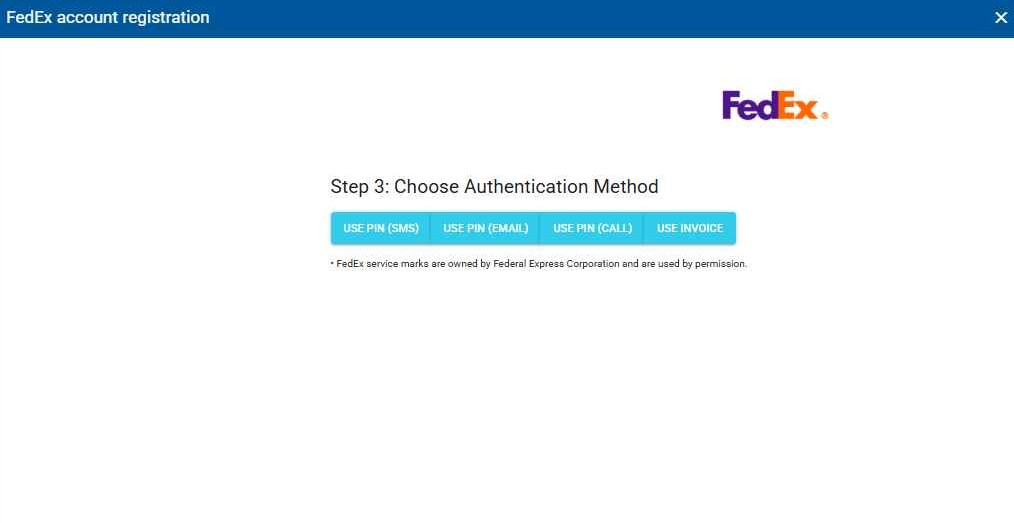
You can choose one of the following options:
- PIN (SMS): The account holder’s phone receives a code via SMS. Enter the PIN and click Validate PIN.
- PIN (Call): The account holder’s phone receives a code via phone call. Enter the PIN and click Validate PIN.
- PIN (E-mail): The account holder’s email receives a code via email. Enter the PIN and click Validate PIN.
- Invoice: Complete the invoice information according to the onboarding requirements and click Validate Invoice.
5. Complete the authentication step using the method selected in Step 4.
Option A (Preferred): If you select Invoice, complete the invoice information and click Validate Invoice.
| | Always enter the Invoice information using numbers only, no spaces or dashes. Make sure to use an invoice issued within the last 90 days. |
Option B: If you select a PIN authentication method, enter the code and click Validate PIN using one of the available methods.
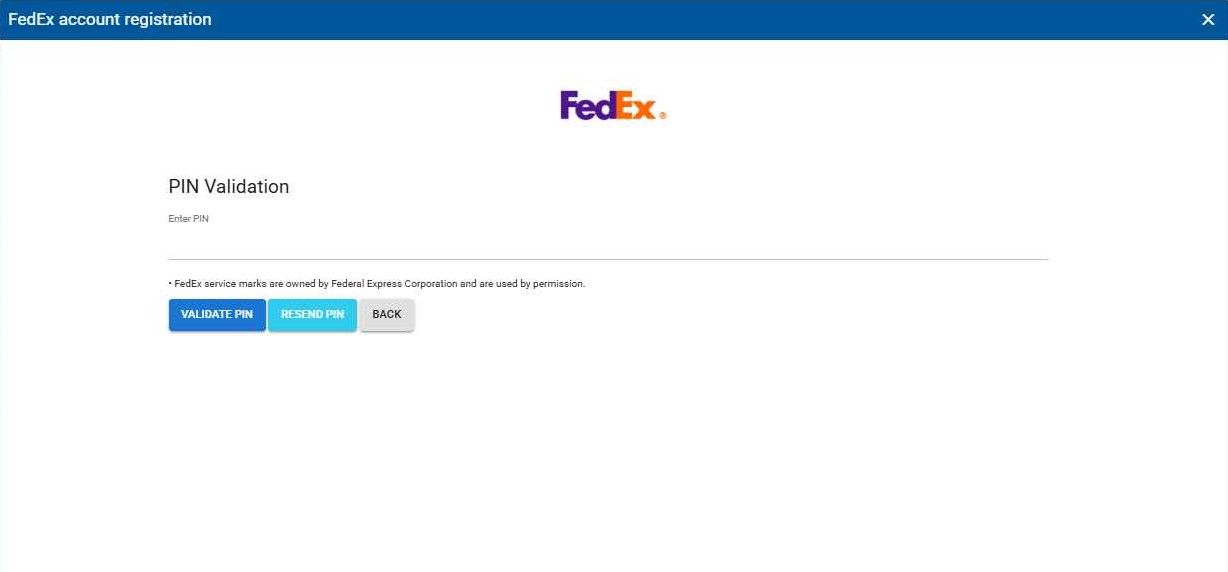
| | If you have issues receiving the code through SMS, Call, or E-mail, click Resend PIN. To change the validation type, click Back and select a different method. |
6. After validation is complete, close the pop-up.
7. Confirm that techSHIP completed the User key and User password fields automatically, then press Save to complete the process.
Carrier-Specific Instructions
Carrier Tab
The Carrier tab contains the Baseline configuration used to identify the Carrier account and define its operational behavior. Fields in this view are grouped visually to distinguish the information required to prepare the Baseline Account for registration and the optional or conditional carrier-specific settings available for this setup.
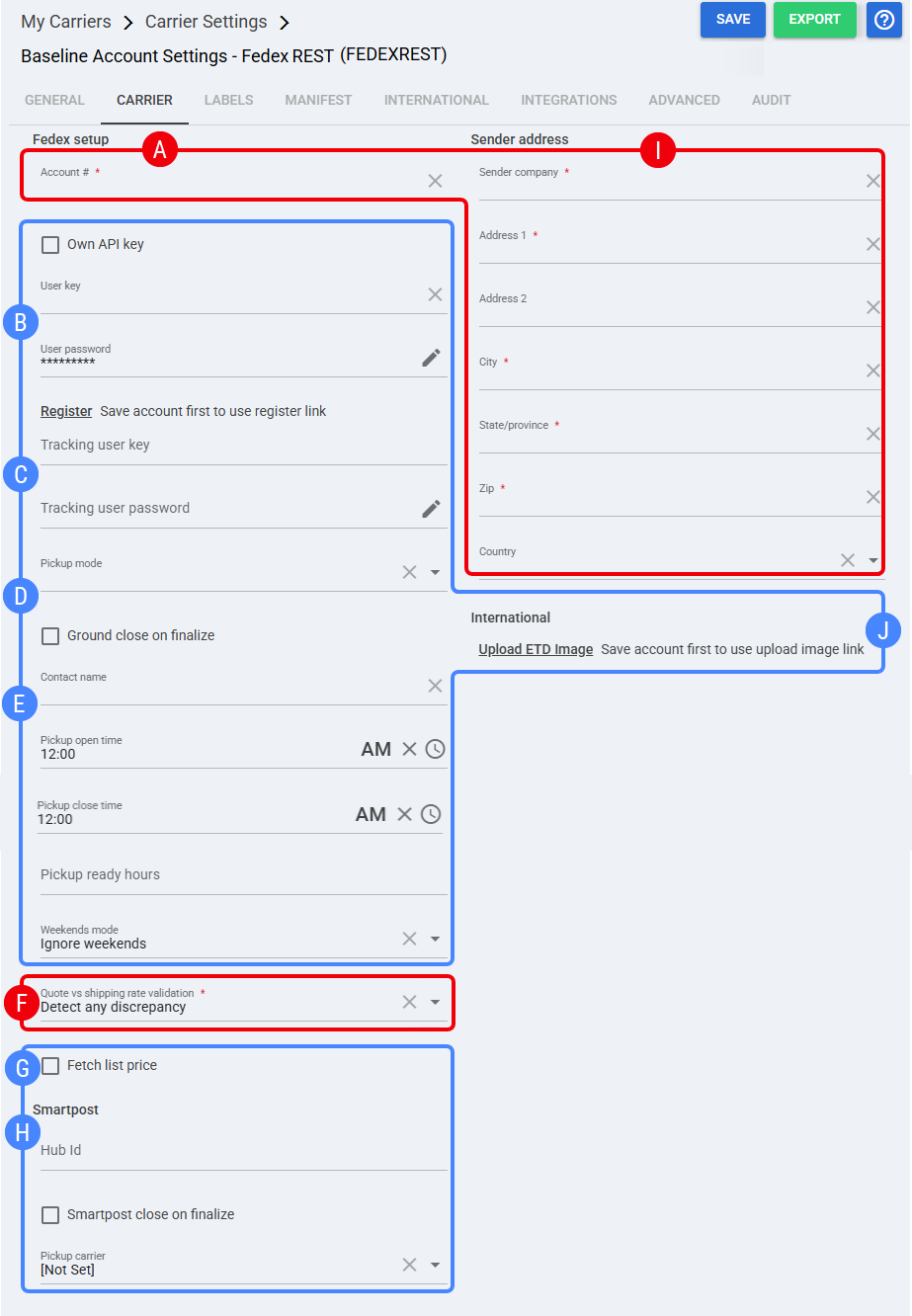
 | Account #: FedEx account number, as provided by FedEx. |
 | Own API key: Enables the Baseline Account to use customer-owned API credentials. User key: API credential generated after successful FedEx registration and validation. User password: API credential secret generated after successful FedEx registration and validation. Register: Opens the FedEx account registration flow. Save the Baseline Account first to enable the registration link. |
 | Tracking user key: Tracking credential used by the Baseline Account when tracking-specific credentials are required. Tracking user password: Tracking credential password used by the Baseline Account when tracking-specific credentials are required. |
 | Pickup mode: Defines the pickup handling mode used for this Baseline Account. Set to Contact fedex to schedule when pickup scheduling is handled with FedEx. Ground close on finalize: Enables ground close when finalizing shipments for this Baseline Account. |
 | Contact name: Contact name used for pickup-related carrier communication, when required. Pickup open time: Earliest pickup time available for this Baseline Account. Pickup close time: Latest pickup time available for this Baseline Account. Pickup ready hours: Pickup readiness window used for the Baseline Account, when applicable. Weekends mode: Weekend handling mode used for pickup or close behavior. Example value shown: Saturday and sunday. |
 | Quote vs shipping rate validation: Defines how techSHIP validates quoted rates against shipping rates for this carrier. Set to Detect any discrepancy to detect differences between quoted and shipping rates. |
 | Fetch list price: Fetches carrier list price information when enabled. |
 | Smartpost: Configures Smartpost-related values for the Baseline Account, when Smartpost is used. Hub Id: Smartpost hub identifier used for the account. Smartpost close on finalize: Enables Smartpost close when finalizing shipments, when Smartpost is used. Pickup carrier: Smartpost pickup carrier selected for the account. Example value shown: [Not Set]. |
 | Sender address: Sender information used for the Baseline Account. Enter the warehouse induction address used as the sender address for this connection. Required fields include Sender company, Address 1, City, State/province, and Zip. Country must also be selected for the sender address. Address 2 can be completed when applicable. |
 | Upload ETD Image: Uploads the Electronic Trade Documents image used for international processing. Save the Baseline Account first to enable the upload image link. For the full Electronic Trade Documents workflow, see: How to upload and use FedEx ETD images [Step-by-step guide]. |
Labels Tab
Set Mode to one of the following values: ZPL, PDF, PNG.
| To enable settings —and before continuing—, press Save. |
Finalizing the Setup
Once the Baseline Account has been created, registered, validated, and saved, proceed to configure the Client (Billing) Account: How to Add and Set Up a FedEx REST Client (Billing) Account [Guide].
Was this article helpful?
That’s Great!
Thank you for your feedback
Sorry! We couldn't be helpful
Thank you for your feedback
Feedback sent
We appreciate your effort and will try to fix the article