![Article 1: Pitney Bowes Onboarding Requirements and Configuration Guides [Information]](https://s3.amazonaws.com/cdn.freshdesk.com/data/helpdesk/attachments/production/96804813/original/7GJKyJXA3AM8E5itsPpDRjtqBPX6owOtKQ.png?1779474489) | ![Article 2: Reference Data: Pitney Bowes Baseline Account Fields [Guide]](https://s3.amazonaws.com/cdn.freshdesk.com/data/helpdesk/attachments/production/96805389/original/PESWYE3uLdtYfrTR6D8pmzemRjxuhc873g.png?1779476661) | ![Article 3: Reference Data: Pitney Bowes Client (Billing) Account Fields [Guide]](https://s3.amazonaws.com/cdn.freshdesk.com/data/helpdesk/attachments/production/96804742/original/bHFYZzIg1p3n6eidaRLAM0zP1uVKzHY4sw.png?1779473999) | ![Article 4: Reference Data: Order-Level Pitney Bowes Fields [Guide]](https://s3.amazonaws.com/cdn.freshdesk.com/data/helpdesk/attachments/production/96804746/original/nvzXhnphxceM2NVyNNdVUi_M73glJphvXw.png?1779474008) |
| Onboarding and Configuration | Baseline Account | (Billing) Account | Order-Level Fields |
 You are here You are here |
This reference lists the carrier-specific Pitney Bowes Baseline Account fields used in techSHIP configuration.
Use it together with the linked Baseline Account setup steps: the setup guide covers the shared configuration flow, while this article defines the confirmed field values, field behavior, and carrier-specific configuration details.
 |
Create one Baseline Account for each Pitney Bowes provider/code that will be used in techSHIP. There is no main Pitney Bowes plugin code that rates across all providers; each Baseline Account must be created with the specific provider code required for that operation.
Confirmed provider/code entries:
|
| |
For a complete overview of supported carriers and related setup guides, refer to techSHIP supported Carriers - Master List [Guides List].
|
 | Review Pitney Bowes Onboarding Requirements and Configuration Guides [Information] before configuring the Baseline Account so required credentials and account settings are confirmed. |
TABLE OF CONTENTS
Adding a Baseline Account
Follow the UI Navigation steps in How to Add a Carrier Baseline Account [Step-by-Step guide], using the carrier-specific values provided in this guide.
Go to  | |
 |  |
| Essential Configuration | Carrier-SpecificYou are here |
Carrier-Specific Instructions
| Return to | |
 |  |
| Essential Configuration | Carrier-Specific |
Carrier Tab
The Carrier tab contains the Baseline Account fields used to identify the Pitney Bowes carrier connection, define the credential model used by the account, and define the sender address used by the account.
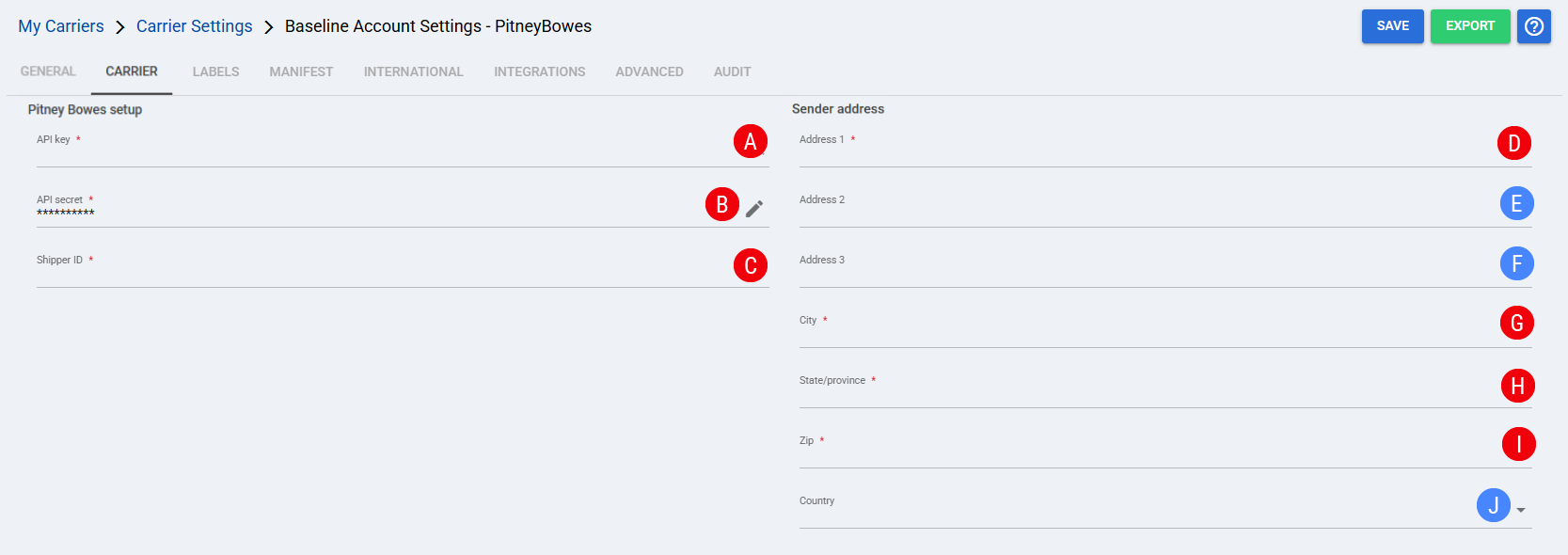
 | Own API key: Controls whether this Baseline Account uses custom Pitney Bowes API credentials. When cleared, the account uses Techdinamics-managed API credentials. When selected, API key and API secret are shown for legacy or custom credential setup. |
 | API key: Shown when Own API key is selected. Enter the Pitney Bowes API key used by this Baseline Account for legacy or custom credential setup. |
 | API secret: Shown when Own API key is selected. Enter the secret associated with the API key used by this Baseline Account for legacy or custom credential setup. |
 | Shipper ID: Enter the Pitney Bowes shipper identifier associated with the merchant/account used to process shipments. |
 | Address 1: Enter the first sender address line used by this Baseline Account. |
 | Address 2: Enter the second sender address line when the sender address includes additional delivery details. |
 | Address 3: Enter the third sender address line when the sender address includes additional delivery details. |
 | City: Enter the sender city used by this Baseline Account. |
 | State/province: Enter the sender state or province used by this Baseline Account. |
 | Zip: Enter the sender postal code used by this Baseline Account. |
 | Country: Select the sender country used by this Baseline Account. |
Labels Tab
Set Mode to the confirmed label format supported for this carrier. Supported label formats are ZPL, PDF, and PNG.
| Select Save before continuing so the configured settings are applied. |
Finalizing the Setup
Once the Baseline Account has been created, validated, and saved, continue with Reference Data: Pitney Bowes Client (Billing) Account Fields [Guide].
| Go to | |||
![Article 1: Pitney Bowes Onboarding Requirements and Configuration Guides [Information]](https://s3.amazonaws.com/cdn.freshdesk.com/data/helpdesk/attachments/production/96804995/original/8TBA5Gx5zMbNVuxpBfz-CdrCvI4APxv9oQ.png?1779475304) | ![Article 2: Reference Data: Pitney Bowes Baseline Account Fields [Guide]](https://s3.amazonaws.com/cdn.freshdesk.com/data/helpdesk/attachments/production/96805142/original/-hCPa73Oa_qPHu9q9vIfK7GGTavTCHKWGA.png?1779475839) | ![Article 3: Reference Data: Pitney Bowes Client (Billing) Account Fields [Guide]](https://s3.amazonaws.com/cdn.freshdesk.com/data/helpdesk/attachments/production/96805392/original/fyeDiUtUuUfVRqUZR2oaGfPZOvJQgQ0sOg.png?1779476668) | |
| Onboarding and Configuration | Baseline Account | (Billing) Account | Order-Level Fields |
Was this article helpful?
That’s Great!
Thank you for your feedback
Sorry! We couldn't be helpful
Thank you for your feedback
Feedback sent
We appreciate your effort and will try to fix the article