![Article 1: DHL Express (REST) Onboarding Requirements and Configuration Guides [Information]](https://s3.amazonaws.com/cdn.freshdesk.com/data/helpdesk/attachments/production/96804813/original/7GJKyJXA3AM8E5itsPpDRjtqBPX6owOtKQ.png?1779474489) | ![Article 2: Reference Data: DHL Express (REST) Baseline Account Fields [Guide]](https://s3.amazonaws.com/cdn.freshdesk.com/data/helpdesk/attachments/production/96805389/original/PESWYE3uLdtYfrTR6D8pmzemRjxuhc873g.png?1779476661) | ![Article 3: Reference Data: DHL Express (REST) Client (Billing) Account Fields [Guide]](https://s3.amazonaws.com/cdn.freshdesk.com/data/helpdesk/attachments/production/96804742/original/bHFYZzIg1p3n6eidaRLAM0zP1uVKzHY4sw.png?1779473999) |
| Onboarding and Configuration | Baseline Account | (Billing) Account |
 You are here You are here |
This reference lists the carrier-specific DHL Express (REST) Baseline Account fields used in techSHIP configuration.
Use it together with the linked Baseline Account setup steps: the setup guide covers the shared configuration flow, while this article defines the confirmed field values, field behavior, and carrier-specific configuration details.
 |
For a complete overview of supported carriers and related setup guides, refer to techSHIP supported Carriers - Master List [Guides List].
|
 | Review DHL Express (REST) Onboarding Requirements and Configuration Guides [Information] before configuring the Baseline Account so required credentials and account settings are confirmed. |
TABLE OF CONTENTS
Adding a Baseline Account
Follow the UI Navigation steps in How to Add a Carrier Baseline Account [Step-by-Step guide], using the carrier-specific values provided in this guide.
Go to  | |
 |  |
| Essential Configuration | Carrier-Specific This article |
Carrier-Specific Instructions
| Return to | |
 |  |
| Essential Configuration | Carrier-Specific |
Carrier Tab
The Carrier tab contains the Baseline Account fields used to identify the carrier connection and define confirmed carrier-specific behavior. Highlighted fields indicate mandatory and optional configuration groups.
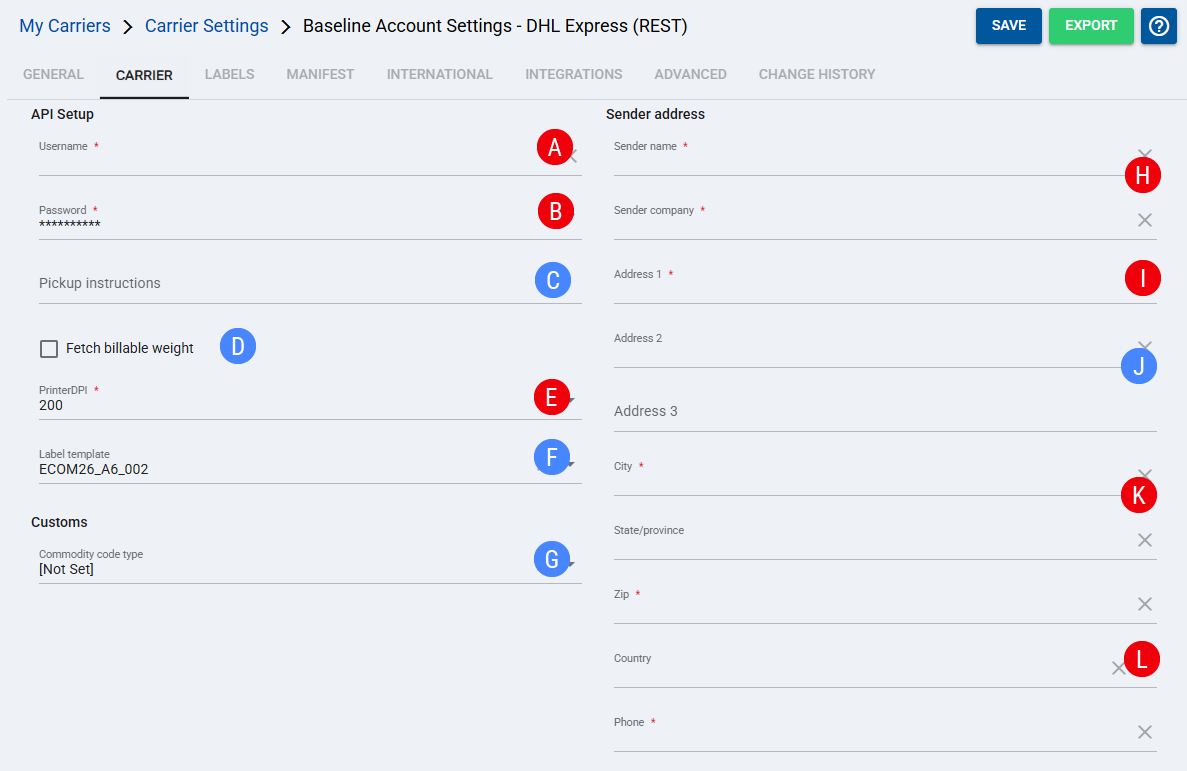
 | Username: Enter the DHL Express (REST) username. |
 | Password: Enter the DHL Express (REST) password. |
 | Pickup instructions: Enter pickup instructions for the carrier. |
 | Fetch billable weight: Check this option if the account should fetch the billable weight from DHL Express (REST). |
 | PrinterDPI: Indicates the Dots-Per-Inch used to determine the label print quality. |
 | Label template: Select the label template to use for DHL Express (REST) labels.
|
 | Commodity code type: Select whether the DHL Express (REST) request should send both commodity code types or only one code type for the commercial invoice. Leave [Not Set] to keep the default behavior and send both code types. Select Outbound only or Inbound only only when the account requires the commercial invoice to show a single commodity code type.
|
 | Sender name: Enter the sender name. Sender company: Enter the sender company. |
 | Address 1: Enter the primary sender address. |
 | Address 2: Enter the second sender address line, if applicable. Address 3: Enter the third sender address line, if applicable. |
 | City: Enter the sender city. State/province: Enter the sender state or province, if applicable. |
 | Zip: Enter the sender postal or ZIP code. Country: Select the sender country. Phone: Enter the sender phone number. |
Labels Tab
Set Mode to the confirmed label format supported for this carrier.
| Click Save before continuing so the configured settings are applied. |
Finalizing the Setup
Once the Baseline Account has been created, validated, and saved, continue with Reference Data: DHL Express (REST) Client (Billing) Account Fields [Guide].
| Go to | ||
![Article 1: DHL Express (REST) Onboarding Requirements and Configuration Guides [Information]](https://s3.amazonaws.com/cdn.freshdesk.com/data/helpdesk/attachments/production/96804995/original/8TBA5Gx5zMbNVuxpBfz-CdrCvI4APxv9oQ.png?1779475304) | ![Article 2: Reference Data: DHL Express (REST) Baseline Account Fields [Guide]](https://s3.amazonaws.com/cdn.freshdesk.com/data/helpdesk/attachments/production/96805142/original/-hCPa73Oa_qPHu9q9vIfK7GGTavTCHKWGA.png?1779475839) | ![Article 3: Reference Data: DHL Express (REST) Client (Billing) Account Fields [Guide]](https://s3.amazonaws.com/cdn.freshdesk.com/data/helpdesk/attachments/production/96805392/original/fyeDiUtUuUfVRqUZR2oaGfPZOvJQgQ0sOg.png?1779476668) |
| Onboarding and Configuration | Baseline Account | (Billing) Account |
Was this article helpful?
That’s Great!
Thank you for your feedback
Sorry! We couldn't be helpful
Thank you for your feedback
Feedback sent
We appreciate your effort and will try to fix the article