This article explains how to set up and configure Mercado Libre as a sales channel in techOMS. Once configured, techOMS can download sales orders, synchronize inventory levels, and push fulfillment updates, subject to the limitations described in this article.
 NOTE: To connect Mercado Libre, you must first install the techOMS Mercado Libre app.
Mercado Libre does not provide a public app store for third-party applications. The integration is enabled through an OAuth authorization flow initiated via a specific installation URL.
This installation is managed and provided by the Techdinamics team. Users must access and authorize it from their Mercado Libre account to enable the connection with techOMS.
This setup process has two phases:
- Create the channel
- Configure additional parameters
NOTE: Before starting, ensure you are operating under the correct Vendor and Warehouse context in techOMS.
I. CREATE CHANNEL
This section is performed in Mercado Libre.
To start the sales channel setup, you need to install the techOMS Mercado Libre app using the installation URL provided by the Techdinamics team.
Once you have the URL, follow these steps:
1. Open a browser and paste the provided URL into the address bar. Press Enter.
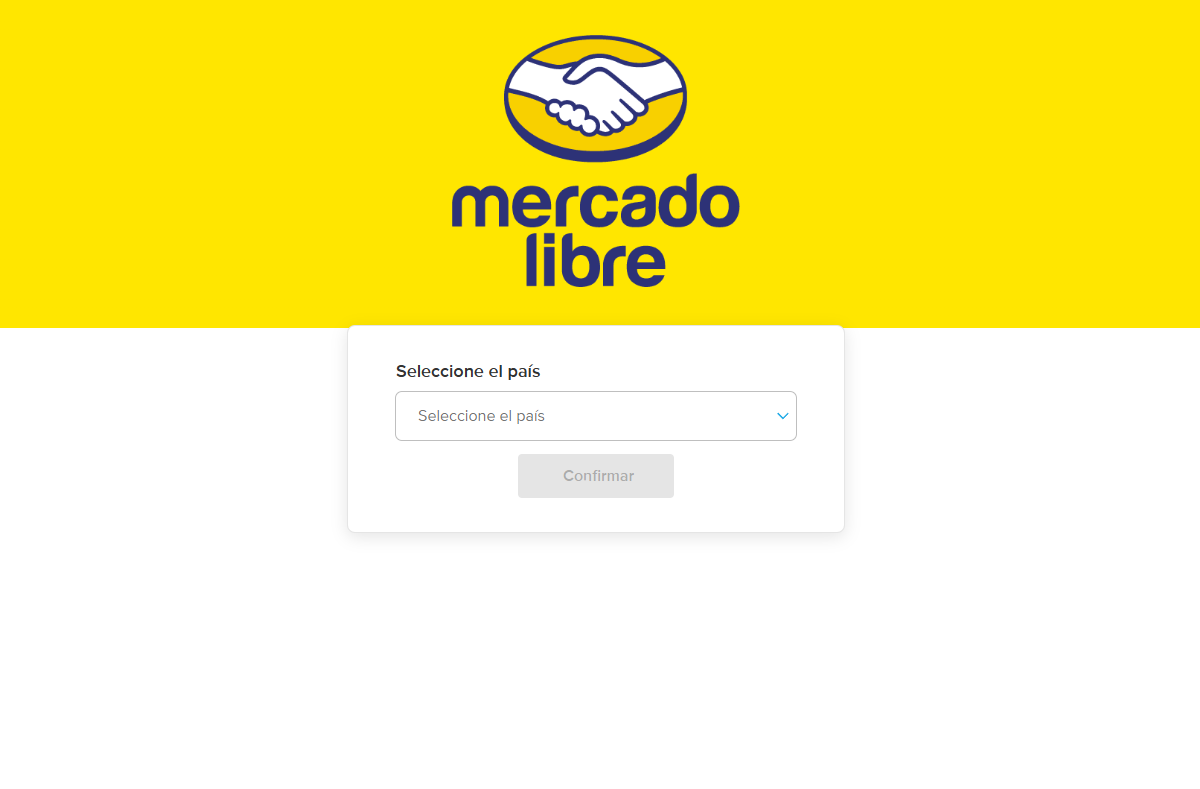
2. You will be prompted to select country. Choose your location and Continue (Continuar)
3. The app installation screen appears. Press Authorize (Autorizar).
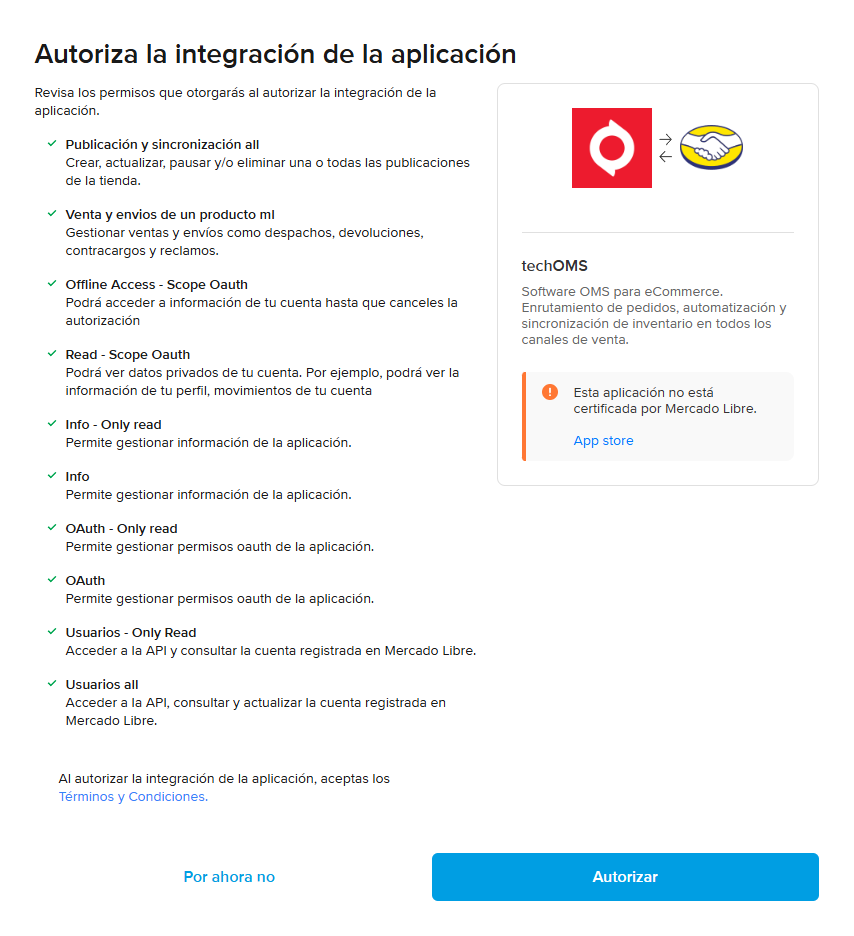
4. When prompted, grant permission to download, run, and install the app.
5. Press Install to complete the installation.
5. You will be automatically redirected to techOMS.
7. Select the Sales Channel Account under which the connection will be created.
8. Enter a Channel Name for identification purposes.
9. Press Save to complete channel creation.
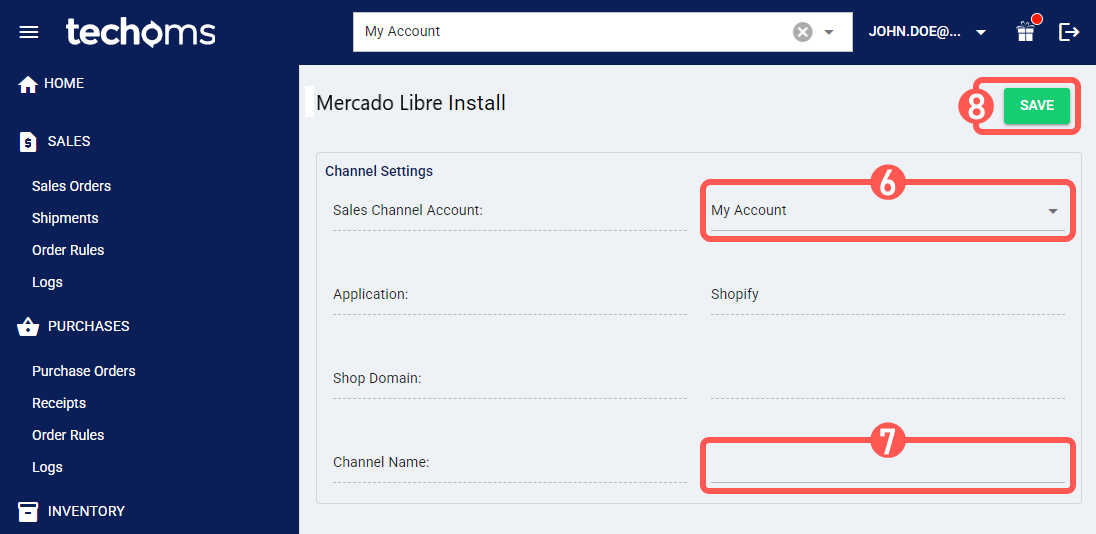
Proceed to the next section to finalize the configuration.
II. CONFIGURE ADDITIONAL PARAMETERS
Configure the following parameters in techOMS. Settings are organized into Quick Actions, View Selection, and Content View.
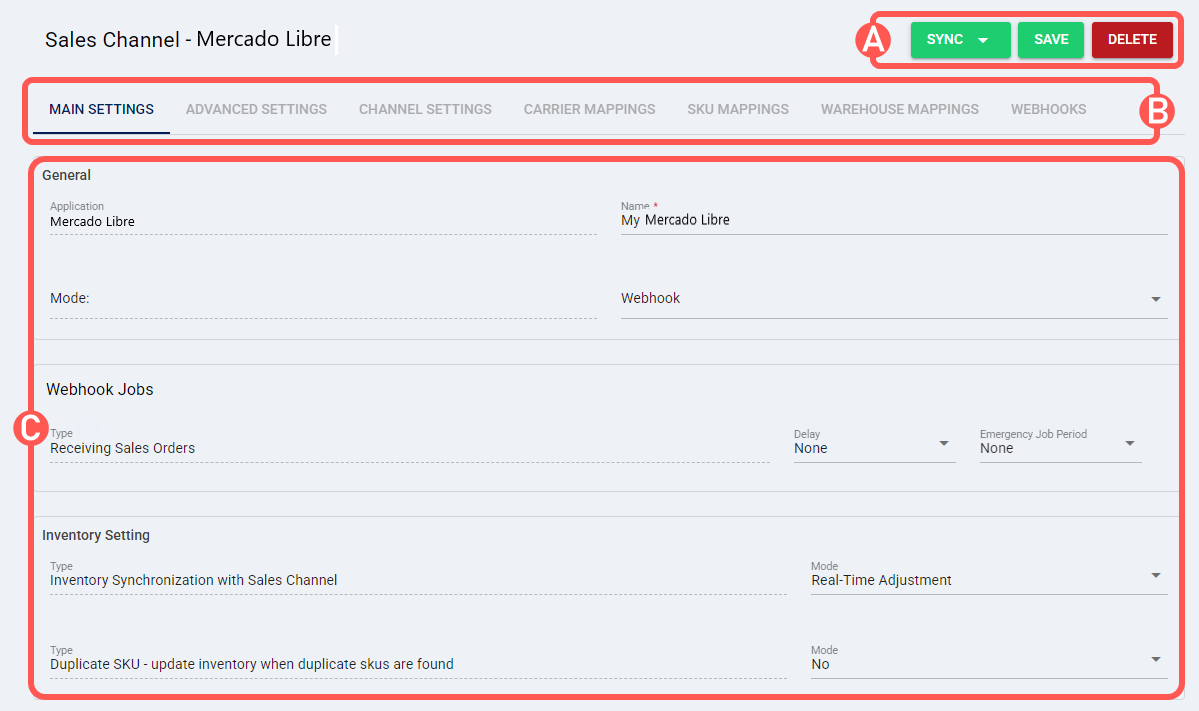
SECTIONS
A) QUICK ACTIONS lets you perform additional actions:
- Sync: Enables manual synchronization as detailed in How to Synchronize data through a Sales Channel [Step-by-step guide].
- Save: Saves and commits changes.
- Delete: Deletes the channel connection.
B) VIEW SELECTION allows you to switch between view modes:
- Main settings (default): Configures general and automation behavior using the options outlined in Main Settings of a Beta Sales Channel [Information].
- Advanced settings: Configures additional system/privacy settings using: How to manage Fulfillment Channels Advanced settings [Step-by-Step guide].
- Channel settings: Sets the channel integration parameters:
- Api Url: Base endpoint used to send requests to the Mercado Libre API.
- User Id: Mercado Libre account identifier associated with the authorized user.
- Refresh Token: Credential used to maintain the connection with Mercado Libre over time. This value is automatically generated, rotated, and managed by the system and should not be edited manually.
- Access Token: OAuth access token used for authenticated API calls to Mercado Libre.
- Download Orders with the following Order Status: Specifies which Mercado Libre order statuses are eligible for synchronization (Initialized, Approved, Pending, Canceled, Rejected).
- Throughput: Controls the number of API calls per second sent to Mercado Libre during order synchronization and fulfillment processing. This limit helps prevent database deadlocks and throttling on the Mercado Libre side. The value can be customized per customer and its default value is 1.
- Carrier Mappings: Sets Carrier name mappings as detailed in How to map Carriers in a Sales Channel [Step-by-step guide].
- SKU Mappings: Reviews and sets SKU mappings as detailed in How to map SKUs in a Sales Channel [Step-by-step guide].
- Warehouse Mappings: Links techOMS warehouses to Mercado Libre warehouse or location identifiers.
 WARNING: Due to differences in Mercado Libre account configurations, some accounts support multiple locations while others do not. For this reason, warehouse mapping is handled as a text field, not a dropdown.
Behavior and Limitations:- At least one warehouse mapping is required to enable features such as inventory level synchronization.
- When using text-based mappings, the entered values must exactly match the warehouse or location identifiers defined in Mercado Libre.
Support for accounts with multiple locations may vary and should be validated with real customer data, as this scenario could not be fully tested using test users.
- Webhooks: In order to establish a Webhook connection, make sure to select the correct Mode in the General information under Main Settings, then navigate to Webhooks, add the User ID and Save.
 WARNING: techOMS can receive Mercado Libre sales order creation webhooks by default.
To enable webhooks for this channel, the User ID shown in Channel Settings must be copied into the Client ID field in the Webhooks tab.
This value identifies the Mercado Libre account and is not the application Client ID.
C) CONTENT VIEW displays and/or allows editing of the settings in the View Selection section.
WARNING: Remember to press Save to commit the changes made in this section.
SUPPORTED BEHAVIORS AND KNOWN LIMITATIONS
This section outlines known limitations and supported behaviors for fulfillment updates.
Shipping Updates (Push Orders)
- For custom carriers, techOMS sends shipment data to Mercado Libre.
- Only one shipment per order is supported.
- Shipment status or tracking updates may not be visible in the Mercado Libre UI, although they are correctly registered in the Mercado Libre backend.
- For Mercado Envíos, all shipping data is managed directly by the Mercado Libre platform.
WARNING: Product synchronization is NOT supported by this integration.Key limitations include:
- Required product attributes vary by category and country and may change without notice. techOMS does not have sufficient product data to reliably populate all mandatory attributes.
- Even when default values are applied, most product creation attempts result in validation errors.
- Products must be created, updated, and managed directly in Mercado Libre.
Was this article helpful?
That’s Great!
Thank you for your feedback
Sorry! We couldn't be helpful
Thank you for your feedback
Feedback sent
We appreciate your effort and will try to fix the article