To connect Datex, first create the Fulfillment Channel connection, and then set up its parameters.
Once the connection is established between the channel and techOMS, you can use its supported features as listed in: techOMS Fulfillment Channels - Master List [Guides List].
This article is divided into the following sections:
- Onboarding Requirements
- Create the Fulfillment Channel
- Configure Additional Parameters
- Specific Behaviors
 NOTE: Make sure that you are operating at the correct Vendor/Warehouse beforehand.
I. ONBOARDING REQUIREMENTS
- Datex connection details required by the channel: Api Url, Client Id, Client Secret, Tenant Id, and Scope.
- Operational values required by the integration: Owner, Project, and Throughput.
- Before synchronizing products, configure packaging in Datex so it matches the techOMS Primary UOM.
II. CREATE THE FULFILLMENT CHANNEL
To create a Datex Fulfillment Channel, follow: How to Create a Fulfillment Channel [Step-by-step guide].
III. CONFIGURE ADDITIONAL PARAMETERS
To configure additional parameters:
- Click Channels from the left menu under the Fulfillment Channels section.
- Click on the created channel's name.
- Use the highlighted areas in the screenshot below and configure the required settings.
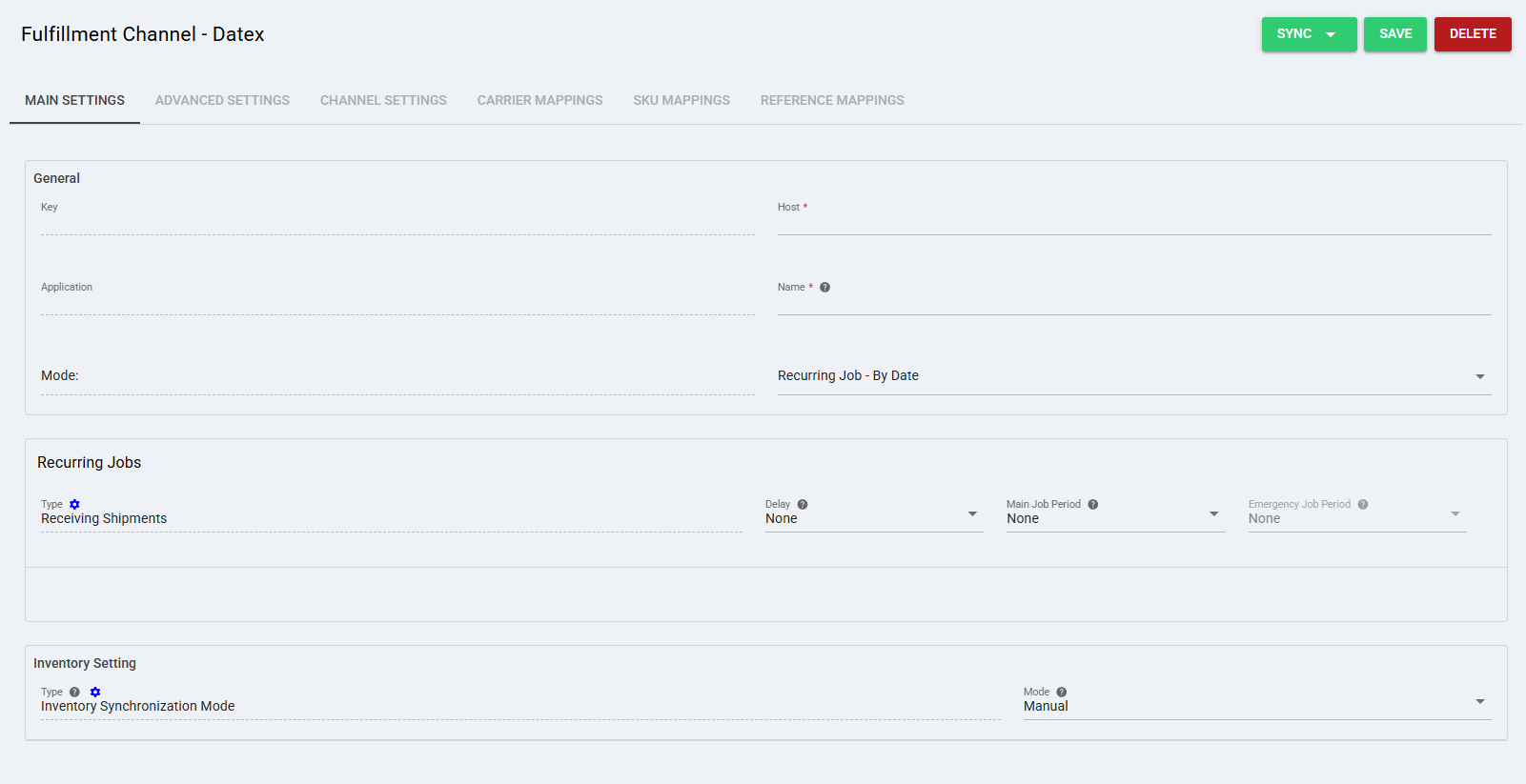
SECTIONS
A) QUICK ACTIONS lets you perform additional actions:
- Health Check: Allows you to run the channel health check.
- Sync: Enables manual synchronization as detailed in How to Synchronize data through a Fulfillment Channel [Step-by-step guide].
Supported sync options:- Receive Inventory Levels From Channel: Receives inventory levels from Datex. NOTE: Datex can store fractional inventory quantities. Products with fractional inventory are excluded from inventory results and generate an invalid quantity warning.
- Receive Shipments From Channel: Receives shipments from Datex.
- Receive Receipts From Channel: Receives receipts from Datex.
- Import Products From Channel: Imports products from Datex.
- Export Products To Channel: Sends products from techOMS to Datex.
- Product synchronization supports product creation only. Product updates are not supported.
- Datex can store multiple packaging options for the same product. However, because techOMS uses a different product structure, the integration uses only the first packaging option during product synchronization.
- Receive Inventory Levels From Channel: Receives inventory levels from Datex.
 WARNING: If an unknown Primary UOM is sent when synchronizing products, Datex returns an error. NOTE: Datex returns only the first 5,000 products per account. When Unsupported Special Characters is configured in Advanced Settings, the plugin removes the configured characters from supported product and variant fields before exporting product data to Datex REST.NOTE: The options displayed in the Sync dropdown are managed by techOMS based on the Master Product Source and the features supported by the specific Fulfillment Channel.
- Save: Saves and commits changes.
- Delete: Deletes the channel connection.
B) VIEW SELECTION allows you to navigate the different tabs:
- Main Settings (default): Configures general and automation behavior using: How to configure Automations for Sales/Fulfillment channels [Step-by-step guide].
The Main Settingsview for this channel includes:- General: Displays the base channel information and configuration fields, including Key, Host, Application, Name, and Mode.
- Recurring Jobs: Displays recurring job configuration for the available automated processes, including Type, Delay, Main Job Period, and Emergency Job Period.
- Inventory Setting: Displays the inventory configuration section, including Type and Mode.
- Advanced Settings: Configures additional system/privacy settings using: How to manage Fulfillment Channels Advanced settings [Step-by-Step guide].NOTE: Unsupported Special Characters can be configured in Advanced Settings. For Datex REST, no default unsupported characters are provided because no unsupported characters are listed in the API documentation.
- Channel Settings: Sets the channel integration parameters listed below.
- Api Url: Datex API endpoint used by techOMS to connect to the channel.
- Client Id: Microsoft authentication client identifier used by the integration.
- Client Secret: Microsoft authentication client secret used by the integration.
- Tenant Id: Microsoft authentication tenant identifier used by the integration.
- Scope: Microsoft authentication scope used by the integration.
- Owner: Value used when shipments are created in Datex and when orders are filtered.
- Project: Value used when shipments are created in Datex and when orders are filtered.
- Throughput: Processing mode used by the channel.
- Carrier Mappings: Sets carrier/service name mappings as detailed in How to map Carriers and Services in a Fulfillment Channel [Step-by-step guide].
- SKU Mappings: Reviews and sets SKU mappings as detailed in How to map SKUs in a Fulfillment Channel [Step-by-step guide].
- Reference Mappings: Sets reference mappings for the channel.
- Webhooks: Sets webhook configuration as detailed in How to set up Sales/Fulfillment Channel Webhooks [Step-by-step guide].
NOTE: The Client Id, Client Secret, Tenant Id, and Scope fields are used for Microsoft authentication required by the integration.C) CONTENT VIEW displays and/or allows editing of the settings in the View Selection section.
WARNING: Remember to press Save to commit the changes made in this section.
IV. SPECIFIC BEHAVIORS
- Order and purchase order defaults: By default, orders are created with order_class = "SO" (Sales Order), and purchase orders are created with order_class = "PO" (Purchase Order). These defaults can be changed through Reference Mappings.
- Reference behavior: Custom references cannot be added by the channel when sending orders or purchase orders to Datex. However, configured custom references can be retrieved during order fulfillment.
- Shipment and order filtering: The configured Owner and Project values are used when shipments are created in Datex and are also used for order filtering together with warehouse filtering.
- Notes behavior: The Notes field may be updated by WMS system messages.
NOTE: Datex uses asynchronous creation for orders and purchase orders. After a request is submitted, Datex returns a request ID while processing continues in the WMS. If processing fails, the error is recorded in the WMS logs. To check the result, copy the request ID from the techOMS error log, open Integrations - Import Entities in Datex, and review the status column. WARNING: When redefining Lot, VendorLot, or Requested Lot values at line level, only valid values can be used. Invalid values cause an order processing error in the WMS.Was this article helpful?
That’s Great!
Thank you for your feedback
Sorry! We couldn't be helpful
Thank you for your feedback
Feedback sent
We appreciate your effort and will try to fix the article