When setting up a connection, mapping your SKUs ensures seamless inventory and order synchronization. This guide covers how to manually create individual SKU mappings or use the bulk import and export tools to manage your catalog efficiently.
 | SKU Mappings act as a strict two-way translator between techOMS and your external Fulfillment Channels. When receiving inventory updates, shipment confirmations, or receipts, the system automatically translates the external channel SKU back to the internal techOMS SKU. Conversely, when sending data to the channel, it translates the allocated techOMS SKU into the corresponding fulfillment channel SKU. | |
| | ||
TABLE OF CONTENTS
Accessing the SKU Mappings Configuration
Before adding or modifying any mappings, you must navigate to the specific channel's configuration page.
| For details on the roles required to access this settings, refer to techOMS User permissions structure [Information]. | |
| | ||
| Before configuring any mappings, make sure that you are operating within the correct Account context. | |
| | ||
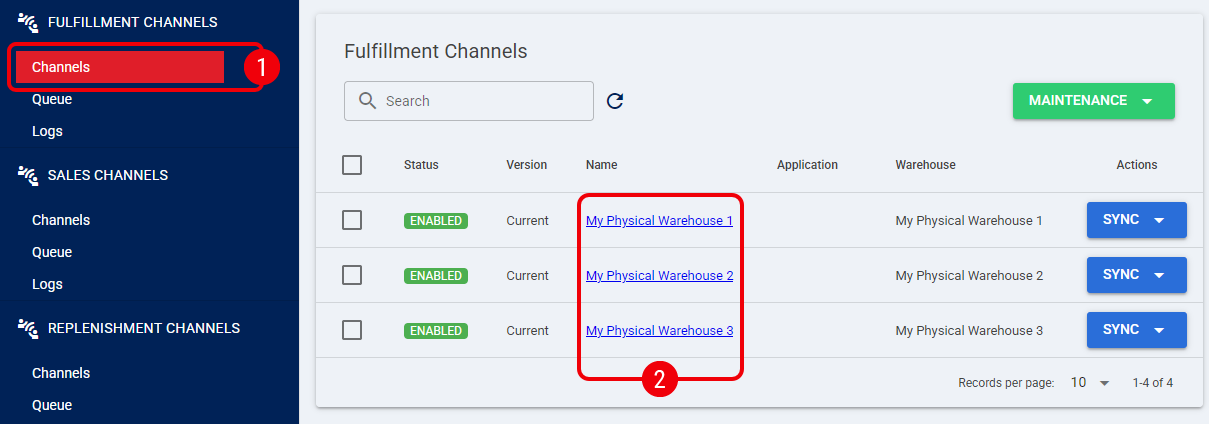
 | Click Channels under the Fulfillment Channels menu. |
 | Click the Name of the connection to access the setup screen. |
 | Click the SKU Mappings tab. |
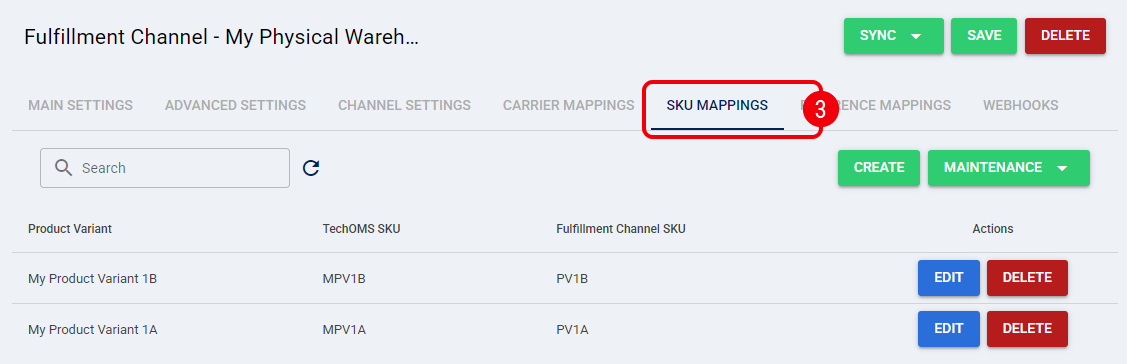
You are now in the correct section and ready to manage your channel's catalog.
Individual Entry
To manually input a SKU mapping, follow these steps:
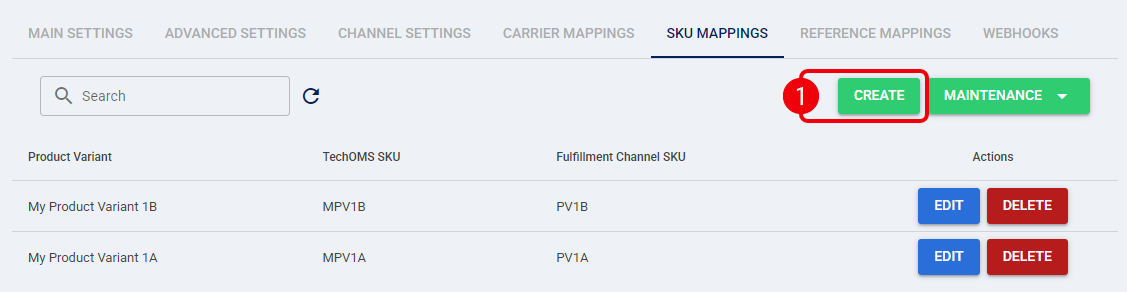
| Click Create to begin the process. |
| Enter and select the product variant in the Product Variant field. |
The techOMS SKU field will fill automatically and is read-only.
| Enter the exact SKU code you use in the external Fulfillment Channel into the Fulfillment Channel SKU field. |
 | Click Save to apply the changes. |
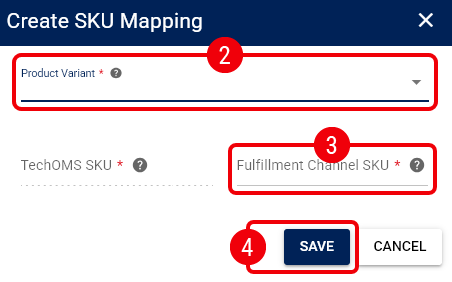
The mapping is now active and saved within techOMS.
Bulk Import / Export
You can manage multiple SKU mappings simultaneously using the Maintenance tools.

Exporting SKU Mappings
Exporting your existing mappings allows you to review your current catalog setup or obtain a template for new uploads. Select Export to download the current mappings to your local machine.

The file is now downloaded and ready for review.
| If you have not created any mappings yet, exporting will download a blank template with the correct column headers to be used for importing. You can also manually download an up-to-date, canonical template. For more information, refer to techOMS Canonical Import Files [Information]. | |
| | ||
Importing SKU Mappings
You can use a properly formatted CSV file to upload multiple mappings at once.
| Select Import from the Maintenance menu. |

| Upload your prepared CSV file containing the new SKU mappings. |
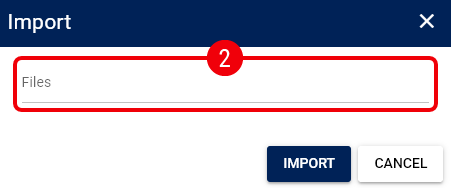
The file is now uploaded, and techOMS will process and apply the new mappings to your channel.
Was this article helpful?
That’s Great!
Thank you for your feedback
Sorry! We couldn't be helpful
Thank you for your feedback
Feedback sent
We appreciate your effort and will try to fix the article