Box tags allow you to securely categorize and organize your physical packaging within techSHIP, paving the way for advanced filtering and highly specific cartonization workflows.
This guide covers how tag data is isolated across your system, as well as how to access, add, remove, and search for box tags.
 | To learn how to use these tags to automate your packaging selection, refer to Setting up Order Management Rules: Cartonization by Box Tag [Guide]. | |
| | ||
TABLE OF CONTENTS
Box Tag Data Isolation
Tag libraries are dynamically maintained at the Location level to ensure data integrity across your operations. This means that when you create a new tag, it becomes immediately available to all clients operating within that specific Location. However, these tags remain strictly isolated and completely hidden from any other Location in your system.
While the tag library itself is shared, the tags you assign are applied exclusively to a specific box for an individual client. For instance, if Client A and Client B both use a standard "Insulated" box, you can confidently assign the tag "Fragile" to Client A's box without affecting Client B, who might need a "Heavy" tag, or no tags at all for their version of the same box.
This Location-wide library is entirely self-maintaining. If a particular tag is eventually removed from every single box within the Location, the system will automatically clear it from the autocomplete library, keeping your workspace clean without the need for manual deletion.
Managing Box Tags
Accessing the Boxes Tab
| Make sure that you are operating at the right Location beforehand. | |
| | ||
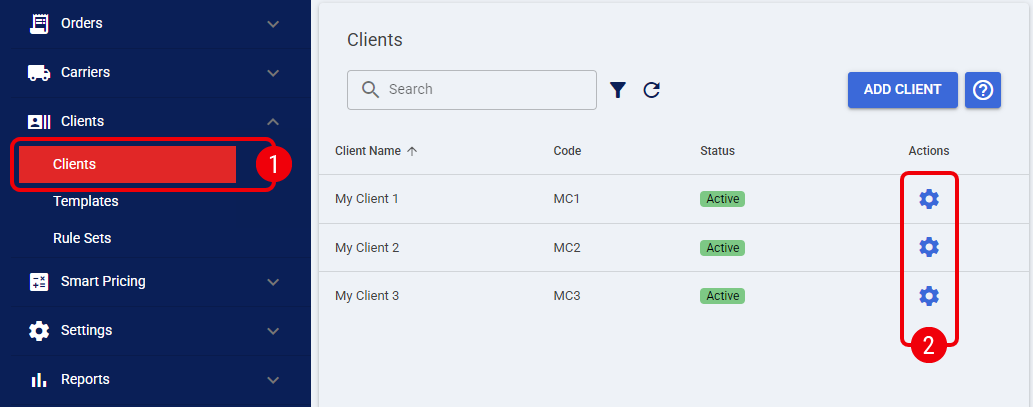
 | Click Clients from the left menu. |
 | Click Settings for the desired client. |
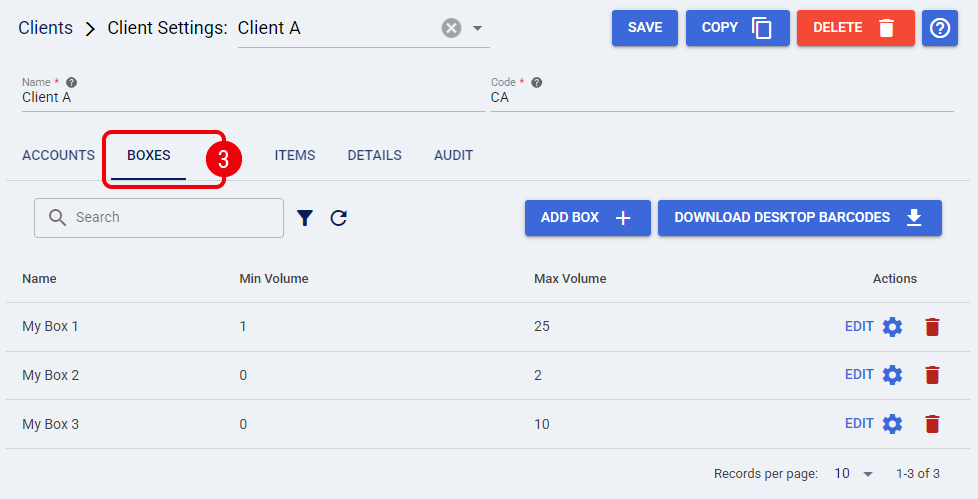
 | Click the Boxes tab to view the client's packaging inventory. |
Adding and Removing Box Tags
You can assign one or multiple tags to any box directly from the Boxes tab:
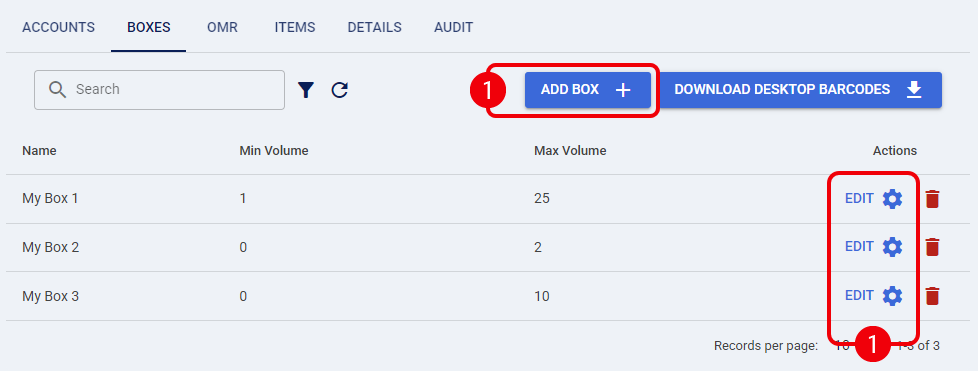
| Click the Add Box button to create a new record, or click Edit on an existing box. |
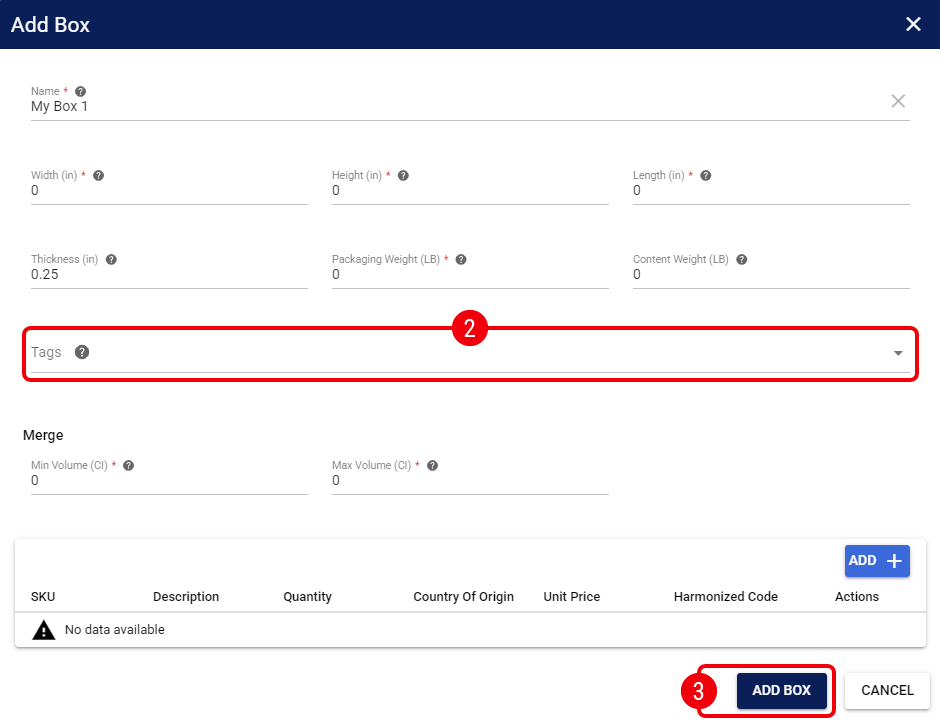
| Locate the Tags input field within the box properties dialog and type the desired name for your tag: |
- If this is the first time you are creating this specific tag, enter your free-form text and press Enter to generate it.
Ensure your naming conventions are accurate to avoid confusion across teams. - If the tag already exists, an Autocomplete menu will surface from the Location-wide library to help you select it and prevent misspellings.
- To remove an assigned tag from the box, simply click the X icon on the tag's label.
| If you are creating a completely new box rather than editing an existing one, ensure you complete all other required fields before continuing. For more information, refer to How to add Predefined Box types to a Client [Step-by-step guide]. | |
| | ||
 | Click Save to apply your configuration. |
The tags are now successfully assigned to the box and safely persisted in your techSHIP shared library.
Filtering Boxes by Tag
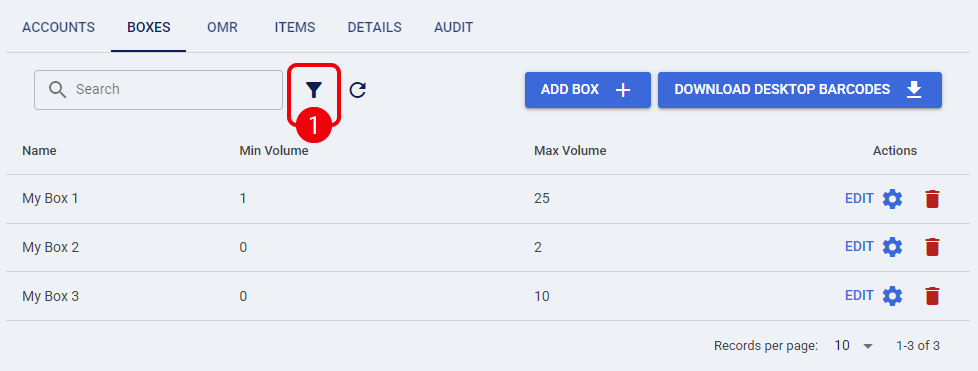
You can easily locate specific packaging by filtering your grid using one or more assigned tags. From the Boxes tab:
| Click the Advanced Filter icon to open the search parameters. |
| Use the Tags dropdown field to select the specific tags you want to filter by. |
| Click Apply to execute your customized query. |
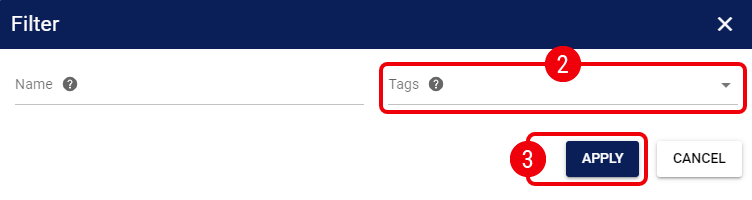
The box list is now filtered to display only the boxes that match your selected tag criteria.
Was this article helpful?
That’s Great!
Thank you for your feedback
Sorry! We couldn't be helpful
Thank you for your feedback
Feedback sent
We appreciate your effort and will try to fix the article