Copying an existing location allows you to quickly stand up a new warehouse operation without manually re-entering your standard configuration. This feature duplicates your existing setup while safely resetting sensitive integration credentials and subscription links.
This guide covers how to duplicate an existing location in techSHIP.
TABLE OF CONTENTS
Understanding the Copy Process
 | Before copying a location, you must ensure you have the correct administrative access. For details on the required permissions to perform this action, refer to techSHIP User Permissions Structure [Information]. You cannot copy a Location while it has a scheduled suspension or is currently Suspended. | |
When you copy a Location, techSHIP proposes a new name based on the source Location. The suggested name follows the sequence {source} copy, {source} copy 2, {source} copy 3, and so on. You can modify the proposed name before creating the copy, but the New Location Name is required and must be unique within the Organization.
The Copy action duplicates the location record and its supported configuration fields only. It does not create copies of related operational entities. As an example, the following entities are not copied to the new location:
- Carriers and their associated Baseline Accounts.
- Clients and their associated (Billing) Accounts.
- Rule Sets.
To migrate entities between locations, you can use the system's import and export tools whenever available. For more information, refer to the corresponding documentation for the desired entity.
 | To protect your security and prevent operational errors, the system automatically resets all sensitive information during the copy process (including API credentials, printer client secrets, Host System connection details, and active subscriptions). You must thoroughly review and reconfigure the new location before processing any orders. | |
Copy a Location
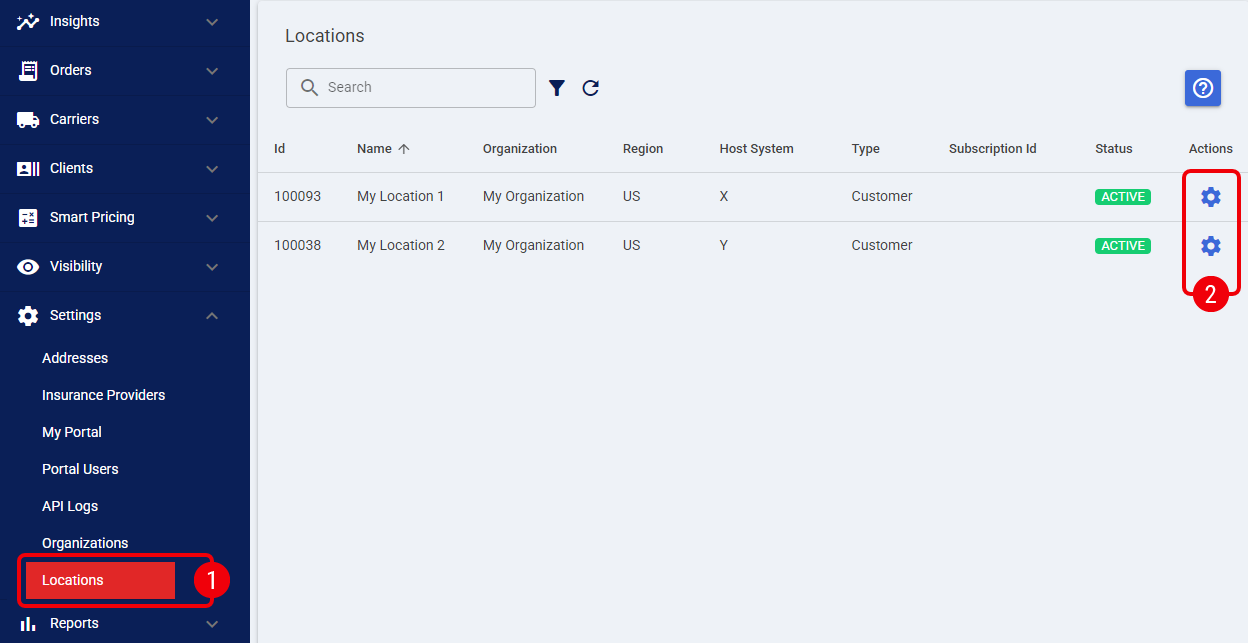
 | Access the main menu and click Locations under the Settings category. |
| Alternatively, you can access this list by clicking Organizations under the Settings category, editing your desired organization, and navigating to the Locations tab.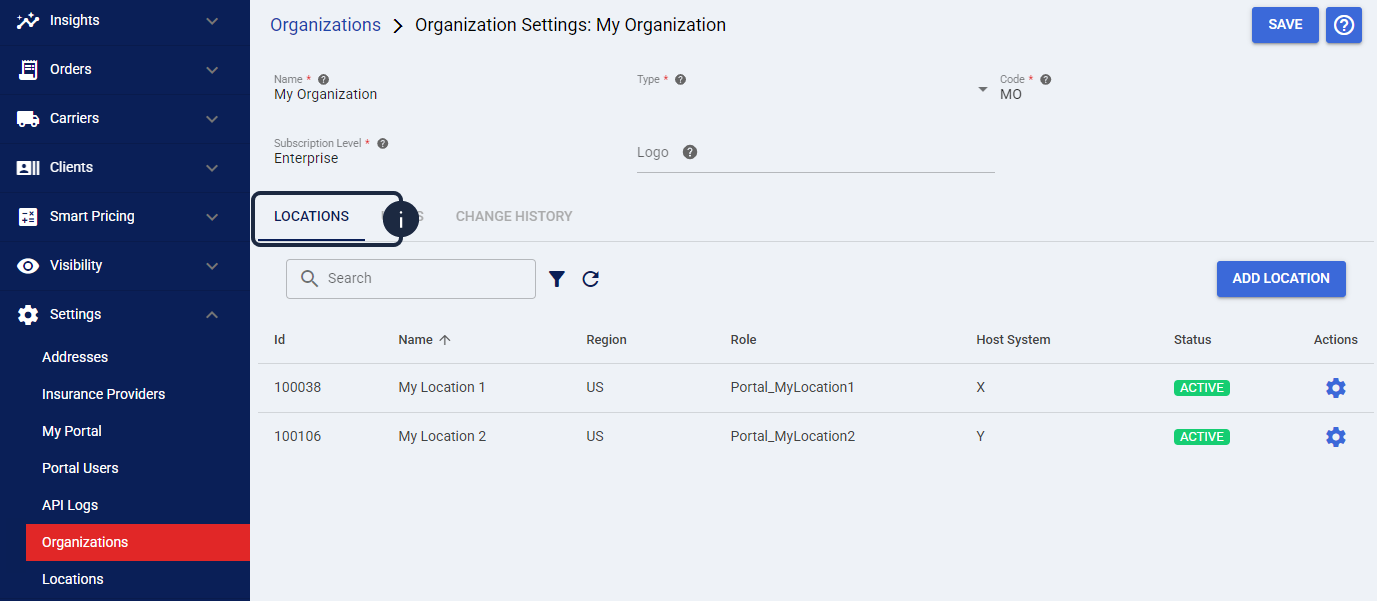 | |
 | Locate the specific location you want to duplicate and click the Settings icon in its corresponding row. |
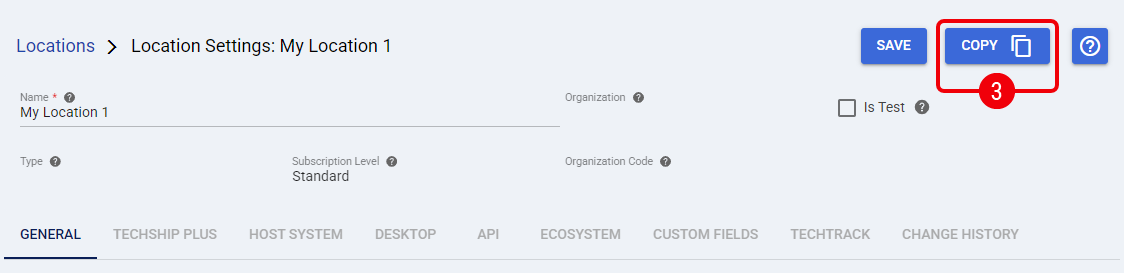
 | On the location edit page, click the Copy button located at the top of the screen. |
 | Review the proposed name in the New Location Name field and modify it if necessary. Ensure the name is unique within the Organization, then confirm the action to create the copy. |
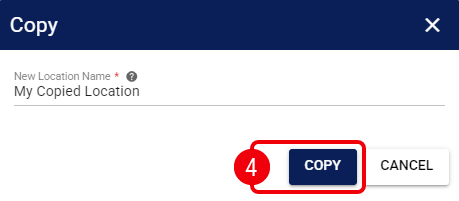
The new Location is created with the name you confirmed, and techSHIP automatically opens its edit page. Review and reconfigure the new Location, including its Host System connection and subscription, before processing orders.
Was this article helpful?
That’s Great!
Thank you for your feedback
Sorry! We couldn't be helpful
Thank you for your feedback
Feedback sent
We appreciate your effort and will try to fix the article