Creating a new Location allows you to configure a distinct operational facility under your overarching Organization in techSHIP. Effectively setting this up ensures that your physical warehouse site is accurately represented and successfully connected to your external Host System.
This guide covers how to quickly add and configure a new Location within your environment.
 | For detailed conceptual information on Locations and Organizations, refer to Understanding the techSHIP Organization Structure [Information]. | |
Because every facility requires a parent, you can only create a new Location from within its target Organization.
| Before continuing, you must ensure you have the correct administrative access. For details on the required permissions, refer to techSHIP User Permissions Structure [Information]. Add Location availability depends on your Organization's subscription. For more information, see: techSHIP Specifications Sheet [Information]. You cannot add a new Location while its parent Organization has a scheduled or active suspension. | |
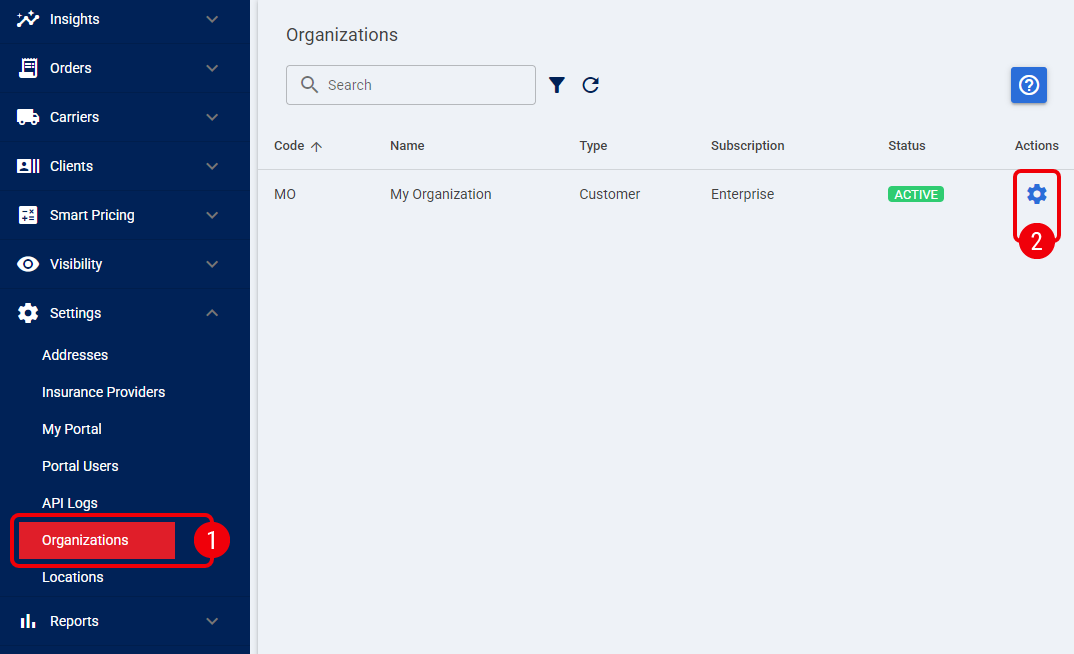
 | Navigate to Settings and select Organizations. |
 | Click on the Settings icon for your target Organization to open its configuration view. |
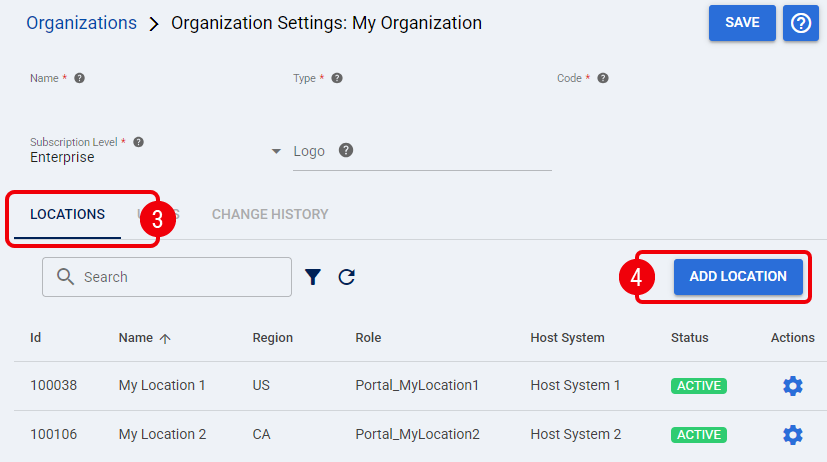
 | Click the Locations tab to view the list of associated operational facilities. |
 | Click Add Location to open the creation dialog. |
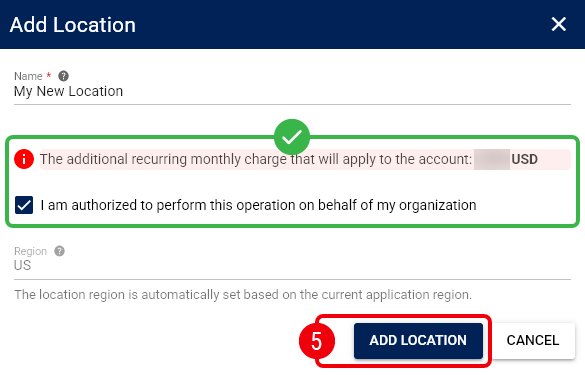
 | Enter the location Name. |
If the additional recurring monthly charge warning appears, review it and select I am authorized to perform this operation on behalf of my organization.
Click Add Location to continue. You are automatically redirected to the Location page.
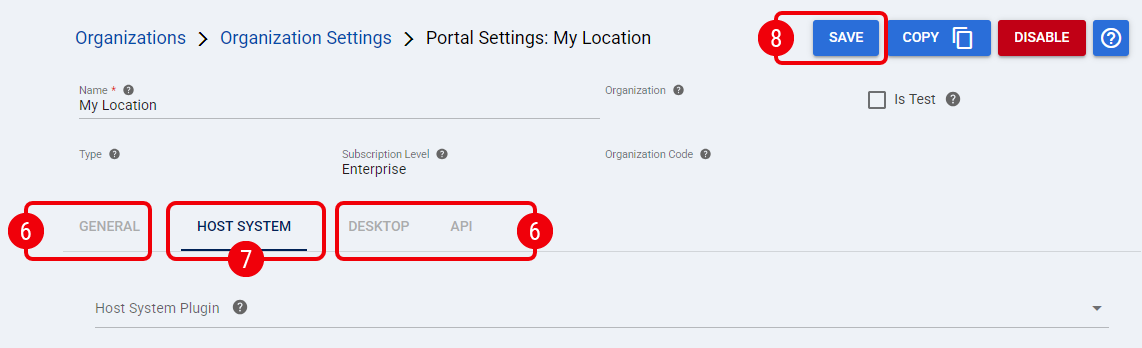
 | Configure the desired parameters across the General, Desktop, and API tabs. |
For detailed information on these specific sections, refer to the Managing Locations [Guide].
 | Navigate to the Host System tab to select and configure your external warehouse or order management software. |
For step-by-step instructions on your specific plugin, refer to:
- techSHIP supported WMS Plugins - Master List [Guides List]
- techSHIP supported OMS/IMS/ERP Plugins - Master List [Guides List].
 | Click Save to apply your configurations. |
The new Location is now active and available for further configuration. To continue configuring it, select it from the header switcher and start by adding new carriers as detailed in: How to Add a Carrier Baseline Account [Step-by-Step guide].
Was this article helpful?
That’s Great!
Thank you for your feedback
Sorry! We couldn't be helpful
Thank you for your feedback
Feedback sent
We appreciate your effort and will try to fix the article