Managing your organizational structure efficiently in techSHIP is essential for accurate operations. Disabling an unused location allows you to take it offline without deleting historical data, while enabling it allows you to quickly restore operations.
This guide covers the business rules and procedural steps to disable and enable a location.
TABLE OF CONTENTS
- Understanding Location Deactivation
- Accessing the Location Settings
- How to Disable a Location
- How to Enable a Location
Understanding Location Deactivation
Before modifying your location statuses, it is crucial to understand the business logic regarding location deactivation.
- Permissions Restriction:
The ability to view and use the Disable and Enable action buttons is exclusively available to users with appropriate permissions. For more information, see: techSHIP User Permissions Structure [Information].
- Suspension Override Rule:
Locations that are currently in a Suspended state are explicitly excluded from this feature. You cannot enable or disable a location that has been Suspended.
- In-Flight Orders:
Disabling a location does not forcefully cancel open orders. Any in-flight orders currently processing in the Host System are allowed to complete their cycle successfully.
- Billing Logic:
Billing is calculated based on the actual processed orders and carrier usage within a given month, not purely on the Active or Inactive statuses. Disabling a location prevents new usage, but it does not wipe out billing for usage already incurred during the current billing cycle.
- Visibility:
Once a location is disabled and marked as Inactive, it will disappear from the location switch menu.
Accessing the Location Settings
To modify a location status, you must first access its configuration page.
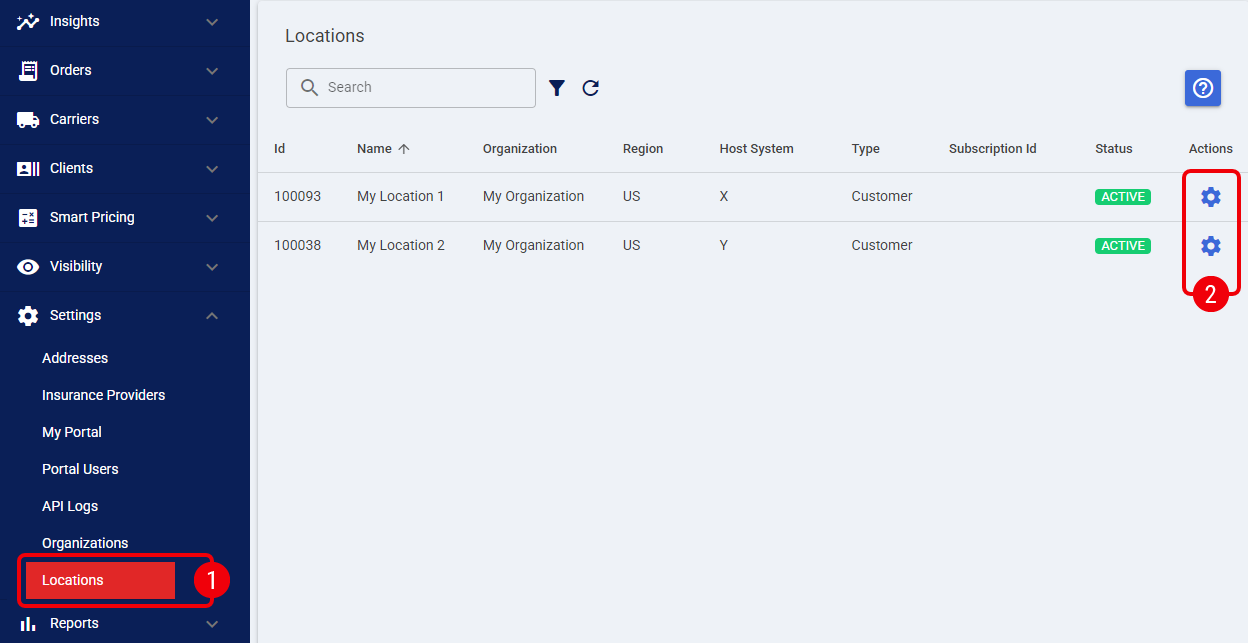
 | Access the main menu and click Locations under the Settings category. |
 | Alternatively, you can access this list by clicking Organizations under the Settings category, editing your desired organization, and navigating to the Locations tab.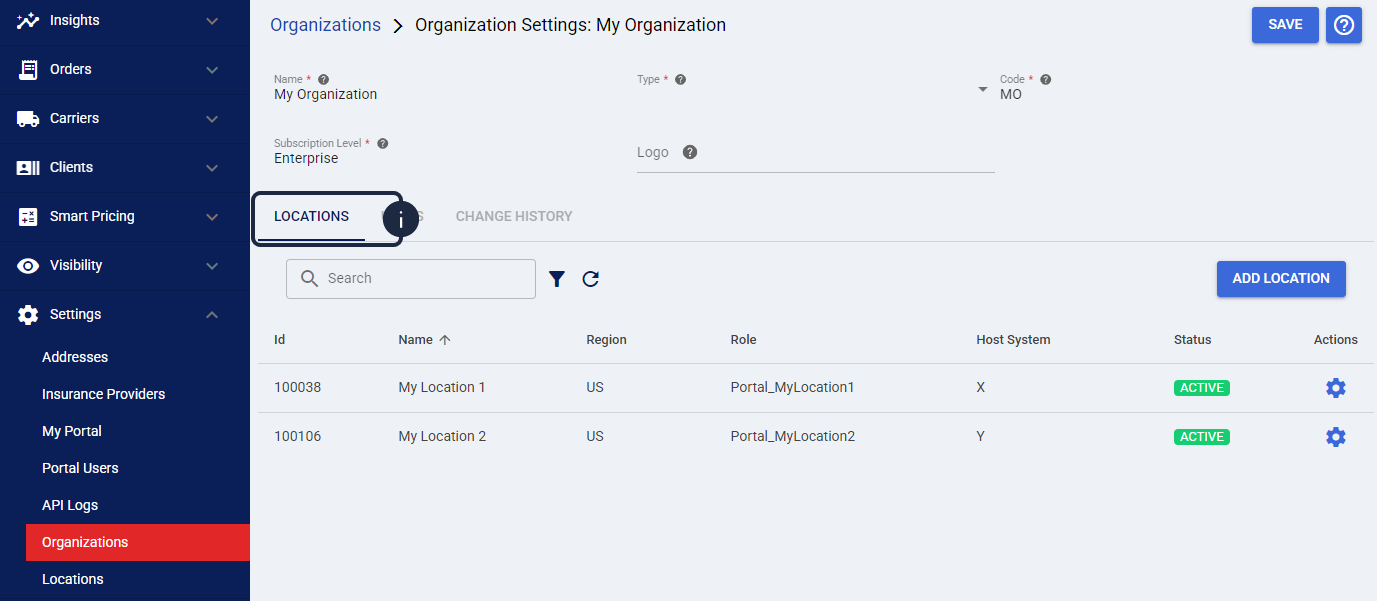 | |
| | ||
 | Locate the specific location you want to edit and click the Settings icon in its corresponding row. |
How to Disable a Location
| On the location edit page, click the Disable button located at the top right of the screen. |

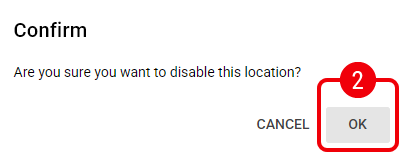
| Click OK to confirm the action. |
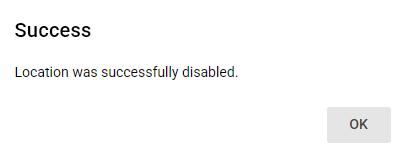
A confirmation message is displayed, and the location's status changes to Inactive, as it is now safely disabled and will prevent any new order volume from being processed.
How to Enable a Location
| On the Inactive location's edit page, click the Enable button located at the top right of the screen. |

| Click OK to confirm the action. |
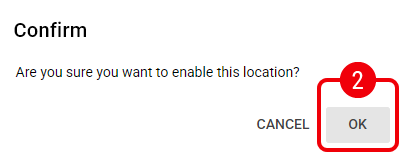
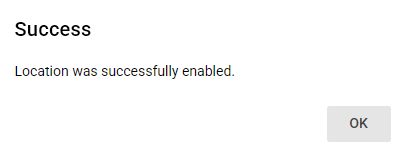
A confirmation message is displayed, and the location's status changes to Active, as it is now fully operational and ready to process new orders.
Was this article helpful?
That’s Great!
Thank you for your feedback
Sorry! We couldn't be helpful
Thank you for your feedback
Feedback sent
We appreciate your effort and will try to fix the article