Once warehouses are created at the organizational level, they must be enabled and configured for specific accounts.
This article explains how to access an account's warehouse settings, enable physical and virtual warehouses, and configure the corresponding fulfillment channel credentials.
TABLE OF CONTENTS
- Prerequisites
- Accessing Account Warehouses
- Enabling and Disabling Warehouses
- Configuring Fulfillment Channel Credentials
Prerequisites
Before proceeding, ensure you understand the difference between warehouse types and how they are created:
- To understand how virtual inventory aggregates physical locations, refer to Understanding Virtual Warehouses and Virtual Inventory [Information].
- To learn how to create a warehouse, refer to How to Manage Organization Warehouses: Create, Edit, and Delete [Step-by-Step Guide].
 | You must have special user permissions to access and manage these settings. To verify yours, see: techOMS User permissions structure [Information]. | |
| | ||
Accessing Account Warehouses
| Ensure no specific account is selected in the top header switcher. | |
| | ||
To access the warehouse configuration for a specific account, follow these steps:
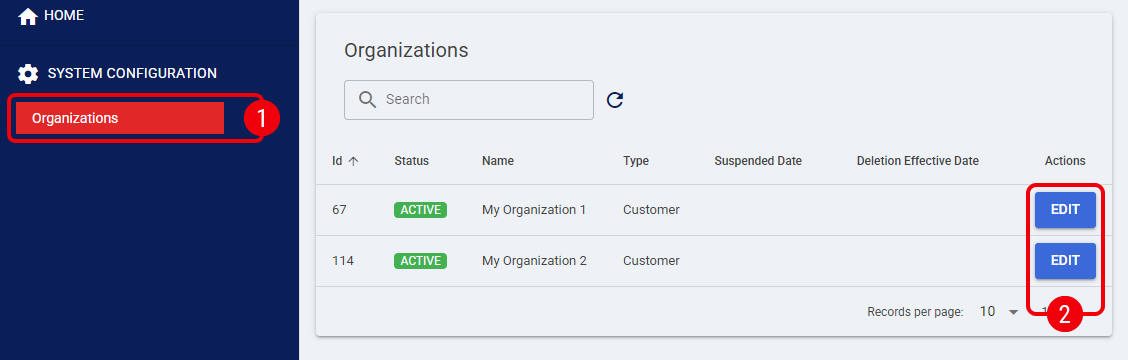
 | Click Organizations from the left menu under the System Configuration section. |
 | Press Edit on the row of the Organization you wish to manage. |
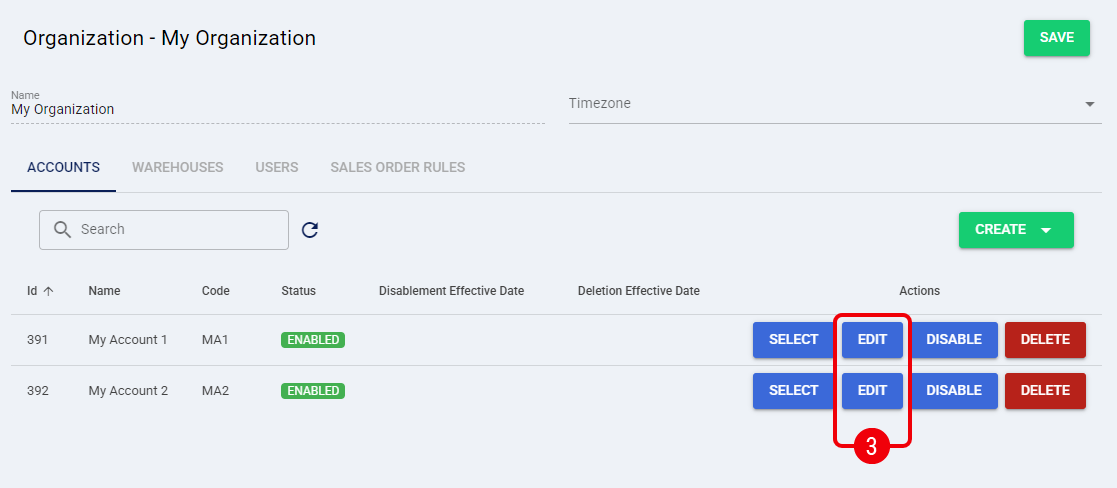
 | Press Edit on the row of the Account you wish to configure. |
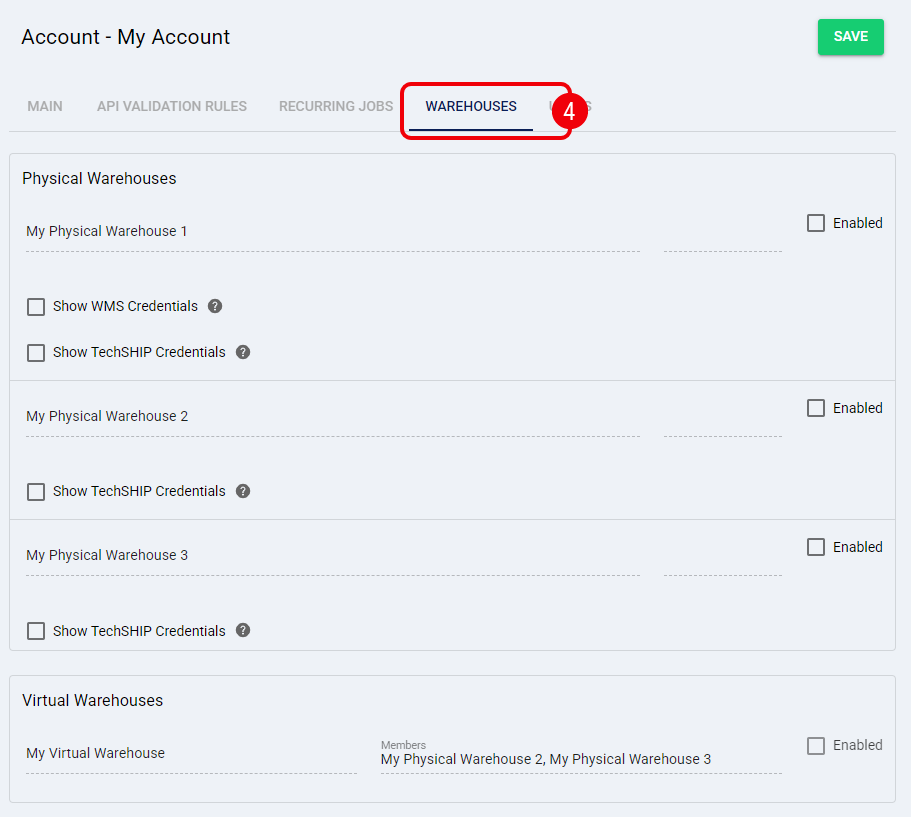
 | Select the Warehouses tab. |
Enabling and Disabling Warehouses
The Warehouses tab displays all available facilities separated into two sections: Physical Warehouses and Virtual Warehouses. Virtual warehouses will display a list of their included physical members next to their name.
Because virtual warehouses rely entirely on their underlying physical locations, the system enforces strict validation rules when enabling or disabling them:
- Enabling a Virtual Warehouse: Physical warehouses must be enabled for the account before their associated virtual warehouse can be enabled. If a required physical member is disabled, the virtual warehouse's Enabled checkbox will be read-only.
- Disabling a Physical Warehouse: To disable a physical warehouse, you must first disable any associated virtual warehouse it belongs to.
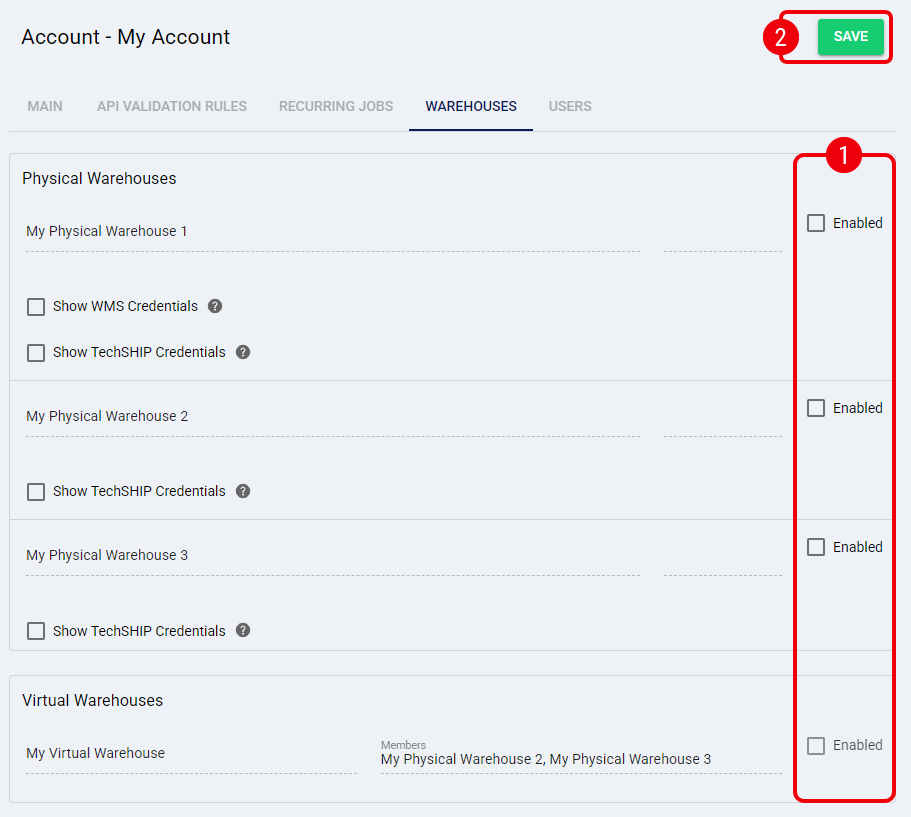
To make a warehouse available for the account's operations, locate the desired warehouse in either the Physical Warehouses or Virtual Warehouses section, and follow these steps:
| Check or uncheck the Enabled box to activate or deactivate the warehouse for this account. |
| Click Save to apply your changes. |
 | If the corresponding Fulfillment Channel of a physical warehouse is set as the account's Master Product Source, disabling the warehouse will not remove it from the dropdown menus. However, Product Sync will be interrupted. Proceed with caution in such cases. To learn more, see: Understanding the techOMS Master Product Source [Information]. | |
| | ||
Configuring Fulfillment Channel Credentials
When you enable a physical warehouse for an account, the system automatically prepares its corresponding Fulfillment Channel.
| If you are setting up a stable Fulfillment Channel, you must configure its credentials here. For other channel types, review their specific configuration requirements in the techOMS Fulfillment Channels - Master List [Guides List]. | |
| | ||
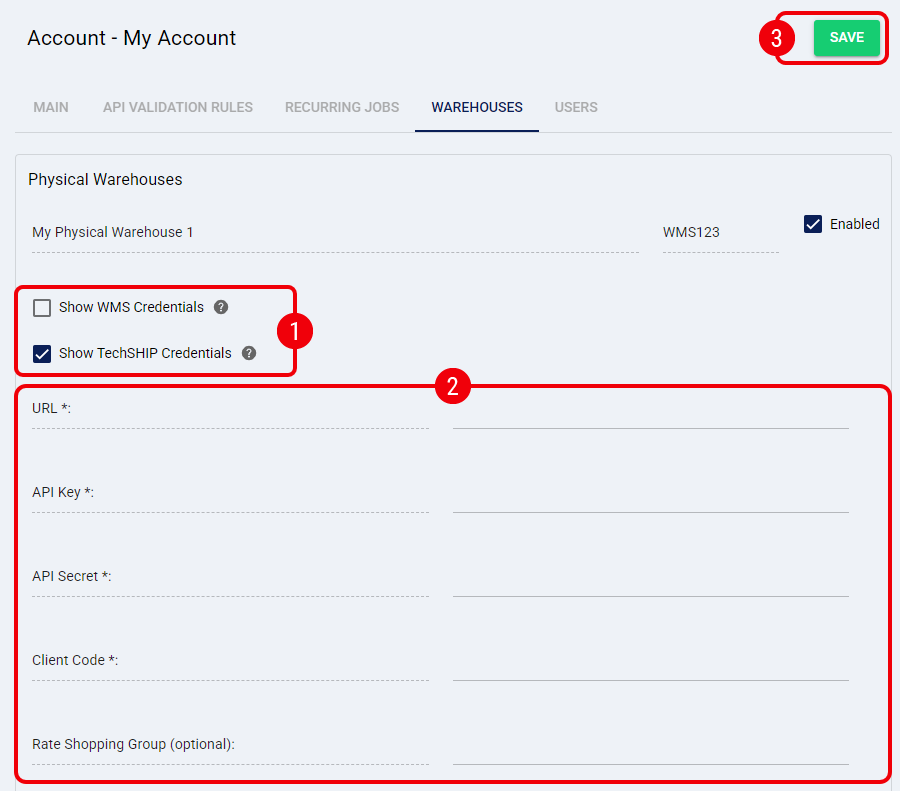
To configure the credentials:
| Check the Show WMS Credentials or Show techSHIP Credentials box to expand the credentials panel. |
| Enter the required integration credentials. |
| Press Save. |
With the warehouse configured, the Fulfillment Channel is now ready. Refer to the corresponding article to continue with its setup: techOMS Fulfillment Channels - Master List [Guides List].
Was this article helpful?
That’s Great!
Thank you for your feedback
Sorry! We couldn't be helpful
Thank you for your feedback
Feedback sent
We appreciate your effort and will try to fix the article