The Carrier Code (formerly known as SCAC) identifies a specific carrier when communicating with an Integrated System. This value is strictly standardized to ensure consistency across all connections and accounts within techSHIP.
This guide covers how the Carrier Code functions and provides workarounds for handling scenarios where a specific client requires a custom code.
TABLE OF CONTENTS
Understanding Carrier Codes
Carrier Codes are established strictly at the top Carrier level. Once defined, this code is inherited by all associated Baseline Accounts and Client (Billing) Accounts.
 | Updating the Carrier Code propagates the change to all linked (Billing) Accounts. Proceed with caution to avoid disrupting existing connections with your Integrated System. | |
Because the code belongs to the carrier itself, it is only editable at the Carrier level. The field will appear read-only when viewing a (Billing) Account.
The primary use case for requiring a custom Carrier Code occurs when a Client's (Billing) Account must receive a unique carrier code from their Integrated System that differs from your standard setup. To accommodate this without altering the primary carrier, you must use one of the following methods.
Available Workarounds
Routing Groups
Using Routing Groups is the recommended approach to handle client-specific routing without duplicating entire carrier profiles. Instead of relying on a custom Carrier Code to route the order to the correct (Billing) Account, you can map the specific client using the Routing Group feature.
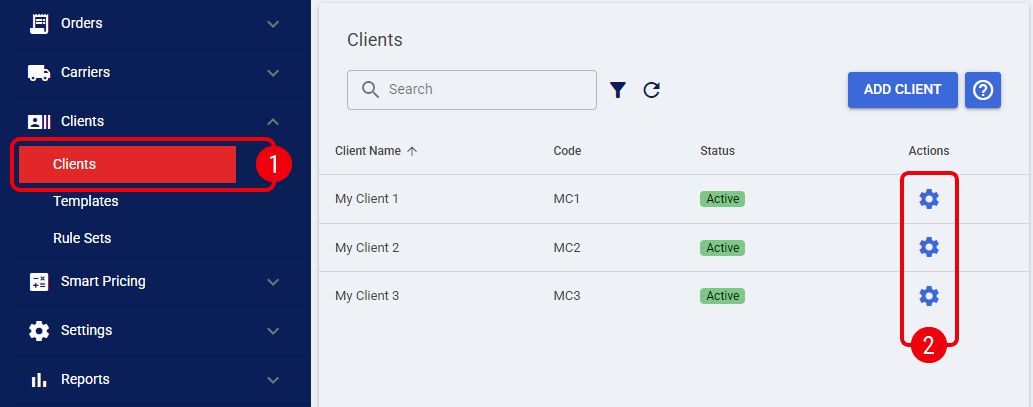
 | Click on Clients from the left menu under the Clients section. |
 | Click the Edit icon for the desired Client profile. |
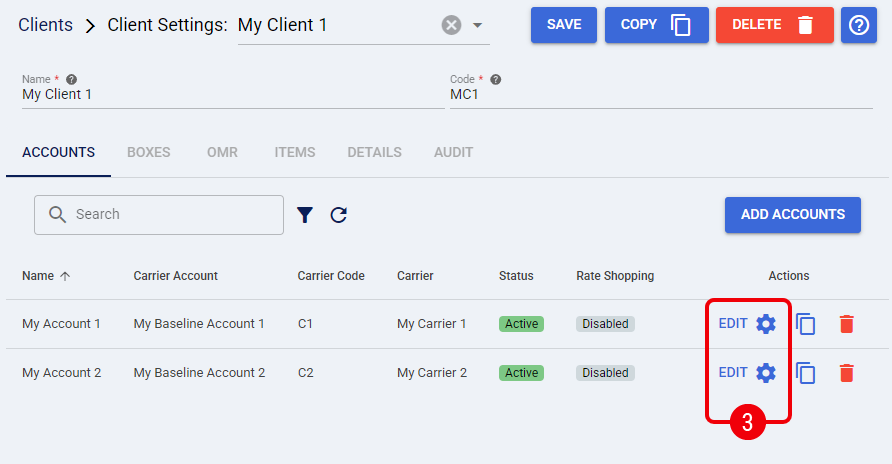
Repeat steps 3 to 4 to create as many (Billing) Accounts as necessary under the same Client profile, assigning each the corresponding Routing Group value provided by your Integrated System.
 | Click Edit for the relevant (Billing) Account. |
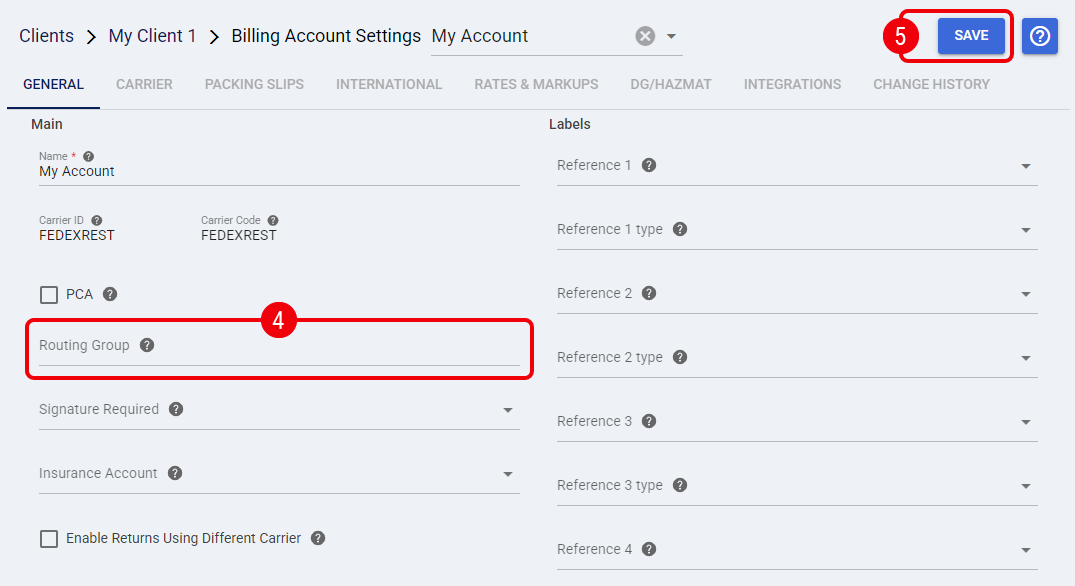
 | Complete the Routing Group field with the specific value provided by your Integrated System. |
 | Press Save to apply the changes. |
| When implementing this workaround, you must not forget to update your API calls or external mapping rules in the Integrated System. The system must be configured to send the routing value instead of relying on a custom Carrier Code. | |
The account is now configured to capture and route orders based on the specific group value.
Manual Carrier Copy
If updating the Integrated System to use routing groups is not possible, you can create a completely new instance of the Carrier. This grants the Client a dedicated carrier profile with their specific code. Use the procedure below to create and validate the new Carrier instance.
| Create a new Carrier instance. |
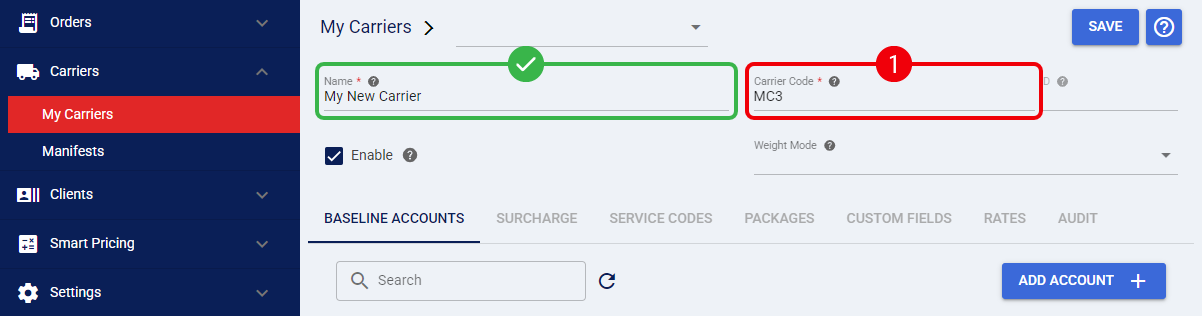
Add the carrier and enter the custom Carrier Code at the top Carrier level.
 | Depending on your scenario, refer to the relevant section in How to Add a Carrier Baseline Account [Step-by-Step guide]:
| |
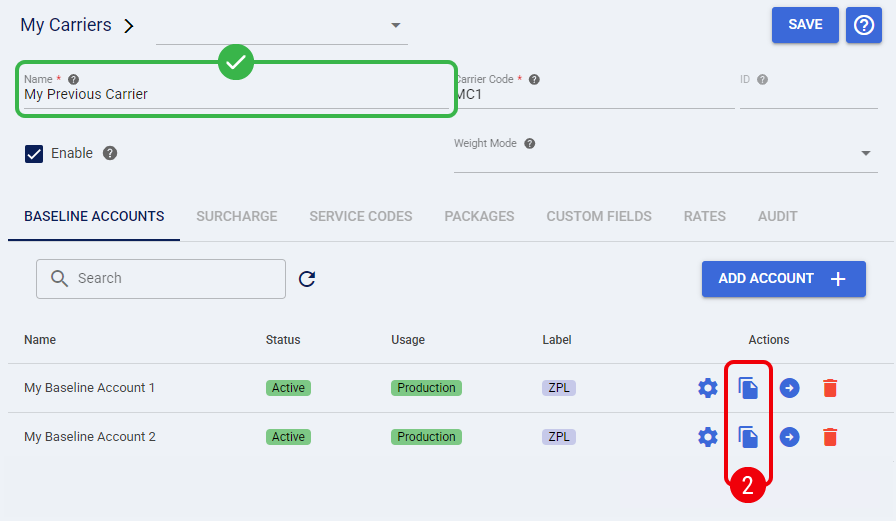
| Copy the existing Account. |
Access your previous carrier configuration and click Copy next to the existing Baseline Account.
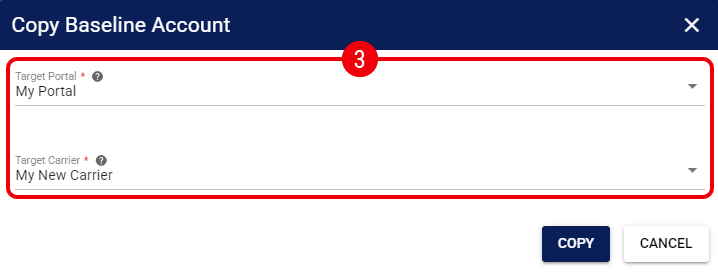
| Define the target destination. |
Select your current Target Location and the newly created Target Carrier, then press Copy.
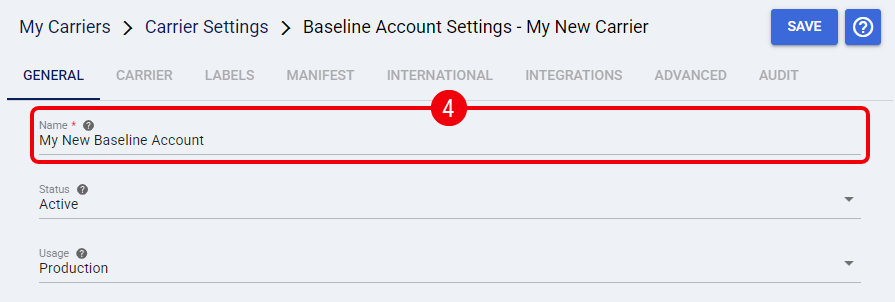
| Update the copied account. |
Open the new carrier profile, update the copied account's name, and press Save.
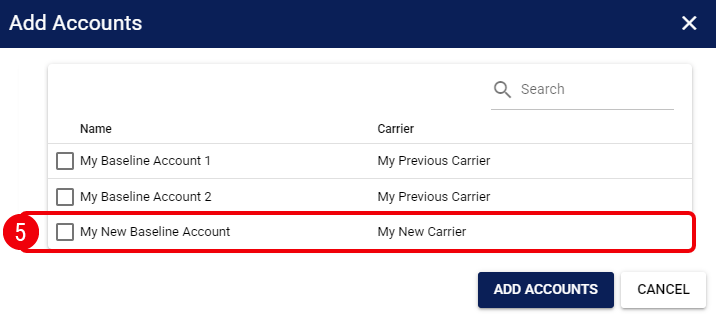
| Assign the custom Carrier. |
Navigate to the Clients section and create a new (Billing) Account. Ensure you select the newly created or copied baseline account when assigning the connection.
| For detailed instructions, follow the steps in the How to Add a Client (Billing) Account [Step-by-Step guide]. | |
| To avoid routing conflicts, if any, remember to delete the previous (Billing) Account associated with the old carrier. | |
The client now has an active, dedicated carrier connection utilizing their specific custom code.
| If you are operating on a legacy configuration where a single carrier currently holds multiple different codes across its (billing) accounts, and the workarounds provided above do not resolve your scenario, please contact Techdinamics Support for further assistance. | |
Was this article helpful?
That’s Great!
Thank you for your feedback
Sorry! We couldn't be helpful
Thank you for your feedback
Feedback sent
We appreciate your effort and will try to fix the article