This guide explains how to automatically split shipments so that an order can be fulfilled by multiple locations.
By following the steps below, you can define the maximum number of shipment splits and set the criteria for splitting. This is achieved by setting up a sales order rule and combining the Split Shipment Action with other actions to implement different business logics.
Prefer listening? This podcast-style audio walks you through the article's key points.

This guide is structured as follows:
- Getting started
- Use Cases
- Consider Warehouses With Enough Stock Only
- Consider Prioritized Warehouses With Enough Stock
- Consider Time and Transit for Split Shipments
- Using Split Shipments with Product Variant Mapping
- Applying Weight Conditions to Individual Shipments
- Final Considerations
I. GETTING STARTED
Before you begin, please ensure you are familiar with the following procedure, its settings and limitations:
- How to Create Sales/Purchase Order Rules [Step-by-step guide].
- Rules Conditions and Actions Guide [Information]. Use this guide throughout all steps for a detailed description of each action's available options.
 WARNING: Throughout this guide, ensure the Only Enough Stock option in the Select Warehouse action is unchecked. Enabling it conflicts with the split logic and causes rule failures.
To get started:
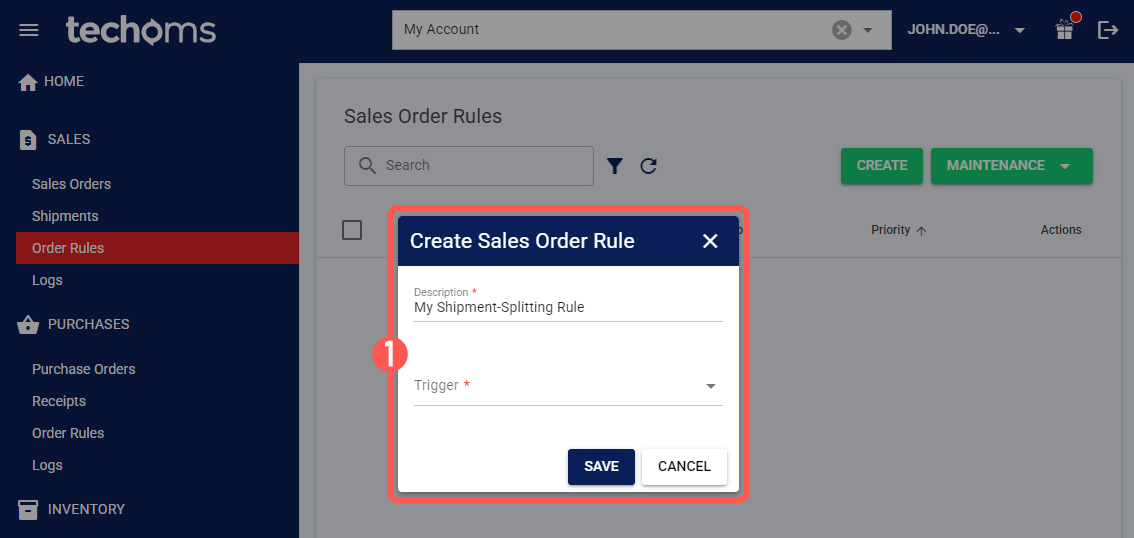
1. Create a new sales order rule and select the desired Trigger.
This ensures that your shipment splitting workflow will be activated each time the trigger condition is met.
2. Edit the newly created rule.
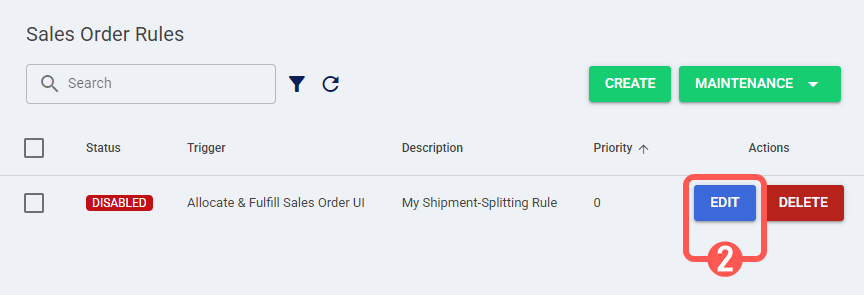
Continue configuring the rule by adding additional actions and conditions that best suit your use case.
II. USE CASES
The following sub-sections illustrate common shipment splitting scenarios and how to implement them using the available actions.
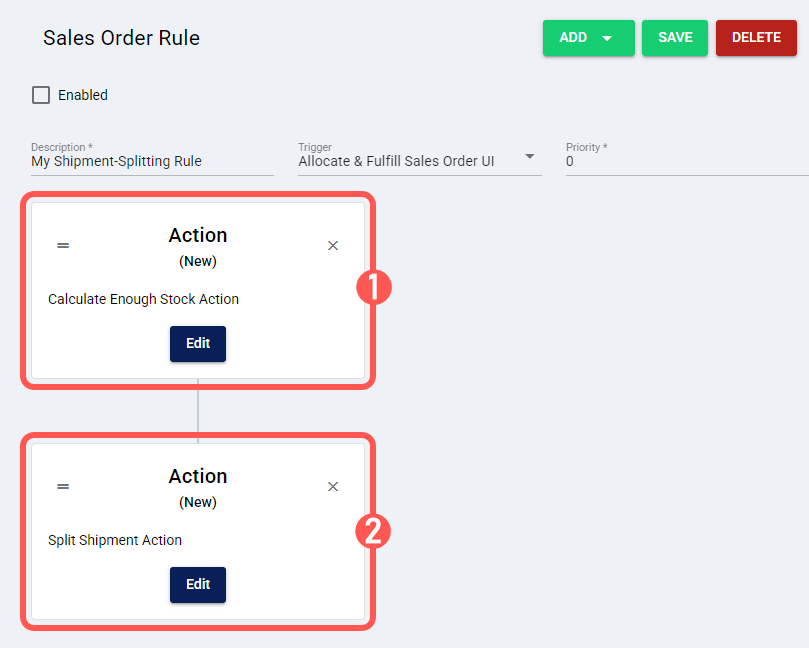
i. Consider Warehouses With Enough Stock Only
You can split shipments considering only those warehouses that have sufficient stock:
1. Add a Calculate Enough Stock Action.
This action generates a prioritized list of warehouses based on available stock for the entire order.
2. Add a Split Shipment Action.
This action will use the list from the previous step to split the order across warehouses that meet the configured criteria.
ii. Consider Prioritized Warehouses With Enough Stock
If you want not only to filter for warehouses with enough stock but also to prioritize them (by criteria such as warehouse priority or lowest shipping cost), follow these steps:
1. Add a Calculate Enough Stock Action.
This action evaluates stock availability and creates an ordered list of warehouses.
2. Add a Select Warehouse Action.
From the previously calculated list, this action selects the optimal warehouse using filters such as only warehouses with sufficient stock, ignoring estimated delivery times if needed, etc.
3. Add a Split Shipment Action.
The order is split according to the defined criteria, with the larger portion allocated to the previously selected warehouse.
 NOTE: Due to the recurrent nature of the shipment splitting process, techOMS continues selecting the optimal warehouse based on your criteria. This means that if there is a remainder, it will reevaluate and allocate remaining quantities using the same workflow procedure.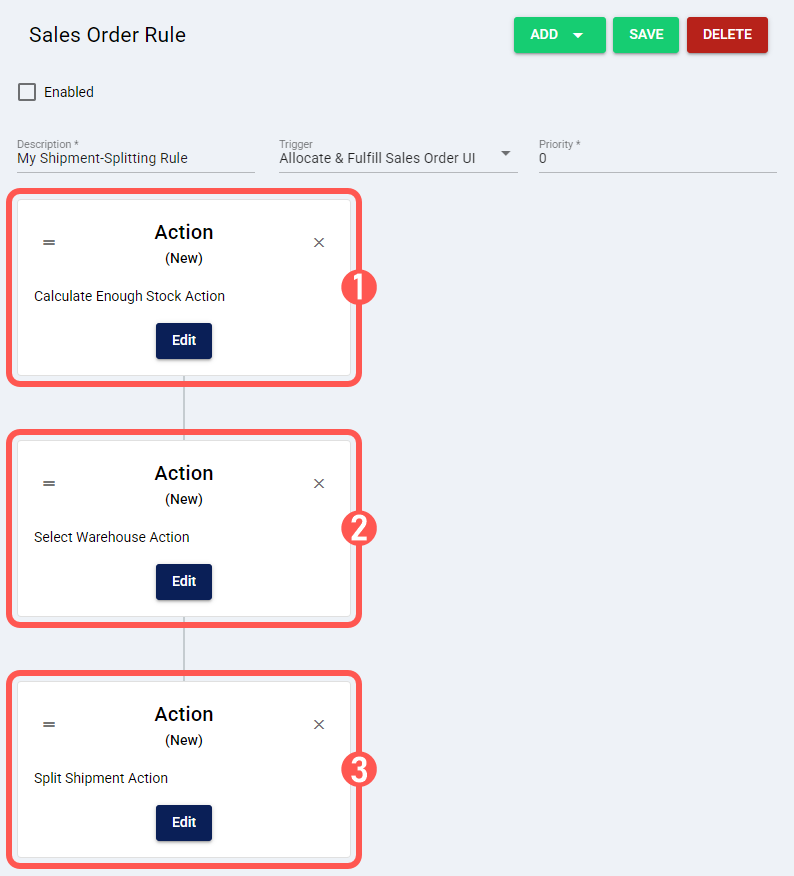
iii. Consider Time and Transit for Split Shipments
This workflow not only split the order when necessary, but also to select the optimal fulfillment location for each split partition based on transit times or real-time rates.
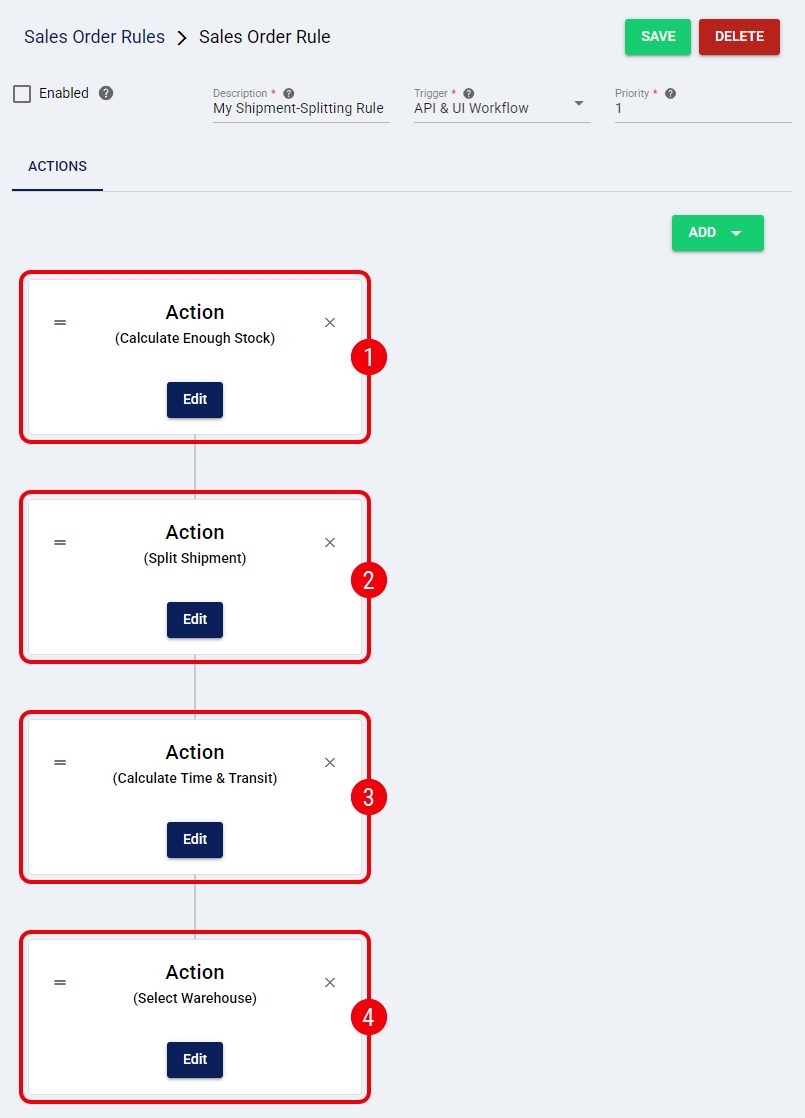
To configure this logic, stack the actions in the following strict order:
1. Add a Calculate Enough Stock Action.
First, techOMS verifies inventory levels across all locations to establish the baseline of available stock.
2. Add a Split Shipment Action.
This action determines if the order requires splitting based on your defined constraints. Crucially, it filters the available warehouses and prepares specific "candidate" combinations that can fulfill the order partitions.
3. Add a Calculate Time & Transit Action.
This action reorders the candidate warehouses identified in the previous step based on the transit times provided by techSHIP. By placing it here, techOMS ensures that delivery estimates are calculated specifically for the viable split scenarios generated by the split logic.
4. Add a Select Warehouse Action.
Finally, add this action and set the Select Optimal Warehouse By parameter to Shortest Transit Time. This ensures techOMS automatically selects the best location for each partition based on the TNT results.
iv. Using Split Shipments with Product Variant Mapping
You can combine any of the previously mentioned use cases with a Product Variant Mapping action by placing it before the Calculate Enough Stock action.
This ensures that the workflow first applies the replacement before it calculates stock availability and applies any remaining logic, including splitting the order.
NOTE: To learn more about how the Product Variant Mapping action works, refer to: Rules Conditions and Actions Guide [Information].
WARNING: Using the Product Variant Substitution action with Split Shipment is currently unsupported.

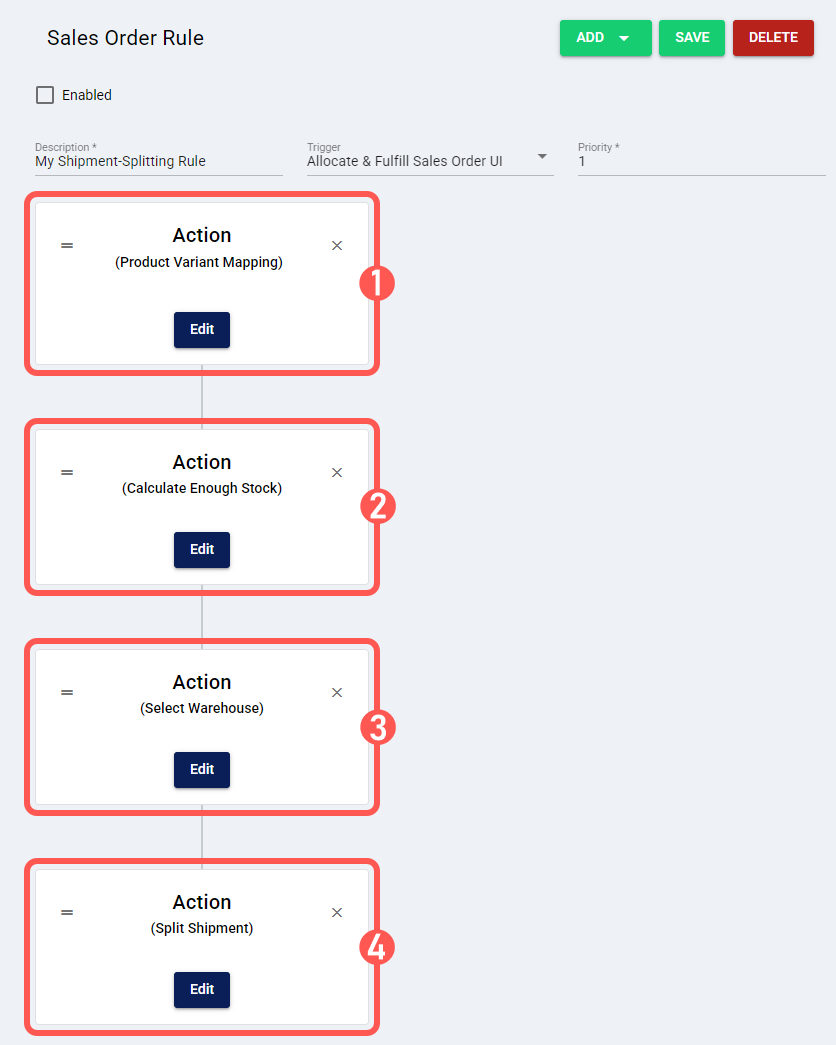
For example, to apply a product variant mapping and then split the shipment using a prioritized list of warehouses (as shown in use case ii), your rule should have the following actions in this order:
1. Add a Product Variant Mapping Action.
This action will always replace the original item based on your configuration.
2. Add a Calculate Enough Stock Action.
This action evaluates stock availability for the replaced item and creates an ordered list of warehouses.
3. Add a Select Warehouse Action.
From the previously calculated list, this action selects the optimal warehouse based on your chosen filters.
4. Add a Split Shipment Action.
The order is split according to the defined criteria, with the larger portion allocated to the previously selected warehouse.
v. Applying Weight Conditions to Individual Shipments
A primary use for the Split Shipment action is to evaluate the resulting shipments and apply further logic to them, such as applying weight conditions (for example, to assign specific carriers based on it). To achieve that, you can use the Shipment Weight condition.
NOTE: To learn more about how the Shipment Weight condition works, refer to: Understanding Weight-Based Conditions in Order Rules [Information].
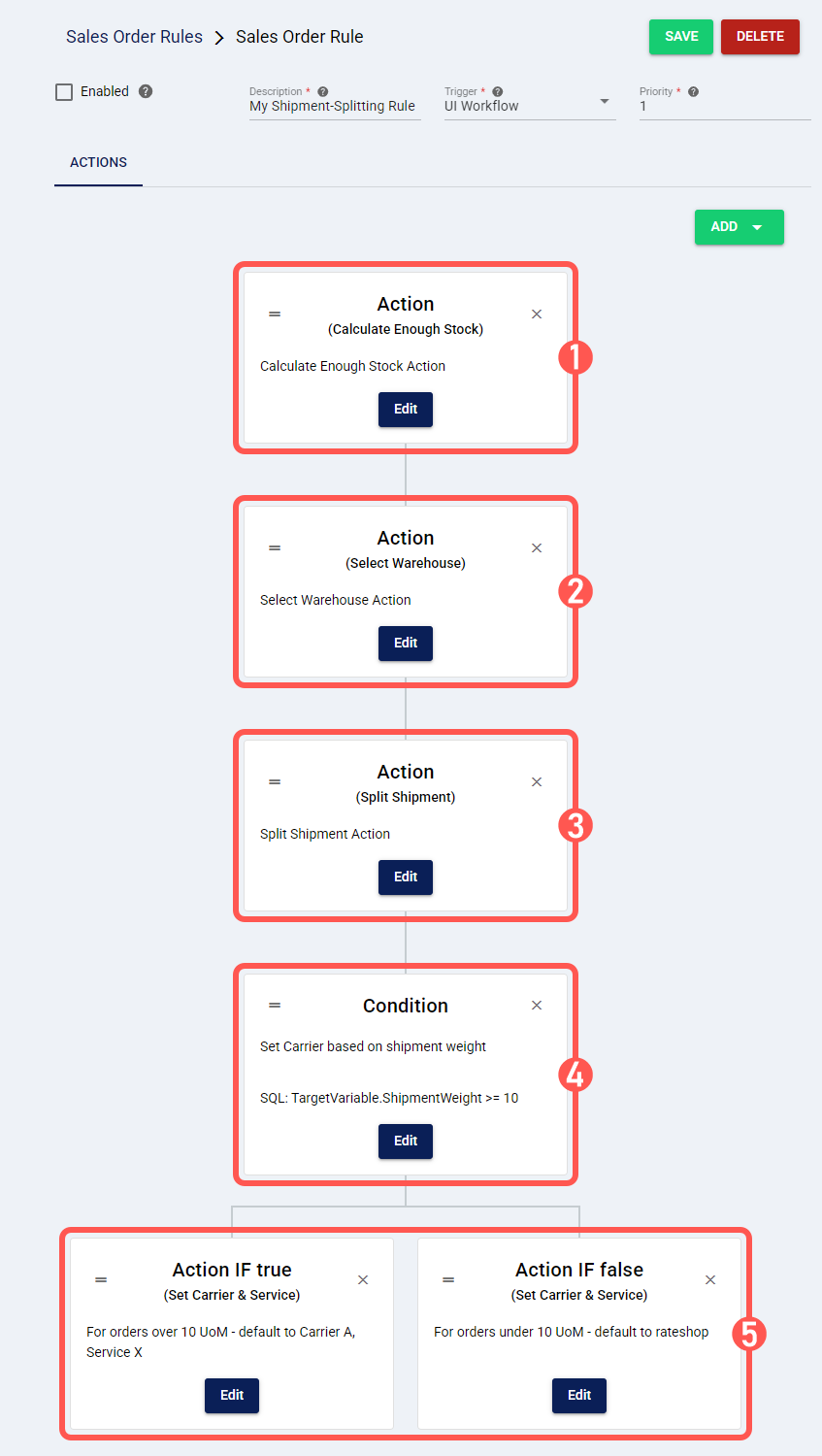
As an example, the following workflow evaluates each individual shipment created by the Split Shipment action (considering the UoM defined in your Account Settings):
- If the resulting shipment is over 10 UoM, it assigns Carrier A, Service X.
- If the resulting shipment is under 10 UoM, it rateshops.
1. Add a Calculate Enough Stock Action.
This action is a prerequisite for splitting and generates the list of warehouses based on stock.
2. (Optional) Add a Select Warehouse Action.
This can be added to further prioritize the warehouse list before splitting.
3. Add a Split Shipment Action.
This action splits the order into multiple potential shipments based on your criteria.
4. Add the Shipment Weight Condition.
Select Shipment Weight and set your operator and value (e.g. Shipment Weight >= 10).
5. Add Actions for "IF true" and "IF false" branches.
Add the actions you want to execute based on the condition's result.
III. FINAL CONSIDERATIONS
To finish:
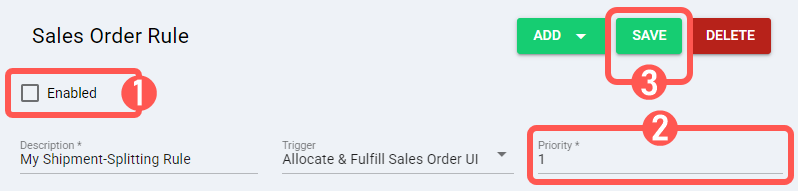
1. Check Enabled, if you would like to try it.
2. Set the desired priority.
3. Press Save.
At the end of the order processing, you can review the results of your shipment splitting workflow through the order's log. This log provides detailed analysis on the splitting decision-making process. For more information, see: How to review the Sales Orders Log [Step-by-Step Guide].
If there is not enough stock to fulfill all partitions during shipment splitting (such as when a warehouse cannot cover the minimum required quantity), the action will fulfill those it can, and the remaining ones will be marked as backordered. To learn more about the workflow that applies afterwards, refer to: Understanding Backorders in techOMS [Information].
Was this article helpful?
That’s Great!
Thank you for your feedback
Sorry! We couldn't be helpful
Thank you for your feedback
Feedback sent
We appreciate your effort and will try to fix the article