To connect Magento, first create a Sales Channel connection, and then set up its parameters.
Once the connection is established between the channel and techOMS, you can use all its supported features as listed in the techOMS Sales Channels - Master List [Guides List].
This article is divided into the following sections:
- Onboarding Requirements
- Create the Sales Channel
- Configure Additional Parameters
 NOTE: Make sure that you are operating at the right Vendor/Warehouse beforehand.
I. ONBOARDING REQUIREMENTS
Before you create the Sales Channel, collect the following information from your Magento store:
- The Shop Domain of the store you want to add
- The API Access Token for this domain
 NOTE: The following instructions are provided as guidance and may change without notice.
How to get and create an API Access Token:
1. Access store with your login credentials: https://account.magento.com
2. Go to System, from the left menu, and select Integrations.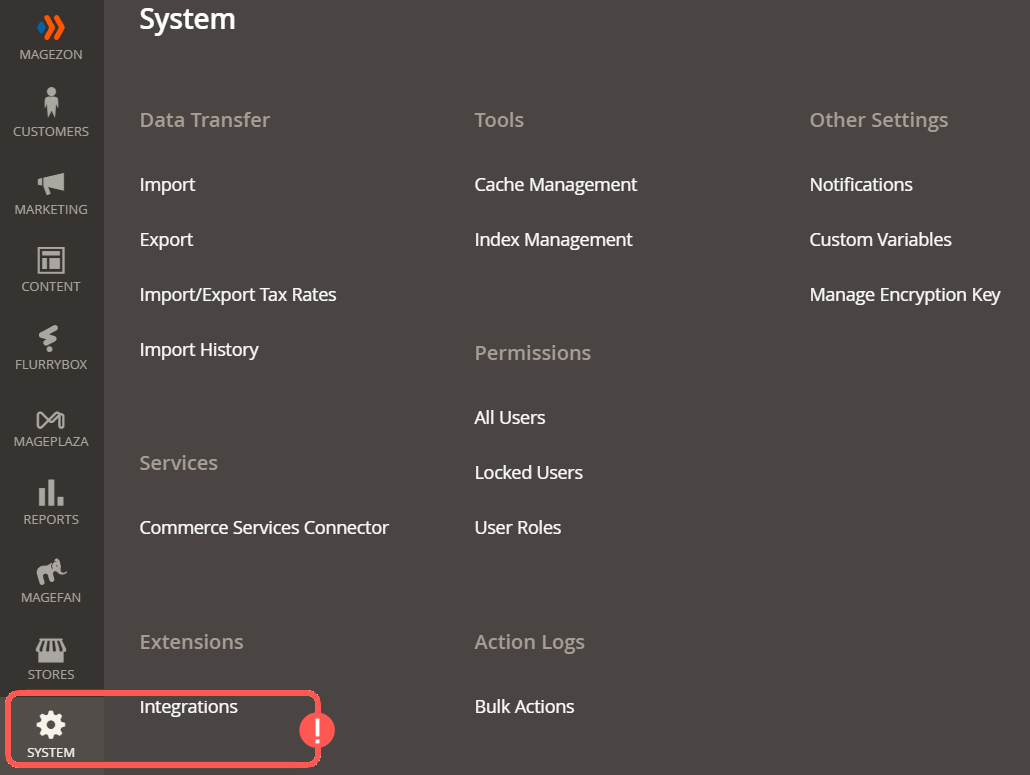
3. Click the button Add New Integration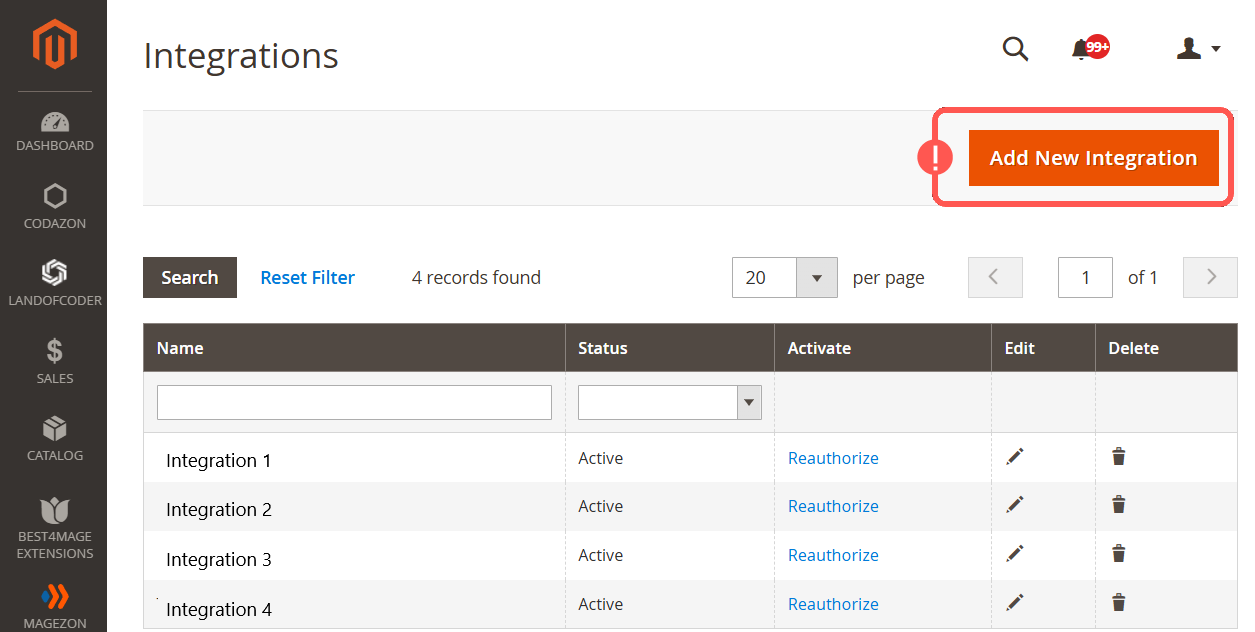
4. Provide Name and Email, add Your Password.
5. Press Save.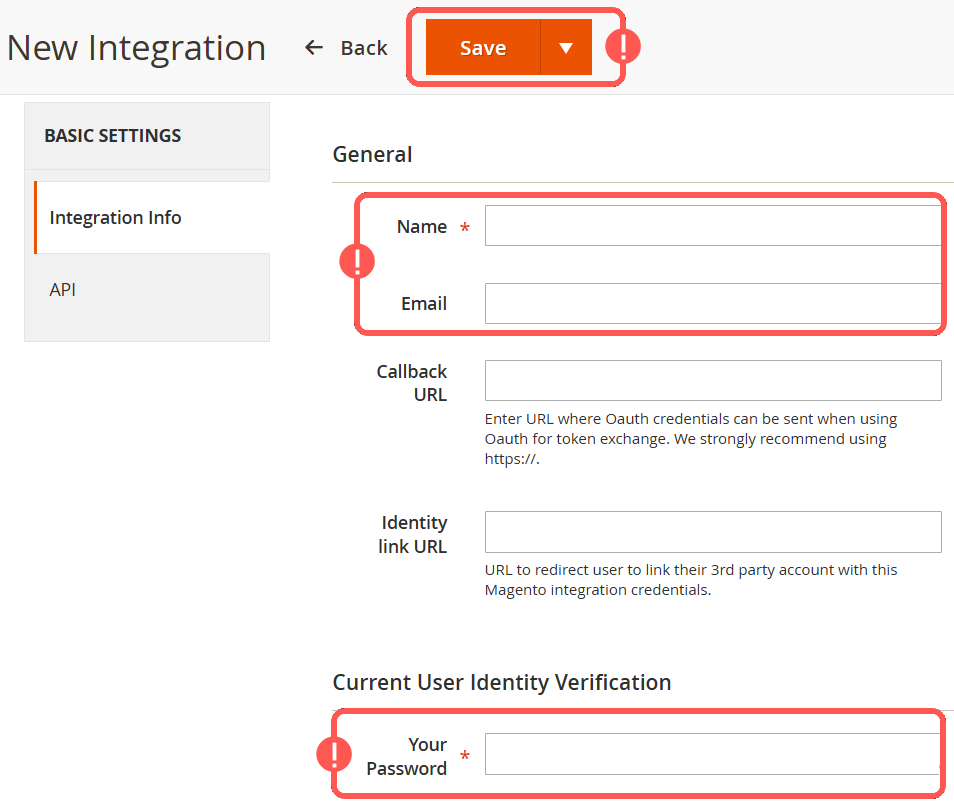
After completing this process you will obtain credentials that will include the Access Token, the one needed to set up the integration.
NOTE: Go to the API section under the integration you created and select all the required roles.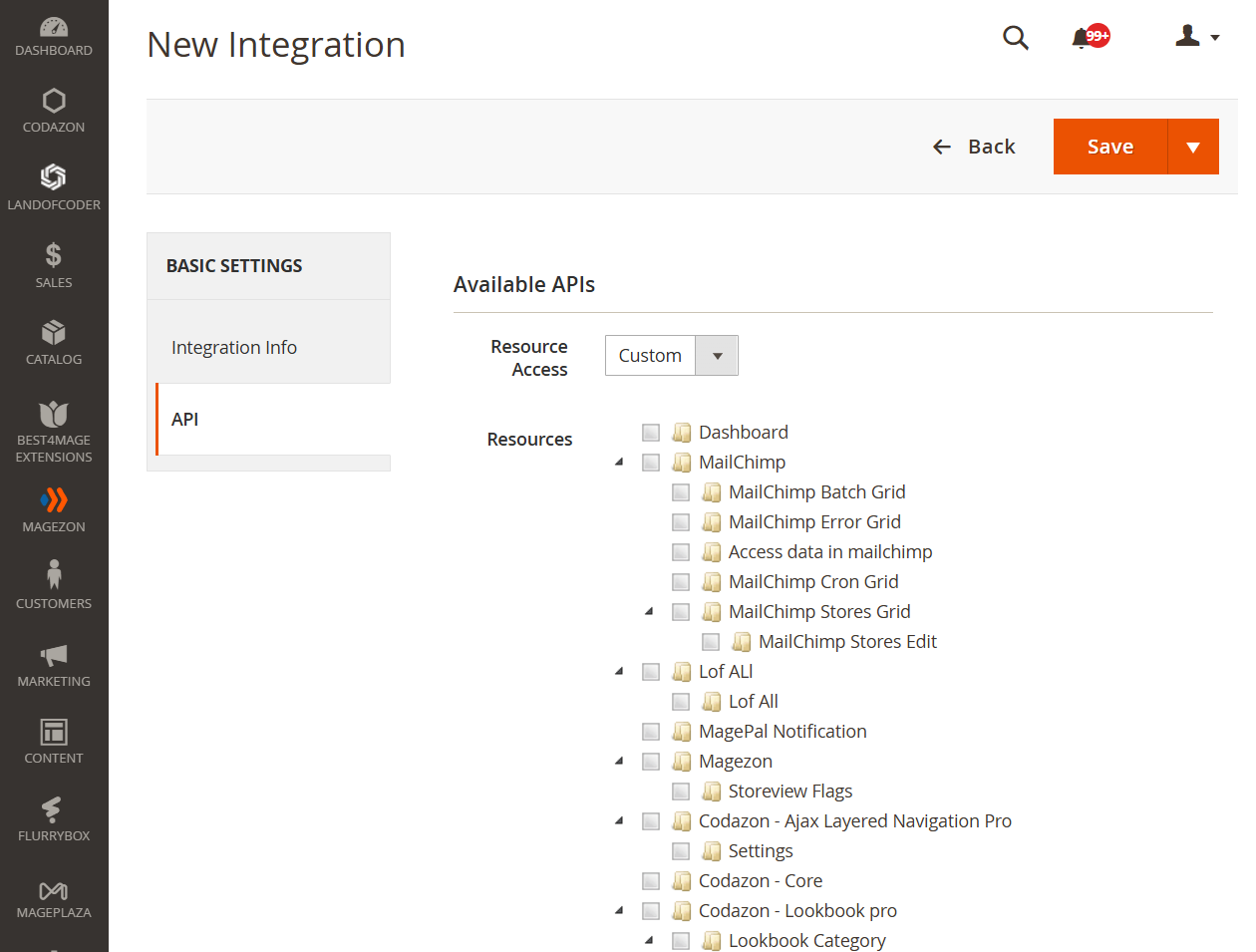
You can now proceed to create the sales channel in techOMS.
II. CREATE THE SALES CHANNEL
To create a Sales Channel, see How to Create a Sales Channel [Step-by-step guide].
Once you have added it, proceed to the following section.
III. CONFIGURE ADDITIONAL PARAMETERS
1. Click Channels from the left menu under the Sales Channels section.
2. Click on the created channel's name.
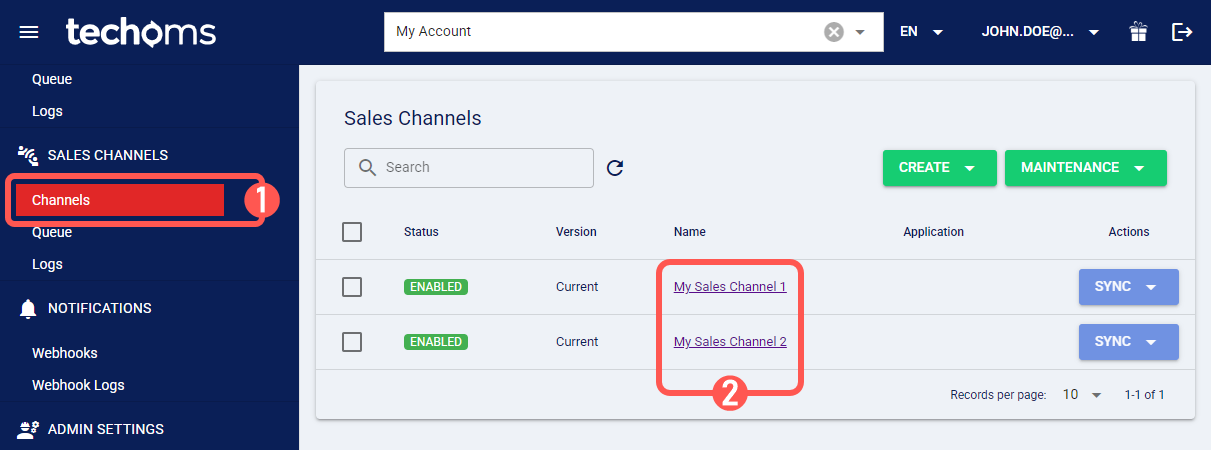
3. Configure its parameters according to each section as required and press Save.
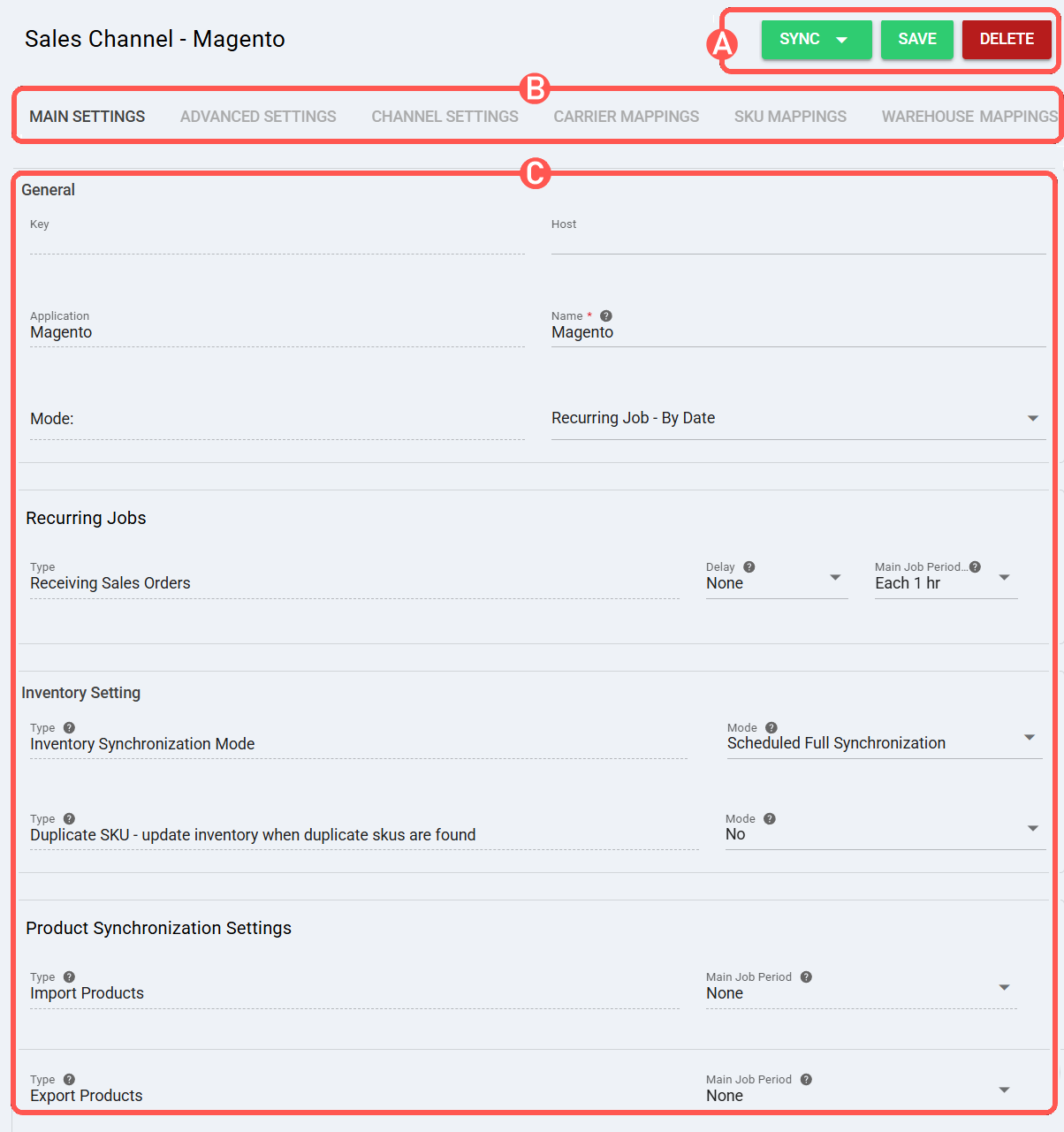
SECTIONS
A) QUICK ACTIONS lets you perform additional actions:
- Sync: Enables manual synchronization as detailed in How to Synchronize data through a Sales Channel [Step-by-step guide].
- Save: Saves and commits changes.
- Delete: Deletes the channel connection.
B) VIEW SELECTION allows you to switch between view modes:
- Main settings (default): Configures general and automation behavior using the options outlined in Main Settings of a Beta Sales Channel [Information].
- Advanced settings: Configures additional system/privacy settings using: How to manage Fulfillment Channels Advanced settings [Step-by-Step guide].
- Channel settings: Sets the channel integration parameters:
- Shop Domain: Enter your store domain.
- Api Access Token: Input your API access token as collected in Section I.
- Download Orders with the following Fulfillment Status: Select the order status you wish to download from the drop down menu.
- Notify Customer: Enable this option to automatically send updates to customers regarding their order status and fulfillment progress.
 WARNING: Once the fulfillment and tracking information are submitted, the order lifecycle and final order status are controlled by techOMS. The following behaviors apply to this Sales Channel configuration:
 - When tracking information is submitted by techOMS, Magento automatically sets the final order status.
- In Short-shipped orders, the overall order status may be set to Complete, even if individual Items display a Mixed status in Magento. This means that all items in the order were invoiced, but only a part of the order was shipped.
- If an order contains a SKU with an amount of $0.00, techOMS will not recognize the order line item.
- When an invoice is generated manually in the Magento UI, the order is automatically closed in Magento. Invoicing should be generated after the order is processed by techOMS.
- Carrier Mappings: Sets Carrier name mappings as detailed in How to map Carriers in a Sales Channel [Step-by-step guide].
- SKU Mappings: Reviews and sets SKU mappings as detailed in How to map SKUs in a Sales Channel [Step-by-step guide].
- Warehouse Mappings: Binds or modifies the connection to a specific warehouse by assigning or modifying the Warehouse IDs. This links the techOMS warehouse with the corresponding identifier in the Sales Channel.
C) CONTENT VIEW displays and/or allows editing of the settings in the "View Selection" section.
 WARNING: Remember to press Save to commit the changes made in this section.
Was this article helpful?
That’s Great!
Thank you for your feedback
Sorry! We couldn't be helpful
Thank you for your feedback
Feedback sent
We appreciate your effort and will try to fix the article