 NOTE: This guide covers Wix (API v3) Sales Channel setup. For instructions on the Wix (API v1) Sales Channel, see How to set up a Wix (API v1) Sales Channel [Step-by-step guide].
To connect Wix, first create the Sales Channel connection, and then set up its parameters.
Once the connection is established between the channel and techOMS, you can use all its supported features as listed in the techOMS Sales Channels - Master List [Guides List].
This article is divided into the following sections:
- Onboarding Requirements
- Create the Sales Channel
- Configure Additional Parameters
- Wix Export Behavior
 NOTE: Make sure that you are operating at the correct Vendor/Warehouse beforehand.
I. ONBOARDING REQUIREMENTS
- This plugin is developed for the Wix Stores Catalog v3 API
 WARNING: Make sure to identify your Catalog API version before moving forward.
 - Install the techOMS App from the Wix App Market (steps provided in section II)
II. CREATE THE SALES CHANNEL
NOTE: This section is partly performed in Wix. The following instructions are provided as guidance and may change without notice.To create a Wix Sales channel:
1. Access the Wix App Market here: https://manage.wix.com/app-market
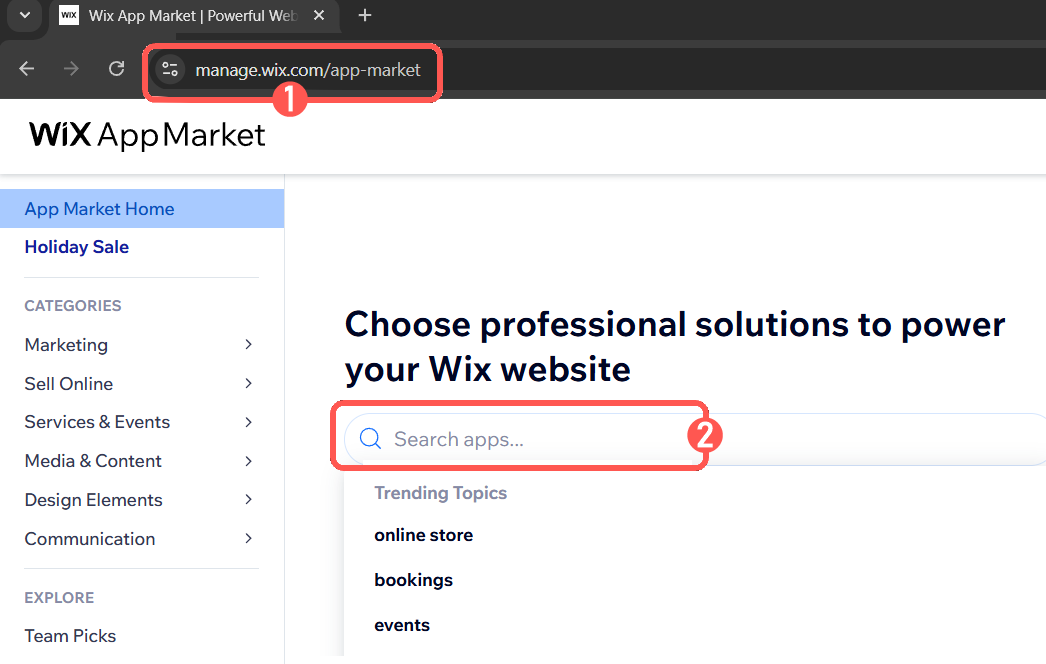
2. Search for techOMS using the search bar, locate the techOMS app and click on it.
3. Press Add to Site to be redirected to your Wix administration console.
 NOTE: If you have more than one Wix site, you will be prompted to select one. Do it and confirm again to complete the techOMS app installation.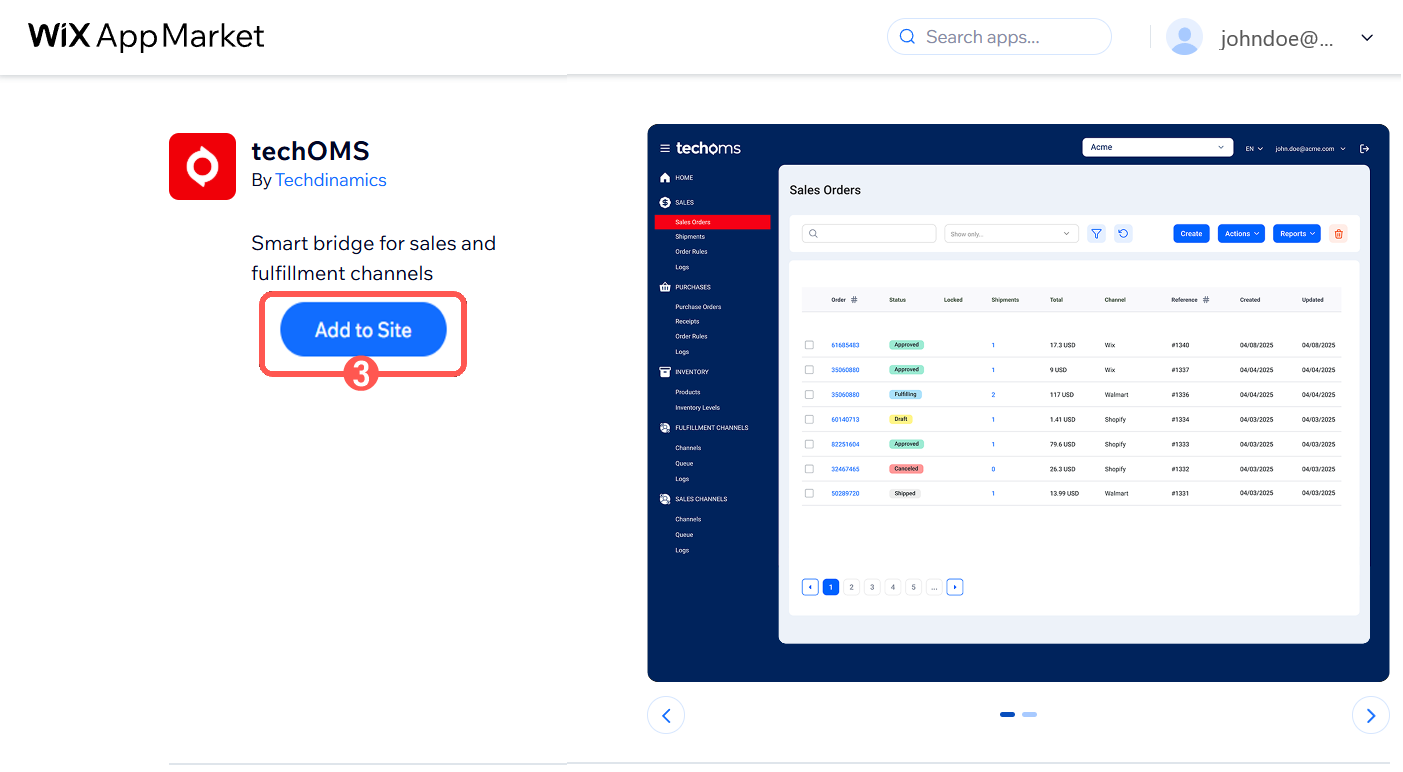
Once confirmed, you will be automatically redirected to techOMS.
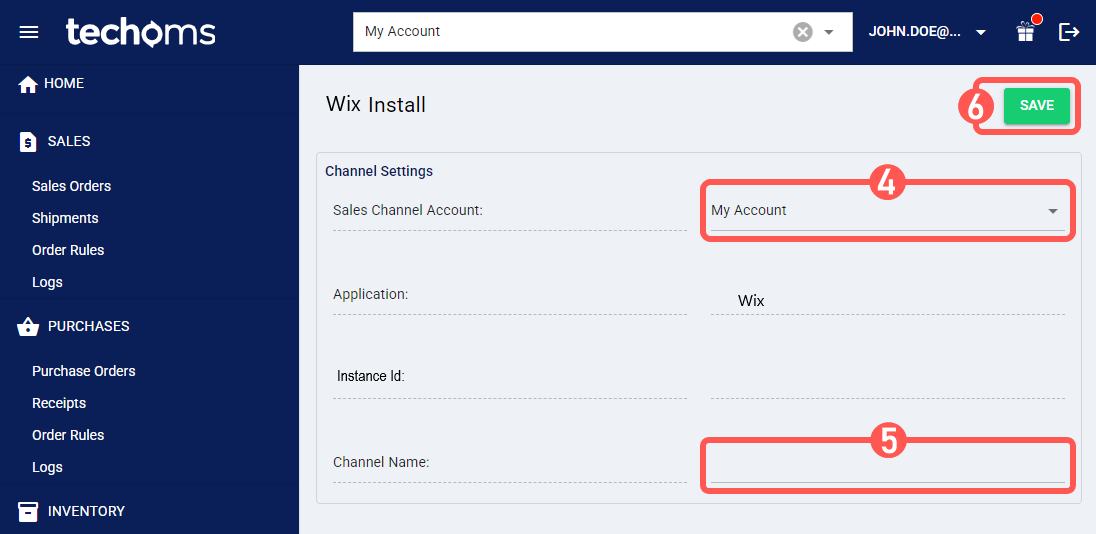
4. Select the Sales Channel Account you want to create the connection under.
5. Name the Channel for proper identification.
6. Press Save to complete the process.
NOTE: A single account can only have one Wix Sales Channel, regardless of version.III. CONFIGURE ADDITIONAL PARAMETERS
1. Click Channels from the left menu under the Sales Channels section.
2. Click on the created channel's name.
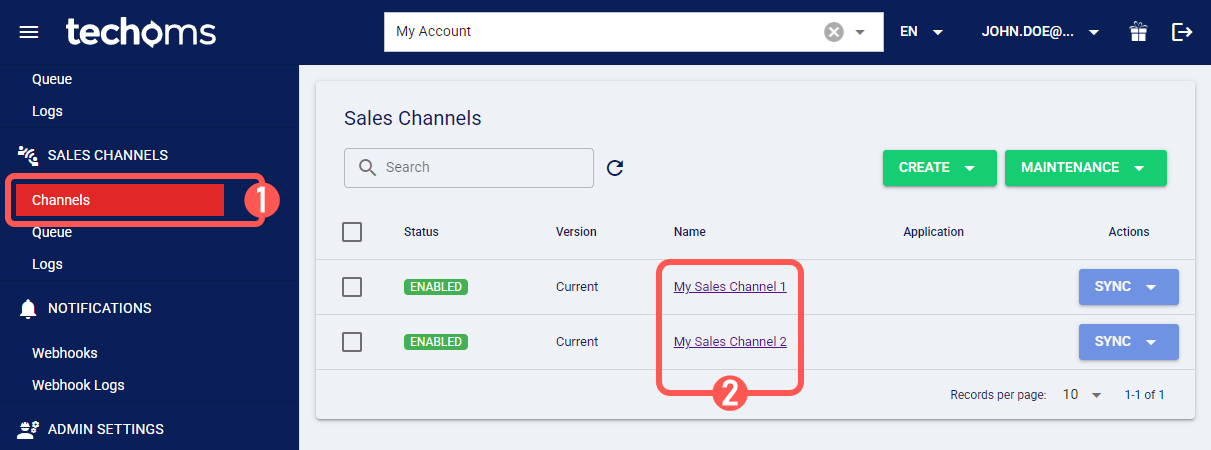
3. Configure its parameters in Sections A, B, and C as required.
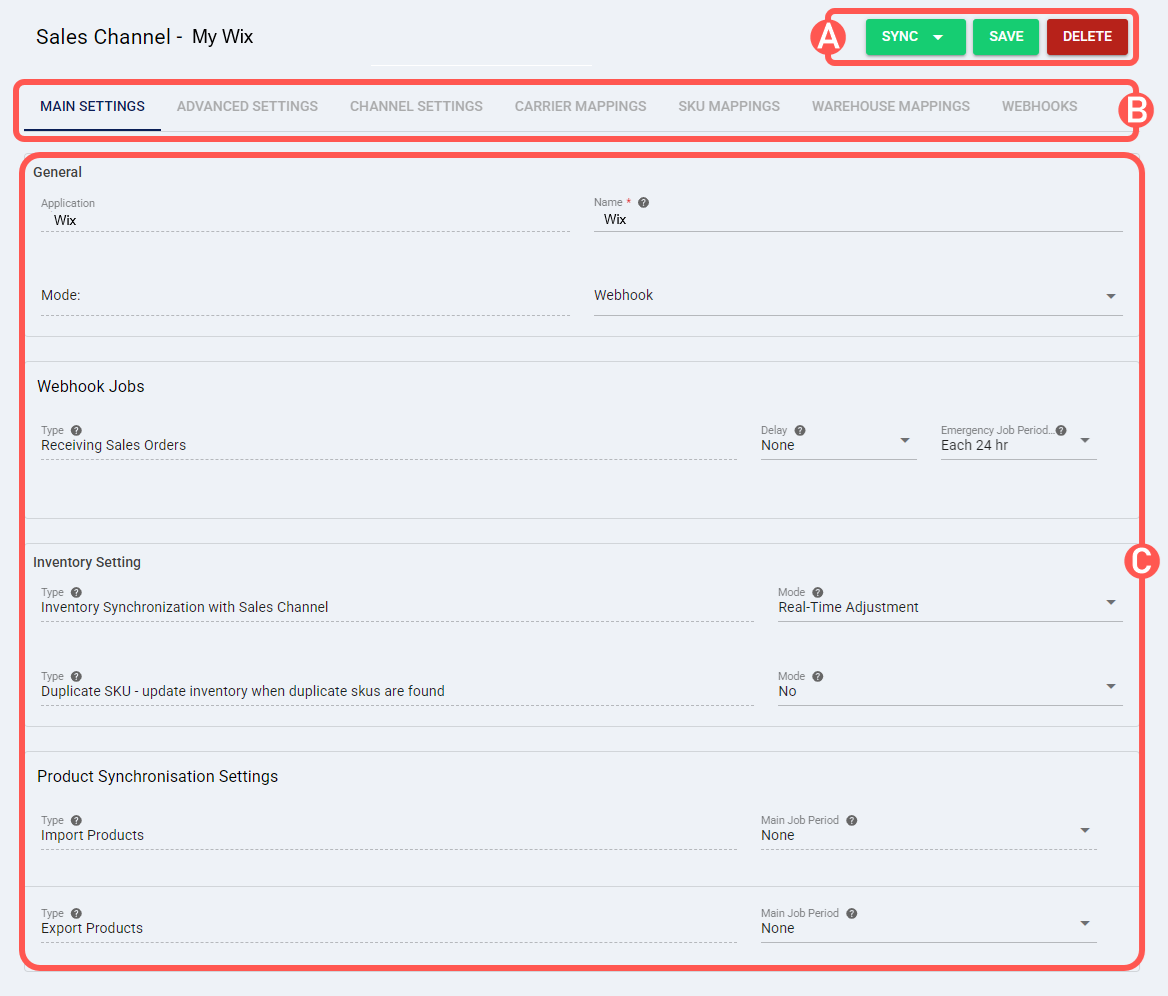
SECTIONS
A) QUICK ACTIONS lets you perform additional actions:
- Sync: Enables manual synchronization as detailed in How to Synchronize data through a Sales Channel [Step-by-step guide]. NOTE: Despite the name, Pull Orders by ID requires the Wix Order Number (IDs are not supported).
 WARNING: When sending shipping updates, the tracking URL is sent together with the carrier name. The carrier is not displayed in the Wix UI, though it is correctly stored in the backend. Multiple shipments per order are supported.WARNING: If negative quantities are sent during inventory updates, Wix will receive a value of 0 instead.
 - Delete: Deletes the channel connection.
B) VIEW SELECTION allows you to navigate the different tabs:
- Main settings (default): Configures general and automation behavior using the options outlined in Main Settings of a Beta Sales Channel [Information].
- Advanced settings: Configures additional system/privacy settings using: How to manage Fulfillment Channels Advanced settings [Step-by-Step guide].
- Channel settings: Sets the following channel integration parameters.
- Api URL: The base URL for the Wix REST APIs requests.
- Instance Id: Unique identifier automatically generated by Wix to identify techOMS installation on your Wix store.
- Site ID: Unique identifier of your app within the Wix site. Alphanumeric, dashed ID contained in your Wix web browser session, in the address bar.
- Download Orders with the following Order Status: Specifies which Wix order statuses are eligible for synchronization (Initialized, Approved, Pending, Canceled, Rejected).
- Throughput: Select your subscription plan. This will adjust techOMS order synchronization and operation speed accordingly.
- Process Pickup Orders: Controls whether pickup orders are synchronized into techOMS. If set to No, pickup orders are not synchronized. If set to Yes, pickup orders are synchronized along with delivery orders.
- Carrier Mappings: Sets Carrier name mappings as detailed in How to map Carriers in a Sales Channel [Step-by-step guide].
- SKU Mappings: Reviews and sets SKU mappings as detailed in How to map SKUs in a Sales Channel [Step-by-step guide].
- Warehouse Mappings: Allows defining, mapping, and linking techOMS warehouse entities to external warehouse entities by associating each warehouse profile with the corresponding external code, as described in: How to manage Warehouse Mappings [Step-by-Step guide].
 WARNING: When pulling orders, if an order does not have a location assigned, techOMS retrieves the site’s default location in Wix. If no default location is configured, or if the location (default or assigned) is not mapped in Warehouse Mappings in techOMS, the order will not be synchronized.
 - Webhooks: Steps to set up Webhook connections for Wix Stores Catalog API
WARNING: This procedure requires Channel Mode to be set to Webhooks in the Main Settings tab. For more information, see: How to configure Automations for Sales/Fulfillment channels [Step-by-step guide] i. Pre Setup Steps in techOMS
1. Open the Sales Channel, select the Webhooks tab and press Create.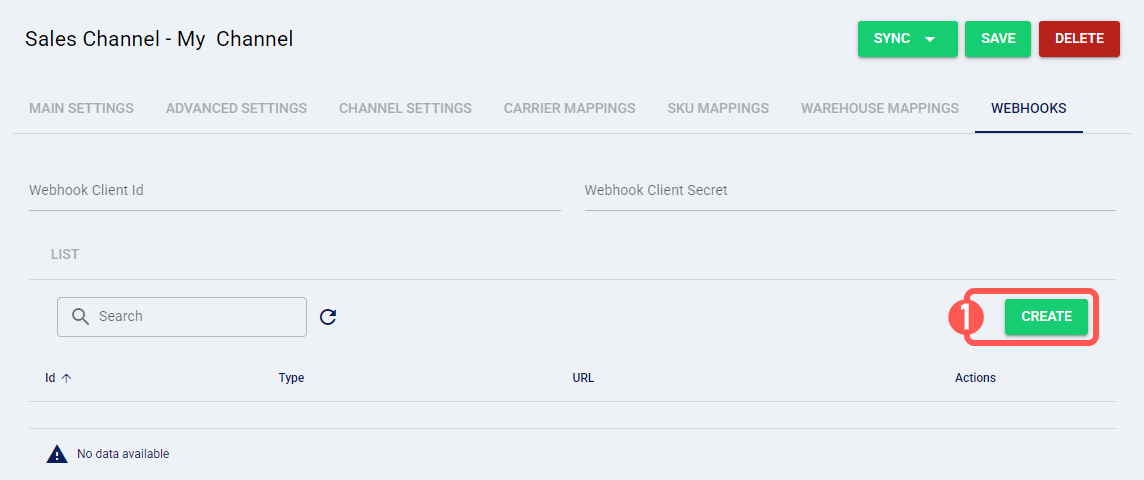
2. Select the connection type from the Type dropdown menu. System will automatically generate a URL.
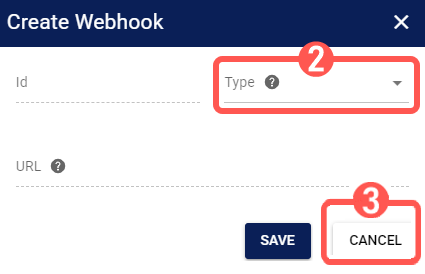
3. Copy the newly generated URL, DO NOT Save it and press Cancel.
NOTE: You need this URL to complete your Webhook configuration in Wixii. Wix Setup Steps
Login to your Wix site: https://manage.wix.com/
1. Select Automation from the left menu
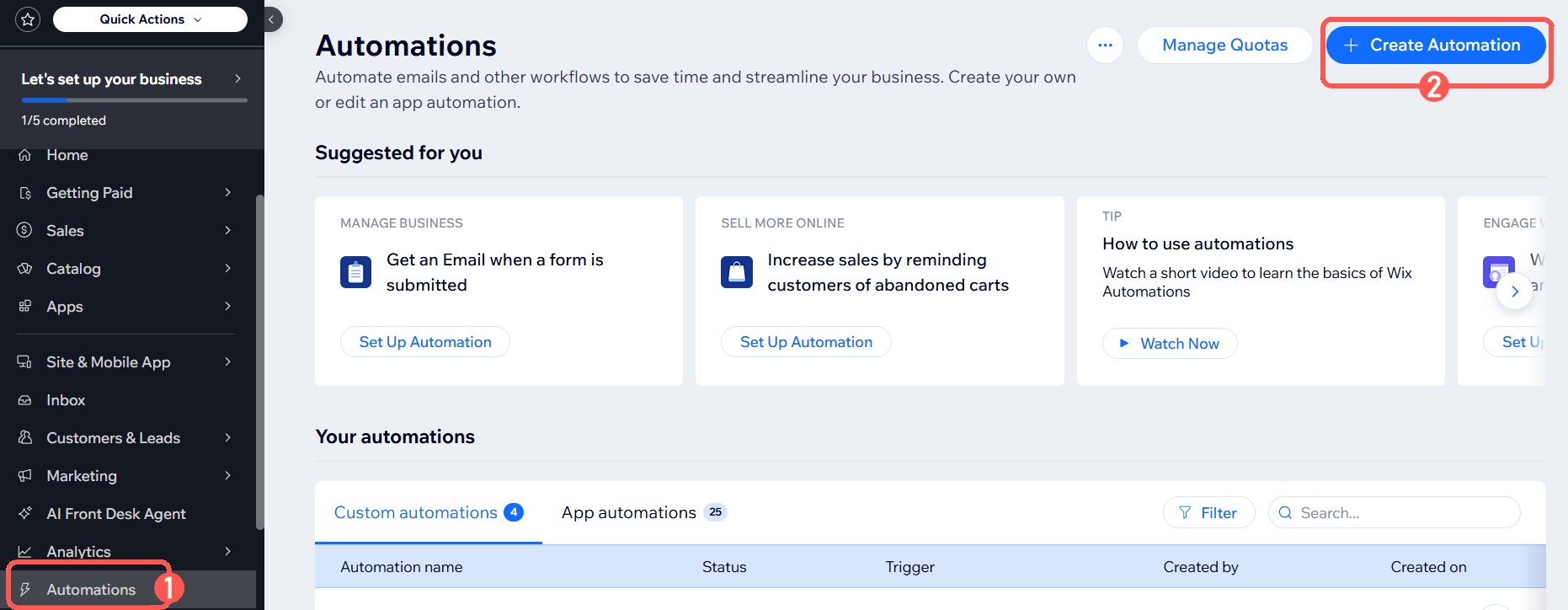
2. Select Create Automation3. In the pop-up screen, select Start from Scratch
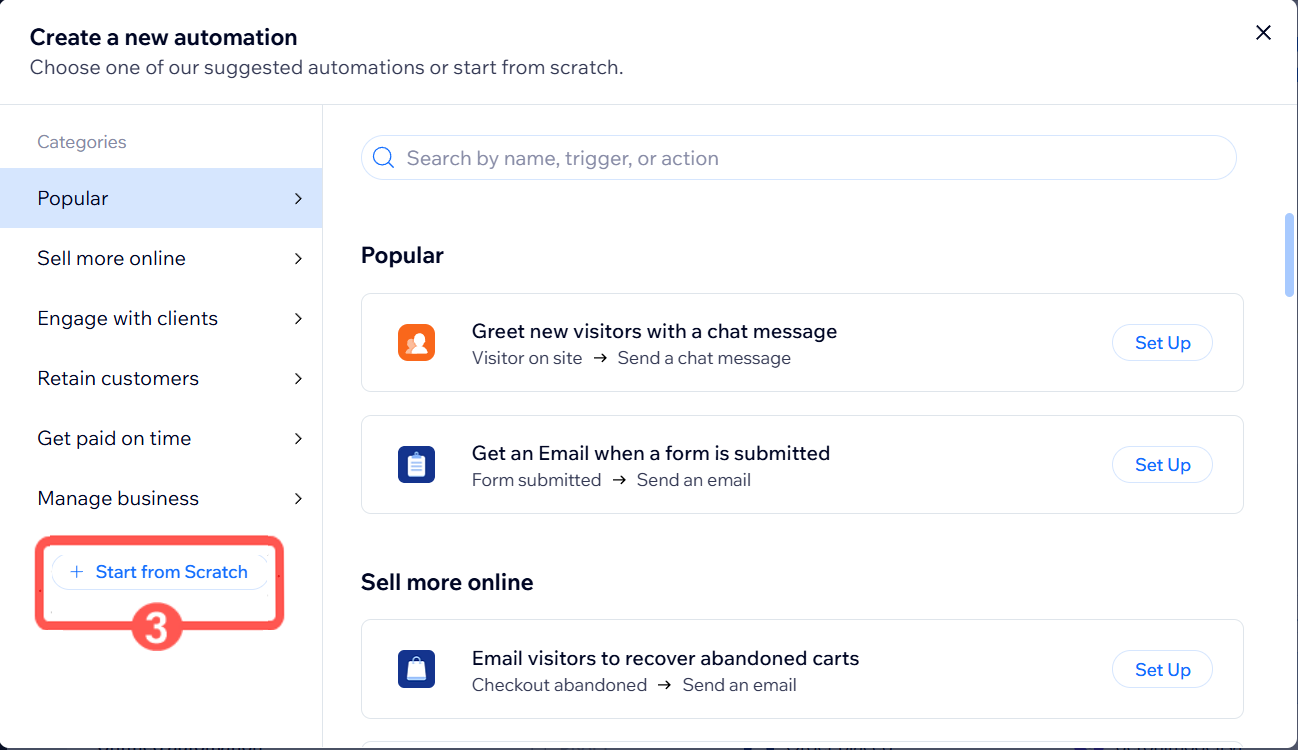
4. On the left menu, select trigger: Order placed.
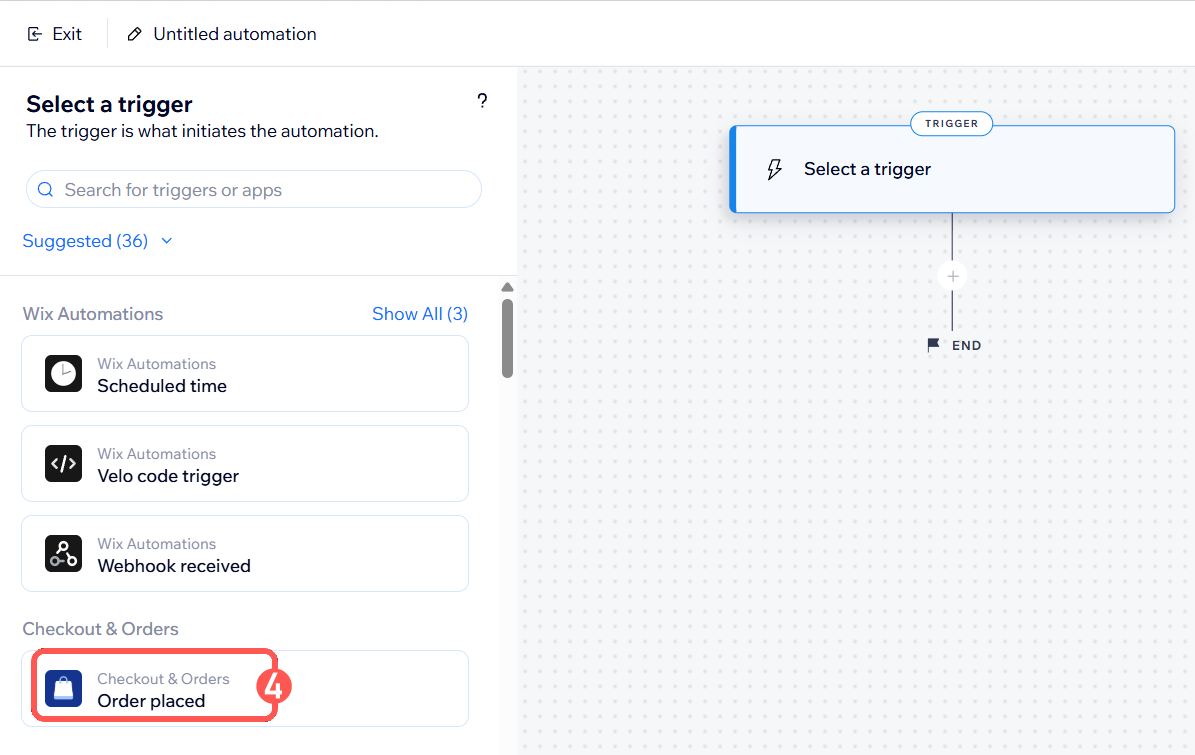
5. Hit the "+" icon under Order placed to add an action.
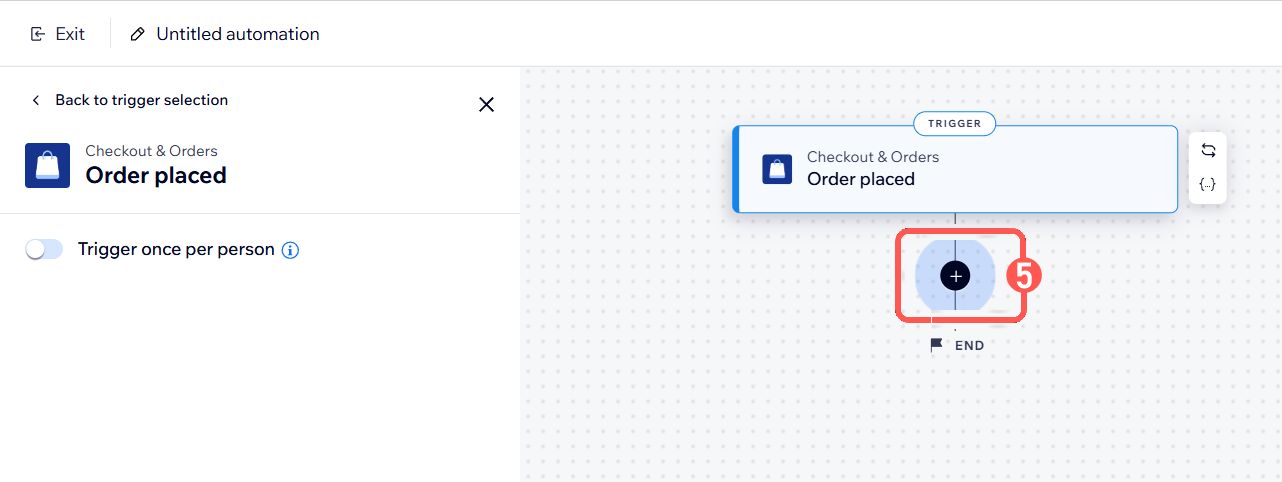
6. Select Send HTTP Request.
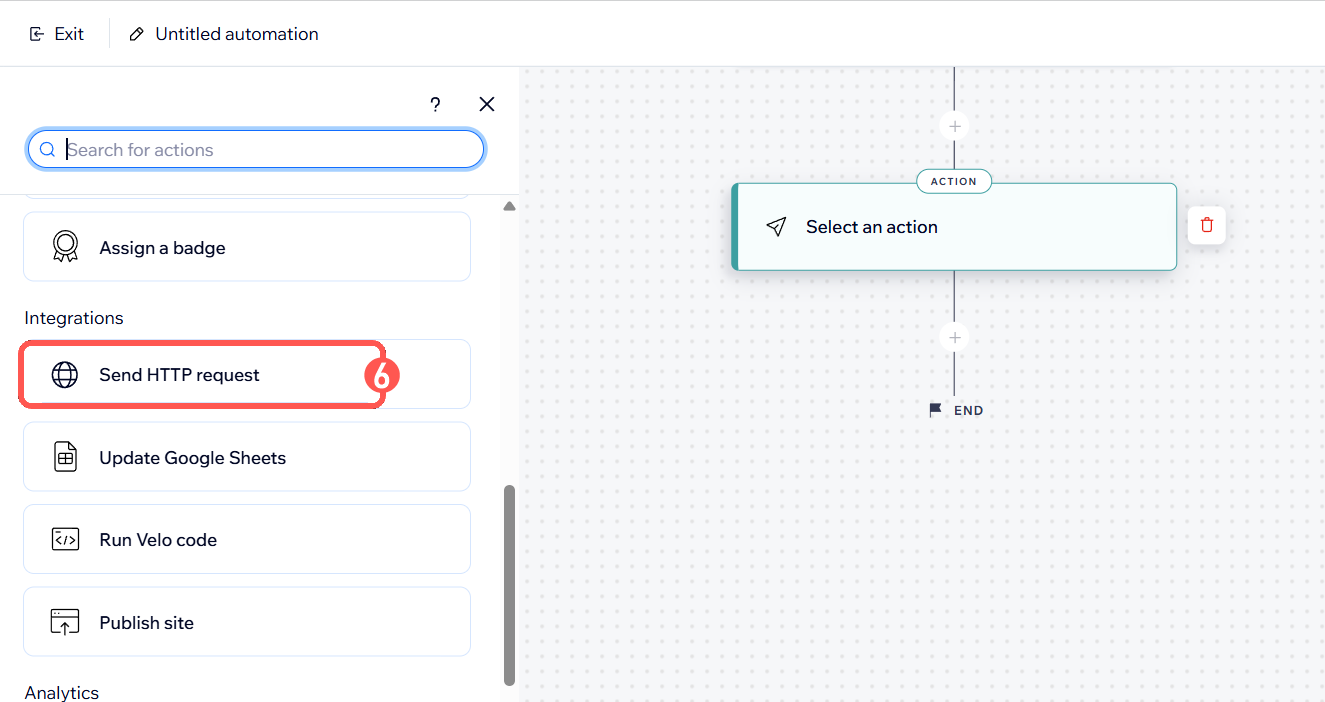
7. Paste the Webhook URL obtained from the Pre Setup step 3.
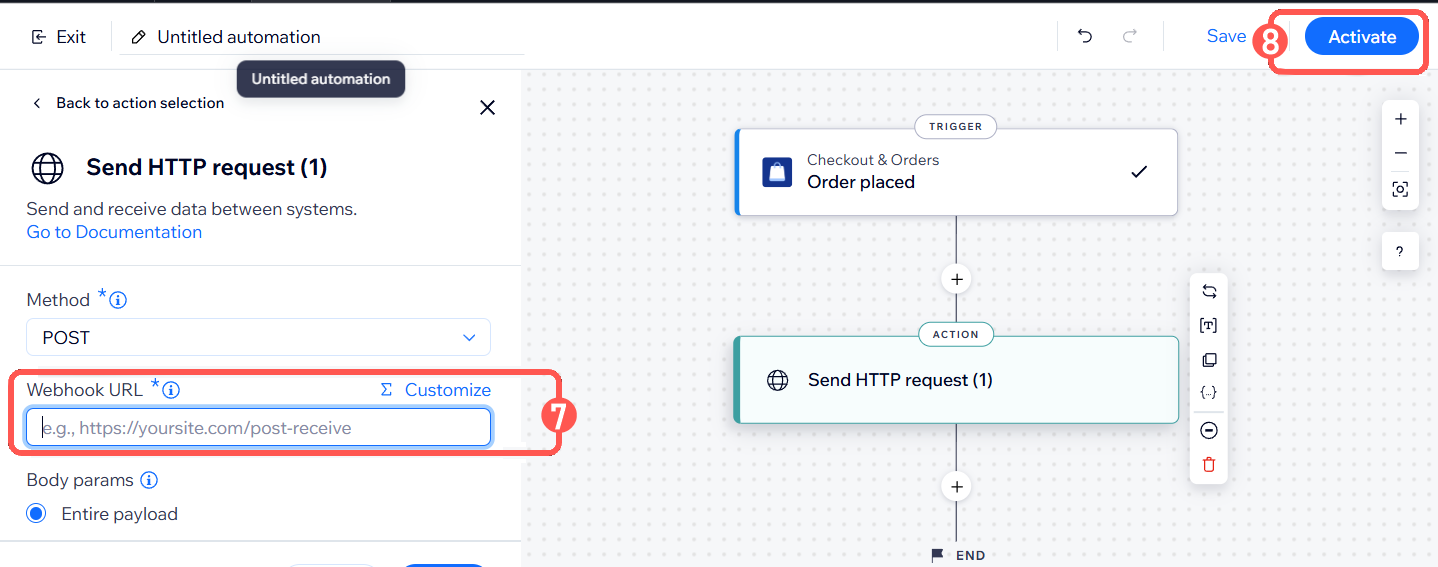
8. Hit Activate on the top right corner.WARNING: Once the automation is activated, orders are pushed automatically. No manual approval is required.
C) CONTENT VIEW displays and/or allows editing of the settings in the "View Selection" section.
WARNING: Remember to press Save to commit the changes made in this section.NOTE: Inventory can be viewed and filtered by location, using the available option in the Wix v3 UI Inventory, see reference screenshot: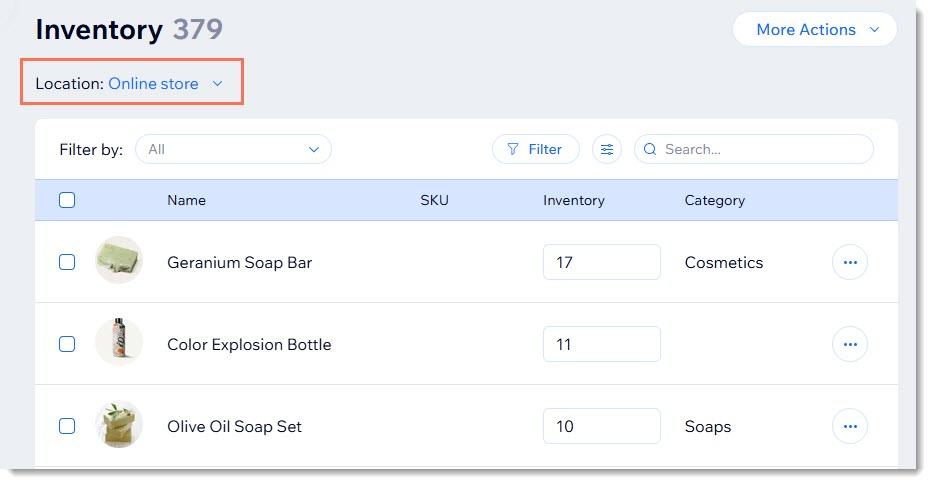
IV. WIX PRODUCT EXPORT BEHAVIOR
Wix handles product data differently from techOMS. The following behaviors must be considered when exporting or updating products.
WARNING: When creating or updating products with variants, at least one option (color or size) is required. Products without variant options cannot be processed correctly by Wix.- Product combination behavior: If only specific variant combinations exist in techOMS (for example, White–Small and Black–Medium), Wix will still generate the remaining combinations (White–Medium and Black–Small).WARNING: Variants not defined in techOMS are created in Wix with zero price and hidden from the storefront. Only variants explicitly created in techOMS must be enabled for sale.
- Product description formatting: Wix product descriptions are format-based. Updating descriptions for existing products may alter the original layout. For this reason, techOMS has no impact on existing Wix product descriptions, ensuring the descriptions and formatting are preserved. Only when creating new products, descriptions are applied as plain paragraphs.
Was this article helpful?
That’s Great!
Thank you for your feedback
Sorry! We couldn't be helpful
Thank you for your feedback
Feedback sent
We appreciate your effort and will try to fix the article