How to set up a Wayfair Sales Channel [Step-by-step guide]
To connect Wayfair, first create the Sales Channel connection, and then set up its parameters.
Once the connection is established between the channel and techOMS, you can use its supported features as listed in: techOMS Sales Channels - Master List [Guides List].
This article is divided into the following sections:
- Onboarding Requirements
- Create the Sales Channel
- Configure Additional Parameters
- Specific Behaviors
 NOTE : Make sure that you are operating at the correct Account beforehand.
I. ONBOARDING REQUIREMENTS
Before configuring the Wayfair Sales Channel in techOMS, complete the following requirements:
- Create and manage a Wayfair application for the customer account.
- Collect the Client ID from the Wayfair application created for this integration.
- Collect the Client Secret from the same Wayfair application.
- Identify the existing Supplier ID for the Wayfair supplier account that will be integrated.
- Collect the Wayfair warehouse/supplier/location ID values required for Warehouse Mappings.
NOTE: Unlike integrations that use a shared application distributed through a marketplace, the Wayfair integration requires each customer to create and manage their own Wayfair application. The Client ID and Client Secret come from that customer-managed application. The Supplier ID is an existing value from the Wayfair supplier account selected for the integration.II. CREATE THE SALES CHANNEL
To create a Wayfair Sales Channel, follow: How to Create a Sales Channel [Step-by-step guide].
Once you have added it, proceed to the following section.
III. CONFIGURE ADDITIONAL PARAMETERS
To configure additional parameters:
- Click Channels from the left menu under the Sales Channels section.
- Click on the created channel's name.
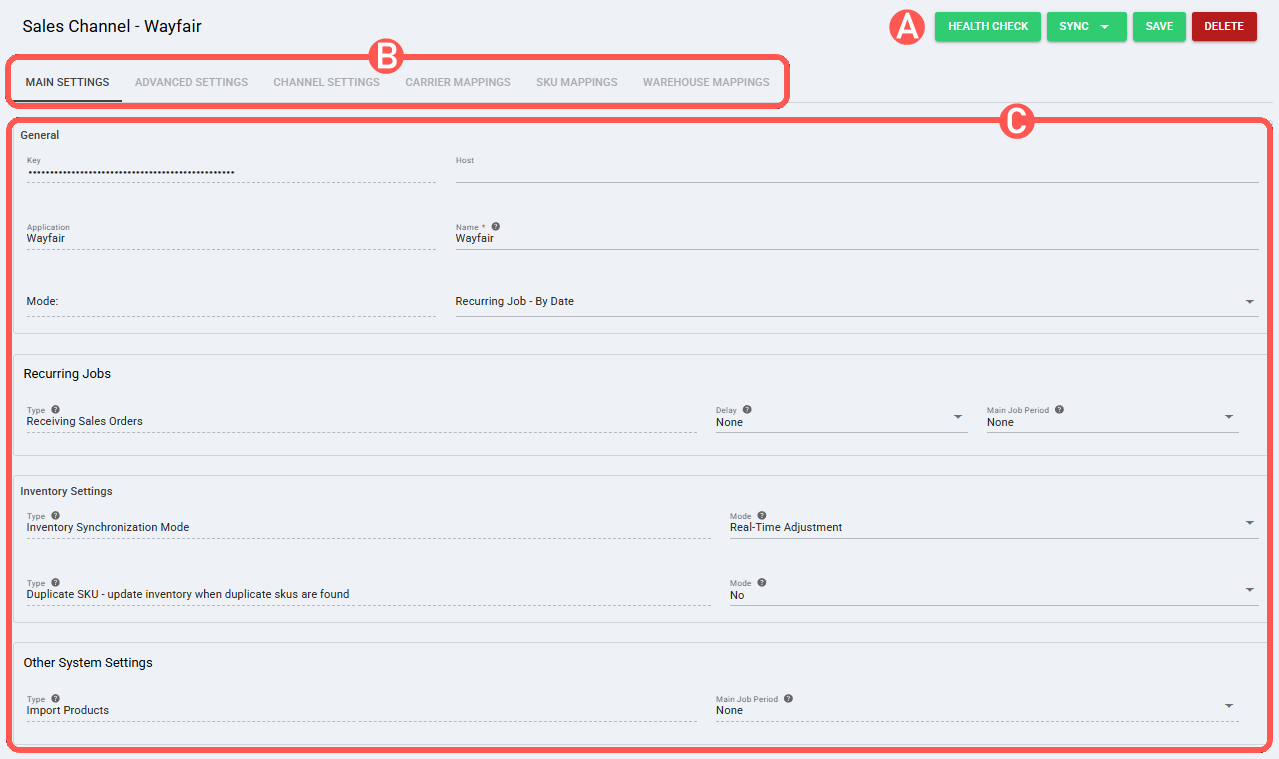
- Use the highlighted areas in the screenshot below and configure the required settings.
SECTIONS
A) QUICK ACTIONS lets you perform additional actions:
- Health Check: Verifies if the Wayfair Sales Channel connection is active or not.
- Sync: Enables manual synchronization as detailed in How to Synchronize data through a Sales Channel [Step-by-step guide].
Sync options available for this channel include:- Receive Sales Orders From Channel: Receives Wayfair sales orders into techOMS. NOTE: When receiving orders by Date Range, only new Wayfair orders that have not yet been acknowledged by techOMS are retrieved. Once an order is acknowledged, it is no longer returned in date range searches. When receiving orders by Order ID, Wayfair orders can be retrieved even if they were already acknowledged.
- Send Inventory Levels To Channel: Sends techOMS inventory quantity updates to Wayfair.
- Import Products From Channel: Imports Wayfair product catalog data into techOMS.
 WARNING: Export Products To Channel, product creation, and product updates from techOMS to Wayfair are not supported.
- Receive Sales Orders From Channel: Receives Wayfair sales orders into techOMS.
- Save: Saves and commits changes.
- Delete: Deletes the channel connection.
B) VIEW SELECTION allows you to navigate the different tabs:
- Main settings (default): Configures general and automation behavior using: Main Settings of a Beta Sales Channel [Information].
The Wayfair Sales Channel displays the following groups in this tab:- General: Displays the channel Key, Application, Host, Name, and Mode.
- Recurring Jobs: Configures the recurring job for Receiving Sales Orders, including Delay and Main Job Period.
- Inventory Settings: Configures Inventory Synchronization Mode and Duplicate SKU - update inventory when duplicate skus are found.
- Other System Settings: Configures Import Products and its Main Job Period.
- Advanced settings: Configures additional system/privacy settings using: Advanced Settings of a Sales Channel [Guide].
- Channel settings: Sets the channel integration parameters listed below.
 NOTE: The fields displayed in this section are dynamic. Based on your previous selections and the inherent capabilities of the channel, certain fields may be hidden, disabled, or cascaded.
Channel Settings (Fields)
- Client Id: Value from the Wayfair application
Enter the Client ID from the Wayfair application created for this integration. - Client Secret: Value from the Wayfair application
Enter the Client Secret associated with the Wayfair application created for this integration. - Supplier Id: Existing Wayfair supplier account value
Enter the Supplier ID for the Wayfair supplier account selected for this integration. - Sandbox Environment: Yes
Keep this value set to Yes for the standard Wayfair configuration. This setting identifies the environment URL set used by the integration. - Throughput: Default
Select the available Throughput value for the channel. This value defines the channel processing capacity, such as the number of operations that can be performed within a given period of time. NOTE: The available Throughput value depends on the subscription plan. For Wayfair integrations, only one throughput configuration is currently supported.
- Client Id: Value from the Wayfair application
- Carrier Mappings: Sets Carrier name mappings as detailed in How to map Carriers in a Sales Channel [Step-by-step guide].
- SKU Mappings: Reviews and sets SKU mappings as detailed in How to map SKUs in a Sales Channel [Step-by-step guide].
- Warehouse Mappings: Links techOMS warehouses to Wayfair warehouse/supplier/location IDs as described in How to manage Warehouse Mappings [Step-by-step guide]. WARNING: Warehouse Mappings are required to receive Wayfair orders and send inventory levels to Wayfair. The external value must match the Wayfair warehouse/supplier/location ID required by the integration. Incorrect or missing mapping may prevent order retrieval or inventory submission for the affected location.
C) CONTENT VIEW displays and/or allows editing of the settings in the "View Selection" section.
WARNING: Remember to press Save to commit the changes made in this section.IV. SPECIFIC BEHAVIORS
This section outlines supported behaviors and limitations specific to the Wayfair Sales Channel.
- Fulfillment updates: When shipment information is sent to Wayfair, the update includes supported shipment details such as carrier, carrier service, tracking number, and package details.
- Webhooks: Webhooks are not supported for this channel. Wayfair orders are retrieved through recurring jobs or manual synchronization.
Was this article helpful?
That’s Great!
Thank you for your feedback
Sorry! We couldn't be helpful
Thank you for your feedback
Feedback sent
We appreciate your effort and will try to fix the article